You reach for your Galaxy S26+ to light up a dark room or find something under the couch, tap the Flashlight icon, and nothing happens. The LED stays dark, or the icon flickers on and immediately switches off. It is a frustrating moment, especially because the flashlight is the kind of feature you only notice when it suddenly fails.
The good news is that flashlight problems on the S26+ are usually fixable in a few minutes, and they rarely point to broken hardware. On the Galaxy S26+, the flashlight and the camera flash share the same rear LED, so most issues trace back to a software conflict, an app holding onto the flash, or the phone protecting itself from heat. Work through the fixes below in order, starting with the quickest and safest ones, and save the reset or service path for last.
Start by closing the camera and any app using the flash
This is the single most common reason an S26+ flashlight refuses to turn on. The flashlight and the camera flash use the same rear LED, which means the flashlight cannot turn on while the Camera app, or any other app using the flash, is active. If that app is holding the LED, the flashlight has nothing to switch on.
Close the Camera app and any other app that may be using the flash, then try the flashlight again from Quick settings. If you were just shooting photos or video, give the camera a moment to fully release the LED before retrying.
Inside the Camera app itself, the Flash control under Quick Controls lets you enable or disable the flash or automatic flash. If the camera flash is also misbehaving, check this control so the flash is not stuck off, which can help you confirm whether the issue is the LED or just the flashlight shortcut.
Toggle the flashlight the right way from Quick settings
It sounds basic, but tapping the wrong spot or missing the icon entirely is a common cause of "nothing happens." It also helps to rule out a brightness setting that has the light turned down so low it looks off.
- 1.Open the Quick settings panel by swiping down from the top right of the screen.
- 2.Tap the Flashlight icon to turn the light on or off. Depending on your setup, you may need to swipe left to see the Flashlight icon.
- 3.Tap and hold the Flashlight icon to open the brightness slider. The slider is grayed out until the flashlight is turned on, so turn the flashlight on first.
- 4.Check that the brightness is not set to its lowest level, then adjust the slider upward if needed.
If you cannot find the Flashlight icon at all, remember to swipe left within Quick settings, since the icon may be on a second page of toggles depending on how your panel is arranged.
Give the phone time to cool down if it has been running hot
If your S26+ feels warm and the flashlight will not respond, heat may be the culprit. When the phone gets too hot, it can automatically limit features to cool itself down, and the Camera app may stop or close with an overheating warning. Because the flashlight uses the camera's LED, it can be affected by these same protections.
In other words, if heat has shut down the camera, the flashlight can be pulled along with it.
If you saw an overheating message, put the phone down and let it cool before using it again. Remove any case or cover, unplug the charger, and close running apps so the phone can shed heat faster. Once it has cooled, try the flashlight again from Quick settings.
Restart the phone to clear a temporary glitch
A normal restart clears the kind of temporary software hiccups that can lock the flashlight or leave the LED stuck in a confused state. It is quick, it does not erase anything, and it resolves a surprising number of one-off flashlight failures.
Press and hold the Volume down button and the Side button (or Power button) at the same time.
After a few seconds, different power options will appear.
Tap Restart, and then tap Restart again.
When the phone finishes booting, open Quick settings and test the Flashlight icon before moving on.
Force restart if the screen is frozen or the light is stuck
Sometimes the flashlight gets stuck on or off and the phone stops responding to normal taps, so a standard restart is not possible. A force restart cuts through that by powering the device down and back up at the hardware level, and it does not erase your data.
Press and hold the Volume down button and the Side button (or Power button) simultaneously until the device turns off and turns back on.
The screen will turn black when the device turns off, and then the Samsung logo will appear.
Wait for the phone to fully boot, then test the flashlight again. A force restart is safe to use whenever the device is unresponsive or the flashlight is stuck.
Install any pending software update
Software bugs can affect the flashlight, and Samsung addresses these in One UI updates. Installing the latest update can fix a known issue that is keeping the LED from responding, and it keeps the rest of your phone current at the same time.
Go to Settings > Software update.
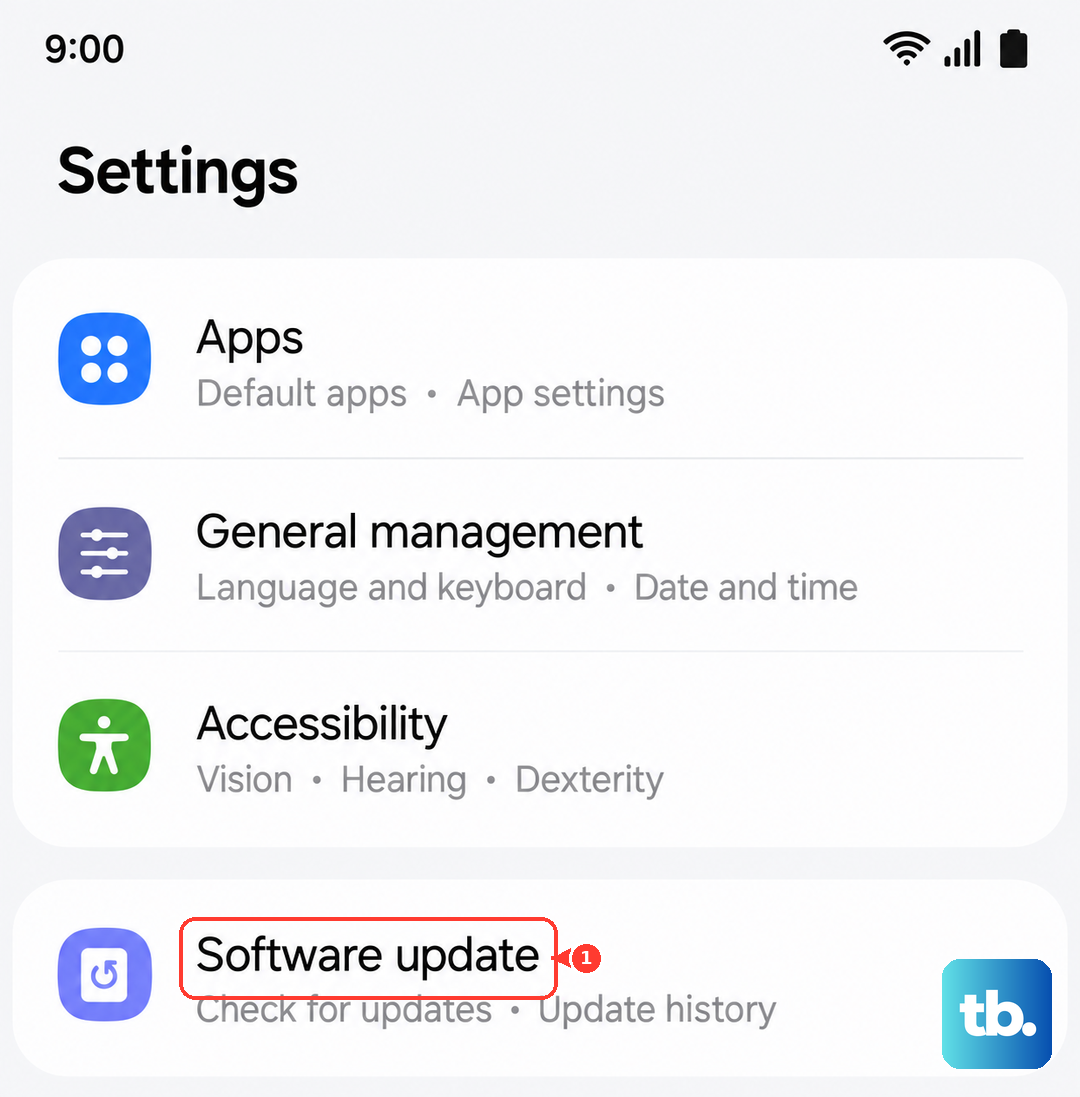
Tap Download and install. The exact wording may vary by carrier.
Available screens and settings may vary by wireless service provider, software version, and model. If an update is available, install it and then test the flashlight again once the phone has finished restarting.
Test the LED hardware with Samsung Members diagnostics
Before you consider a reset or service, it is worth confirming whether the LED hardware itself still works. The Samsung Members app includes a built-in Flashlight diagnostic that exercises the LED directly, so you can separate a software problem from a hardware fault.
Open the Samsung Members app on your phone.
Tap Diagnostics on the Discover tab.
Tap Phone diagnostics.
Run the Flashlight test (or Test all), then follow the on-screen instructions to complete each one.
The available tests may vary depending on the model of your device. If the Flashlight test passes, the LED hardware is fine and the issue is almost certainly software, which means a reset is the next logical step. If it fails, lean toward the support path below.
Back up your data, then factory reset as a last resort
If none of the software fixes have worked and the diagnostic suggests the LED is healthy, a factory data reset returns the phone to its original settings and can clear a stubborn software fault. This is a last resort because it erases your data, so back up everything first.
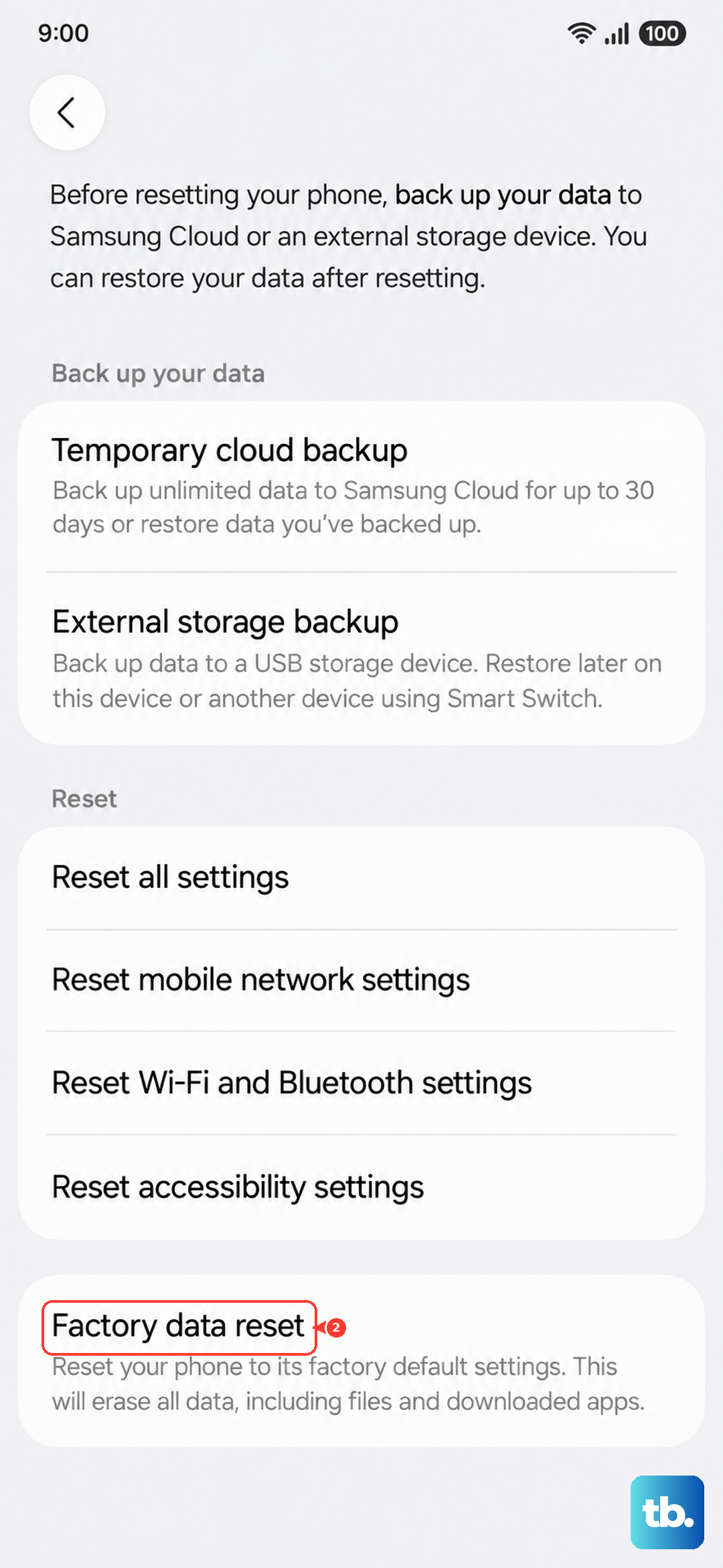
The official warning is clear. Please save any information you need prior to the factory reset, because your personal information may not be recovered. Once your backup is complete, you can proceed.
Go to Settings > General management > Reset > Factory data reset.
Follow the prompts to complete the reset.
After the phone restarts and you finish setup, test the flashlight again before restoring all of your apps and data, so you can confirm the reset actually solved the problem.
Contact Samsung Support or arrange service
If the Flashlight diagnostic fails, or the LED still does not light after working through everything above, you may be dealing with a hardware issue rather than a software one. At that point, the fix is no longer something you can do from the settings menu.
Use Samsung Support to contact support or arrange service for your Galaxy S26+. Bring along what you have already tried, including the result of the Samsung Members Flashlight test, so the support process can move faster.
Frequently Asked Questions
Why does my S26+ flashlight turn off as soon as I open the camera?
The flashlight and the camera flash share the same rear LED, so only one can use it at a time. When you open the Camera app, it takes control of the LED, and the flashlight switches off. Close the camera and any other app using the flash, then turn the flashlight back on from Quick settings.
The flashlight icon is missing from my Quick settings panel. Where is it?
Open the Quick settings panel by swiping down from the top right of the screen, then swipe left to see the Flashlight icon, since it may be on a second page of toggles depending on your setup. Once you find it, tap it to turn the light on or off.
My flashlight looks very dim. How do I make it brighter?
Tap and hold the Flashlight icon to open the brightness slider. The slider is grayed out until you turn the flashlight on, so turn it on first, then drag the slider up to increase the brightness level.
Will a force restart erase my photos or apps?
No. A force restart simply powers the phone off and back on at the hardware level and does not erase your data. A factory data reset is different, since that one does erase your data, which is why you should back up before performing it.
How can I tell whether my flashlight problem is software or hardware?
Run the Flashlight test in the Samsung Members app under Diagnostics > Phone diagnostics. If the test passes, the LED hardware is working and the problem is software, so a reset is the next step. If the test fails, contact Samsung Support to arrange service.