
When your Samsung Galaxy S26+ keeps closing apps, it's usually a software hiccup that you can sort out yourself. I'd start with a quick restart, as it clears out temporary glitches that can cause apps to misbehave. For a force restart, press and hold the Volume Down button and the Side/Power button together for about 10 seconds until you see the Samsung logo.
Update Your Apps and One UI
Since the S26+ is brand new with One UI 8.5, there are bound to be early software bugs. Developers and Samsung are constantly pushing out updates to squash these issues. Head to the Galaxy Store and Google Play Store to check for app updates first.
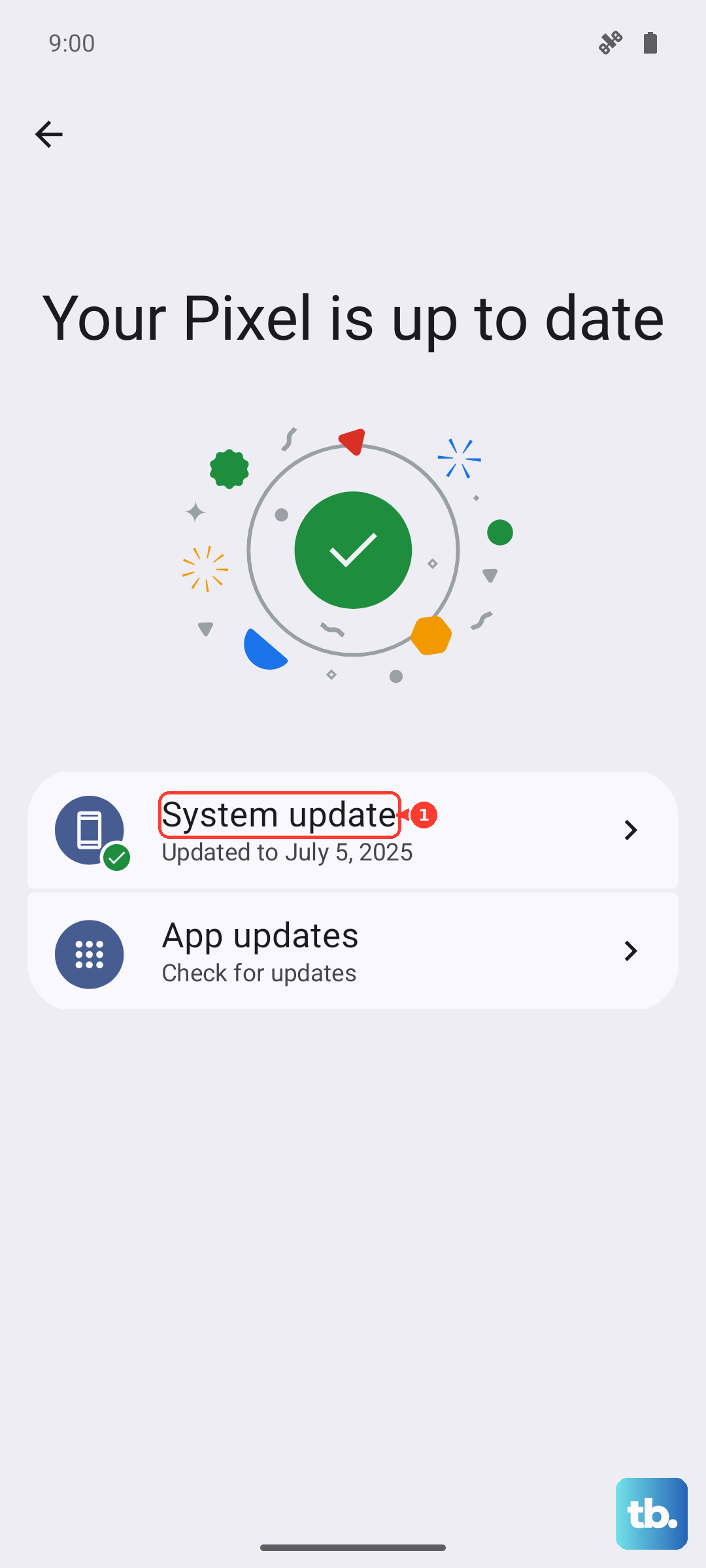
More importantly, check for a system update. Go to Settings > Software update and tap Download and install. Installing the latest One UI 8.5 patch is one of the most effective fixes for random app closures on a new device.
Free Up RAM and Close Background Apps
Even with plenty of memory, too many apps running can cause conflicts. Swipe up from the bottom and hold to enter the recent apps view, then swipe each app card away to close it. For a more thorough clean, you can use the Device Care tool.
Open Settings, then go to Device care > Memory. Here, you can see which apps are using RAM and tap Clean now to free it up. This often stops apps from force-closing.
Clear an App's Cache and Data
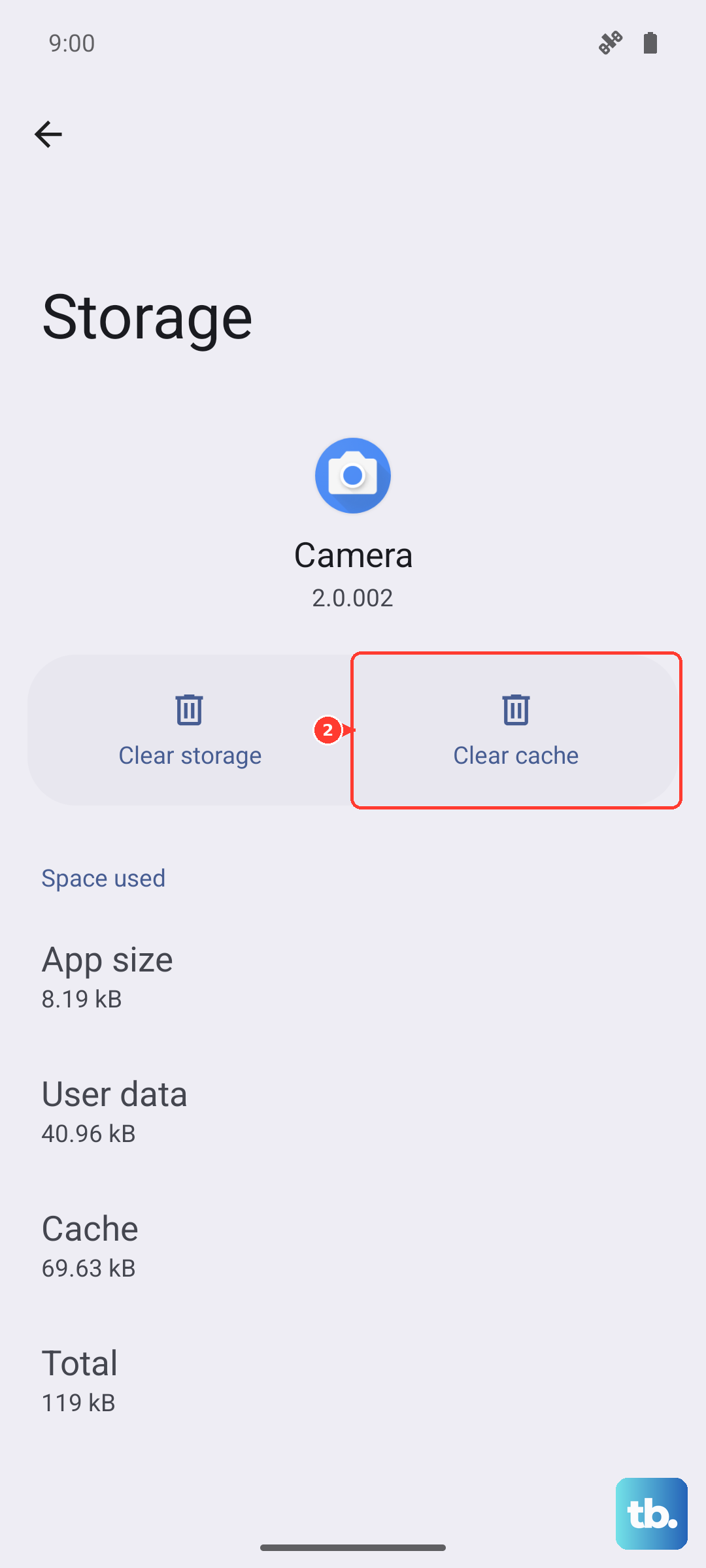
If a specific app keeps crashing, its temporary cache files might be corrupted. Clearing them gives the app a fresh start without deleting your login info. Go to Settings > Apps, select the problematic app, and tap Storage.
Tap Clear cache first. If the app still fails, you can try Clear data. Just know that this will reset the app, so you'll need to sign back in and may lose saved preferences.
Check for Storage Space and Overheating
Your phone needs free space to operate smoothly. Go to Settings > Device care > Storage to see your available space. If it's getting full, consider offloading photos to the cloud or deleting old downloads.
Also, feel if your S26+ is warm. Modern processors will throttle performance or close apps to cool down. If it's hot, take it out of its case, move it out of direct sunlight, and avoid heavy gaming or video calls until it cools.
Reset App Preferences
This is a useful step that resets all your app permissions, default apps, and background data restrictions without deleting any personal data. It can fix issues caused by a misconfigured setting.
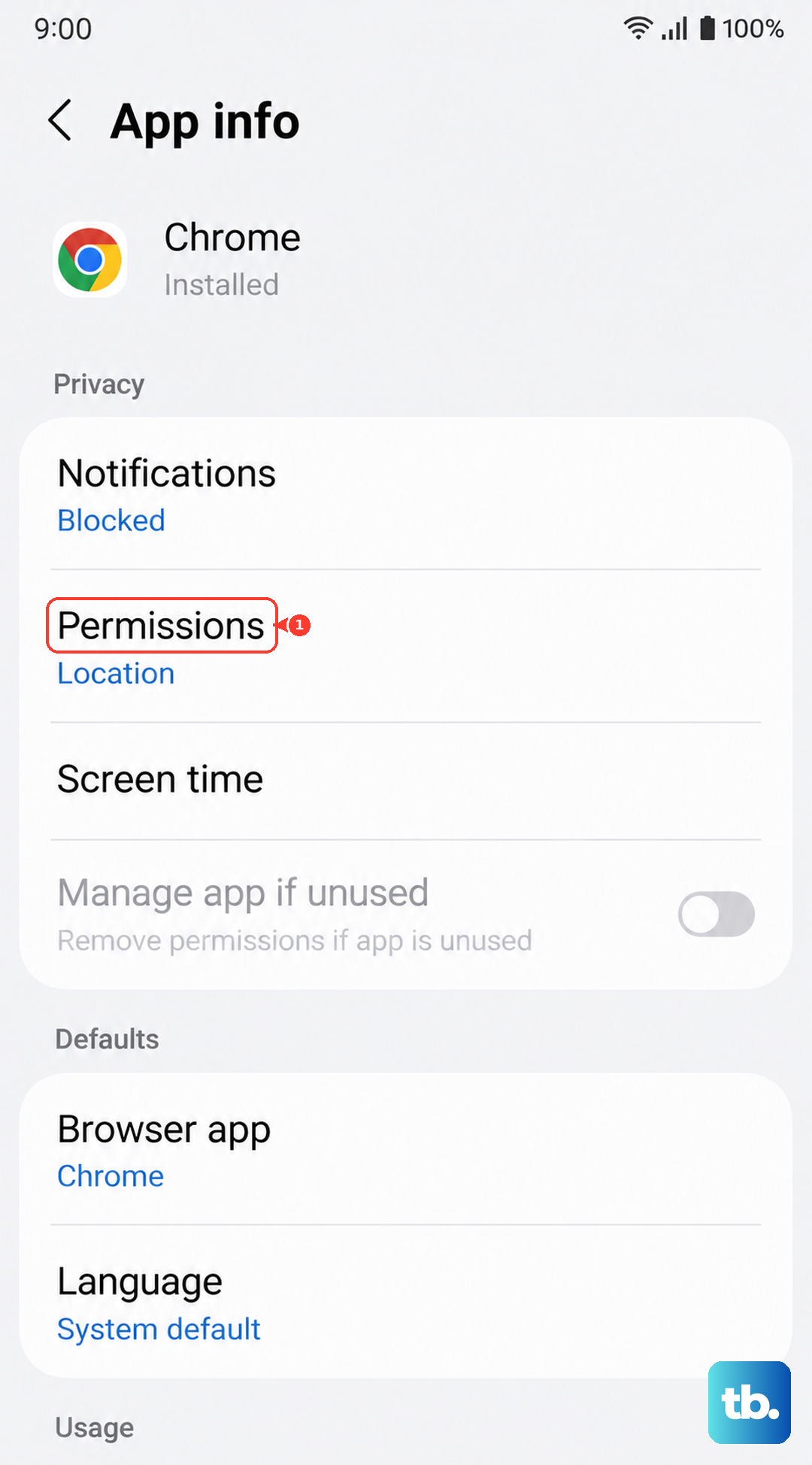
Navigate to Settings > Apps, tap the three-dot menu in the top right, and select Reset app preferences. Confirm the action. You'll just need to re-grant permissions the next time you use each app.
Boot into Safe Mode
Safe Mode temporarily disables all third-party apps. If the app crashes stop in Safe Mode, you know a downloaded app is the culprit. To enter Safe Mode, press and hold the power button until the power menu appears.
Then, press and hold the Power off option on your screen. Tap Safe mode when prompted. Restart your phone normally to exit Safe Mode and start uninstalling recently downloaded apps one by one to find the bad one.
Uninstall and Reinstall the Problem App
If only one app is failing, a fresh install can work wonders. Uninstalling removes all its files and data. Press and hold the app's icon on your home screen, tap Uninstall, and confirm.
Then, head back to the Galaxy Store or Google Play Store to download it again. This ensures you have the very latest version compatible with Android 16 and One UI 8.5.