Seeing a "Not registered on network" or "Emergency calls only" message on your Samsung Galaxy S26 is a major roadblock. It means your phone can't connect to your carrier's cellular network, so calls, texts, and mobile data won't work. This is often tied to your phone's IMEI, a unique 15-digit code that identifies it to the network. If that gets corrupted or the software has a hiccup, the network can't recognize your device.
You can quickly check your IMEI by opening the Phone app and dialing *#06#. If it shows a string of zeros or "null" instead of a proper number, that's a clear sign of trouble. Before assuming the worst, work through these fixes. I'd start with the simple ones, as a quick network refresh or SIM card reseat often does the trick.
Restart Your Galaxy S26
A restart is the universal first step for a reason. It clears temporary software glitches and forces your phone to perform a fresh network search and registration when it boots back up. Just hold the Side/Power button, tap "Restart" on the screen, and give it a moment to fully power back on before checking your signal.
Toggle Airplane Mode
This is like a quick network reset without the full reboot. Swipe down twice from the top of your screen to open the full Quick Settings panel. Tap the Airplane Mode icon to turn it on, wait about 10-15 seconds for all radios to shut down, then tap it again to turn it off. Your S26 will immediately try to reconnect to the cellular network from scratch.
Reinsert Your SIM Card
A SIM card that's come slightly loose in its tray can easily cause this error. Power your phone off completely first. Use the SIM ejector tool (or a small paperclip) to pop out the SIM tray on the bottom edge of your S26. Take the SIM card out, inspect the gold contacts for any dirt or damage, and then firmly reseat it. Push the tray all the way back in and power your phone on.
Check Your Carrier Account Status
It's worth a quick check to make sure the problem isn't on your carrier's end. An unpaid bill, expired prepaid plan, or a temporary service suspension will show the exact same "not registered" message. Try logging into your carrier's app from Wi-Fi or use another phone to call customer service and confirm your line is active and in good standing.
Reset the Network Settings
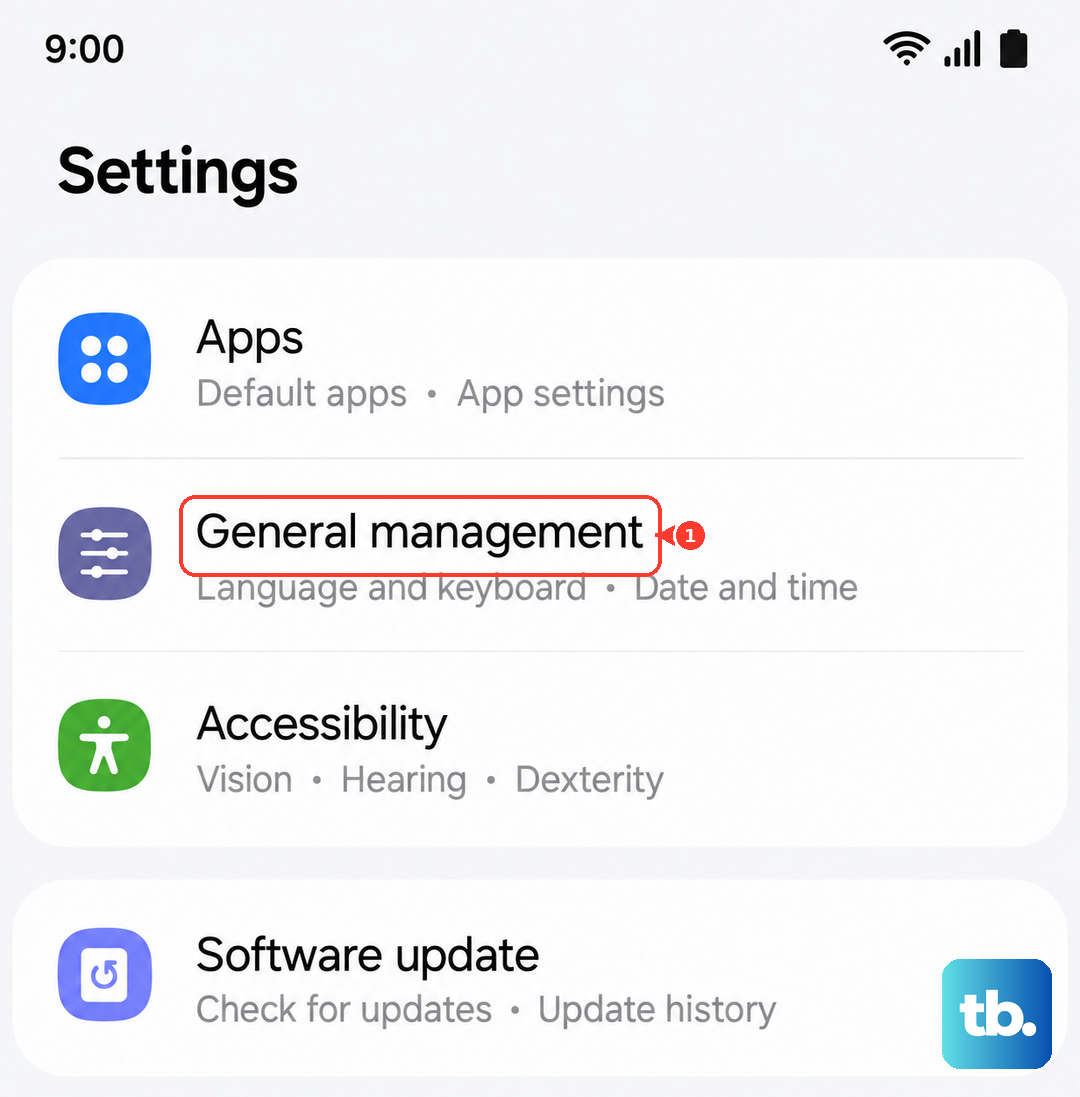
This clears all your saved network configurations, which can fix deeper software corruption. You'll lose saved Wi-Fi passwords and Bluetooth pairings, so be ready to re-enter those. On your S26, go to Settings > General Management > Reset > Reset network settings. Tap to confirm, let your phone restart, and it will attempt a clean connection to your carrier.
Manually Select Your Network
Sometimes your phone gets stuck trying to register on a specific network band. You can force it to search again. Go to Settings > Connections > Mobile networks > Network operators. Tap "Search networks" and wait for the list to populate. Then, manually select your own carrier's network from the list instead of leaving it on "Automatic."
Update Your Software
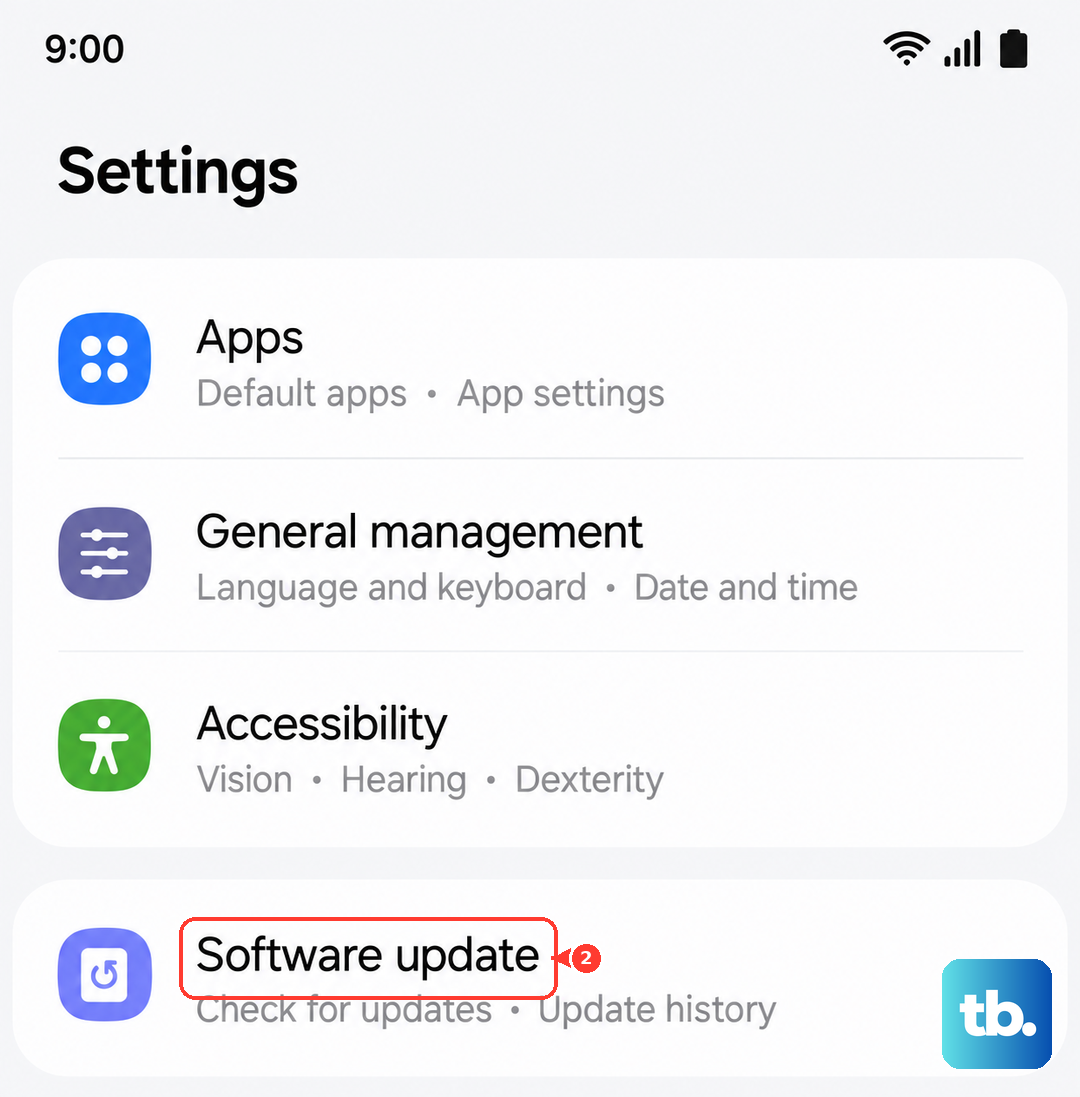
This is especially important for a new device like the S26 running the latest One UI 8.5. Early software versions often have bugs that affect network connectivity, and Samsung releases patches to fix them. Connect to Wi-Fi and go to Settings > Software update > Download and install. If an update is available, install it and let your phone restart completely.
Change the Network Mode
If there's an issue with 5G in your area, forcing your phone to use LTE can sometimes bypass the registration problem. Head to Settings > Connections > Mobile networks > Network mode. Try changing it from "5G/LTE/3G/2G (auto connect)" to "LTE/3G/2G (auto connect)." Give it a minute to reconnect on the LTE network.
Try a Different SIM Card
This test helps pinpoint whether the issue is with your SIM or the phone itself. If you can borrow a known-working SIM card from a friend or family member (even from a different carrier), pop it into your S26. If their SIM connects to a network without issue, your original SIM card is likely faulty and you need a replacement from your carrier. If the borrowed SIM also fails, the problem is with your phone.
Perform a Factory Reset
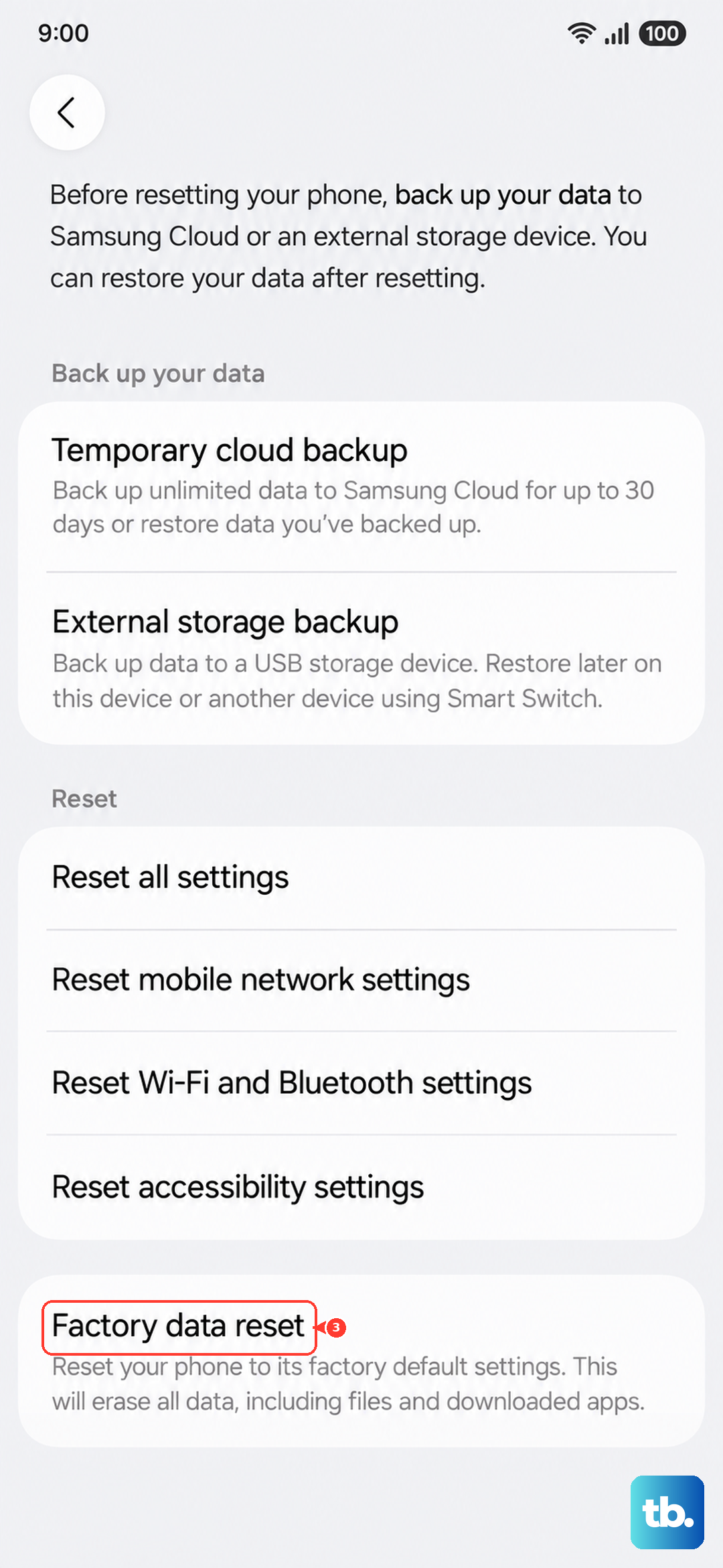
This is your last resort before looking at hardware repair. A factory reset wipes your phone back to its original software state, eliminating any deep-seated software corruption. Back up everything important first. Then, go to Settings > General Management > Reset > Factory data reset. Follow the prompts to erase everything. After the reset, set up the phone as new and see if it registers on the network. If the error persists after a clean factory reset, the issue is likely with the phone's internal cellular modem hardware.