
When your Samsung Galaxy S26's GPS keeps dropping signal, it can leave you stranded mid-navigation or cause apps to lose your location. This is often a software hiccup, especially with the brand new One UI 8.5, but there are several straightforward things you can try to lock that signal back in.
Start With a Quick Restart
I'd start with a force restart. It's the quickest way to clear any temporary glitch in the system that might be affecting the GPS radio. Just press and hold the Volume Down button and the Side/Power button together for about 10 seconds until you see the Samsung logo appear.
While you're at it, swipe down from the top of your screen twice to open the full Quick Settings panel. Tap the Location icon to turn it off, wait a moment, and then tap it again to turn it back on. This simple refresh of the service can work wonders.
Check Your Location Mode and Permissions
Your S26 has a few different location accuracy modes to balance precision with battery life. For the strongest GPS signal, you'll want it set to High Accuracy. Go to Settings > Location, and make sure the switch at the top is on.
Then, tap on Location services and select Google Location Accuracy. Make sure "Improve location accuracy" is enabled. This allows your phone to use Wi-Fi and mobile networks to assist the GPS chip, giving you a faster and more reliable lock.
Also, double-check that your navigation app has permission. Go to Settings > Apps, select your app (like Google Maps or Waze), then tap Permissions. Ensure "Location" is set to "Allow all the time" or "Allow only while using the app."
Disable Any Power Saving Features
Battery saving modes are notorious for limiting background processes, including GPS. Go to Settings > Battery and make sure any power saving mode is turned off. Also, check within individual app settings in the Battery menu to ensure your maps app isn't being put to sleep.
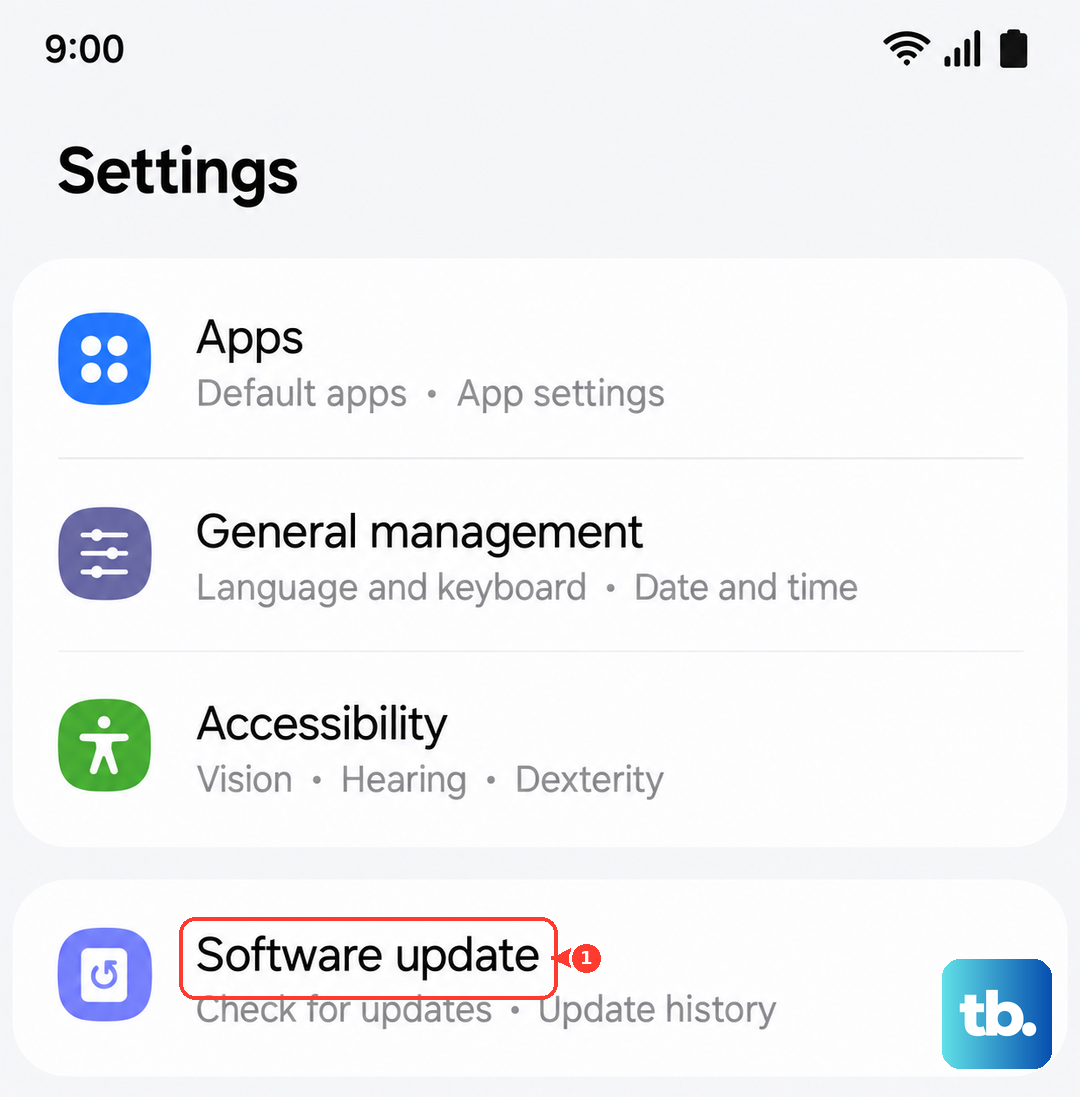
Since the S26 is so new, there's a chance an early software bug in One UI 8.5 is interfering. It's a good idea to check for updates. Go to Settings > Software update and tap Download and install. Samsung often pushes fixes for issues like this.
Reset Your Network Connections
Sometimes, the network-assisted part of your location service gets confused. A quick way to reset all wireless radios is to use Airplane Mode. Swipe down for Quick Settings and tap the Airplane Mode icon to turn it on.
Wait about 15 seconds, then tap it again to turn it off. This gives the GPS, Wi-Fi, and cellular modems a fresh start. After doing this, try opening your maps app again in an open outdoor area.
Clear the App's Cache and Data
If the problem seems isolated to one app, its stored data might be corrupted. Go to Settings > Apps, find your navigation app, and select it. Tap on Storage and then Clear cache.
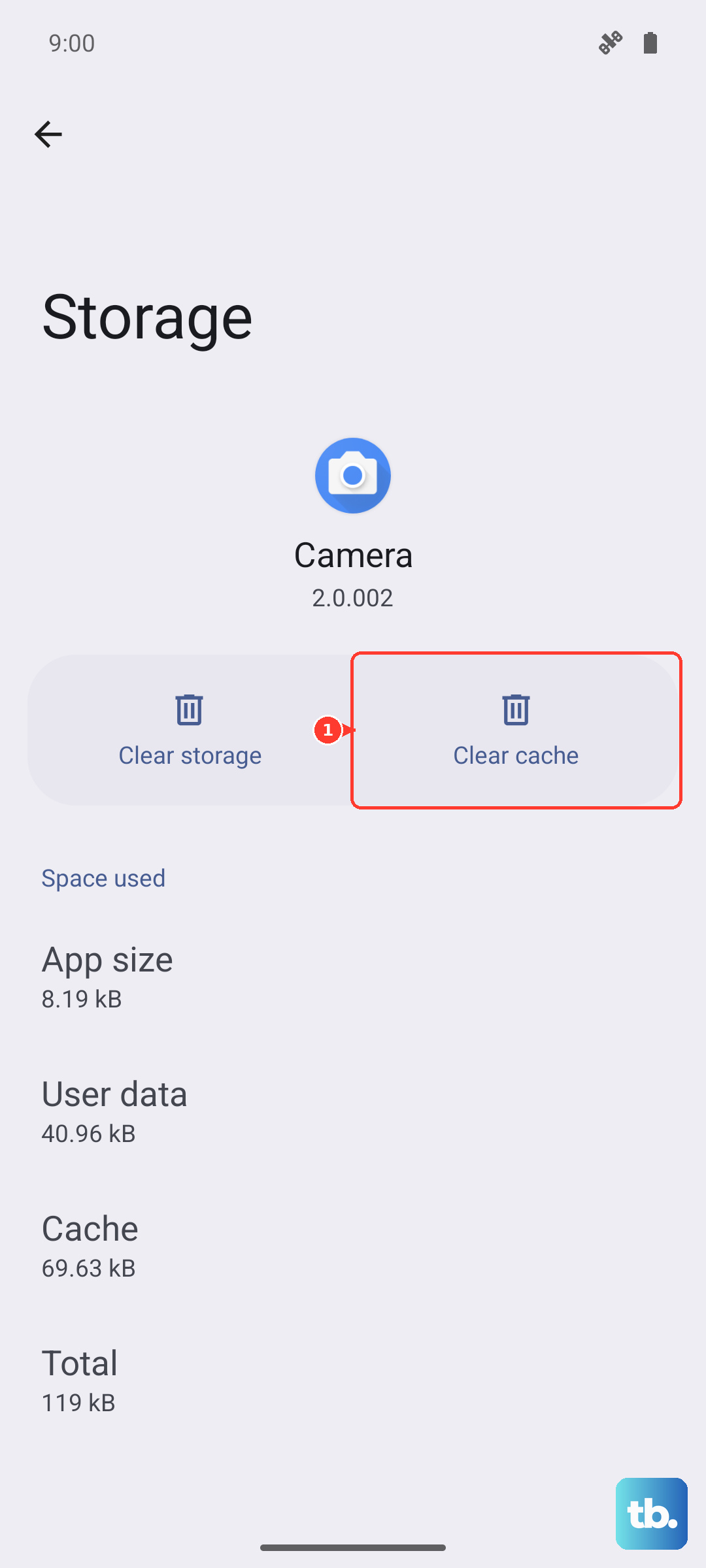
This won't delete your saved places. If the GPS is still acting up in that app, you can go back and tap Clear data. Just be aware this will reset the app to its default state, so you might need to log back in.
Test in Safe Mode
To rule out a third-party app causing a conflict, boot your S26 into Safe Mode. Press and hold the Side/Power button until the power menu appears. Then, tap and hold the "Power off" option on your screen.
You'll see a prompt to restart in Safe Mode. Tap it. Once booted, you'll see "Safe mode" in the bottom corner. Try your GPS app now. If it works perfectly, something you installed is likely the culprit. Restart normally to exit Safe Mode and try uninstalling recent apps.
Check for Physical and Environmental Factors
GPS signals are line-of-sight and can be blocked by all sorts of things. Thick metal phone cases, or cases with magnetic elements, can sometimes interfere. Try removing your case temporarily to see if the signal improves.
Always try to get a clear view of the sky when first getting a lock. Being inside a car, near tall buildings, or under dense tree cover can weaken the signal. Moving to a more open area often solves what seems like a phone problem.
Wipe the System Cache Partition
This is a deeper clean that doesn't touch your personal data. First, turn off your phone. Connect it to your computer with a USB-C cable. Then, press and hold the Volume Up button and the Side/Power button together.
When the Samsung logo appears, release only the Power button. Keep holding Volume Up until you see the Android Recovery screen. Use the volume buttons to highlight "Wipe cache partition" and press the Power button to select it. Confirm, then select "Reboot system now."
Use a GPS Diagnostic Tool
If you've tried everything and the signal is still weak, an app like "GPS Test" or "GPS Essentials" can show you what's happening under the hood. These apps display how many satellites your phone can see and how strong the connection is.
If the app shows your S26 isn't connecting to any satellites at all in an open area, it could point toward a less common hardware issue. If it sees plenty of satellites but your navigation apps still can't get a fix, the problem is almost certainly software-based.