If your Samsung Galaxy S25 videos are stuttering, freezing, or dropping frames, it can turn watching anything into a frustrating experience. The good news is this is usually a software hiccup or a simple setting that needs adjusting, and you can often fix it yourself in a few minutes.
I'd start by checking your available storage. When your phone's storage is nearly full, the system struggles to read and write video files smoothly, which can cause lag and choppy playback. Head to Settings > Device care > Storage to see how much space you have left. If you're below 5GB free, it's time to clear out some old downloads, cached data, or unused apps.
Force Restart Your Phone
A quick force restart can clear out temporary glitches that might be affecting the media player or your apps. It's different from a normal restart and often solves odd performance issues. On the Galaxy S25, press and hold the Volume Down button and the Side key (power button) together for about 10 seconds until you see the Samsung logo appear.
Wait for the phone to boot back up completely, then try playing your video again. This simple step fixes more problems than you might think.
Check for Software Updates
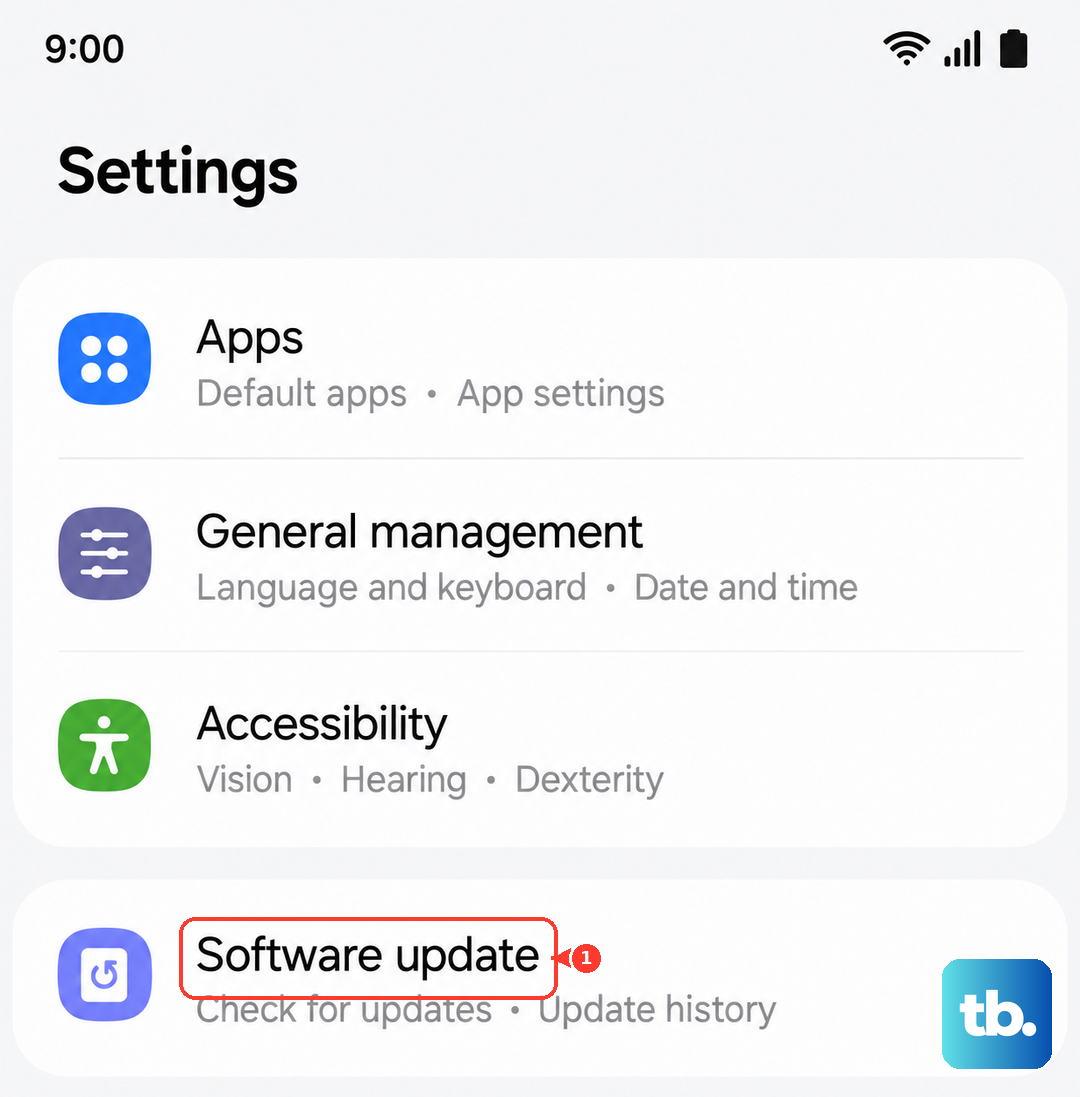
Outdated software can have bugs that interfere with video decoding or app performance. Samsung regularly releases updates through One UI that include performance improvements and bug fixes. To check, go to Settings > Software update and tap "Download and install."
Make sure your video apps, like YouTube, Netflix, or Samsung Gallery, are also updated from the Galaxy Store or Google Play Store. An outdated app is a common culprit for playback issues.
Disable Video Enhancer and Adjust Display Settings
The S25 has powerful display features that can sometimes conflict with certain video content. The Video Enhancer, for instance, boosts colors and contrast in real-time, which may cause processing lag. Try turning it off to see if playback smooths out.
Go to Settings > Advanced features > Video enhancer and toggle it off. Also, check your motion smoothness setting under Settings > Display > Motion smoothness. If it's set to "Adaptive," try switching it to "Standard" to reduce the phone's processing load during video playback.
Clear the App's Cache and Data
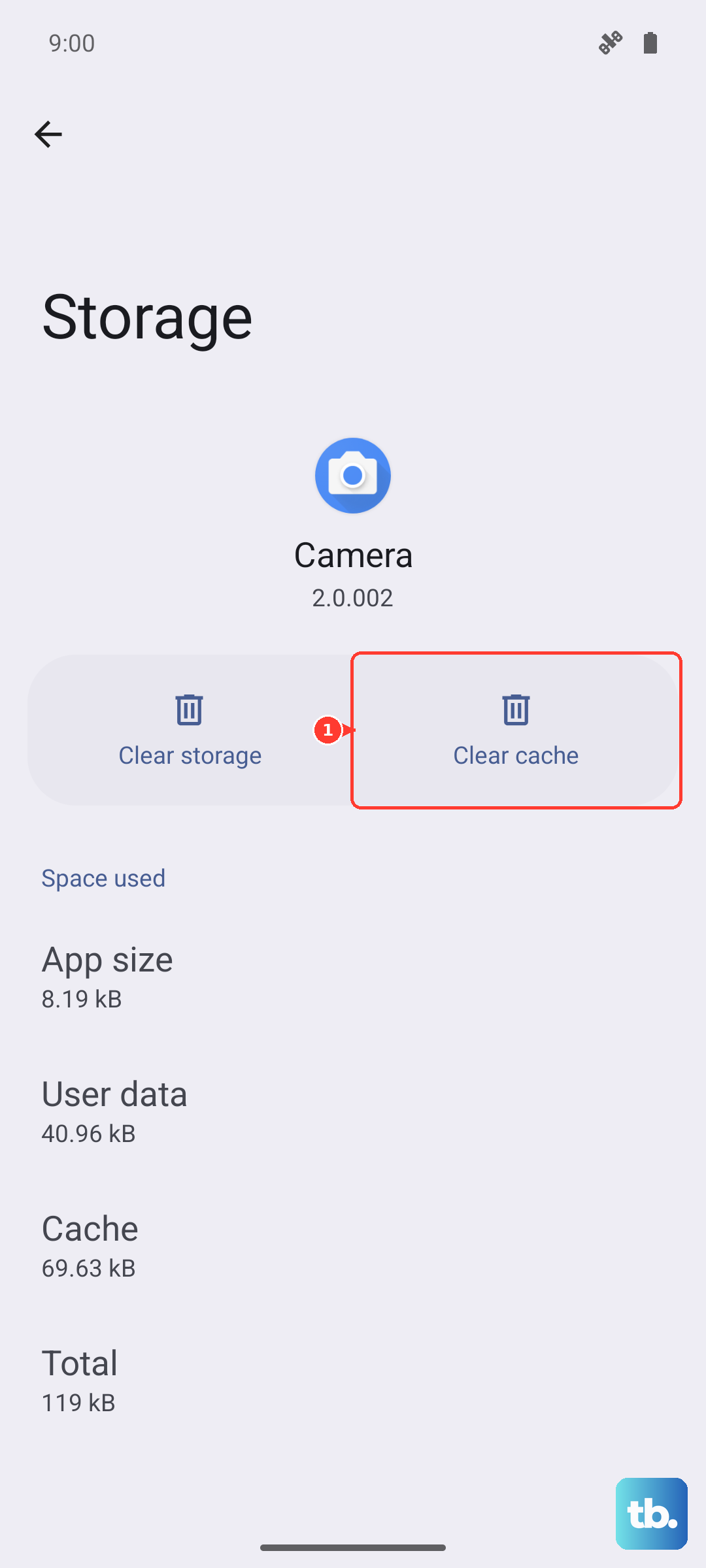
If the lag is happening in a specific app, like Google Photos or a streaming service, the app's cached data might be corrupted. Clearing it forces the app to start fresh. Go to Settings > Apps, select the problematic app, then tap "Storage."
Tap "Clear cache" first. If the problem continues, you can tap "Clear data." Just be aware that clearing data will sign you out and reset the app's preferences, so you'll need to log back in.
Manage Your Phone's Performance Mode
Your S25 has different performance profiles to balance battery life and speed. If it's set to a power-saving mode, it might be intentionally throttling the CPU, which can affect video performance. Swipe down with two fingers from the top of your screen to open the Quick Settings panel and look for the "Performance profile" tile.
Tap it to switch to "Standard" or "High performance" mode. You can also find this setting by going to Settings > Battery > More battery settings > Performance profile.
Test Your Network Connection for Streaming
For videos that are streaming online, lag is often just buffering due to a slow or unstable connection. Run a quick speed test using an app like Ookla. If you're on Wi-Fi, try moving closer to your router or restarting it.
You can also try switching to mobile data to see if the problem is with your Wi-Fi network. If the video plays perfectly on data, you know the issue is with your home internet connection.
Check for Overheating
The Galaxy S25 can throttle its performance if it gets too hot to protect its components. If you've been using your phone intensively or it's in a warm environment, feel the back. If it's very warm, let it cool down for a few minutes.
Remove any thick case that might be trapping heat. Overheating can cause all sorts of performance issues, including video lag and even wireless charging to stop, so giving it a break is a good idea.
Boot Into Safe Mode
This is a great way to figure out if a third-party app you've downloaded is causing the problem. Safe Mode temporarily disables all apps you installed yourself. To enter Safe Mode, press and hold the Side key until the power off menu appears.
Then, press and hold the "Power off" icon on your screen until you see the "Safe mode" prompt. Tap to restart. If videos play smoothly in Safe Mode, a recently installed app is likely the culprit. You'll need to uninstall apps one by one to find the offender.
Reset All Settings
If you're still stuck, you can reset all your system settings back to default without deleting your personal data like photos and messages. This will wipe your Wi-Fi passwords, Bluetooth pairings, and custom display settings, but it can resolve deep-seated software conflicts.
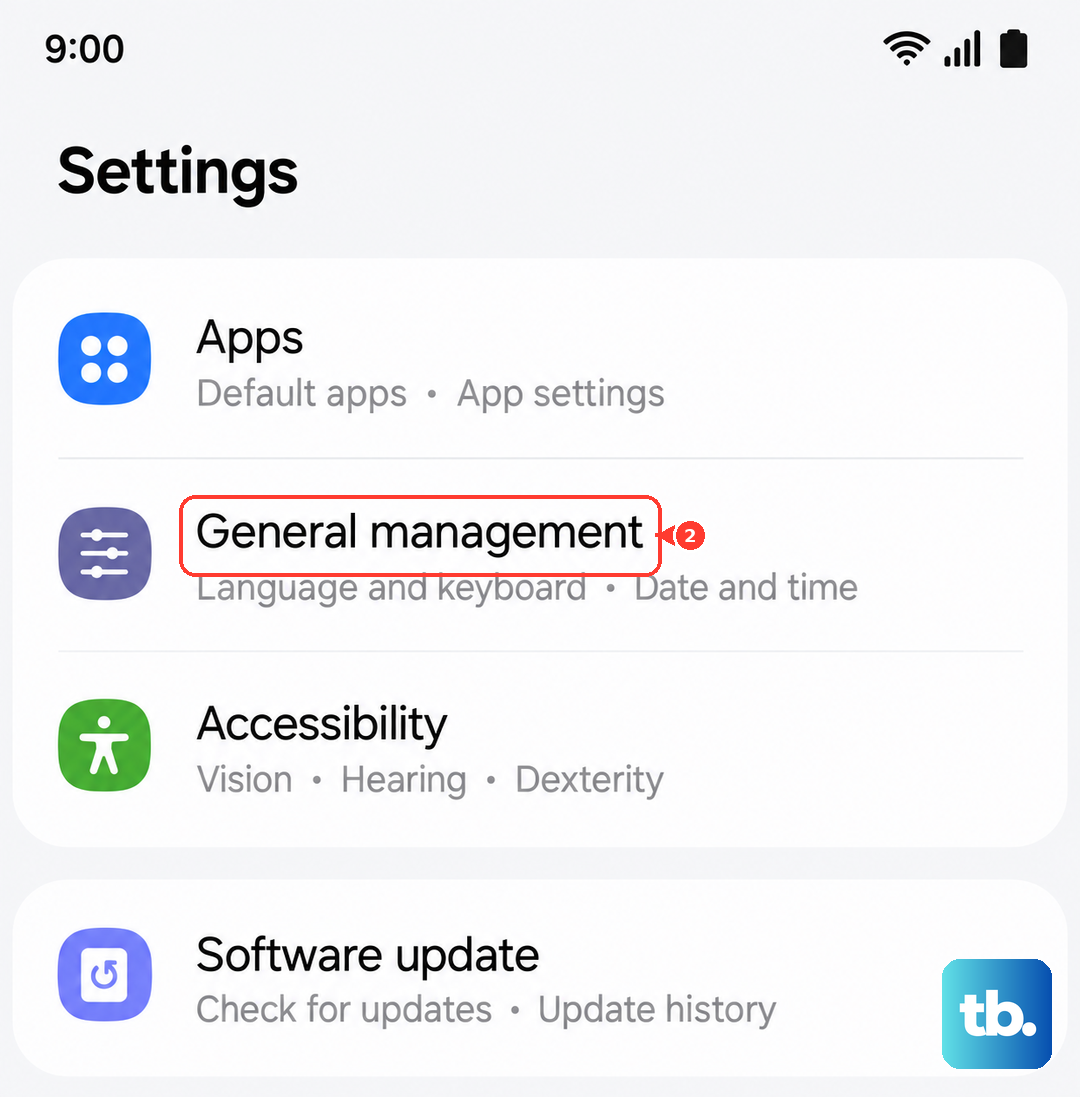
Go to Settings > General management > Reset > Reset all settings. Enter your PIN if prompted and confirm. After the phone reboots, you'll need to reconfigure your preferences, but it often clears up persistent performance bugs.