
If your Galaxy S25 has gone silent, missing calls and messages because the vibration motor isn't working, it's a surprisingly common hiccup. The good news is it's almost always a software or settings issue you can fix yourself in a few minutes.
Restart Your Phone
Before you dive into settings, give your S25 a quick restart. This clears out any temporary glitches in One UI 7 that might be stopping the vibration. Press and hold the Volume Down button and the Side key together for about 10 seconds until you see the Samsung logo.
Wait for the phone to boot back up completely. I've seen this simple step fix the vibration issue more often than not, especially if it stopped working suddenly.
Verify Your Sound Mode
It sounds obvious, but double-check you're not in Silent or Do Not Disturb mode. Swipe down from the top of your screen twice to open the full Quick Settings panel. Look for the sound mode icon, it should say "Sound."
If it says "Vibrate" or "Mute," tap it to switch back to "Sound." You can also go into Settings > Sounds and vibration > Sound mode to make the change. This mode controls the master setting for all vibrations.
Check the Master Vibration Toggle
Open Settings > Sounds and vibration. Right at the top, you'll see a toggle for "Vibrate while ringing." Make sure this is switched on. If it's already on, try turning it off, exiting the menu, then going back and turning it on again.
This is the global switch for call vibrations. If this is off, your phone won't vibrate for incoming calls no matter what your app settings are.
Adjust Vibration Intensity
Sometimes the vibration isn't broken, it's just set too low to feel. In your S25, you can control the strength for different actions. Go to Settings > Sounds and vibration > Vibration intensity.
You'll see separate sliders for "Incoming call," "Notifications," and "Touch feedback." Drag each one to the right to increase the strength. Test it as you adjust to find a level you can reliably notice.
Review App-Specific Notification Settings
If you're only missing vibrations from a specific app like Messages or WhatsApp, the problem is likely in that app's notification channel. Go to Settings > Apps, select the app in question, and tap "Notifications."
Look for the specific notification category (like "New messages" or "General") and tap into it. Ensure "Vibrate" is enabled here. Some apps have their own internal sound and vibration settings too, so check within the app itself.
Test in Safe Mode
Booting into Safe Mode temporarily disables all third-party apps. If your vibration works normally here, you know a downloaded app is causing the conflict. To enter Safe Mode, press and hold the Side key until the power menu appears.
Then, tap and hold the "Power off" option on your screen. You'll get a prompt to reboot into Safe Mode, tap "OK." Your phone will restart with "Safe mode" in the bottom corner. Test your vibration by calling your phone from another device.
To exit, just restart your phone normally. If vibration works in Safe Mode, start uninstalling recently downloaded apps one by one until the problem stops.
Update Your Software
Outdated software can have bugs that affect hardware functions like the vibration motor. Samsung regularly releases updates for One UI that fix these kinds of issues. Go to Settings > Software update > Download and install.
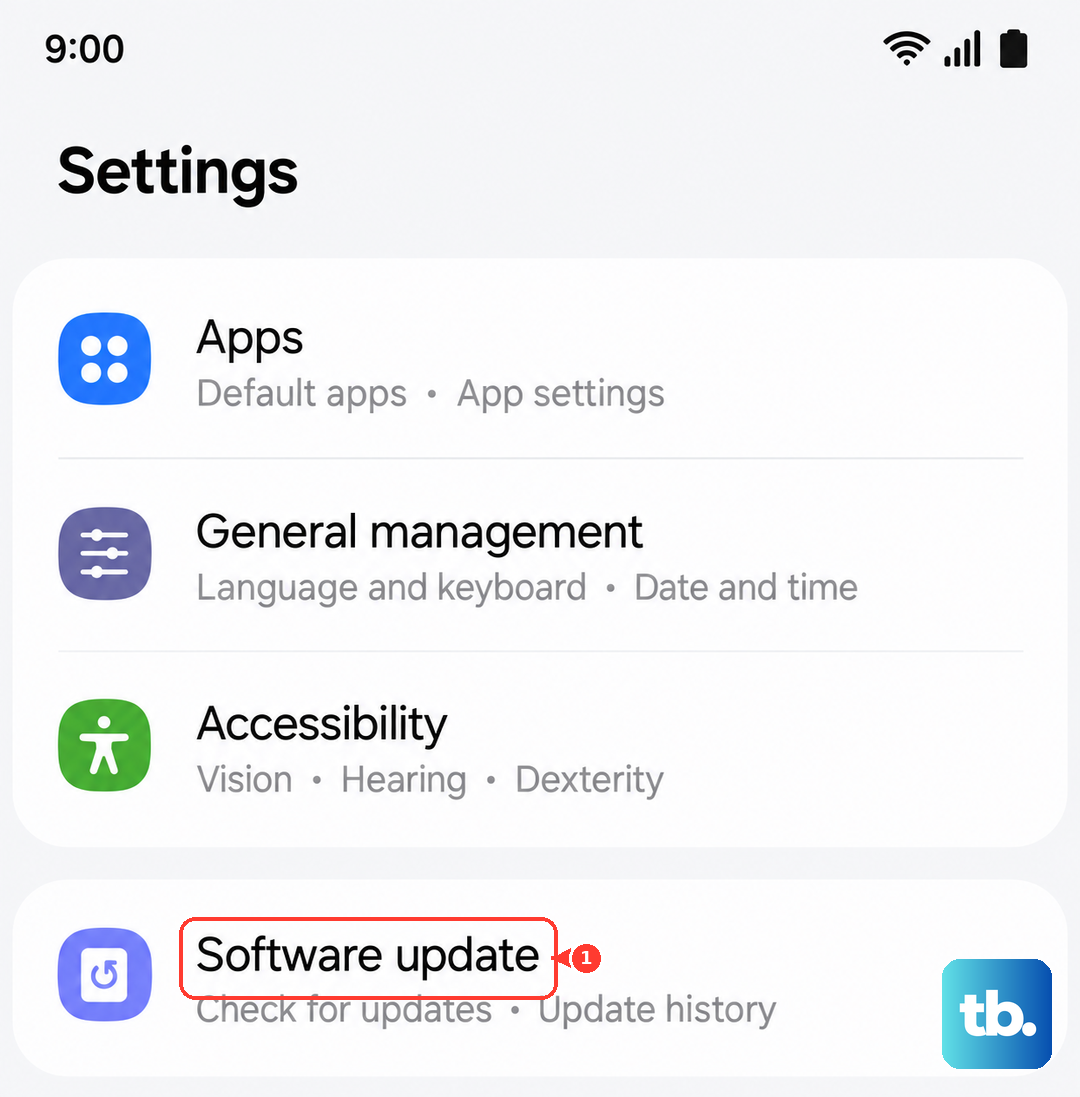
Let the phone check for and install any available updates. After the update completes, your S25 will restart. This process can often resolve underlying system glitches that settings changes can't touch.
Run a Hardware Diagnostic Test
Samsung includes a hidden diagnostic menu to test components. Open your Phone dialer and type *#0*#. This will launch the service menu. Tap the "Vibration" test button.
If your phone vibrates in a steady pattern during this test, the hardware motor is functioning correctly and the issue is definitely software-based. If there's no vibration at all during this test, it could point to a physical problem.
Reset All Settings
This is a more thorough step that won't delete your personal data like photos or messages, but it will reset all your system settings to default. Go to Settings > General management > Reset > Reset all settings > Reset settings.
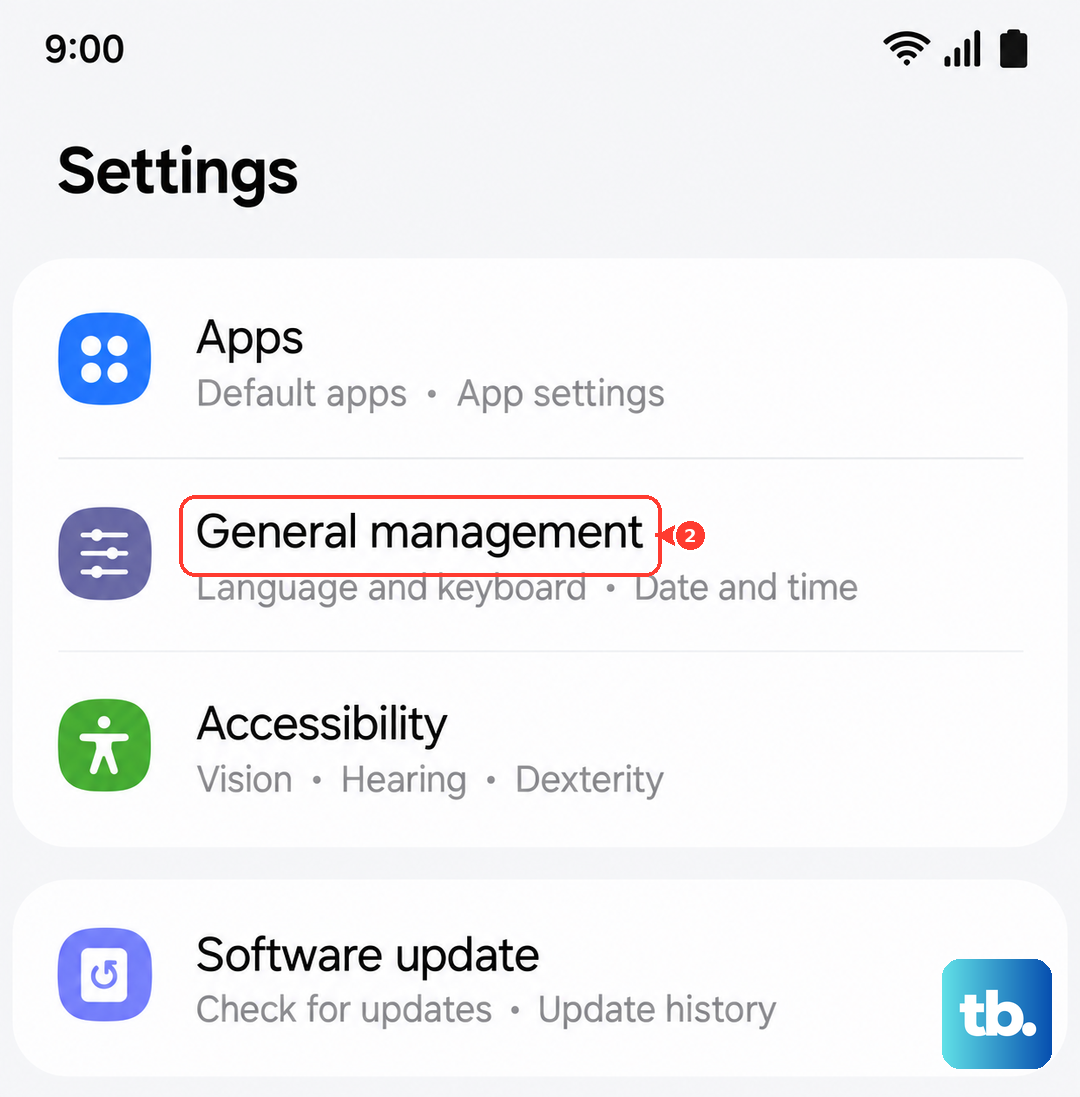
Tap "Reset settings" and confirm. Your phone will reboot. Afterward, you'll need to reconfigure things like Wi-Fi passwords and display brightness, but it can clear out any corrupted settings causing the vibration to fail.
Check for Interfering Accessibility Features
Certain accessibility services, while helpful, can sometimes interfere with system haptics. Go to Settings > Accessibility > Installed services. Look at the list of services that are turned on.
If you have any third-party accessibility apps enabled, try turning them off temporarily to see if your vibration returns. You can always turn them back on afterward if they aren't the cause.