
When your Samsung Galaxy S25 Ultra won't send a picture, it's usually a quick network or setting issue. The message might just sit there with a "Sending" status or fail with an error. Let's get it working.
Check Your Mobile Data Connection First
MMS requires a mobile data connection, even if you're on WiFi. Open your quick settings panel by swiping down from the top of the screen twice. Make sure the mobile data icon is lit up and active.
If you see a weak signal, try moving to a different spot. Sometimes, just toggling Airplane mode on for 10 seconds and then off again can force the phone to reconnect to the network more cleanly.
Verify Your APN Settings
Incorrect Access Point Name (APN) settings are a common culprit for MMS failures on Android. These settings tell your phone how to connect to your carrier's multimedia service.
Go to Settings > Connections > Mobile networks > Access Point Names. Your carrier's APN should be selected. If you're not sure, the best move is to contact your carrier directly.
They can provide the exact APN details for the S25 Ultra on their network. You can also often find them on the carrier's official support website.
Ensure MMS is Enabled in Your Messaging App
Open your Samsung Messages app and tap the three-dot menu in the top right. Go to Settings > More settings (or similar, as menus can vary slightly).
Look for an option labeled "Multimedia messages" or "Group conversation" and make sure it's turned on. Some carriers require this setting to be enabled for pictures to send over data.
Check for a Data Saver or Low Data Mode
Data saving features can block MMS from using background data. On your S25 Ultra, go to Settings > Connections > Data usage.
Look for "Data saver" and ensure it's switched off. Also, check within your messaging app's settings for any battery optimization or data restriction options that might be applied specifically to it.
Force Restart Your Galaxy S25 Ultra
A simple reboot clears out temporary glitches. Press and hold the Volume Down button and the Side key (power button) simultaneously for about 10 seconds.
You'll see the Samsung logo appear as the phone restarts. This is different from a normal power off and on, and it often resolves quirky connection issues.
Clear the Cache for Your Messages App
Go to Settings > Apps. Find and select your messaging app (like Samsung Messages or Google Messages). Tap on Storage and then hit Clear cache.
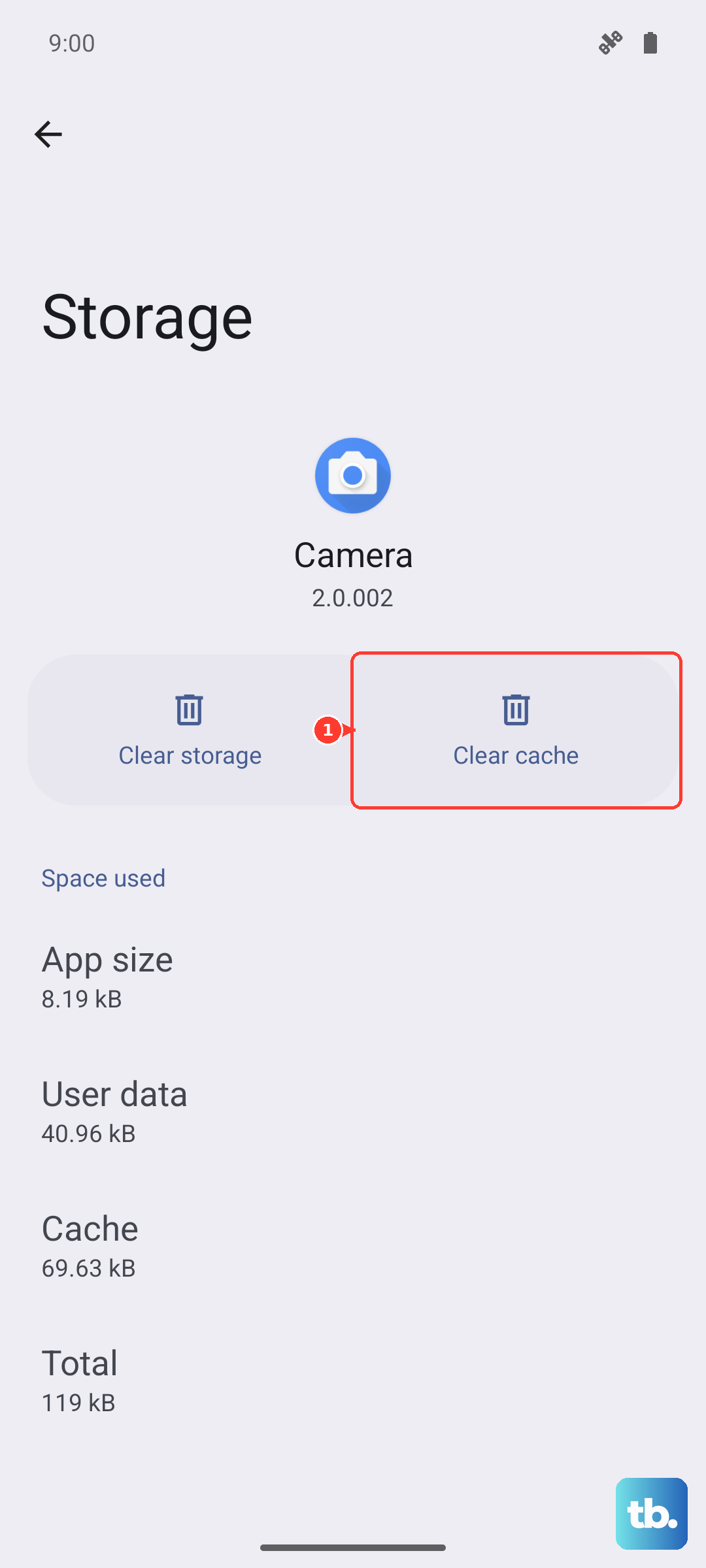
This deletes temporary files without touching your actual messages. I've seen this fix odd sending behavior more than a few times.
Switch Between WiFi and Mobile Data
Try turning WiFi off completely and send the MMS using only your cellular data connection. Some network configurations or routers can interfere with the way MMS routes through the carrier.
If it sends on mobile data, you know the issue is related to your WiFi network configuration. You can try forgetting and re-adding the WiFi network as a next step.
Update Your Carrier Configuration
Carrier updates are pushed out periodically to improve network performance. Go to Settings > Software update > Download and install.
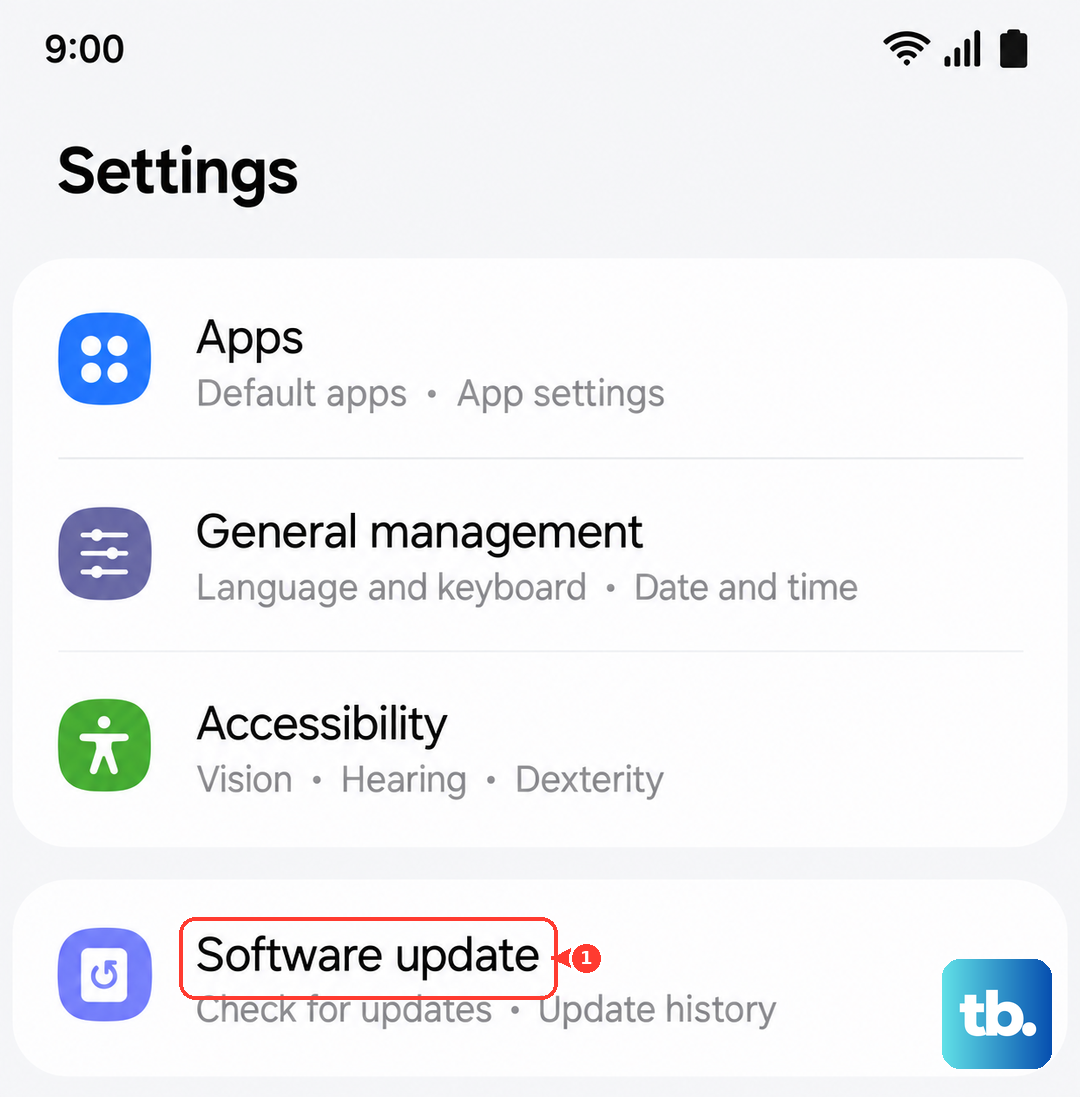
Also, check Settings > About phone > Software information to see if a separate carrier services update is available. Keeping this current is important.
Try a Different Messaging App
Download Google Messages from the Play Store and set it as your default. This helps determine if the problem is with the Samsung Messages app itself or a deeper system issue.
If pictures send fine from Google Messages, you may want to stick with it or try clearing the data for your original app (warning: this may delete your message history).
Reset Your Network Settings
This is a more thorough step. Go to Settings > General management > Reset > Reset network settings.
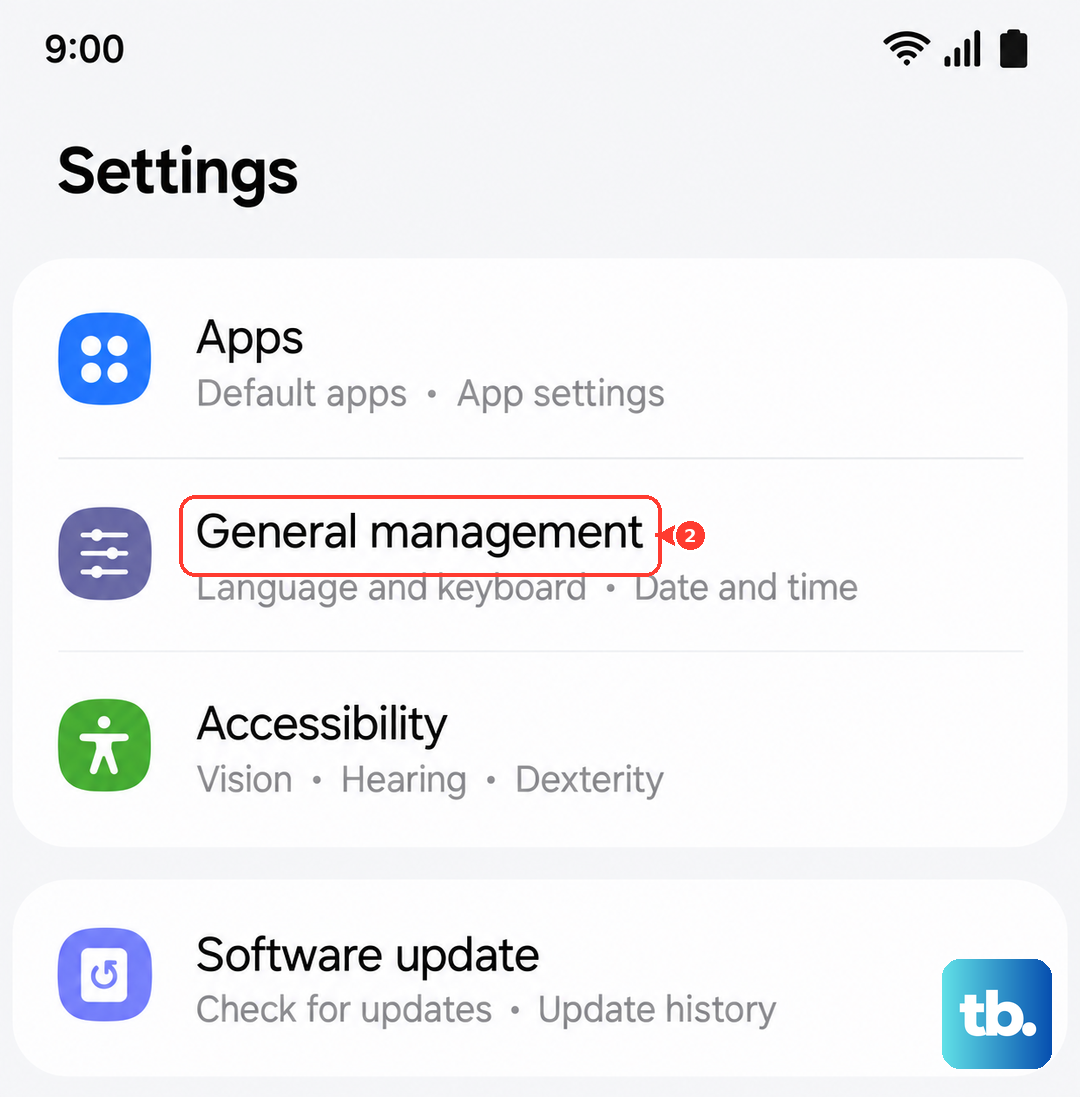
This will erase all saved WiFi passwords, Bluetooth pairings, and cellular network preferences. Your phone will reconnect as if it were new, which often clears up persistent MMS problems.