You lift the Galaxy S25 Ultra to grab a sharp shot of your kid mid-laugh, tap the shutter, and the photo comes back soft, smeared, or stuck refusing to lock focus. With a 200MP Wide-Angle main camera plus 50MP Ultra Wide, 50MP 5x Telephoto, and 10MP 3x Telephoto lenses, this phone is built for crisp results, so a blurry frame almost always points to something fixable rather than a broken sensor. Most of the time the cause is a smudged lens, a setting that is fighting your subject, or a software hiccup that clears in seconds. Work through these 10 fixes in order, starting with the quickest and safest, and you will usually have a sharp camera again before you reach the bottom.
Start With the Lenses Before Anything Else
Smudges, fingerprints, dust, or water droplets on the rear glass are the single most common reason an S25 Ultra photo turns out soft. Samsung's focus guidance is blunt about it. "Dust or debris can interfere with autofocus. Clean all the lenses with a soft, dry, lint-free cloth."
Because this phone has four rear lenses, a fingerprint on just one of them can ruin shots taken at a particular zoom level while others look fine, which is why it is worth wiping every lens rather than only the one you think you use most.
Reach for the right cloth. Samsung's cleaning guidance says "a lint-free, soft microfiber cleaning cloth is ideal," and adds that you may also use a camera lens cleaning cloth.
Wipe gently and, in Samsung's words, "do not apply too much pressure." Avoid cans of compressed air, which Samsung warns "may damage the surface of your device."
Take a few test shots afterward, since clean glass alone fixes a surprising number of soft photos.
Check What Is Sitting Over the Camera Glass
A case, cover, or stick-on lens protector that overlaps the camera housing can fog the glass or cut into the frame and produce blur that looks like a focus fault. Before you clean or shoot, Samsung advises you to "remove any covers, cases, or accessories."
Pop off the case and peel away any aftermarket lens film, then take a few test photos.
If the shots sharpen up, the accessory was the culprit, and you can reseat it more carefully or replace it with one that does not crowd the lenses.
Set Focus Manually and Mind the Distance
Each lens on the S25 Ultra has its own range of focus, so a subject that is too close simply cannot lock focus on the lens the camera chose. Samsung's advice for close-ups is direct. "If you're aiming for a close-up, try backing away and zooming in. Each lens has a different range of focus."
When the camera hunts or focuses on the wrong spot, tap the subject directly on the screen to tell it where to focus.
Then back away a few inches for tight shots, and the autofocus has room to lock cleanly instead of drifting between near and far.
Stop the Camera From Chasing the Wrong Subject
If the camera keeps refocusing or drifting off your subject, the Tracking auto-focus feature may be working against you. Samsung defines it plainly. "Tracking auto-focus: Keep a moving subject in focus."
That is great for action, but it can cause constant focus hunting on still scenes.
Open the Camera app and tap the Settings icon. For the Galaxy S25 series and devices running One UI 7.0 and above, tap the Quick controls icon (the four dots), and then tap the Settings icon.
Tap the switch next to Tracking auto-focus to turn it off.
Reset the Camera to Its Default Behavior
If you have changed several camera options recently and pictures have gone soft since, returning the app to defaults is a clean way to undo whatever is causing it. From the Camera Settings, "Swipe to and tap Reset settings."
This restores the camera's default behavior without touching the photos already saved in your Gallery, so it is a low-risk step worth trying before you move on to system-level fixes.
Force a Restart to Clear a Glitchy Camera
A frozen, laggy, or glitchy camera app often snaps back to normal after a forced restart, which clears temporary memory without erasing anything. Samsung's instruction is to "Press and hold the Volume down button and the Side button (or Power button) simultaneously until the device turns off and turns back on."
Samsung does not specify an exact hold time, so keep holding until the screen goes black and the Samsung logo appears.
None of your data, photos, or settings are deleted by this step.
Clear the Camera App's Cache, Then Its Data
Corrupt temporary files can quietly break focus or how the camera renders a shot.
Start with the gentler option, clearing the cache, which leaves your settings intact.
Open Settings, and then swipe to and tap Apps.
Select or search for Camera.
Tap Storage, and then tap Clear cache.
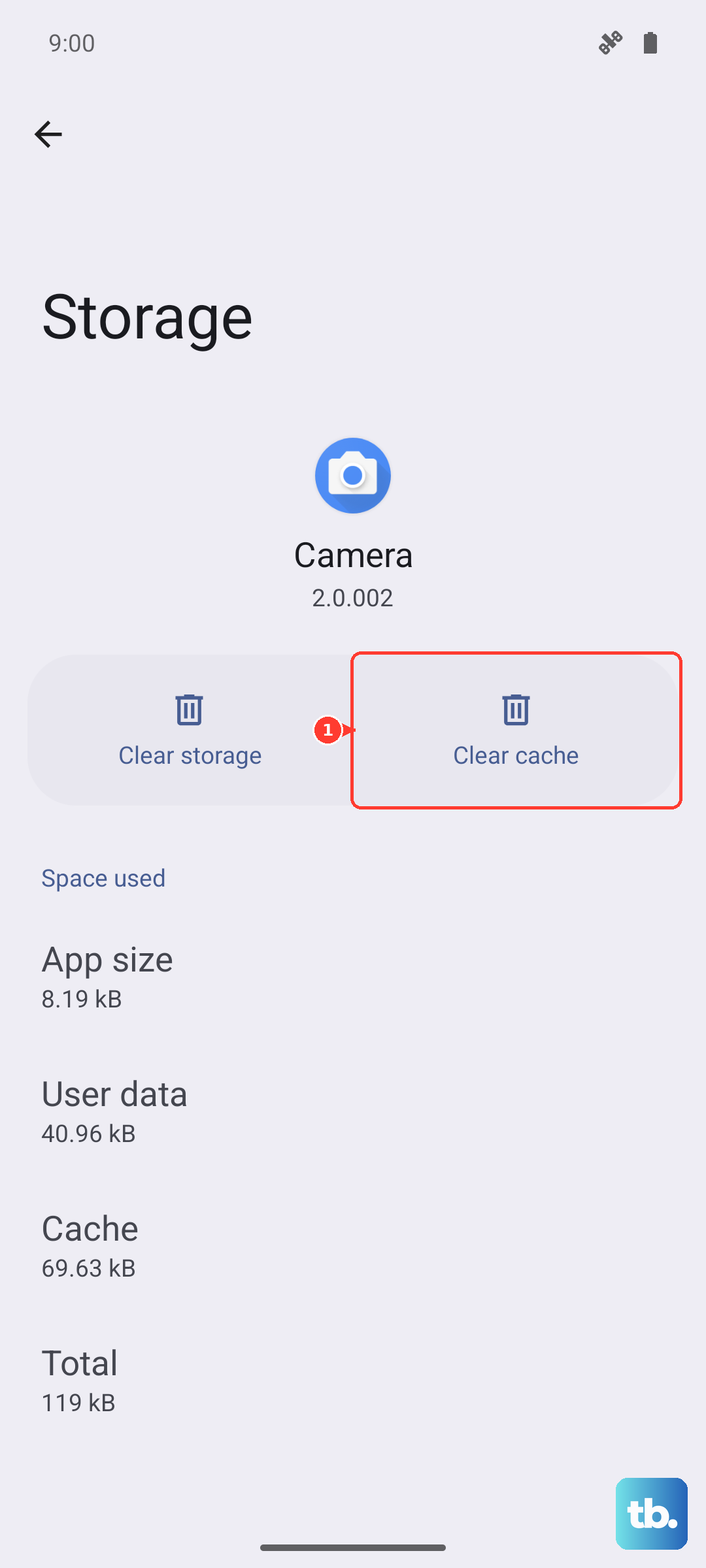
If the blur persists, clear the app's data as the stronger step.
In the same Storage screen, tap Clear data, and then tap Delete.
Samsung notes that "clearing the data will reset the app to factory default settings," so your custom camera settings reset, but this does not delete photos saved in your Gallery.
Install the Latest Software Update
Samsung confirms a software update can resolve camera app issues, and One UI updates often include camera and stability fixes. Update directly on the phone:
- 1.Using two fingers, swipe down from the top right corner of the screen, and then tap the Settings icon.
- 2.Swipe to and then tap Software update.
- 3.Tap Download and install (or Check for software updates).
- 4.When the download is complete, follow the on-screen instructions to install.
If the over-the-air update will not download or fails partway, you can update the phone from a computer using Samsung Smart Switch, the free desktop tool for Windows and Mac available from Samsung.
Rule Out a Rogue App With Safe Mode
A misbehaving app you installed can interfere with autofocus, and Safe mode is the official way to test for that, because it temporarily disables downloaded apps.
Restart the phone into Safe mode using the on-screen prompts that appear when you hold the power-off control, then confirm Safe mode when the device offers it.
Once in Safe mode, open the camera and check whether it focuses correctly.
If it does, a downloaded app is the cause.
Restart back to normal mode and remove recently installed apps one at a time until the blur disappears.
The Last Software Step, Then When to Get It Serviced
If you have tried everything above and photos are still blurry, a factory reset is the final software measure.
Back up your data first, because Samsung warns, "Please save any information you need prior to the factory reset because your personal information may not be recovered."
You can back up to Samsung Smart Switch on a computer before you begin.
When you are ready, go to Settings, then General management, then Reset, then Factory data reset.
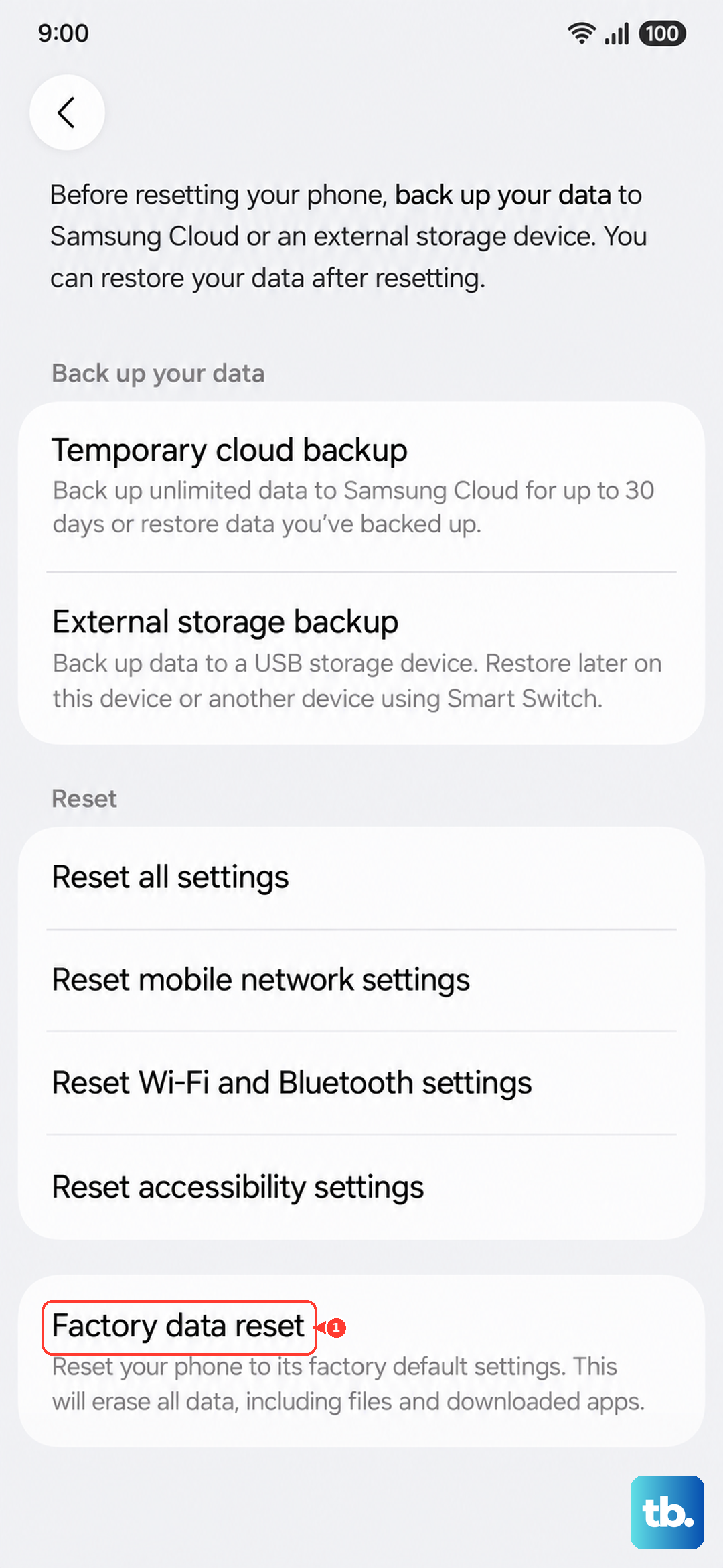
Swipe to and tap Reset.
Tap Delete all to confirm, entering your security credentials and Samsung account password if prompted.
If the camera still will not focus after a reset, the lens hardware itself may be at fault. Samsung notes that some "slight clicking and whirring is normal, but if you hear any grinding, your device may require service."
At that point, book a Samsung service center or schedule a repair online rather than continuing to troubleshoot on your own.
Frequently Asked Questions
Why are only some of my S25 Ultra zoom levels blurry?
The phone switches between four rear lenses depending on zoom, so a smudge or fault on one lens can blur certain shots while others look sharp. Clean all the lenses with a soft, dry, lint-free cloth, since Samsung notes that dust or debris can interfere with autofocus.
Will resetting the camera or clearing its data delete my photos?
No. Resetting the camera settings and clearing the Camera app's data both return the app to its default settings, but neither removes the photos already saved in your Gallery. Clearing data will reset your custom camera preferences, so you may need to set those again.
Does a force restart erase anything on my phone?
No. Holding the Volume down button and the Side button until the device turns off and back on simply restarts the phone to clear temporary glitches. Your data, photos, and settings stay in place.
How do I know if my blurry camera is a hardware problem?
If the camera still will not focus after cleaning, resetting, updating, and a factory reset, the lens hardware may be the issue. A grinding sound from the camera is a sign your device may require service, so contact a Samsung service center or book an online repair.