When your Galaxy S25 goes silent, it can feel like you're suddenly disconnected from everything. The sound might cut out during a call, your media might play without audio, or your notifications could stop making a peep. I've found that on the S25 with One UI 7, the fix is often a simple setting that got toggled by accident.
Before changing anything, play a quick online speaker test in your browser. It sends a tone to the left and right channels separately, so you immediately know whether the speakers produce any sound at all.
Check Your Volume and Sound Mode
Start with the physical buttons. Press the volume up key on the side of your phone. If you see a volume slider on screen but still hear nothing, the issue is likely elsewhere. Make sure your phone isn't in Silent or Vibrate mode. You can check this quickly by swiping down from the top of the screen to open the Quick Settings panel.
Look for the sound icon. If it shows a vibration symbol, tap it to switch back to Sound mode. For more control, go into Settings > Sounds and vibration. Here, you can adjust the volume sliders for Ringtone, Media, Notifications, and System sounds individually.
Disconnect Bluetooth and Accessories
Your S25 might be trying to send audio to a device that isn't there. If you've recently used wireless earbuds or a speaker, your phone could still be connected to them. Open Settings > Connections > Bluetooth and turn the toggle off, or tap the gear icon next to a recently used device and select 'Disconnect'.
Also, remove any cases or screen protectors that might be covering the speaker grills at the top or bottom of the phone. A poorly aligned case can muffle sound completely. Disconnect any USB-C headphones or dongles as well, as the phone will prioritize audio through a physical connection.
Review Do Not Disturb and App-Specific Sound
One UI has several layers of sound control that can override each other. First, check Do Not Disturb. Swipe down twice for the full Quick Settings panel and look for the 'Do Not Disturb' icon. If it's highlighted, tap it to turn it off.
There's also a feature called Separate app sound that can cause confusion. This lets you route audio from a specific app, like Spotify, to a different output. To check it, go to Settings > Sounds and vibration > Advanced sound settings > Separate app sound. If it's turned on for any app, try turning the feature off entirely to see if your main speaker audio returns.
Clean the Speaker Grills
The S25's speakers are susceptible to pocket lint and dust. Take a close look at the slim grills at the top and bottom of the phone frame. Use a soft, dry toothbrush or a clean, dry paintbrush to gently flick any visible debris out of the openings.
You can also use a can of compressed air, but hold it upright and use very short, gentle bursts. Never insert anything sharp like a pin or paperclip, as you'll easily damage the delicate speaker components behind the grill.
Perform a Force Restart
A quick force restart clears the phone's temporary memory and can fix a stuck audio process. On the Galaxy S25, you press and hold the Volume Down button and the Side Key (power button) together for about 10 seconds.
Keep holding until you see the Samsung logo appear on the screen, then let go. The phone will reboot normally. This doesn't delete any data, it's just a deeper refresh than a standard restart.
Check for Software Updates
Audio glitches are a common thing fixed in software updates. Samsung regularly pushes updates for One UI that address these kinds of bugs. Go to Settings > Software update > Download and install.
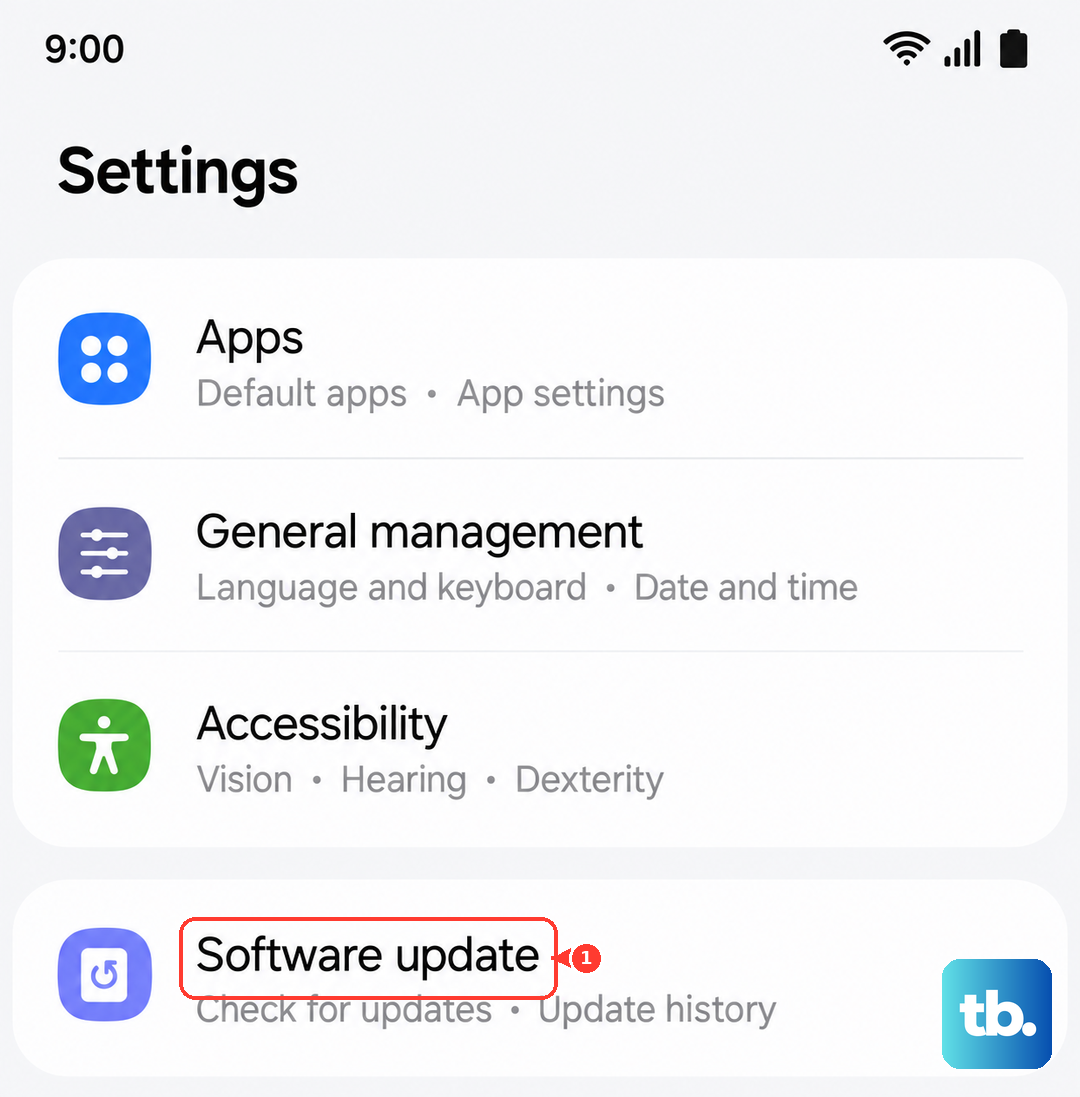
Let the phone check for updates. If one is available, it's a good idea to install it while connected to Wi-Fi. An update can often resolve conflicts between the system and apps that are causing the sound to fail.
Boot Into Safe Mode
If the sound works in Safe Mode, you know a third-party app you installed is the culprit. To enter Safe Mode on the S25, first press and hold the Side Key and Volume Down button to power it off completely.
Once it's off, press and hold the Side Key until you see 'Samsung' appear on the screen, then immediately release the Side Key and press and hold the Volume Down button. Keep holding it until the phone finishes restarting. You'll see 'Safe mode' in the bottom-left corner of the screen.
Test your sound with a YouTube video or a ringtone. If it works here, restart normally to exit Safe Mode and start uninstalling recently downloaded apps one by one until the sound comes back.
Clear the System Cache Partition
Corrupted system cache files can cause all sorts of erratic behavior, including audio failure. This process wipes those temporary files without touching your personal data. First, turn off your phone.
Next, connect your phone to a computer with a USB-C cable. Then, press and hold the Volume Up button and the Side Key simultaneously. When the Android Recovery screen menu appears, release both buttons.
Use the Volume Down button to highlight 'Wipe cache partition', then press the Side Key to select it. Confirm the action, then select 'Reboot system now' when it's done.
Reset All Settings
If a specific sound setting is buried and causing the issue, a settings reset can clear it. This will revert all your preferences, like Wi-Fi passwords, wallpaper, and display settings, back to default, but it won't delete your photos, apps, or personal files.
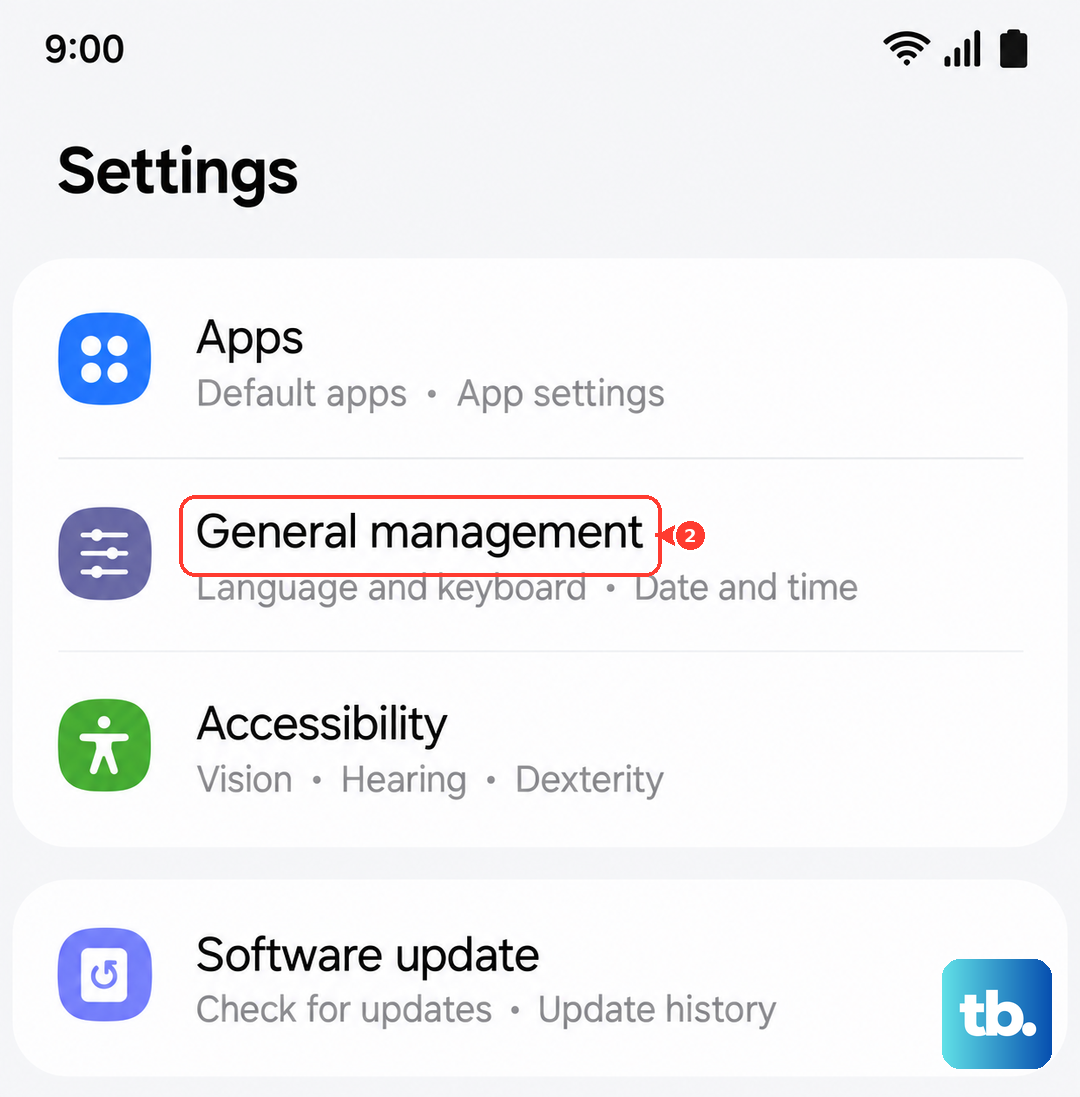
Go to Settings > General management > Reset > Reset all settings. Tap 'Reset settings' and enter your PIN if prompted. The phone will restart. Afterward, you'll need to reconfigure your preferences, but your sound should be restored to its original state.