Your Galaxy S25+ should start topping up the moment you set it on a wireless pad, so when the battery icon stays flat it is easy to assume the phone is broken. Most of the time it is something far smaller. The coil is off-center by a centimeter, a thick case is blocking the signal, or a quiet software setting is capping the charge. The S25+ supports Fast Wireless Charging 2.0, Wireless PowerShare, and the Qi2 standard, with wireless input capped at about 15W (up to 25W is possible only with Samsung's official Qi2 magnetic charger paired with a 45W PPS 20V adapter and a Qi2-ready case). Because of that, small alignment and accessory problems show up fast on the pad even when the cable still works perfectly.
The fixes below are ordered from the safest and quickest to the most involved, with the factory reset and Samsung service path saved for last. Work through them in order and stop as soon as the phone starts charging.
Prove it is a wireless-only problem first
Before changing anything, confirm the fault is actually with wireless charging and not the battery itself. Plug the S25+ in with its cable. If it charges normally over the wire but refuses to charge on the pad, the issue is wireless-specific and the steps here apply.
Next, reseat the phone. The charging coil location varies by device, so placement matters more than people expect. Samsung's guidance is that "the device's back should make contact with the wireless charger, and the device should be centered," and to "make sure your device is placed in the center of the charging pad with no obstructions." Adjust the position until the connection is stable, since the wireless charging coil location varies by device.
Make sure the pad actually has power
A dead outlet or a loose cable can mimic a broken charger, so confirm the pad is getting power before you blame the phone.
- 1.Confirm the wireless charger's power adapter is firmly seated in the wall outlet.
- 2.Check that the cable is fully inserted into the charging pad.
- 3.Try a different outlet you know works, such as one you have just used for another device.
If a known-good outlet brings the pad to life, the original outlet or its switch was the problem, not your phone.
Take the case off and clear anything between phone and pad
Wireless charging is easily blocked by the wrong cover or a stray metal object. Samsung's guidance is to "if necessary, remove your phone's case, especially if it is thick." A thick, metal, or magnet-blocking case can interrupt the wireless connection entirely.
Remove any metal objects, cards, or magnetic accessories sitting between the phone and the pad, then set the bare phone back down and test. If charging starts without the case, the case was the culprit. For magnetic Qi2 alignment specifically, Samsung says Galaxy phones should "use a Qi2-ready case," so a charger that relies on magnets needs a Qi2-ready cover to snap and hold position correctly.
Use a certified charger and an adequate Samsung adapter
Not every wireless pad and adapter combination works well with the S25+. Stick with a Qi- or Qi2-certified charging pad, and use the power adapter and cable that came with your device or your wireless charger rather than an uncertified or counterfeit brick.
If you are chasing faster wireless speeds, the adapter behind the pad matters. With Samsung's official Qi2 magnetic charger, up to 25W is possible only when it is paired with a Samsung 45W (or higher PPS 20V) adapter, so a weak or generic brick will charge slowly or not at all. An off-brand charger is a common and easily fixed cause.
Rule out moisture and heat
Charging can be paused by moisture detection or by temperature, and both can look like a hardware failure. If a water-drop or moisture alert appears on screen, dry the phone and the charging area thoroughly before trying to charge again.
Temperature works the same way. A phone that is too hot or too cold may slow or pause charging until it returns to a normal temperature, and wireless charging speed can vary with the surrounding environment. Move the phone somewhere cool, give it a few minutes, and test again.
Check whether the battery is being capped on purpose
If the S25+ charges to around 80 to 85 percent and then simply stops, nothing may be broken at all. Battery protection is a setting that intentionally limits the charge to extend long-term battery health, and it can be mistaken for a charging fault.
To allow a full charge, go to Settings > Battery and disable Battery protection. After turning it off, set the phone back on the pad and see whether it climbs past the previous ceiling.
Force restart to clear a temporary glitch
A momentary software hiccup can stop charging until the phone is restarted. A forced restart does not erase any of your data, so it is safe to try.
Samsung's procedure for the S25+ is to "press and hold the Volume down button and the Side button (or Power button) simultaneously until the device turns off and turns back on." The screen goes black, then the Samsung logo appears. Once it boots, place the phone back on the pad and check.
Install the latest software update
Charging glitches are frequently fixed in software, so make sure the phone is fully up to date.
- 1.Open Settings > Software update > Download and install.
- 2.Tap Install now if an update is available.
- 3.To confirm what you are running, check Settings > About phone > Software information.
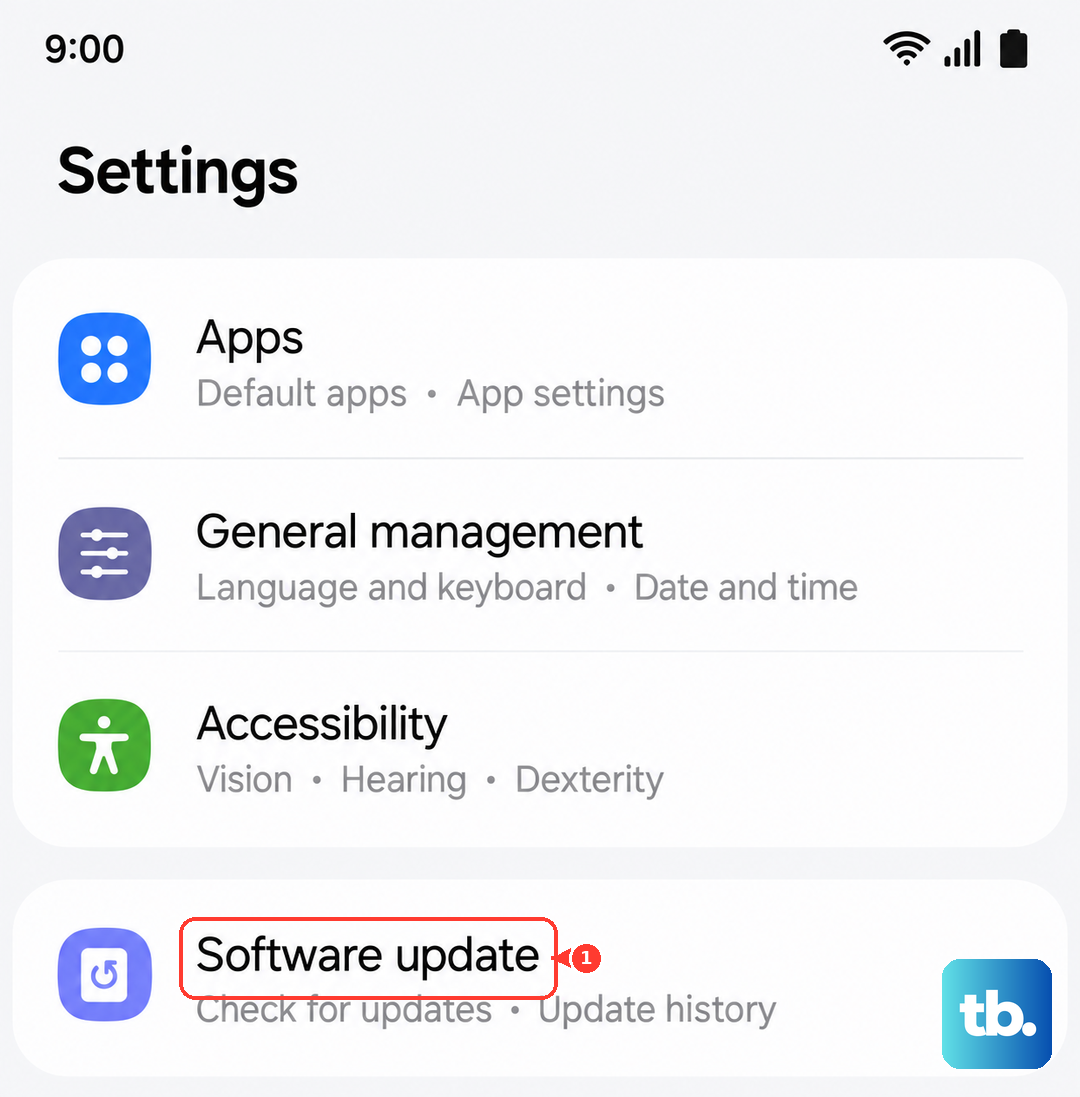
After the update finishes, restart the phone, place it back on the pad, and test again.
Run the Samsung Members charging diagnostic
Samsung offers on-device diagnostics through the Samsung Members app, which can help pin down whether the trouble is with the battery, charging, or another component. This is the smart step to take before assuming the hardware is at fault.
Open the Samsung Members app, run the available phone or charging diagnostic, and follow whatever it flags. Doing this now also gives you a clear result to share if you end up requesting a repair.
Back up, factory reset, then contact Samsung
If wireless charging still fails after everything above, a factory reset is the last software step before treating this as a hardware issue. A reset erases the phone, so back up your data first.
Samsung's warning is explicit. "Please save any information you need prior to the factory reset because your personal information may not be recovered." A network connection is also required so the phone can log out of your Samsung account before the reset completes.
- 1.Back up your photos, messages, and files.
- 2.Go to Settings > General management > Reset > Factory data reset.
- 3.Make sure the phone is connected to Wi-Fi or mobile data so it can sign out of your Samsung account.
- 4.Follow the on-screen prompts to complete the reset.
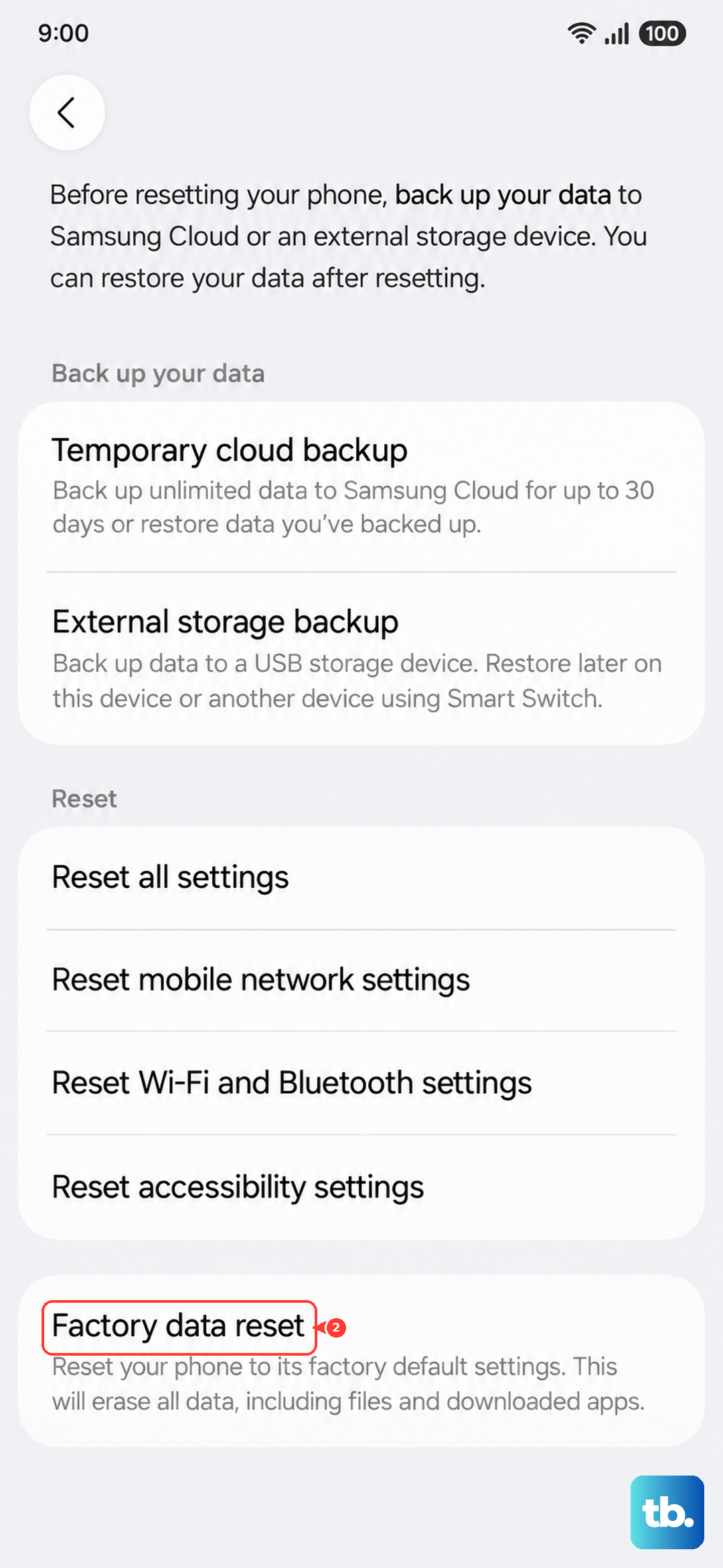
If wireless charging is still dead after a reset, the problem is almost certainly hardware. At that point, contact Samsung support to arrange a repair.
Frequently Asked Questions
Does the Galaxy S25+ support wireless charging?
Yes. The entire S25 series, including the S25+, supports Fast Wireless Charging 2.0 and Wireless PowerShare, and the S25 series supports the Qi2 wireless charging standard. The phone also has 45W Super Fast Charging 2.0 over a cable.
Why does my S25+ charge over the cable but not on a wireless pad?
When the wired charger works and the pad does not, the fault is wireless-specific. The most common causes are off-center placement (the coil location varies by device), a thick or metal case, a dead outlet, or a non-certified charger, so work through those checks first.
How fast can the S25+ charge wirelessly?
The device caps wireless input at about 15W. Up to 25W is possible with Samsung's official Qi2 magnetic charger when it is paired with a Samsung 45W (or higher PPS 20V) adapter, and Galaxy phones need a Qi2-ready case for proper magnetic alignment.
Why does my phone stop charging at around 80 percent?
That is usually Battery protection rather than a fault. It intentionally limits the charge to preserve battery health. To allow a full charge, go to Settings > Battery and turn off Battery protection.
Will a force restart erase my data?
No. A force restart simply reboots the phone and keeps your data intact. A factory reset is the only step here that erases the phone, which is why you should back up first and treat it as a last resort.