
If your Samsung Galaxy S25+ videos are stuttering, freezing, or dropping frames, it can ruin the experience of watching anything. This is usually a software hiccup or a setting that needs tweaking, and I'd start with a simple restart.
Press and hold the Volume Down button and the Side key together for about ten seconds. Keep holding until you see the Samsung logo appear on the screen. This force restart clears out temporary glitches that can interfere with smooth video playback.
Check Your Network Connection
For streaming videos on YouTube, Netflix, or other apps, a weak or unstable connection is the most common culprit. The S25+ supports Wi-Fi 7, but some users have reported occasional disconnections with certain routers.
Try switching your Wi-Fi off and on in the Quick Settings panel. If the lag continues, test the video using your mobile data to see if the problem is with your home network. A quick router reboot can also work wonders for streaming stability.
Free Up Storage Space
When your phone's storage is nearly full, the system struggles to cache video data properly, which leads to choppy playback. This is especially true for high-resolution videos you've recorded on the phone itself.
Head to Settings > Device care > Storage. Android 15 and One UI 7 do a great job of suggesting files to clean up. Pay attention to large video files, app caches, and downloaded documents you no longer need.
Update Your Software and Apps
Outdated software can have bugs that affect media playback. Samsung frequently releases updates that include performance optimizations and fixes for known issues.
Go to Settings > Software update and tap "Download and install." Also, open the Galaxy Store and Google Play Store to check for updates to your video player and streaming apps. An update there often resolves playback problems.
Adjust Video Player and App Settings
Sometimes the issue is within a specific app. In YouTube, for example, you can manually change the playback quality. Tap the three-dot menu during a video and select "Quality" to choose a lower resolution like 720p to see if the lag stops.
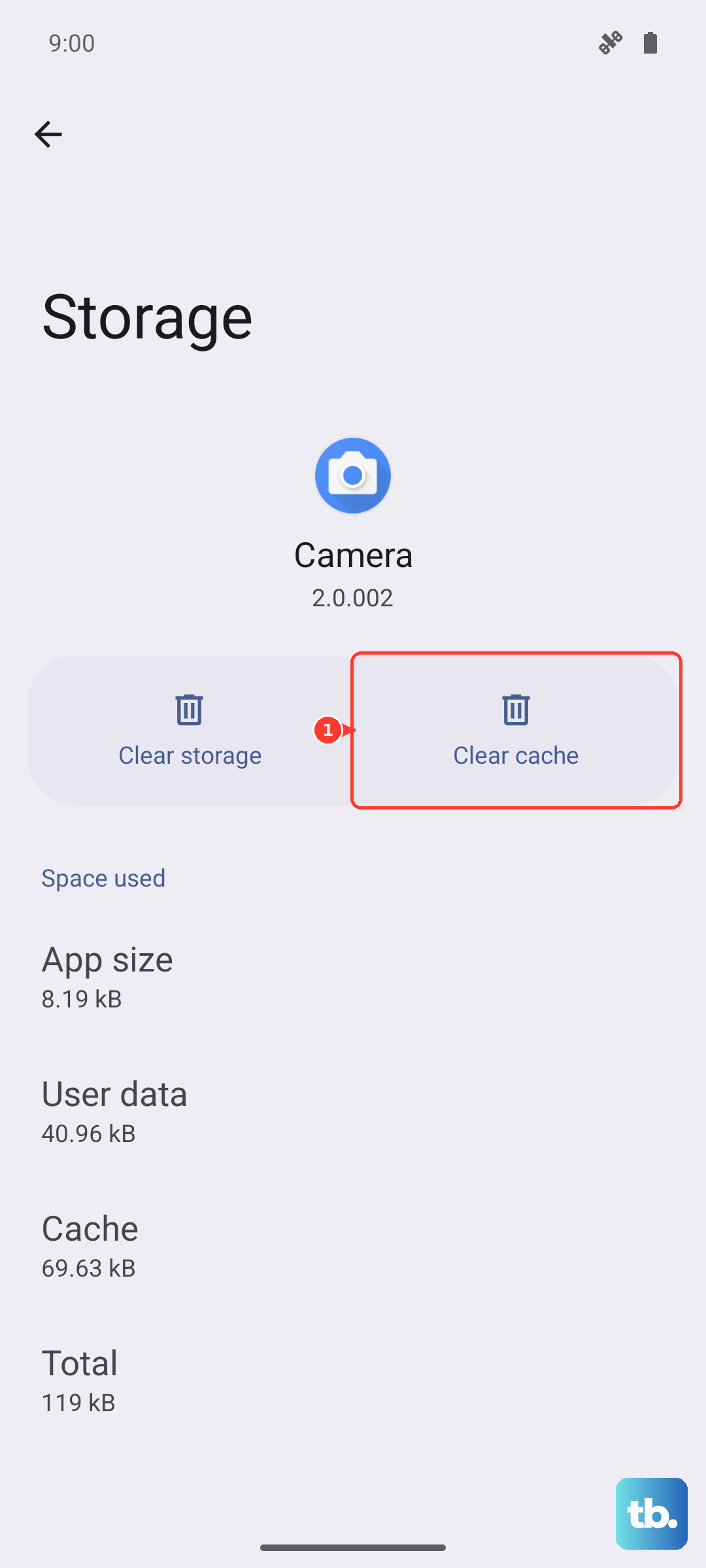
For videos stored on your phone, try using a different player like VLC from the Play Store. If the video plays smoothly there, the issue might be with Samsung's default Gallery app. Clearing that app's cache in Settings > Apps > Gallery > Storage > Clear cache can help.
Disable Battery Saving Modes
Power-saving features limit background processes and CPU performance to extend battery life. This can inadvertently throttle the power needed for smooth video decoding and playback.
Swipe down twice from the top of your screen to open the full Quick Settings panel. Make sure any power saving icons, like "Power saving" or "Adaptive power saving," are turned off. You can also check Settings > Battery > Power saving to disable these modes while watching videos.
Manage Background Apps and RAM
Too many apps running in the background can consume the RAM and processing power your video player needs. The S25+ has plenty of RAM, but it's good practice to close apps you're not using.
You can use the device care feature to optimize performance. Go to Settings > Device care > Memory. Here, you can see which apps are using RAM and tap "Clean now" to free some up. Also, consider disabling the Always-On Display from the Quick Settings, as it uses resources that could contribute to system-wide lag.
Check for Overheating
If your phone gets too hot, it will automatically throttle performance to prevent damage. This thermal throttling can cause video lag. This might happen if you're charging with a fast 45W charger while watching a video in a warm environment.
If the phone feels warm, take it out of its case, stop charging, and move it to a cooler spot. Let it cool down for a few minutes before trying to play the video again. Recording long 8K videos can also cause significant heat buildup.
Reset App Preferences or Network Settings
If the lag seems tied to all your streaming apps, resetting network settings can clear corrupted connection data. Go to Settings > General management > Reset > Reset network settings. This will erase your Wi-Fi passwords and Bluetooth pairings, so you'll need to reconnect to networks afterward.
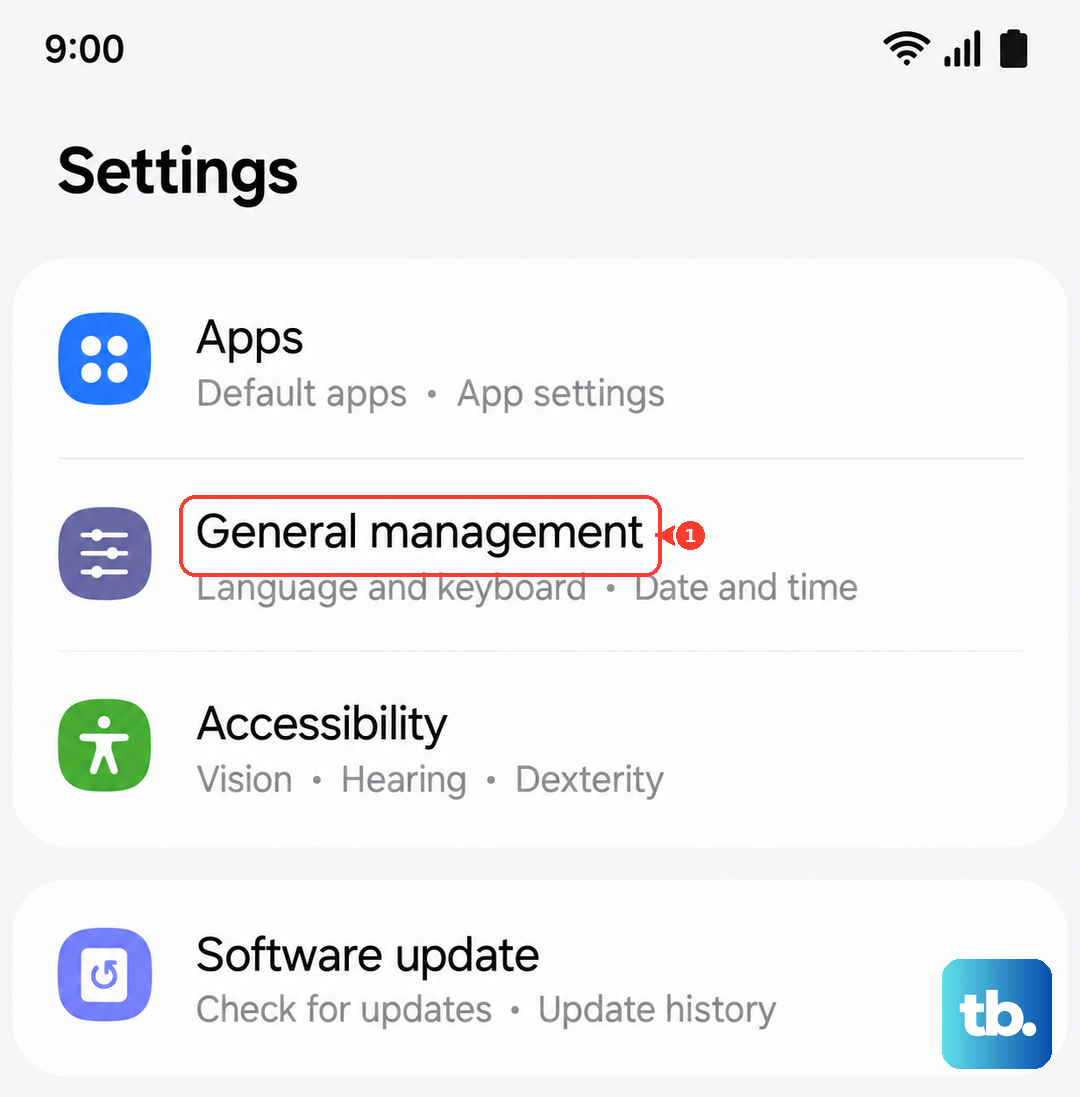
For issues with a single app, try resetting all app preferences. This is found at Settings > General management > Reset > Reset app preferences. It won't delete your app data, but it will reset permissions, notifications, and default app assignments, which can fix odd app behavior.
Perform a Factory Reset
If you've tried everything and the video lag persists across all apps, a factory reset is the final software step. This will erase all data on your phone, so a full backup is absolutely essential first.
You can back up to your Samsung account or Google One. Once backed up, go to Settings > General management > Reset > Factory data reset. Tap "Reset" and follow the prompts. After the phone reboots, test video playback before restoring all your apps and data to see if a clean install of Android 15 resolves the issue.