You bought a Samsung Galaxy S25+ and want to move it to a different network, but the new SIM is being rejected or the phone refuses to activate on the carrier you actually want. Maybe you are switching providers to chase a better plan, or you picked up the phone secondhand and have no idea whether it is locked to anyone. The good news is that the Galaxy S25+ can run on any carrier once it is properly unlocked, and Samsung even sells a factory-unlocked version outright. The catch is knowing whether your specific unit is locked, and understanding that Samsung itself cannot flip a switch to free a carrier-locked phone; only the carrier can. The fixes below walk you from the simplest checks to the last-resort steps, in the safest order.
First, Find Out Whether Your S25+ Is Even Locked
Before you go hunting for an unlock code, confirm you actually need one. If you bought your phone directly from Samsung.com, it is the factory-unlocked variant (US model SM-S936U1) and is already ready for any preferred carrier, so no unlock is required at all. If it came from a carrier, it may be tied to that network until the carrier releases it.
You can read the device's own carrier and network details right from Settings. This tells you which provider's software your phone is running and which network it currently sees.
Open Settings > About phone > Software information to see the Service provider software version (sale code, network code, carrier ID).
Next, open Settings > About phone > Status information > SIM card status to see your network provider name.
Keep one thing in mind throughout this process. Samsung states plainly that unlock requirements vary by carrier and are not dictated by Samsung, so the rules you run into come from the carrier, not from the phone maker.
Restart the Phone With the New SIM Already Inserted
If your S25+ is genuinely unlocked (for example, the Samsung.com model) or you have just had it unlocked, the only thing standing between you and the new network may be a stale connection. A clean restart with the new carrier's SIM physically in the tray often completes the activation on its own.
This is also the exact step Samsung's official unlock guidance ends on: insert the new SIM card and restart your phone to verify the unlock was successful.
Insert the new carrier's SIM card into the tray.
Then press and hold the Volume down button and the Side button (or Power button) at the same time.
After a few seconds, select Restart, then confirm.
Give the phone a minute or two after it boots to register on the new network before deciding it has not worked.
Get Your IMEI and Ask Your Original Carrier for the Unlock Code
This is the single most important step for a carrier-locked S25+, and it is the one many people get stuck on because they expect Samsung to do it. They cannot. For a locked device, Samsung's instruction is direct: contact the original carrier or retailer where you purchased the device to request an unlock code.
To make that request, the carrier needs your phone's IMEI, a unique identity number tied to the hardware.
Open Settings > About Phone > Status > IMEI Information.
Note the IMEI shown there.
Provide that IMEI to your original carrier when you ask for the unlock code.
Be ready for the carrier's conditions. Most carriers require the account to be in good standing and the device fully paid off before they will agree to unlock it. Those eligibility rules are set by the carrier, so ask them directly what your phone needs to qualify.
Enter the Unlock Code, Swap the SIM, and Reboot
Once your carrier provides the unlock code, the rest is straightforward. The carrier will tell you exactly how and when to enter the code, since the prompt and process can differ between providers.
- 1.Follow your carrier's instructions to enter the unlock code when prompted on the device.
- 2.Insert the new carrier's SIM card.
- 3.Restart the phone to confirm the unlock worked.
If the phone now shows the new provider under Settings > About phone > Status information > SIM card status, you are done. If it still rejects the SIM, do not assume the code failed yet; the next two fixes address software hiccups that can block an otherwise valid unlock.
Update the Software in Case a Network Bug Is Blocking Activation
An out-of-date build of One UI can occasionally interfere with SIM recognition or new-network activation. Bringing the S25+ fully up to date clears that possibility and is risk-free for your data.
Before you start, make sure the phone has a healthy charge and connect to Wi-Fi.
Go to Settings > Software update > Download and install.
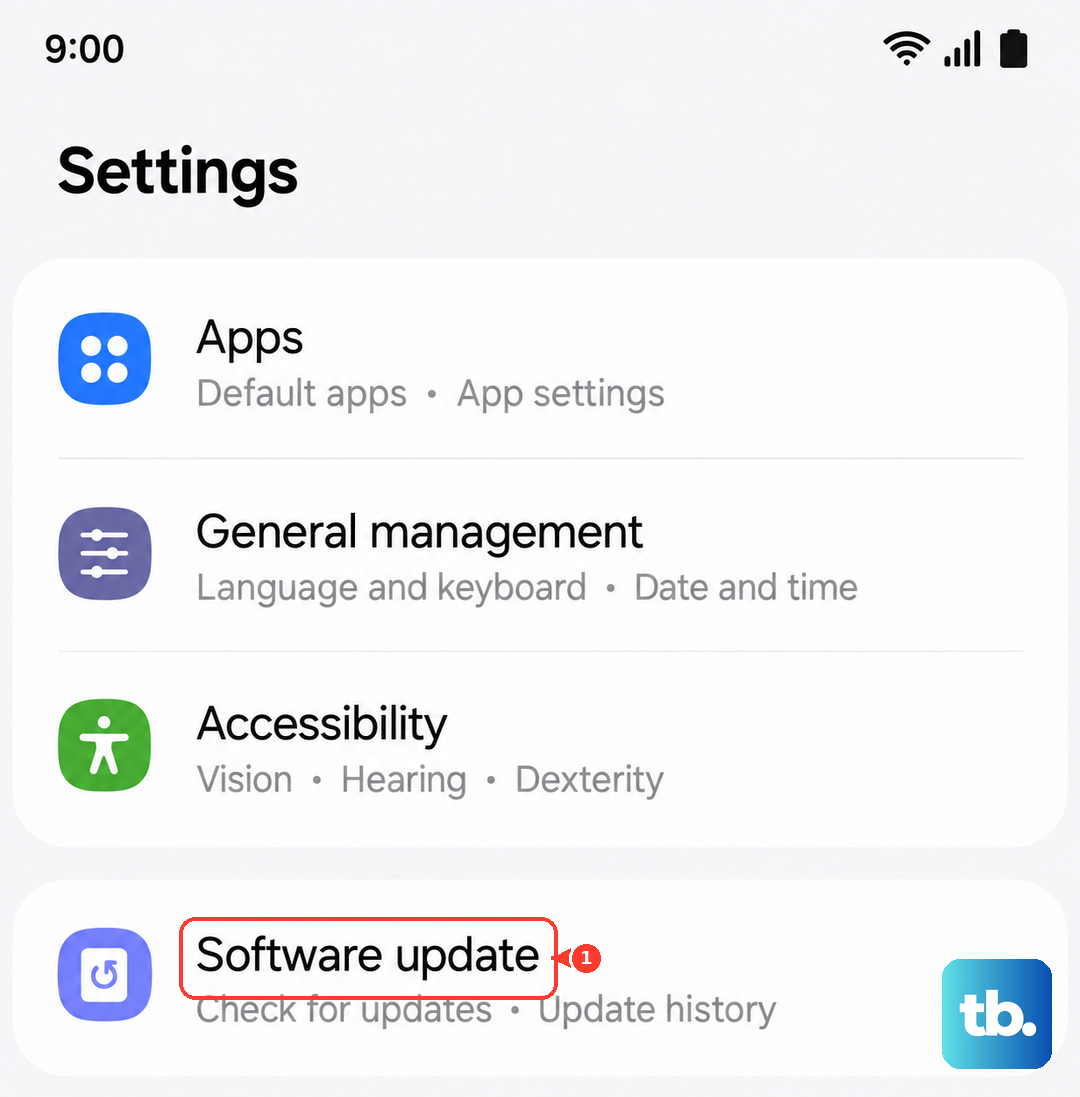
Choose Install now (or Schedule install, or Later).
If the on-device update fails to download or install, you can update from a computer instead using Samsung's official desktop tool, Smart Switch. Connect the phone via USB, open Smart Switch, then follow the prompts to update. There is no Smart Switch button that performs a carrier unlock; the tool only handles firmware and transfers, so use it strictly to get the software current.
When Activation Still Fails, Reset as a Last Resort Before Contacting Support
If the phone is unlocked, the software is current, and it still will not activate on the new carrier, a factory data reset is the final self-service step. This is destructive, so treat it carefully.
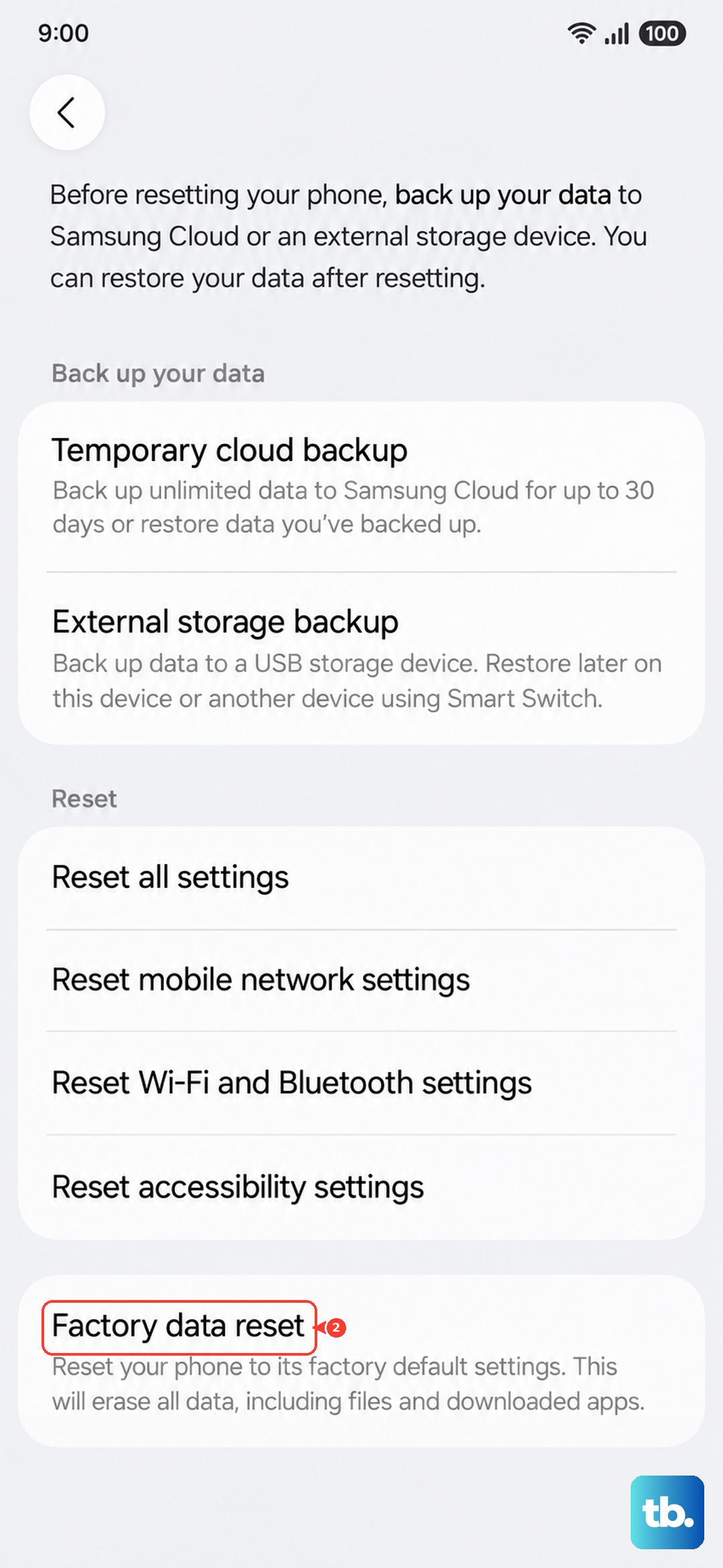
Samsung's own data-loss warning applies here: please save any information you need prior to the factory reset because your personal information may not be recovered. Back up everything first, then proceed only if you accept that the phone will be wiped.
Go to Settings > General management > Reset > Factory data reset.
Review the information shown, then tap Reset.
Tap Delete all (you will enter your security credentials and Samsung account password if one is set).
If you would rather not erase your data and simply want to clear configuration glitches, there is a lighter option. Settings > General management > Reset > Reset all settings restores settings without erasing your security or language settings, accounts, personal data, or downloaded-app settings. Try this gentler reset before the full wipe if your goal is just to rule out a settings conflict.
If the problem still will not clear after a factory reset, the issue is no longer something you can fix from the phone. Contact your carrier for anything to do with the unlock itself, or contact Samsung Support if you suspect a device fault.
Frequently Asked Questions
Can Samsung unlock my carrier-locked Galaxy S25+ for me?
No. Samsung is explicit that unlock requirements vary by carrier and are not dictated by Samsung, and that for a locked device you must contact the original carrier or retailer to request an unlock code. There is no Samsung-side toggle or app that performs a network unlock.
How do I know if my S25+ is already unlocked?
If you bought it directly from Samsung.com, it is the factory-unlocked variant (SM-S936U1) and needs no unlock. Otherwise, check Settings > About phone > Software information for the Service provider software version and Settings > About phone > Status information > SIM card status to see which network it is tied to.
What information does my carrier need to give me an unlock code?
Your carrier will need your phone's IMEI, found at Settings > About Phone > Status > IMEI Information. Most carriers also require that your account be in good standing and the device fully paid off before they will issue the code.
Will updating the software or resetting the phone unlock it?
No. A software update or factory reset can clear bugs that block activation on a new network, but neither removes a carrier lock. Only the carrier's unlock code can do that.
Can the Galaxy S25+ work on any carrier once it is unlocked?
Yes. Once it is properly unlocked, the S25+ can be used on any carrier; the factory-unlocked Samsung.com model (SM-S936U1) is ready for any preferred carrier out of the box. After unlocking, insert the new carrier's SIM and restart the phone to confirm it is working.