You unlock your Galaxy S25+ and the screen starts flickering, dimming in waves, or showing brief glitchy flashes that make the 6.7-inch Dynamic AMOLED 2X panel hard to look at. It can happen on the home screen, while scrolling, in a single app, or only when the phone is charging, and it is unsettling on a phone built around a sharp QHD+ display with a 120 Hz adaptive refresh rate. The good news is that most flicker on the Galaxy S25+ traces back to a software hiccup or a display setting rather than broken hardware, so a few targeted adjustments usually clear it up. The fixes below follow Samsung's own troubleshooting order, starting with the quickest and safest steps and saving the reset and service options for last.
Start with a free online monitor test to check the panel with fullscreen test patterns. What you see there tells you whether to blame the display, the cable, or the source.
Start With a Restart to Clear a Software Hiccup
A simple restart clears the temporary software glitches that are a common cause of a flickering screen. It costs you nothing and takes only a moment, which is why it belongs first.
Press and hold the Volume down button and the Side button at the same time.
Tap 'Restart', then tap 'Restart' again to confirm.
If the screen is frozen or unresponsive and you cannot reach the Restart prompt, perform a force restart instead. Press and hold the Volume down button and the Side button simultaneously for about 10 seconds, until the screen turns black and the Samsung logo appears. A force restart does not erase any of your data, so it is safe to use whenever the display locks up.
Tune the Display Settings That Trigger Flicker
Several display settings can interact badly with the panel and produce flickering or glitching, and adjusting them is one of Samsung's first-line fixes. Work through these one at a time under Settings > Display so you can tell which one made the difference.
Turn off 'Dark mode' (also labeled 'Night mode').
Next, turn off 'Adaptive brightness', then manually raise the brightness level.
Set 'Motion smoothness' to 'Standard'. If the flicker only happens while the phone is charging, set 'Motion smoothness' to 'Adaptive' instead.
Then select a different 'Screen resolution' option.
The motion smoothness setting controls the refresh rate, so switching it is worth trying first for flicker that shows up during scrolling or charging. If turning a setting off does not help, you can switch it back and move on to the next one.
Run an On-Device Optimization
Background processes and low free memory can contribute to display glitches, and the Galaxy S25+ has a built-in tool to tidy all of that up at once. Open Settings > Device care and tap 'Optimize now'. This clears background issues and frees up memory and storage, and it takes only a moment.
Install the Latest Software Update
Outdated software is a known source of display bugs, and Samsung pushes fixes for these through regular updates. Keeping the phone current is one of the more reliable ways to clear a flicker that started after a period of normal use.
Go to Settings > Software update.
Tap 'Download and install'. Depending on your carrier, this option may instead read 'System updates' or 'Check for software updates'.
Follow the on-screen prompts to finish installing.
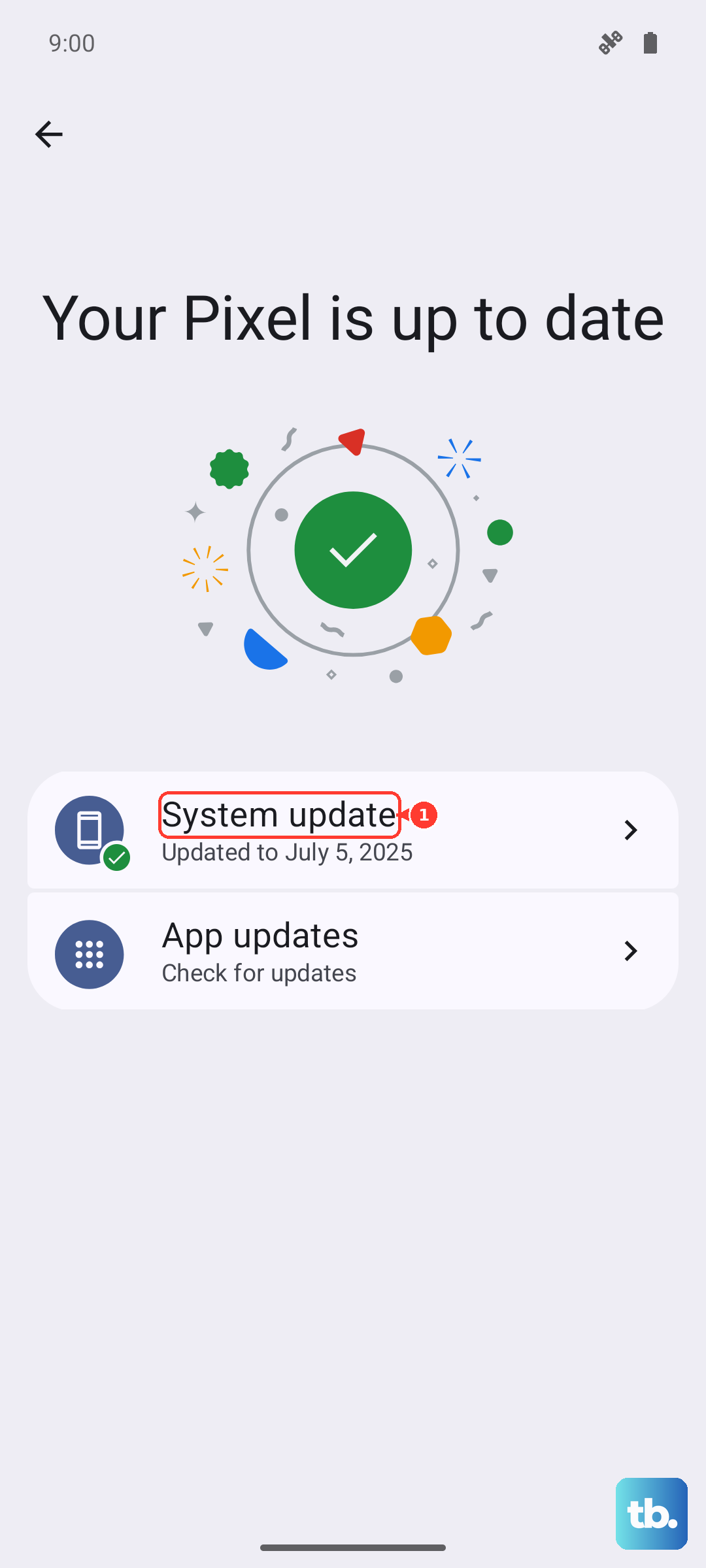
Some carriers require a Wi-Fi connection to check for and install updates, so connect to Wi-Fi first if the update does not appear. If you want to confirm which version you are running, you can check it under Settings > About phone > Software information.
Use Safe Mode to Rule Out a Downloaded App
If the flicker started after you installed or updated something, a third-party app may be the culprit. Safe mode loads the phone with only its built-in software and disables every app you have downloaded, which lets you test that theory cleanly.
Power the phone completely off.
Turn it back on, and when the Samsung logo appears, press and hold the Volume down button.
Keep holding until 'Safe mode' shows in the bottom-left corner of the screen.
If the flickering stops in Safe mode, a downloaded app is causing it. Restart the phone to exit Safe mode, then uninstall apps one at a time, starting with the one you most recently installed or updated. To leave Safe mode at any point, you can also swipe down from the top and tap the 'Safe mode is on' notification, then choose Turn off.
When Flicker Only Appears in the Camera During Video
If the flicker shows up only in the Camera app while you are recording video, and not on the rest of the screen, it is usually not a display fault at all. Banding and flicker in video are commonly caused by LED or fluorescent lighting in the room rather than the phone itself.
Add more light to the scene.
Turn off 'Super steady'.
Switch to Pro Video mode and lower the shutter speed. The artifact often begins at speeds faster than 1/125, so slow the shutter until the flicker disappears.
Because this is a recording artifact tied to the lighting and camera settings, it does not point to a hardware problem with your display.
Back Up and Factory Reset as a Last Software Step
If the flicker survives everything above, a factory data reset returns the phone to a clean software state and is the final step to try before treating the problem as hardware. This erases everything on the device, so back up your photos, accounts, and files first.
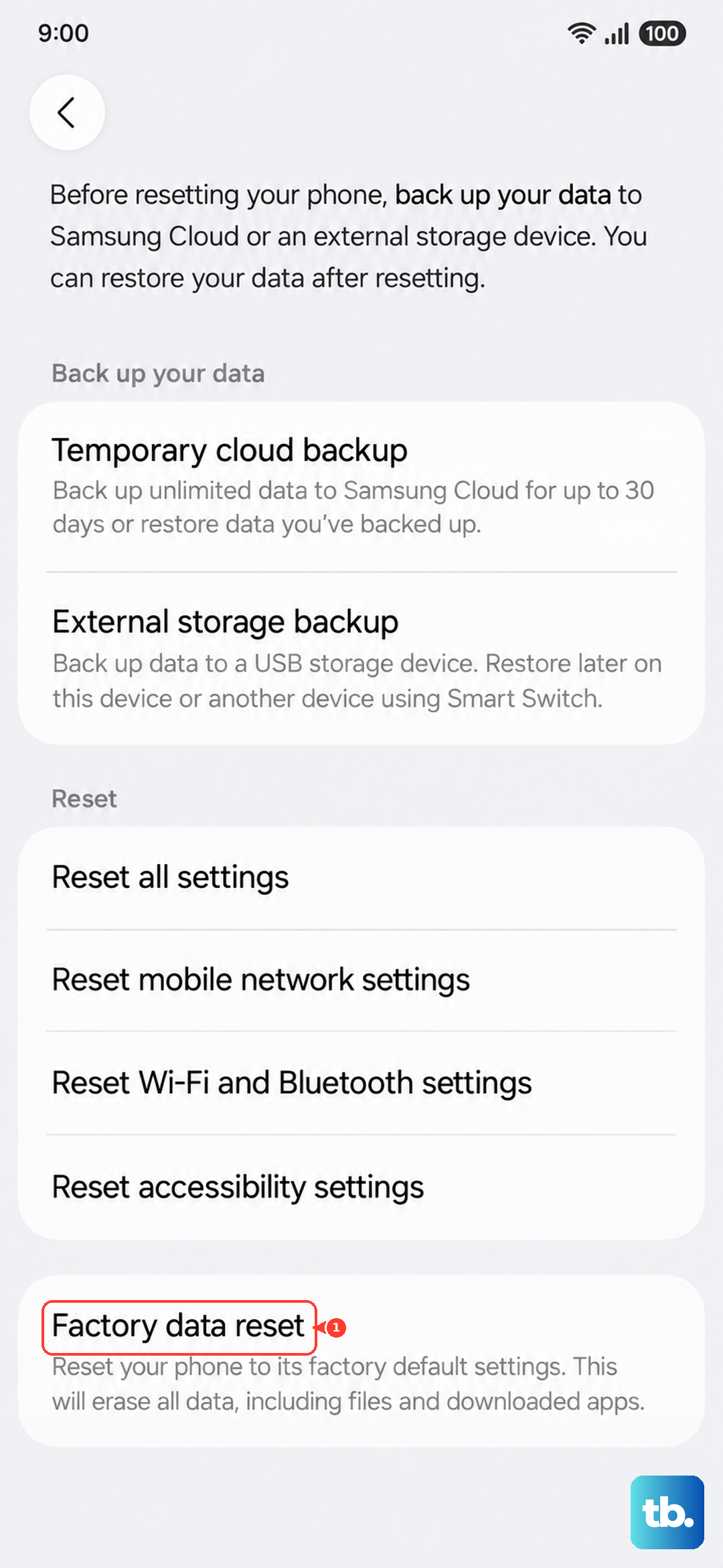
Samsung's warning before you begin: 'Please save any information you need prior to the factory reset because your personal information may not be recovered.'
- 1.Go to Settings > General management > Reset > Factory data reset.
- 2.Review the information and tap 'Reset'.
- 3.Tap 'Delete all'. Enter your security credentials and your Samsung account password if you are prompted.
After the reset completes, set the phone up again and watch for flicker before restoring all of your apps, so you can confirm whether the reset solved it.
Contact Samsung When the Flicker Points to Hardware
If the screen still flickers after the software steps, or if the phone has been dropped or otherwise damaged, you are likely dealing with a hardware issue that needs a professional look. Per Samsung's guidance: 'If there has been any sort of damage to the device, please visit a Samsung walk-in service center or schedule a repair service online.'
You can find a nearby walk-in location or book an online repair through the Samsung support service locator. The Samsung Members app on your phone can also run device diagnostics and submit a service request, which is a convenient way to document the flicker before a technician sees it.
Frequently Asked Questions
Will a restart or force restart delete my data?
No. A standard restart and a force restart both simply power the phone off and back on to clear temporary software glitches, and neither one erases any of your data. A factory data reset is the only step in this guide that deletes your information.
Why does my Galaxy S25+ only flicker while it is charging?
Flicker that appears specifically while charging is often tied to the refresh-rate setting. In Settings > Display, set 'Motion smoothness' to 'Adaptive' for charging-related flicker, rather than the 'Standard' option suggested for general flickering.
How do I know if the flicker is a software problem or a hardware fault?
Work through the software steps first, including a restart, the display setting adjustments, optimization, a software update, Safe mode, and finally a factory reset. If the flicker continues after all of those, or if the phone has been dropped or damaged, it is likely hardware and should be evaluated at a Samsung walk-in service center or through an online repair booking.
The flicker only shows up in my videos. Is my screen failing?
Not necessarily. Flicker or banding seen only in the Camera app during video recording is usually caused by LED or fluorescent lighting, not the display. Add more light, turn off 'Super steady', and slow the shutter speed in Pro Video mode until it goes away.
How can I check whether my phone is fully up to date?
Open Settings > Software update and tap 'Download and install' (it may read 'System updates' or 'Check for software updates' depending on your carrier) to look for new updates. To see the version you currently have installed, go to Settings > About phone > Software information.