You typed out a message, hit send on your Galaxy S25+, and the text just sits there spinning or shows a red exclamation mark next to it. Whether it is one stubborn conversation or every outgoing message refusing to leave the phone, a Galaxy S25+ that will not send texts almost always points to a network, SIM, or messaging-app hiccup rather than a broken phone. The good news is that this exact model is a full cellular smartphone with 4G LTE, 5G Sub6, and SMS/MMS messaging over a carrier SIM or eSIM, so the standard texting fixes all apply here.
Work through the steps below in order. They start with the quickest, safest checks and move toward the deeper resets only if the simple stuff does not solve it, so you avoid wiping anything you do not have to.
Rule out a carrier or network problem before anything else
Texting failures are most often a carrier or network issue, not a phone fault, so start there. First confirm your account is active and in good standing. If you are not sure, call your carrier and ask whether there is an outage or a billing hold on your line.
Next, make sure the phone actually has a working connection to the network. Temporarily disable Wi-Fi and check that you have at least a 3G signal in the status bar before you try sending again. If the signal indicator is empty or showing no service, your texts have nothing to travel over and the rest of the steps will not help until that is restored.
Refresh the connection with Airplane mode
A quick way to force the phone to re-register on the cellular network is to flip Airplane mode off and on. Swipe down to open Quick Settings and tap the flight or airplane mode button, which lights up blue when it is on.
Leave Airplane mode on for a few seconds, then tap it again to turn it back off. This clears a stuck SMS connection by making the phone reconnect to your carrier from scratch, which often gets a backlog of unsent texts moving immediately.
Restart the phone to clear temporary glitches
A simple restart wipes out the temporary software glitches that can quietly block messaging. For a normal restart, press and hold the Volume down button and the Side button until the power options appear, then tap Restart. You can also tap the Power icon in the Quick Settings panel and choose Restart from there.
If the phone is frozen or unresponsive, do a force restart instead. Press and hold the Volume down button and the Side button (or Power button) simultaneously until the device turns off and turns back on. The screen goes black, then the Samsung logo appears. This does not erase any of your data, it simply reboots the device.
Clear the Messages app cache
Corrupted temporary files inside the messaging app can make texts slow to send or stop them entirely, and clearing the cache is one of Samsung's listed fixes for this. Importantly, clearing the cache does not delete your conversations.
- 1.Open Settings.
- 2.Tap Apps.
- 3.Select Messages.
- 4.Tap Storage.
- 5.Tap Clear cache.
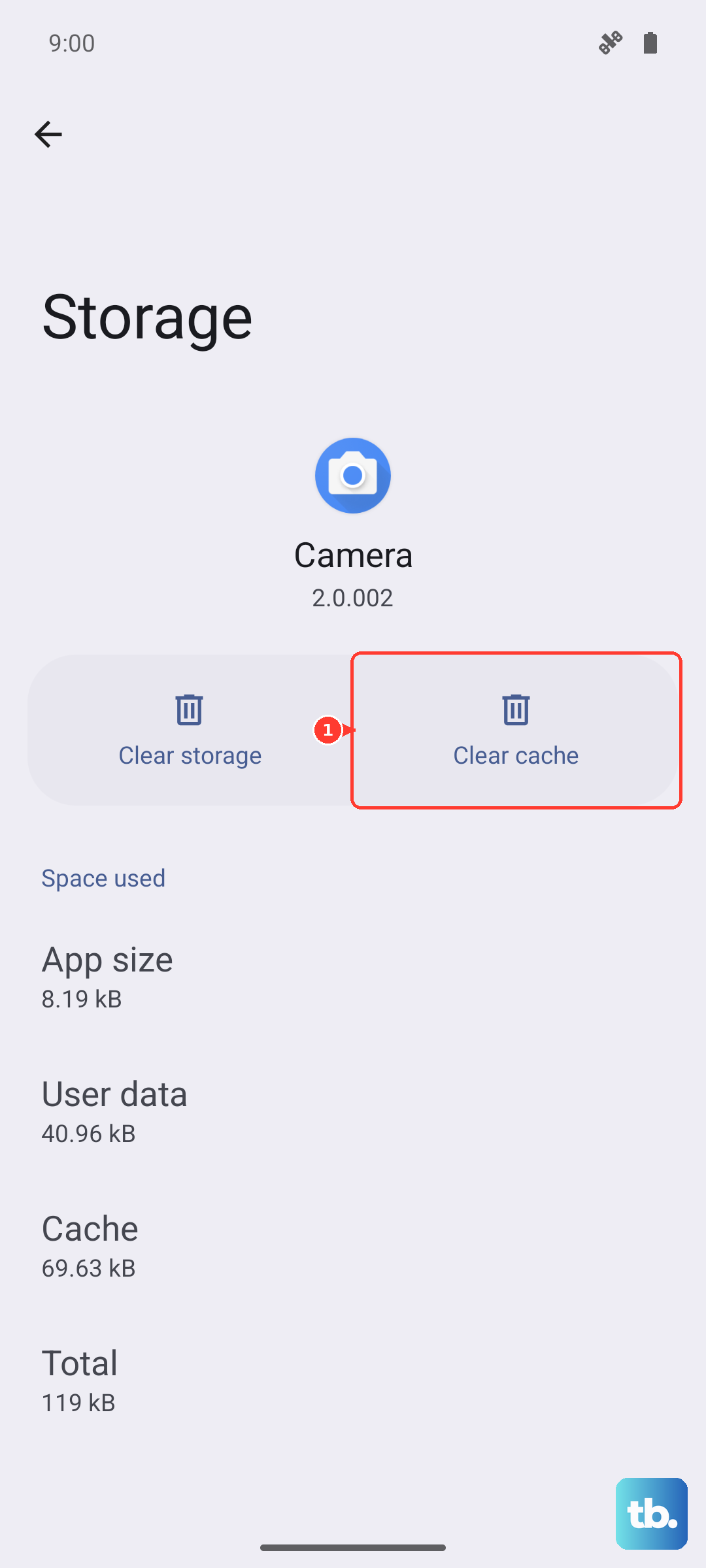
After clearing the cache, return to your messaging app and try sending the text again.
Check that the SIM is seated and healthy
A loose or faulty SIM or eSIM can stop texts from sending even when everything else looks fine. Verify that the SIM card is correctly installed and not damaged.
If you are not comfortable testing the SIM yourself, or you suspect it may be worn or defective, contact your carrier. They can help you test the SIM or order a replacement. This is worth checking before you move on to any settings resets.
Make sure the right SIM is set for texting
The Galaxy S25+ supports Dual SIM, so if you are running two SIMs or eSIMs, your phone may be trying to send texts from the wrong line. When the line set for messaging does not have active service, your outgoing texts have no way out.
To fix this, go to Settings > Connections > SIM card manager and choose your preferred SIM for text messages. Setting it to the line with active service ensures outgoing texts use a connection that can actually deliver them.
Turn on Wi-Fi Calling when your signal is weak
If you are somewhere with poor cellular coverage, your calls and texts may struggle to get through over the carrier network. Wi-Fi Calling lets them route over a Wi-Fi connection instead, which can rescue messaging in dead zones at home or work.
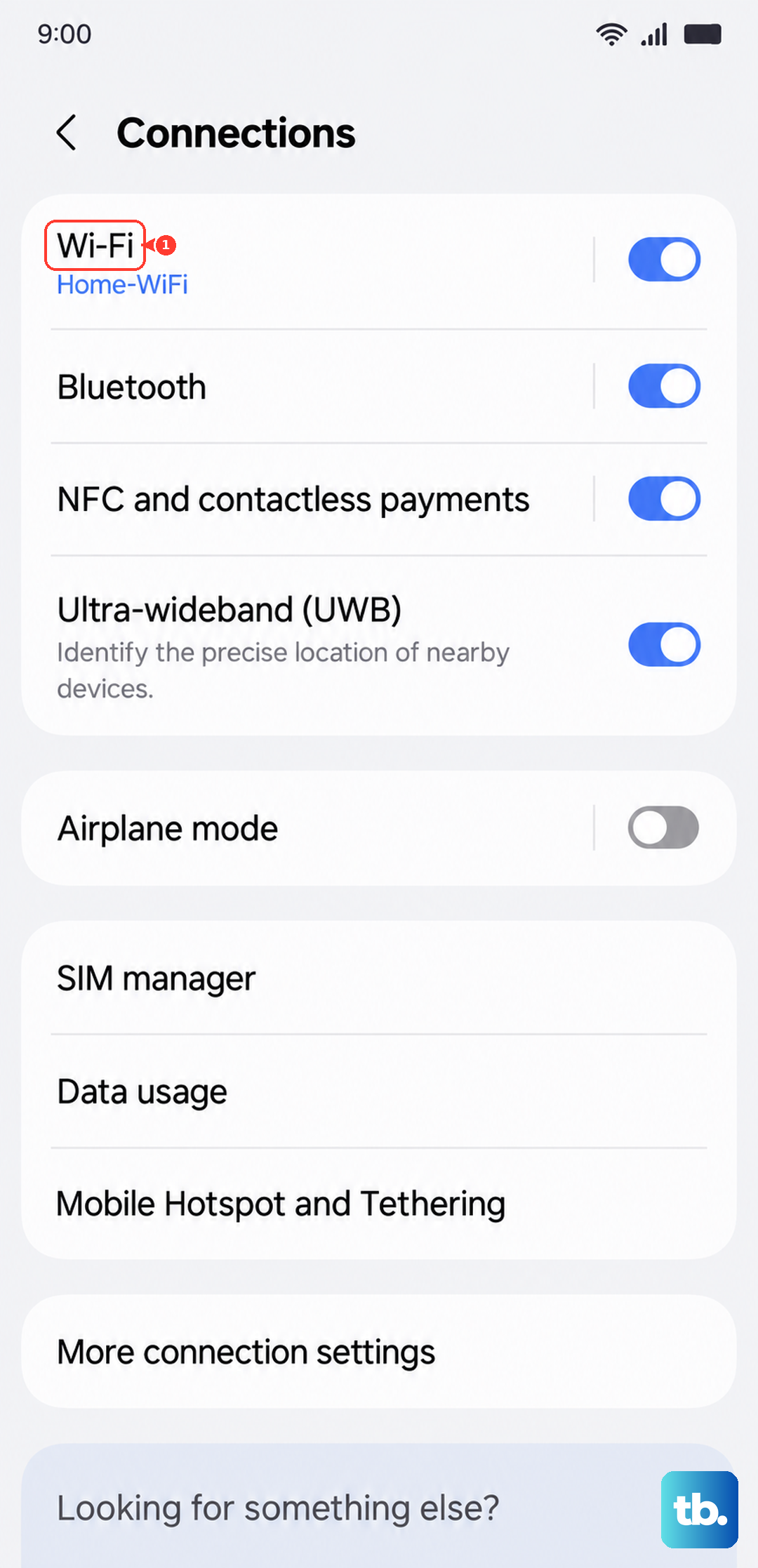
To enable it, go to Settings > Connections > Wi-Fi Calling and toggle it on. Availability depends on your carrier, so if the option is missing or greyed out, your plan may not support it.
Deregister iMessage if you switched from an iPhone
If you moved to the Galaxy S25+ from an iPhone, your number may still be tied to Apple's iMessage, which can leave texts from iPhone users stuck and undelivered. You will need to release the number from iMessage to fix this.
If you still have the old iPhone, put the SIM back in it and turn off both services. In iPhone Settings, tap Apps > Messages and turn off iMessage, then go to Settings > Apps > FaceTime and turn off FaceTime.
If you no longer have the iPhone, you can deregister online instead. Go to selfsolve.apple.com/deregister-imessage/ and follow the steps to remove your number from iMessage.
Update your phone's software
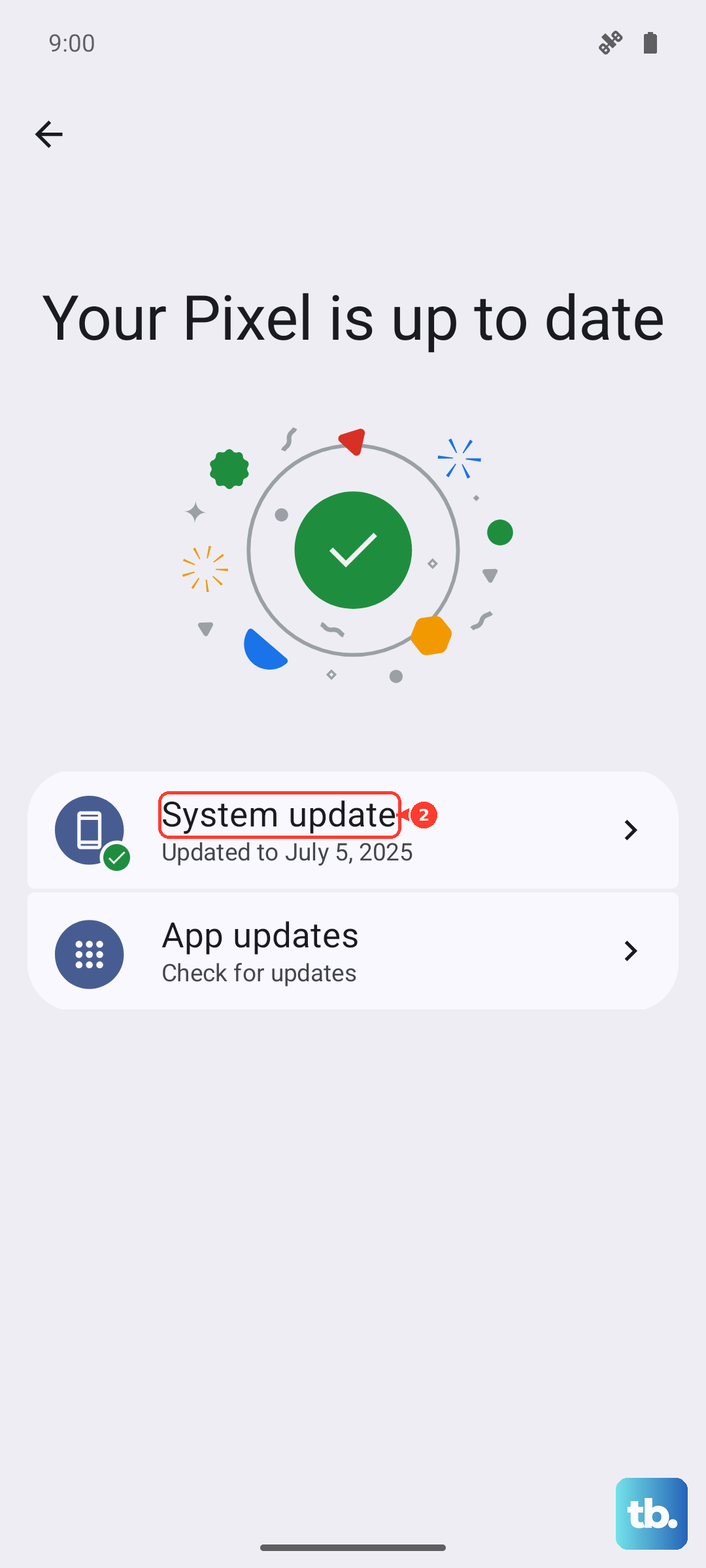
Outdated firmware can introduce messaging bugs that newer updates fix. To check for an update on the phone, go to Settings > Software update (it may be labeled System updates), tap Download and install, and follow the on-screen instructions.
If you prefer to update from a computer, you can do it with Samsung Smart Switch, Samsung's official desktop tool for Windows and Mac. Install any available update, then test your messaging again once the phone restarts.
Reset mobile network settings
If texts still will not send after everything above, resetting your network configuration restores those settings to default without touching your personal data. This will reset all mobile network settings, but it does not delete your apps or personal information.
Go to Settings > General management > Reset > Reset mobile network settings and confirm. Note that you may need to reconnect to Wi-Fi and re-pair Bluetooth devices afterward, since those connections are part of what gets reset.
Factory reset as a last resort, then contact support
If nothing else has worked, a factory data reset is the final option. This completely erases your personal information and data, so back everything up first using Samsung Cloud, your Google account, or Samsung Smart Switch, because your personal information may not be recovered once the reset runs.
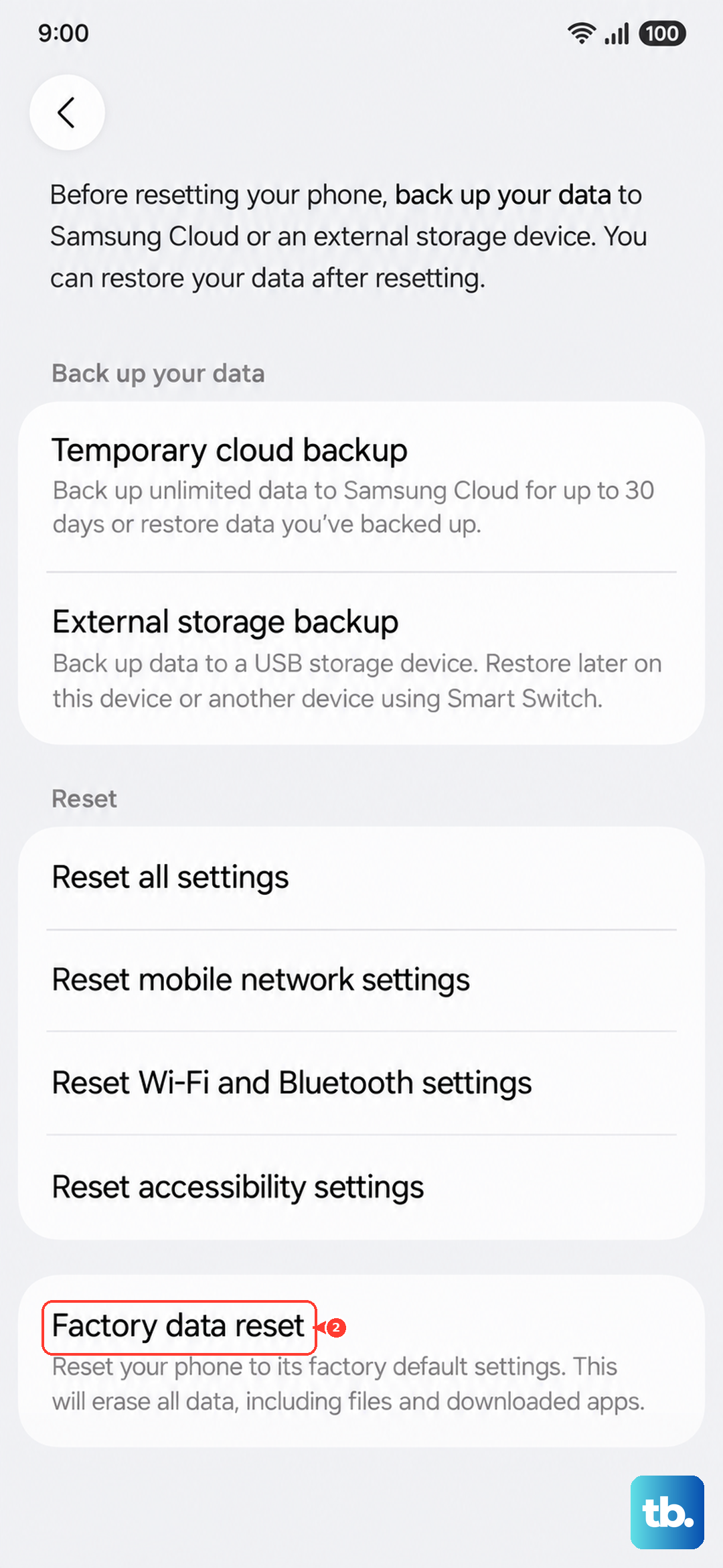
Once your backup is done, go to Settings > General management > Reset > Factory data reset, review the information shown, then confirm the reset and follow the on-screen prompts to delete all data. If the texting problem continues even after a full reset, the issue is likely on the carrier or account side, so contact Samsung Support or your carrier for further help.
Frequently Asked Questions
Why can my Galaxy S25+ receive texts but not send them?
This usually points to a network or account problem on the outgoing side. Confirm your account is active and in good standing, check that you have at least a 3G signal with Wi-Fi temporarily off, then toggle Airplane mode off and on to force the phone to re-register on the network.
Will clearing the Messages app cache delete my conversations?
No. Clearing the cache through Settings > Apps > Messages > Storage > Clear cache only removes corrupted temporary files. Your existing conversations stay intact, which makes this one of the safest fixes to try early.
I switched from an iPhone and my texts are stuck. What do I do?
Your number may still be registered with Apple's iMessage. If you still have the iPhone, turn off iMessage under Settings > Apps > Messages and turn off FaceTime under Settings > Apps > FaceTime. If you no longer have it, deregister online at selfsolve.apple.com/deregister-imessage/.
Does resetting mobile network settings erase my data?
No. Resetting mobile network settings restores network-related settings to their defaults without deleting your apps or personal data. You may simply need to reconnect to Wi-Fi and re-pair Bluetooth devices afterward.
What should I do if a factory reset does not fix the problem?
If texts still will not send after a full reset, the cause is likely on the carrier or account side rather than the phone. Contact Samsung Support or your carrier so they can check your line, SIM, and network provisioning.