You tap the switch to share your Galaxy S25+ connection, but nothing happens, your laptop never sees the network, or the link drops the moment a device tries to join. A hotspot that refuses to cooperate is frustrating when you are relying on your phone for internet away from home.
The cause usually lands in one of a handful of places, such as your carrier plan, a stale toggle, a band mismatch, or a setting that needs to be reset. The good news is that the Galaxy S25+ fully supports Mobile Hotspot and Tethering, so the feature is there, and the fixes below walk through it in order from the quickest and safest to the more involved last resorts.
Work through these in sequence and stop as soon as your hotspot starts behaving. Most people are back online within the first few steps, long before the heavier resets ever come into play.
Start With Your Carrier Plan and Mobile Data
Before changing any settings, confirm the basics that the hotspot depends on.
Using Mobile Hotspot and Tethering requires a tethering plan on your carrier account. If your plan does not include tethering, the feature can appear to switch on yet refuse to pass any data.
Next, make sure mobile data itself is turned on, since the hotspot has nothing to share without it.
Check it under Settings > Connections > Data usage > Mobile data and confirm the connection from your carrier is enabled.
It is also worth confirming your account is in good standing before moving on.
Flip the Hotspot Off and Back On
The fastest fix is also the simplest. Restarting the hotspot feature clears a surprising number of temporary glitches without touching anything else.
Go to Settings > Connections > Mobile Hotspot and Tethering.
Tap the switch next to Mobile Hotspot to turn it off.
Tap the switch again to turn it back on.
Give your other device a moment to rediscover the network, then try connecting again. If a brief software hiccup was the culprit, this alone usually brings it back.
Give the Phone a Clean Restart
When toggling the feature is not enough, a full restart refreshes the phone and clears background processes that may be interfering with tethering.
Press and hold the Volume down button and the Side button (or Power button) at the same time.
After a few seconds, the power options appear.
Tap Restart, and then tap Restart again.
Once the phone is back up, switch the hotspot on and test the connection from scratch.
Check Security, Band, and the Hidden Network Setting
If your other device simply cannot see the hotspot, the problem is often in how the network is broadcast.
Open Settings > Connection > Mobile Hotspot and Tethering > Advanced and ensure security is set to WPA2.
While you are in the Advanced menu, if the hotspot is not detected by your other device, toggle off the Hidden network setting, since a hidden network will not appear in a normal Wi-Fi scan.
The band can also matter for compatibility.
Under Mobile Hotspot > Information you can switch between 2.4 GHz and 5 GHz.
The 2.4 GHz band is compatible with more devices, while 5 GHz offers better performance.
If a particular laptop, tablet, or older gadget refuses to connect, switching to 2.4 GHz is often what gets it on the network.
Confirm the Network Name and Password Match
A connection that fails right after you enter the password is frequently just a typo or a name you are confusing with another nearby network. It helps to look up the exact details on the phone before trying again.
On the Galaxy S25+, view or change the hotspot Network name and Password under Settings > Connections > Mobile Hotspot and Tethering > Mobile Hotspot > Information.
Read the password carefully, then re-enter that exact password on the device you are trying to connect, watching for capital letters, numbers, and symbols that are easy to mistype.
Install the Latest Software Update
Hotspot bugs are sometimes fixed in firmware, so an out-of-date phone can keep tripping over a problem that has already been patched. Updating is straightforward and only takes a few minutes.
Go to Settings > Software update.
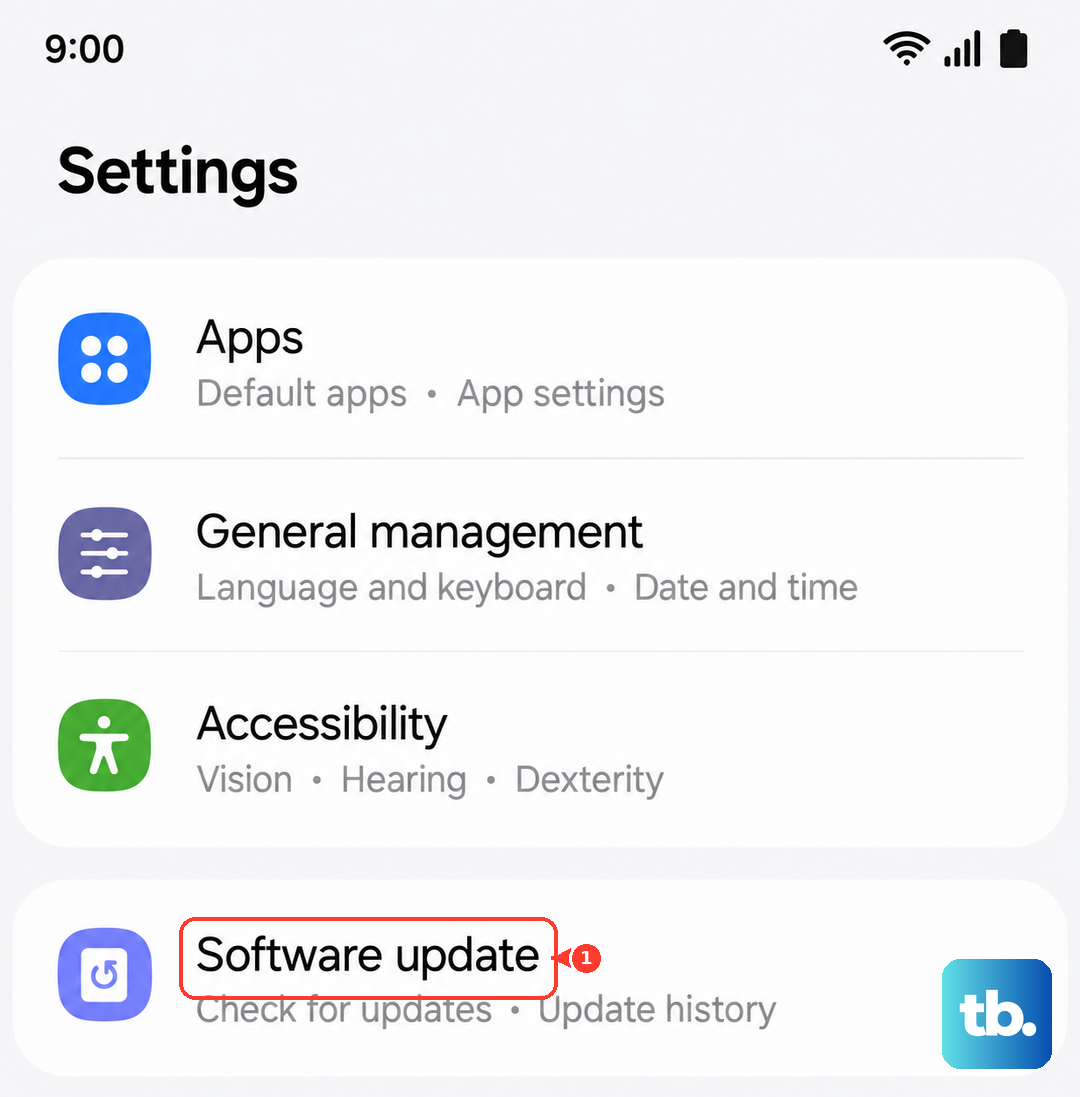
Tap Download and install.
Make sure the phone has at least 50% battery and adequate storage space before installing.
After the update finishes and the phone restarts, turn the hotspot back on and check whether the issue has cleared.
Rule Out a Misbehaving App With Safe Mode
A downloaded app, especially a VPN, security tool, or network utility, can interfere with tethering. Safe mode loads the phone with only its built-in software, which makes it easy to tell whether a third-party app is to blame.
Restart the phone into Safe mode, then test the hotspot while it is running.
If the hotspot works in Safe mode but not normally, a downloaded app is the cause.
Reboot back into normal mode and uninstall recently installed apps until the hotspot behaves again.
Reset Mobile Network Settings
If the hotspot still struggles, a targeted network reset can clear deeper glitches affecting tethering without disturbing your apps or files. This is the first of the reset-based fixes and is reassuringly non-destructive.
Go to Settings > General management > Reset > Reset mobile network settings.
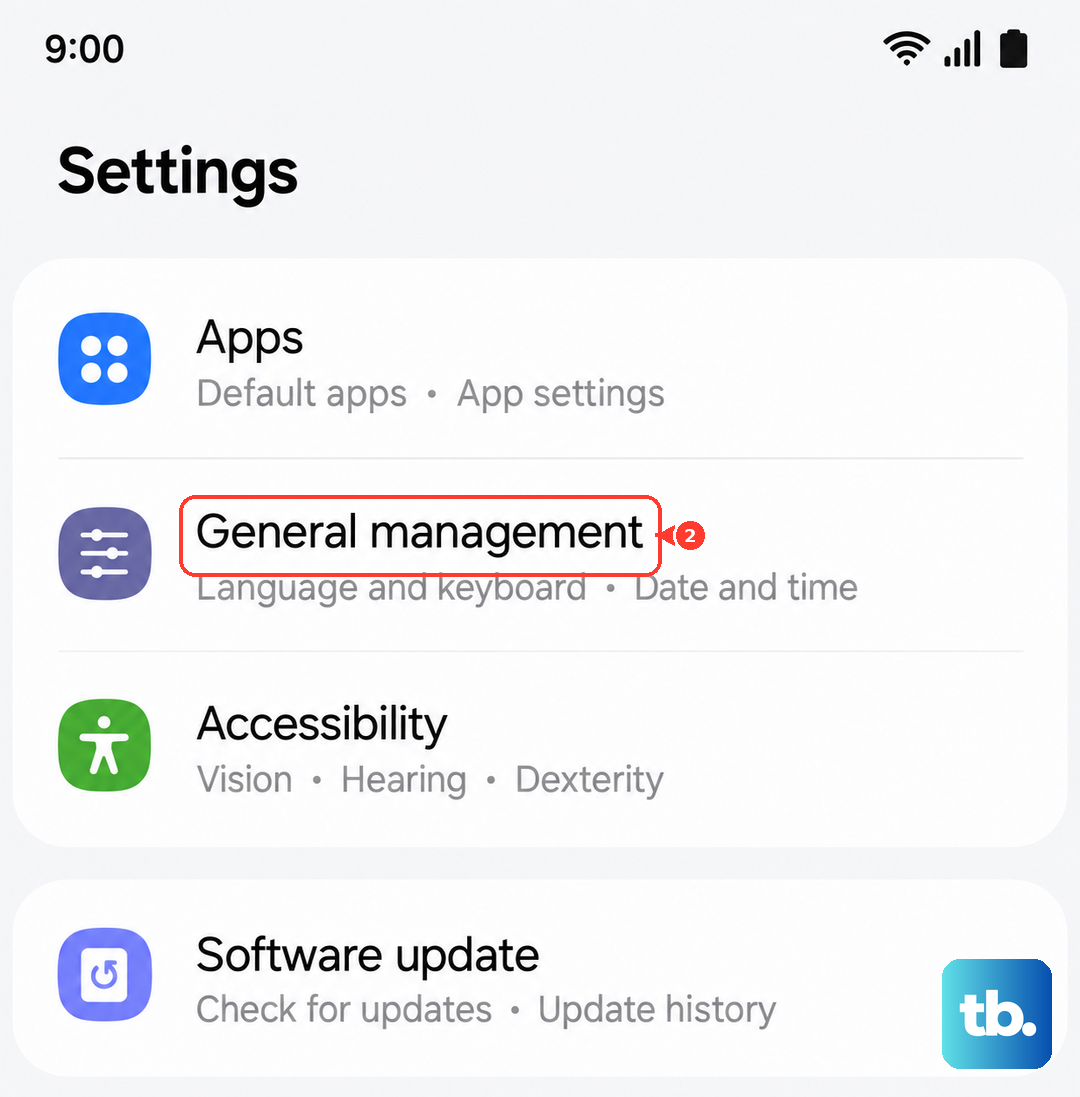
This resets your mobile network settings without erasing your apps or personal data, and it often clears stubborn connectivity problems.
Once it finishes, re-enable mobile data if needed and test the hotspot again.
Reset Wi-Fi and Bluetooth Settings
Because the hotspot broadcasts over Wi-Fi, a separate reset of your wireless settings can resolve issues the mobile network reset did not reach. Like the previous step, it leaves your personal data intact.
Go to Settings > General management > Reset > Reset Wi-Fi and Bluetooth settings.
This restores wireless connectivity defaults without erasing your apps or data.
Afterward you will need to reconnect to your Wi-Fi networks and re-pair your Bluetooth accessories, so have those passwords handy before you start.
Factory Reset as a Last Resort, Then Contact Your Carrier
If nothing above works, a factory data reset returns the phone to its original state and clears any deep software problem that survived the lighter resets.
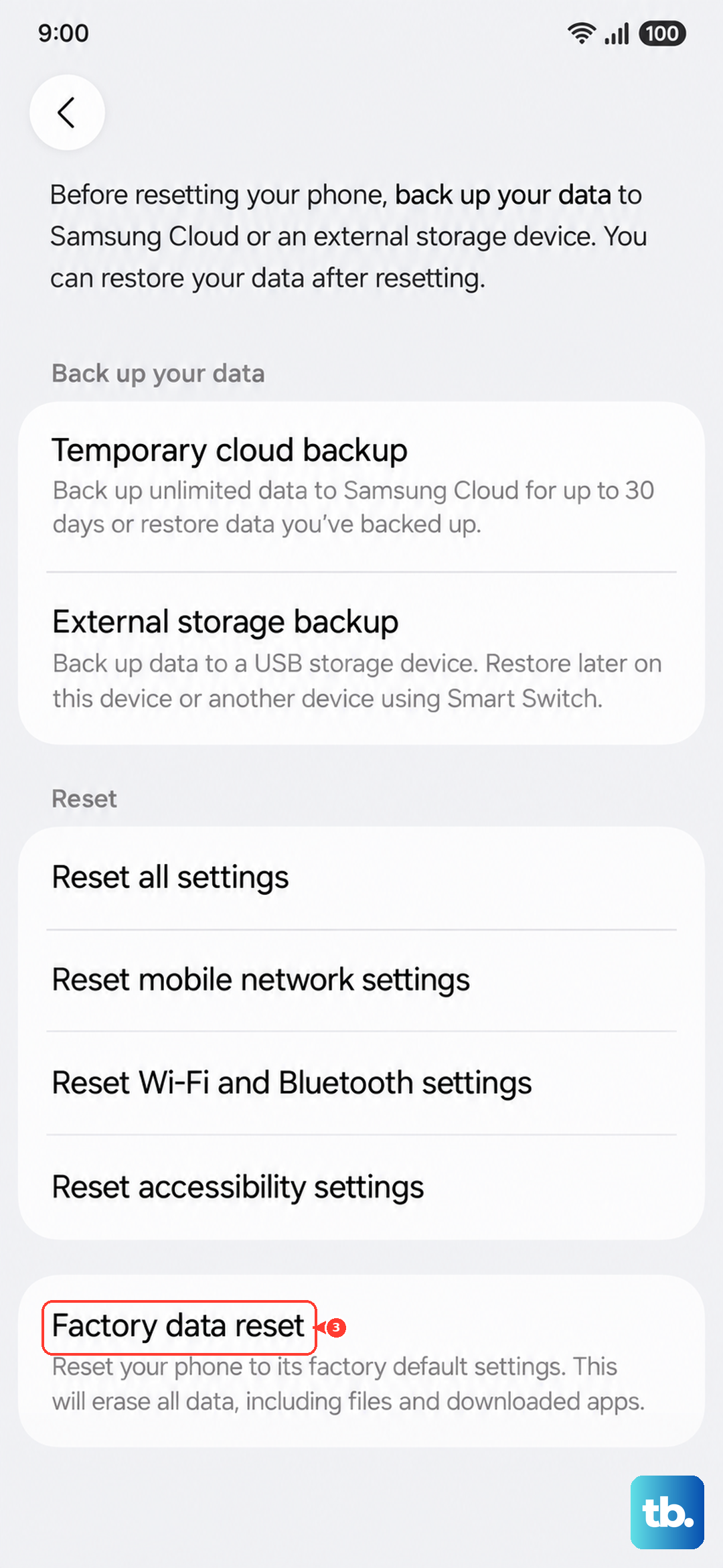
This step erases everything, so treat it as a genuine last resort and back up your data first.
Warning: a factory data reset erases all data and settings.
Save any information you need before the reset, because your personal information may not be recovered.
- 1.Back up your data.
- 2.Go to Settings > General management > Reset > Factory data reset.
- 3.Review the information shown.
- 4.Tap Reset.
- 5.Tap Delete all.
If the hotspot still does not work after a factory reset, the issue is likely tied to network service or your account rather than the phone.
At that point, contact your carrier regarding network service or any account or tethering-plan problems.
A Couple of Extra Settings Worth Knowing
While you are in the hotspot menus, two options can affect how reliably the connection stays up.
They are not fixes for a hotspot that will not turn on, but they explain some behavior that can look like a fault.
Under Settings > Connections > Mobile Hotspot and Tethering > Mobile Hotspot > Information > Advanced there is a setting called Turn off when no device connected for, which shuts the hotspot down automatically after a period with nothing connected.
There is also an Auto Hotspot toggle under Settings > Connections > Mobile Hotspot and Tethering > Mobile Hotspot that automates turning the hotspot on.
Knowing these exist can save you from thinking the hotspot failed when it simply timed out as designed.
Frequently Asked Questions
Do I need a special plan to use the hotspot on my Galaxy S25+?
Yes. Using Mobile Hotspot and Tethering requires a tethering plan on your carrier account. If tethering is not included on your plan, the hotspot may switch on but fail to pass data, so confirm this with your carrier first.
Why can my laptop not see my Galaxy S25+ hotspot at all?
If the network never appears, open Settings > Connection > Mobile Hotspot and Tethering > Advanced and toggle off the Hidden network setting. You can also try switching the band to 2.4 GHz under Mobile Hotspot > Information, since it is compatible with more devices than 5 GHz.
Will resetting network settings delete my photos or apps?
No. Both Reset mobile network settings and Reset Wi-Fi and Bluetooth settings, found under Settings > General management > Reset, clear connectivity settings without erasing your apps or personal data. Only a factory data reset erases everything, and it will warn you before it proceeds.
What should I do if the hotspot still fails after a factory reset?
If the problem survives a factory reset, it is most likely a network service or account issue rather than a fault with the phone. Contact your carrier regarding network service or any account or tethering-plan problems.
Which band should I choose for the best hotspot connection?
It depends on the connecting device. Choose 2.4 GHz, found under Mobile Hotspot > Information, for the widest compatibility with older or simpler devices, and choose 5 GHz when you want better performance and the connecting device supports it.