
When your Samsung Galaxy S25+ GPS stops locking on, it can leave you stranded without navigation. This is usually a software hiccup, especially with the new Android 15 and One UI 7 software. The good news is you can almost always fix it yourself with a few quick steps.
I'd start by pulling down the Quick Settings panel from the top of your screen and tapping the Location icon to turn it off. Wait about ten seconds, then tap it again to turn it back on. This simple refresh clears up a lot of temporary glitches.
Force Restart Your S25+
If toggling location didn't help, a force restart is your next best move. This is different from a normal restart and clears the phone's working memory. Press and hold the Volume Down button and the Side button together for about ten seconds.
Keep holding until you see the Samsung logo appear on the screen, then let go. Your phone will boot up fresh. This fixes a surprising number of odd behaviors, including a stubborn GPS.
Check Your Location Mode and Permissions
Your S25+ has a few location accuracy modes to balance battery life and precision. For the best GPS performance, especially for turn-by-turn navigation, you need to be in the right mode. Open Settings and go to Location.
Make sure the main switch at the top is on. Then, tap on Location services. Here, you'll want to select High accuracy. This mode uses GPS satellites, Wi-Fi, and mobile networks together to pin down your location as fast as possible.
Also, check that your mapping app has permission. Go to Settings > Apps, select your navigation app (like Google Maps or Waze), then tap Permissions. Ensure Location is set to "Allow all the time" or "Allow only while using the app."
Disable Power Saving and Adaptive Battery
One UI's battery saving features are great for longevity, but they can limit background processes like constant GPS polling. If you're using GPS for a long drive, it's a good idea to turn these off temporarily.
Go to Settings > Battery. First, make sure any Power saving mode is switched off. For a more thorough check, go back and tap More battery settings. Look for features like "Adaptive battery" or "Put unused apps to sleep" and consider disabling them while navigating.
Update Your Apps and Software
An outdated version of Google Maps, Samsung's own apps, or even the Android system itself can have bugs that break GPS functionality. This is a common fix after a major OS update like the jump to Android 15.
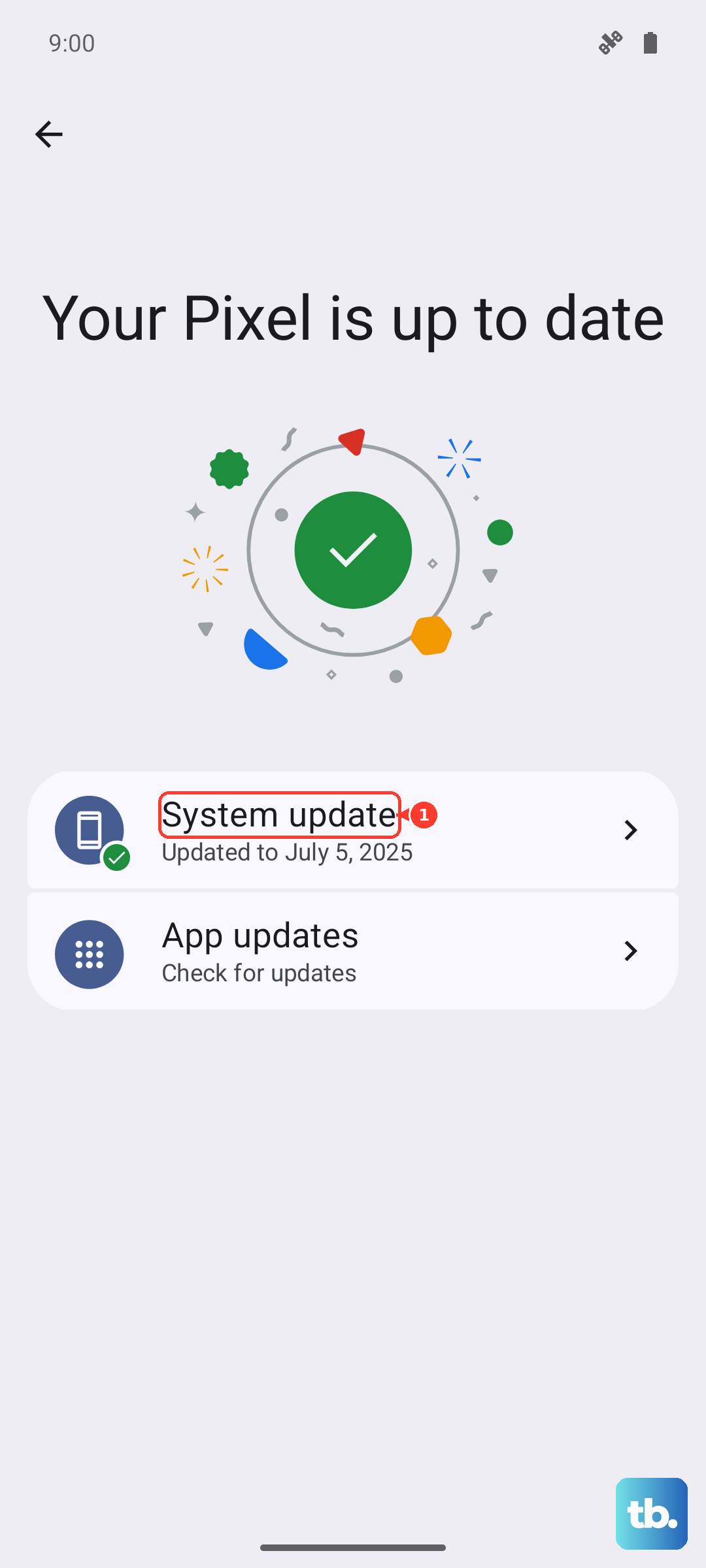
First, open the Google Play Store, tap your profile icon, and go to Manage apps & device. Tap "Update all" to get the latest versions of everything. Next, check for a system update by going to Settings > Software update > Download and install.
Clear the App Cache and Data
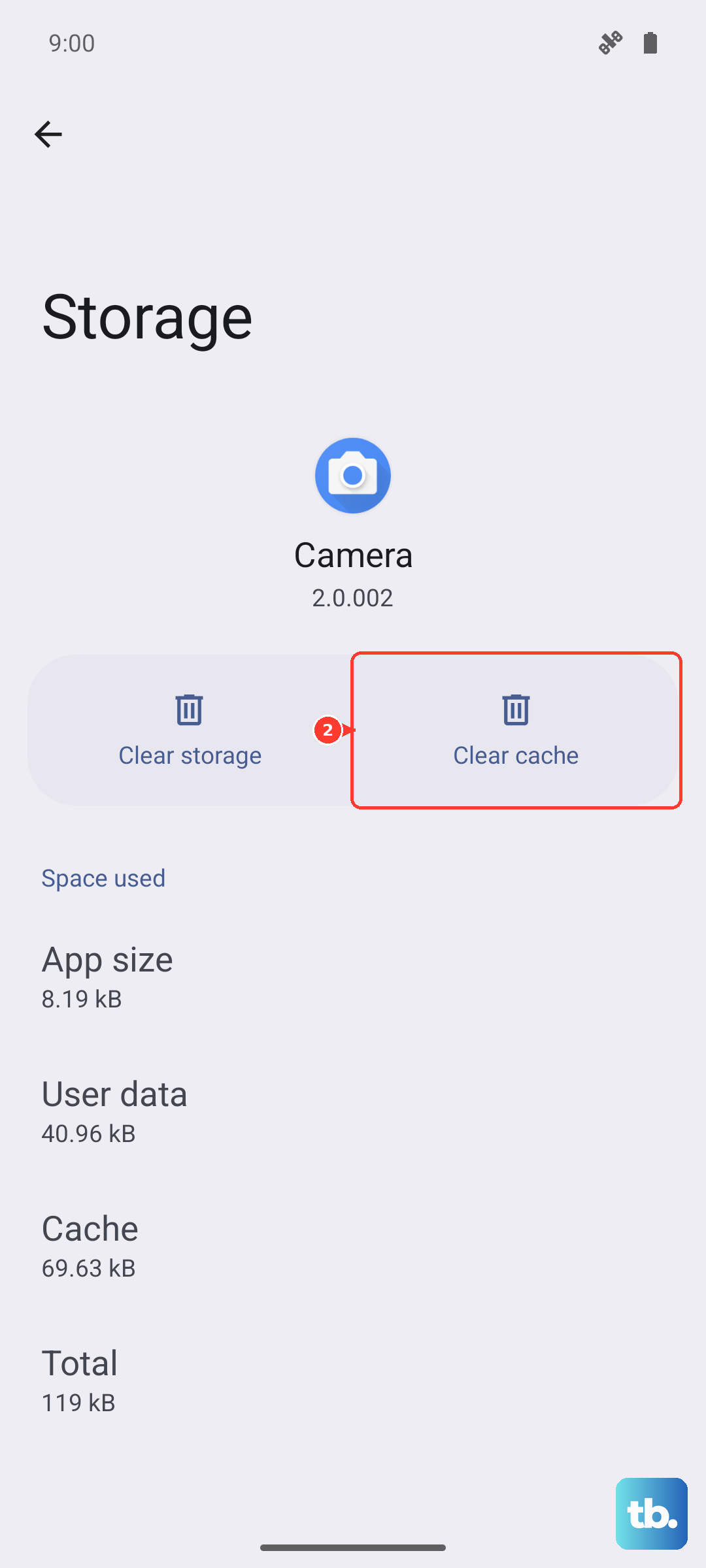
Sometimes the app's stored data gets corrupted. Clearing the cache is a safe first step that won't delete your saved places. Go to Settings > Apps, find your navigation app, and select it.
Tap Storage, then hit Clear cache. If the GPS is still acting up, you can try Clear data. Just be warned, this will reset the app to its default state and you'll need to log back in and reset any preferences.
Use Airplane Mode to Reset Connections
This old trick forces all your phone's radios to reset, which can clear up conflicts between the GPS, cellular, and Wi-Fi chips. Swipe down twice to open your full Quick Settings panel and tap the Airplane Mode icon.
Wait for about 15 seconds to let everything fully disconnect, then tap the icon again to turn Airplane Mode off. Your phone will reconnect to networks and often establishes a cleaner GPS signal afterward.
Check for Physical and Environmental Issues
The S25+ GPS antenna needs a relatively clear path to the sky. A very thick or metal phone case can sometimes interfere. Try removing the case temporarily to see if your signal improves.
Also, GPS signals don't penetrate buildings well. If you're trying to get a lock while indoors or in a dense urban canyon with tall buildings, step outside or near a window for a better shot. Starting navigation while you have a clear view helps the phone get its initial fix.
Boot Into Safe Mode
If the GPS only fails in certain apps or seems flaky, a third-party app you installed might be causing a conflict. Booting into Safe Mode temporarily disables all downloaded apps. Press and hold the Side button until the power menu appears.
Then, tap and hold the "Power off" option on your screen. You'll get a prompt to reboot into Safe Mode. Tap it. Once in Safe Mode (you'll see "Safe mode" in the bottom corner), test your GPS with Google Maps. If it works perfectly here, a recently installed app is likely the culprit.
Clear the System Cache Partition
This is a deeper clean than just restarting and can resolve persistent software glitches without touching your personal data. First, turn off your S25+ completely. Connect it to your computer with a USB-C cable.
Now, press and hold the Volume Up button and the Side button at the same time. Keep holding them both until you see the Android recovery screen menu. Use the Volume Down button to highlight "Wipe cache partition," then press the Side button to select it.
Confirm the action, and once it's done, select "Reboot system now." This process can take a minute or two.
Test with a GPS Diagnostic App
If you've tried everything and the GPS is still dead, you can check if it's a hardware issue. Download a free app like "GPS Test" or "GPS Status" from the Play Store. Open the app and go outside with a clear view of the sky.
The app will show you how many satellites your phone can "see." If it shows zero satellites after several minutes outdoors, there might be a physical problem with the antenna. If it sees plenty of satellites but your maps app still can't get a lock, the issue is almost certainly software-based.