You reach for your Samsung Galaxy S25+ to light up a dark closet or read a label in a dim room, tap the flashlight, and nothing happens. The screen says the light is on, but the rear LED stays dark, or the toggle simply will not respond.
The flashlight on the S25+ is just the rear camera flash doing double duty, which means a stuck app, a warm phone, or a small software hang can stop it cold. The good news is that almost every cause is something you can fix yourself in a few minutes, and the steps below move from the quickest, safest checks to the official last-resort options.
Start With the Quick Settings Toggle
Before assuming anything is broken, make sure the flashlight is actually switched on and turned up. It is easy to think the light failed when it was simply off or dimmed all the way down. This is the single most common reason the flashlight seems dead, so it is worth a careful look first.
Swipe down from the top right of the screen to open the Quick settings panel, then tap the Flashlight icon to turn the light on or off. If you do not see the icon, swipe left within the panel to find it. To check brightness, tap and hold the Flashlight icon, turn it on with the switch, then move the slider to change the brightness level.
If the slider was pulled to its lowest setting, the LED may have been emitting light too faint to notice. Nudge it up and try again before moving on.
The Camera and the Flashlight Share One LED
Your S25+ uses the same rear LED for the camera flash and the flashlight, so the two cannot light up at the same time. If the Camera app is open or running in the background, it may be holding onto the flash, which can leave the Flashlight toggle doing nothing. Close the Camera app fully, then try the Flashlight toggle in Quick settings again.
If you have been shooting photos or video and the phone feels warm, give it a moment before retrying. Samsung notes that when the phone overheats, the Camera app may stop or close with the message "Exit Camera. Battery temperature too high."
Let a Warm Phone Cool Down
Heat is a quiet flashlight killer. When the S25+ gets hot, a protective state kicks in to safeguard the hardware. Per Samsung's guidance, in this state your screen brightness may be reduced, running apps may be closed, charging may stop, and the Camera app may stop or close with "Exit Camera. Battery temperature too high." Since the flash shares hardware with the camera, it is worth letting the phone cool before you rely on the flashlight again.
To help the phone recover, disconnect the charger, remove any case, and close running apps. Set the device down somewhere cool and out of direct sunlight, then let it cool before trying the flashlight again. Once the phone returns to a normal temperature, the LED should respond as usual.
Restart to Clear a Temporary Glitch
A simple restart frees the flash from any app that locked it and clears minor software hangs that can block the LED. It is fast, safe, and often the fix when the toggle looks fine but the light never comes on.
Press and hold the Volume down button and the Side button simultaneously. After a few seconds, tap Restart, then tap Restart again to confirm. Once the phone is back at the home screen, open Quick settings and test the flashlight again.
Force a Restart When the Phone Is Frozen
If the screen is frozen or the flashlight is completely unresponsive and the normal restart menu will not appear, you can force the phone to restart. This works even if the touchscreen is not responding.
Press and hold the Volume down button and the Side button (or Power button) simultaneously. Keep holding until the device turns off and turns back on.
This is a recovery move for an unresponsive phone, not a routine step, so reach for it only when a normal restart is not possible. After the phone powers back up, test the flashlight again.
Clear the Camera App's Cached Files
Because the flashlight relies on the same hardware as the camera, corrupted temporary files in the Camera app can interfere with the flash. Clearing the cache removes those temporary files without touching your photos.
Open Settings, then tap Apps and select the Camera app. Tap Storage, then tap Clear cache and try the flashlight again.
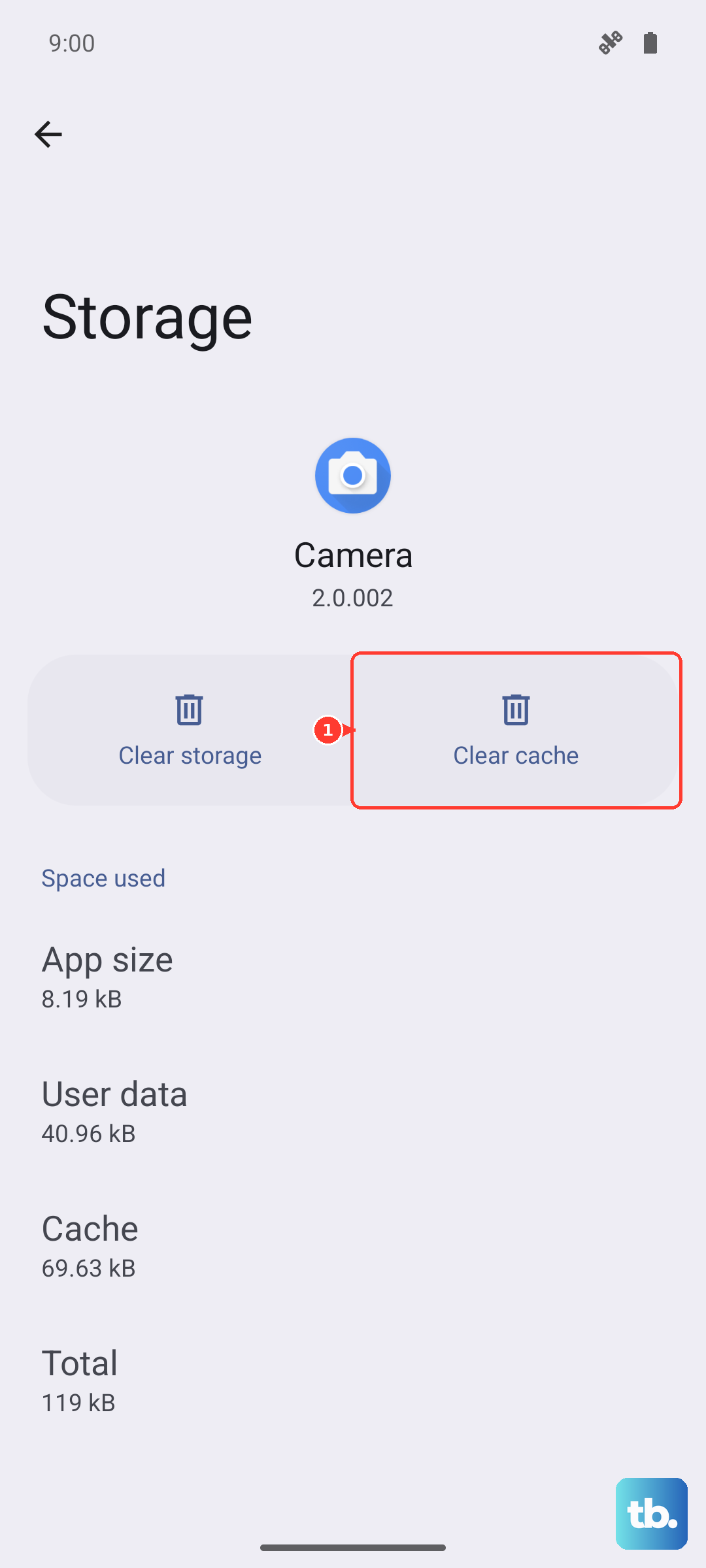
If clearing the cache does not help, you can take the stronger step of clearing the app's data, which resets the Camera app to its defaults. In the same Storage screen, tap Clear data, then tap Delete. Be aware of Samsung's warning before you do this: "Clearing the data will reset the app to factory default settings. Any personal settings or data saved on the app will be removed." Your camera preferences will need to be set up again afterward.
Install Any Pending Software Update
Keeping One UI and Android current applies Samsung's fixes for camera and flash bugs, and an outstanding update can resolve a flashlight problem you have been chasing manually. Charge the phone and connect to Wi-Fi first so the download completes smoothly.
Open Settings, then tap Software update. Tap Download and install. If an update is available, tap Install now.
The S25+ shipped with One UI 7 based on Android 15, and newer software such as One UI 8.5 based on Android 16 is delivered over the air, so it is worth checking for an update even if you have not seen a notification.
Boot Into Safe Mode to Catch a Rogue App
Sometimes a downloaded app is the culprit, grabbing the flash or interfering with the flashlight without you realizing it. Safe mode runs only the built-in apps, so it is the cleanest way to tell whether a third-party app is to blame.
Power the phone off. Turn it on, and when the Samsung logo appears, press and hold the Volume down button. Keep holding until "Safe mode" shows in the bottom-left corner of the screen.
Now test the flashlight from Quick settings. If it works in Safe mode, a downloaded app is the cause, so restart normally to exit Safe mode and then uninstall any apps you recently added or updated. Test the flashlight again after each removal until the problem app reveals itself.
Factory Reset and When to Call Samsung
If none of the steps above bring the flashlight back, a factory data reset is the final software option. This erases the phone, so back up everything important first. Samsung's warning is clear: "Please save any information you need prior to the factory reset because your personal information may not be recovered."
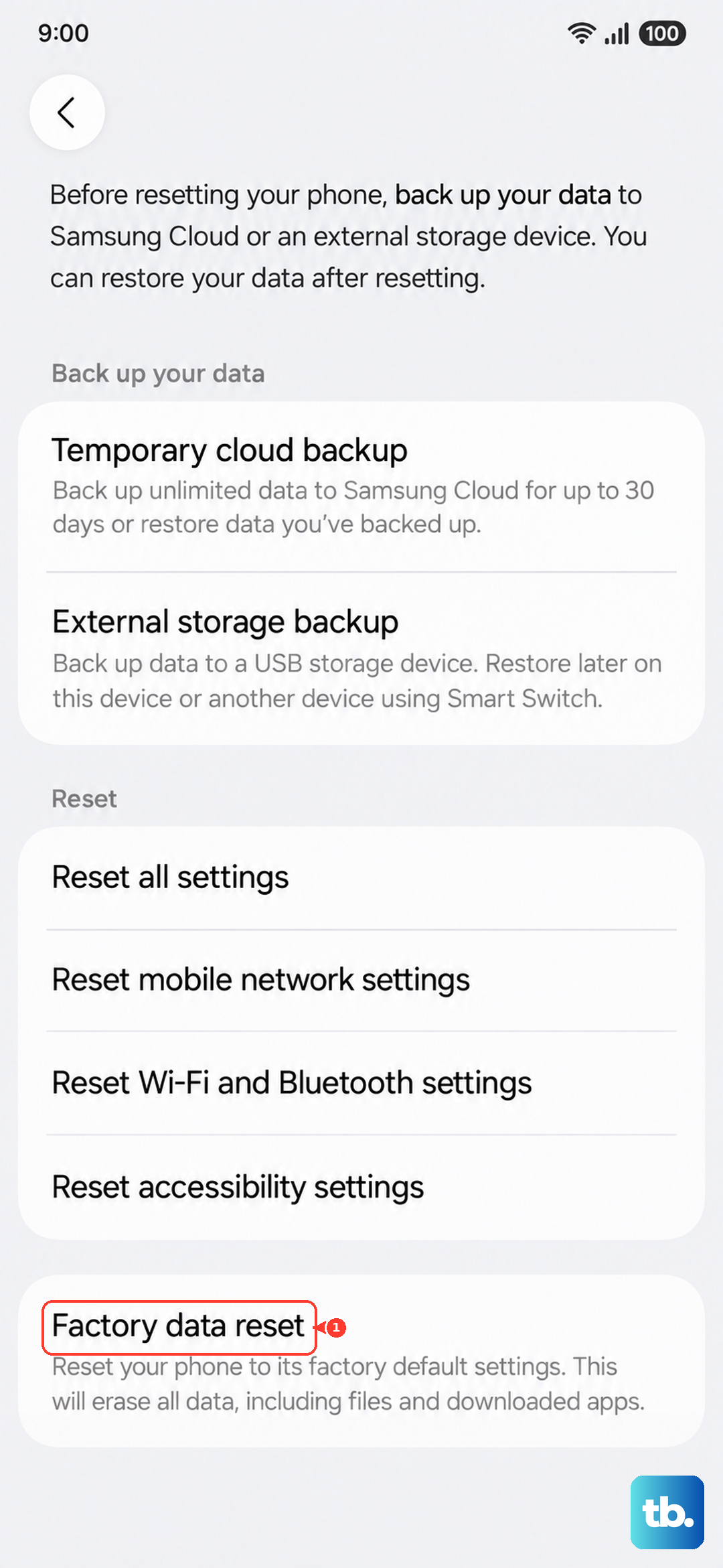
- 1.Open Settings.
- 2.Tap General management.
- 3.Tap Reset.
- 4.Tap Factory data reset.
- 5.Tap Reset.
- 6.Tap Delete all, entering your security credentials or Samsung account password if prompted.
If the flashlight still fails after a full reset, the LED or flash hardware itself may be faulty, and that is beyond what software can fix. At that point, contact Samsung Support for chat, phone, or a service center booking so a technician can inspect the hardware.
A Handy Shortcut Once the Light Is Working Again
After your flashlight is back in action, you can make it faster to reach by assigning it to the Side button. This lets you turn on the flashlight anytime, even when the screen is off, by double pressing the Side button.
Open Settings, then tap Advanced features and tap Side button. Tap Double press, then select Flashlight.
The double-press menu also offers Camera, Magnifier, Voice Recorder, Samsung Notes, Samsung capture, Modes and Routines, and Apps, so you can pick what suits you best while keeping the flashlight a quick gesture away.
Frequently Asked Questions
Why does my flashlight not work while the camera is open?
The S25+ uses one rear LED for both the camera flash and the flashlight, so they cannot light up at the same time. If the Camera app is open or running in the background, it may be holding the flash and leaving the Flashlight toggle doing nothing. Close the Camera app fully, then try the flashlight again.
Will clearing the Camera app data delete my photos?
Clearing the Camera app data resets the app to its factory default settings and, as Samsung warns, "Any personal settings or data saved on the app will be removed." That removes your in-app preferences, so you will need to set them up again. Your saved photos and videos live in your gallery storage and are separate from the Camera app's own data.
Can heat really stop my flashlight from turning on?
When the S25+ gets hot, a protective state reduces screen brightness, closes running apps, pauses charging, and can stop the Camera with "Exit Camera. Battery temperature too high." Because the flash shares hardware with the camera, letting the phone cool down is a sensible step when the flashlight will not respond after heavy use.
How do I force restart the S25+ if the screen is frozen?
Press and hold the Volume down button and the Side button (or Power button) simultaneously until the device turns off and turns back on. This works even when the touchscreen is unresponsive, making it the right move when the normal restart menu will not appear.
What should I do if the flashlight still fails after a factory reset?
If a full factory data reset does not fix the flashlight, the LED or flash hardware may be faulty. Contact Samsung Support for chat, phone, or a service center so a technician can check the hardware.