You plug your Galaxy S25+ in, expect that familiar Super Fast Charging burst, and instead the battery crawls upward, stalls at a certain percentage, or refuses to take a charge at all. It is a frustrating gap between what this phone can do and what it is doing right now, especially when you are counting on a quick top-up before heading out. The good news is that fast-charging problems on the S25+ are usually fixable at home, and the most common causes are simple ones you can rule out in a few minutes.
The Galaxy S25+ does support fast wired and wireless charging through Samsung Super Fast Charging, so when it is not working there is a specific reason behind it. The fixes below are ordered from the easiest and safest to the most involved, so start at the top and work down only as far as you need to. The official reset and support paths come last, for the rare case when nothing else resolves it.
Start with the charger and cable in your hand
Because the S25+ ships with only a USB-C cable and no wall adapter in the box, the single most common reason it will not fast-charge is the adapter you paired it with. Low-quality or non-approved chargers and cables can cause slow charging or intermittent disconnection, so a cheap or borrowed brick is the first thing to suspect.
Samsung states that super fast charging needs a 25W or 45W Samsung-approved adapter, so reach for a high-wattage USB-C PD adapter rated at one of those levels. Use a Samsung-approved charger or a certified accessory rather than whatever was nearest.
While you are at it, inspect the cable and adapter closely. Damaged, frayed, or long-used cables are a frequent cause of slow or interrupted charging, so replace any cable that has seen heavy use and check the connector for visible wear.
Confirm fast charging is actually switched on
If the phone charges but does so slowly, the fast-charging toggle may simply be off. This is one of the quickest things to verify and it costs you nothing.
Open Settings.
Go to Settings > Battery > Charging settings.
Turn on "Fast charging."
If you charge on a pad, also turn on "Fast wireless charging."
With these enabled, the phone is cleared to draw the higher wattage from a compatible adapter. If they were already on, move to the next check.
Rule out Battery protection capping the charge
The S25+ includes a Battery protection feature, and its "Maximum" mode stops charging at 80 percent to extend long-term battery health. If that mode is active, the phone can look like it is refusing to fast-charge to full when it is actually working exactly as configured.
Go to Settings > Battery > Battery protection.
Turn it off, or change the mode, if you want the phone to charge all the way to 100 percent.
If the battery was stopping right at 80 percent, this was almost certainly the cause. Once you adjust it, plug back in and watch whether the charge continues past that point.
Clean the port and reseat the connection
Dust, lint, and pocket debris collect in the USB-C port over time and can physically block a solid connection, which interrupts or slows charging. This is a surprisingly common culprit and an easy one to address.
Remove debris using a soft brush, working gently so you do not push material deeper into the port. After clearing it, plug the cable back in and make sure it is seated firmly with very little movement; a connector that wobbles is not making full contact.
While the cable is out, look into the port and at the connector for bent pins or signs of corrosion. Any visible damage there points toward hardware service rather than a settings fix.
Give the phone a comfortable temperature
Charging speed is deliberately limited when the device or its surroundings are too hot or too cold, a safeguard built into how the battery manages itself. If your S25+ has been in a hot car, in direct sun, or running a demanding game, it may slow or pause charging until it cools.
Samsung recommends charging at room temperature for stable charging. If the phone feels warm, let it cool down before you plug it in again, and avoid charging it under a pillow, blanket, or anything that traps heat.
Clear a "Moisture detected" warning
The S25+ will not charge over USB-C if it detects moisture in the charging port when a charger is plugged in. This is a preventative measure added to avoid corrosion, and a pop-up appears on screen to alert you when it triggers.
If you see that warning, dry the port and try again rather than forcing the cable in. On supported devices you can still charge with a wireless charger while the port dries out, which keeps your battery topped up in the meantime.
Force restart a frozen system
Sometimes a software hiccup leaves the phone unresponsive enough that it stops charging properly even though the hardware is fine. A force restart clears that state without affecting your data.
Press and hold the Volume down button and the Side button (or Power button) simultaneously until the device turns off and turns back on. There is no fixed second-count to watch for; just keep holding until it cycles. Once it boots back up, reconnect the charger and check whether normal charging resumes.
Test in Safe mode to expose a misbehaving app
A downloaded app can interfere with charging behavior in ways that are hard to spot. Safe mode loads the phone with third-party apps disabled, so it is an effective way to find out whether one of them is the problem.
Power off the device.
Turn the device on, and when the Samsung logo appears, press and hold the Volume down button.
Keep holding until "Safe mode" appears in the bottom-left corner of the screen.
With Safe mode running, plug in and observe. If charging behaves normally there, a downloaded app is the cause, so restart back to normal mode and uninstall recently added or updated apps until the problem disappears.
Run the built-in charging diagnostics
Galaxy phones include the Samsung Members app for official self-diagnostics, and it can test the charging system directly so you are not guessing. Open the Samsung Members app, find its diagnostics tools, and run the charging and battery tests, following the on-screen instructions. The results give you a clear read on whether this is still a software matter or something that needs service.
Install any pending software update
Charging-related bugs are sometimes fixed in firmware updates, so making sure your S25+ is current can resolve a problem you would otherwise chase in circles. The S25+ shipped with One UI 7 based on Android 15, and later updates can refine how it manages charging.
Go to Settings > Software update > Download and install.
Follow the on-screen instructions to install any available update.
If the phone cannot complete the update on its own, you can update it from a computer instead. Open Smart Switch on a Windows or Mac PC and update if a new version is available.
When nothing else works, reset and reach out to support
A factory data reset is the last software step because it erases everything on the phone. Back up your data first, because your personal information may not be recoverable after the reset. Once your backup is secure, proceed only if every fix above has failed.
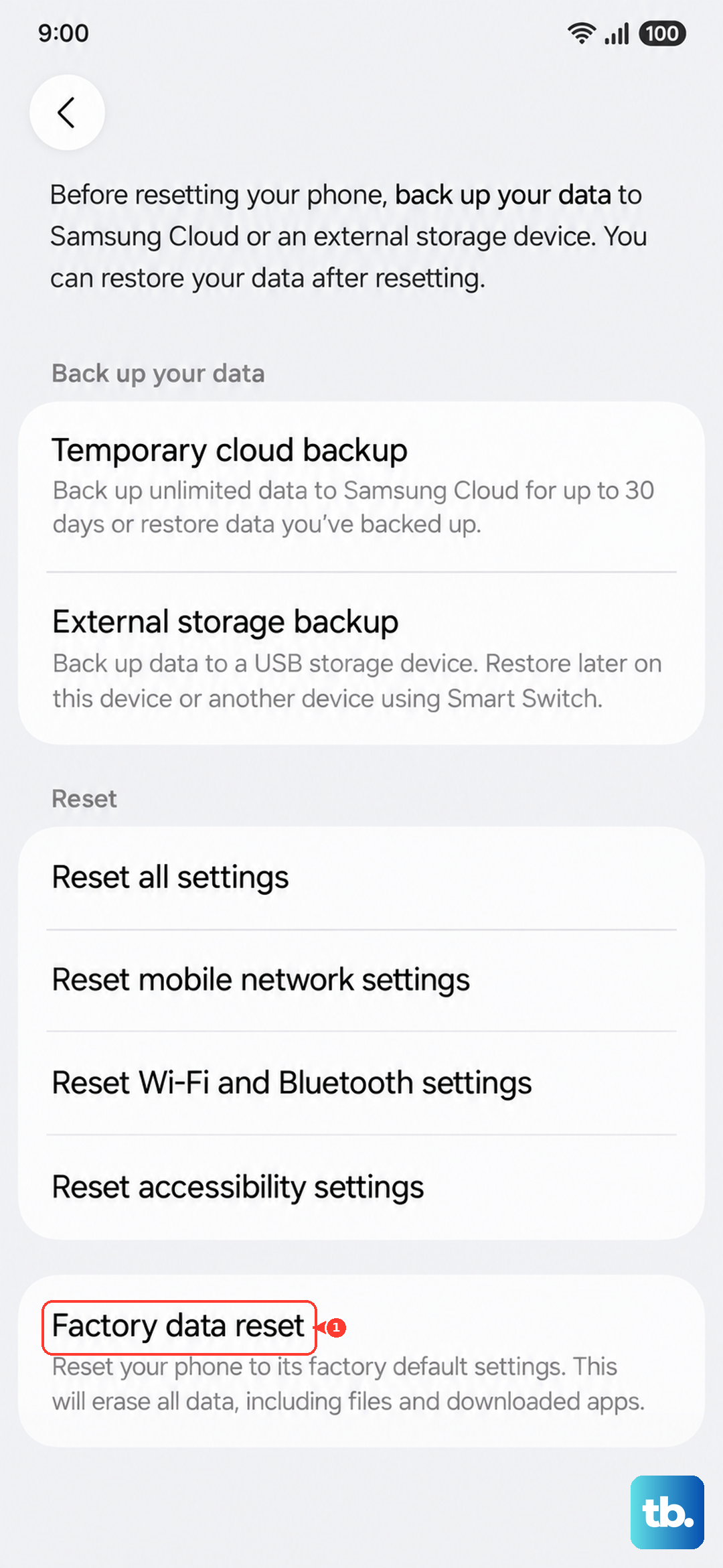
- 1.Go to Settings > General management > Reset.
- 2.Tap Factory data reset.
- 3.Tap Reset.
- 4.Tap Delete all.
If charging still fails after a clean reset, the issue is most likely hardware, such as the battery or charging port. At that point, contact Samsung support or visit an authorized service center so the device can be properly inspected and serviced.
Frequently Asked Questions
Why does my Galaxy S25+ charge slowly even though it supports fast charging?
The most common reason is the adapter. The S25+ comes with only a USB-C cable and no wall brick, and super fast charging requires a 25W or 45W Samsung-approved adapter. Confirm you are using one of those, and check that Settings > Battery > Charging settings has "Fast charging" turned on.
Why does my S25+ stop charging at 80 percent?
That is almost certainly Battery protection. Its "Maximum" mode deliberately stops charging at 80 percent to preserve battery health. Go to Settings > Battery > Battery protection and turn it off or change the mode if you want the phone to reach 100 percent.
My phone says moisture is detected but the port is dry. What should I do?
The S25+ blocks USB-C charging when it detects moisture in the port as a corrosion-prevention measure. Dry the port and try again, and while it dries you can still charge wirelessly on a supported pad to keep the battery up.
How do I force restart a Galaxy S25+ that stopped charging?
Press and hold the Volume down button and the Side button (or Power button) simultaneously until the device turns off and turns back on. There is no fixed time to hold; keep pressing until it cycles, then plug in again.
How can I tell whether the problem is software or hardware?
Run the charging and battery tests in the built-in Samsung Members app. If those flag an issue, or if charging still fails after a factory data reset, the cause is likely hardware and you should contact Samsung support or an authorized service center.