If your Samsung Galaxy S25+ camera app won't open, crashes immediately, or shows a black screen, start with a force restart. Press and hold the Volume Down button and the Side button together for about 10 seconds until you see the Samsung logo. This clears temporary glitches in the system that can freeze the camera.
If you are unsure whether the camera or the app is at fault, run a quick webcam test first. Seeing a live preview means the hardware and driver are doing their job.
Key Points
- Restart the Camera App: Force close the app from your recent apps menu.
- Clear the Camera App Cache and Data: This resets the app without deleting your photos.
- Check for Software Updates: Camera bugs are often fixed in system updates.
- Inspect for Physical Damage or Obstructions: Make sure the lens isn't cracked or covered.
- Boot Into Safe Mode: This checks if a third-party app is interfering.
- Reset App Preferences: This can fix permission issues without a full reset.
- Check for Overheating: The camera will disable itself if the phone gets too hot.
- Perform a Factory Reset: Use this as a last resort, and back up your data first.
Give the phone a moment to fully restart, then try opening the camera again.
Restart the Camera App
Swipe up from the bottom of your screen and hold to see your recent apps. Find the Camera app and swipe it all the way up or tap the close icon to force stop it. Sometimes the app just gets stuck in a bad state, and a fresh start is all it needs.
If the camera still won't launch, try opening it from a different place. Use the camera shortcut by double-pressing the Side button, or try opening it from within another app like Instagram. This can sometimes bypass a glitch in the main app icon.
Clear the Camera App Cache and Data
Go to Settings > Apps and find the Camera app in the list. Tap on it, then go to Storage. Tap Clear cache first. This gets rid of temporary files that might be corrupted.
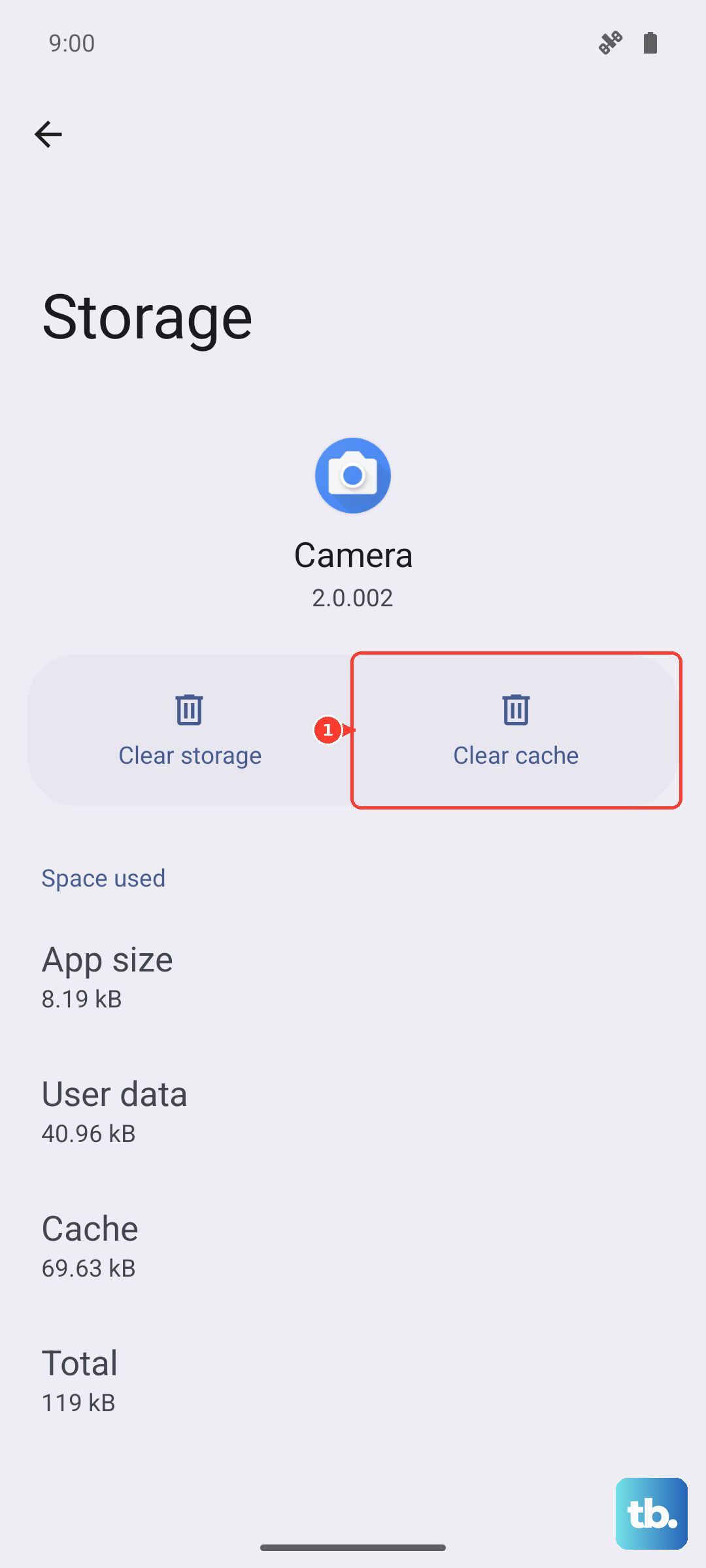
If clearing the cache doesn't work, you can tap Clear data next. This will reset the camera app to its default settings, so you'll lose any custom modes or settings you've saved inside the app. Your photos and videos in the Gallery are safe, as they are stored separately.
Check for Software Updates
Samsung frequently releases updates that fix camera performance and bugs. Open Settings > Software update and tap Download and install. Make sure your phone is connected to Wi-Fi and has enough battery.
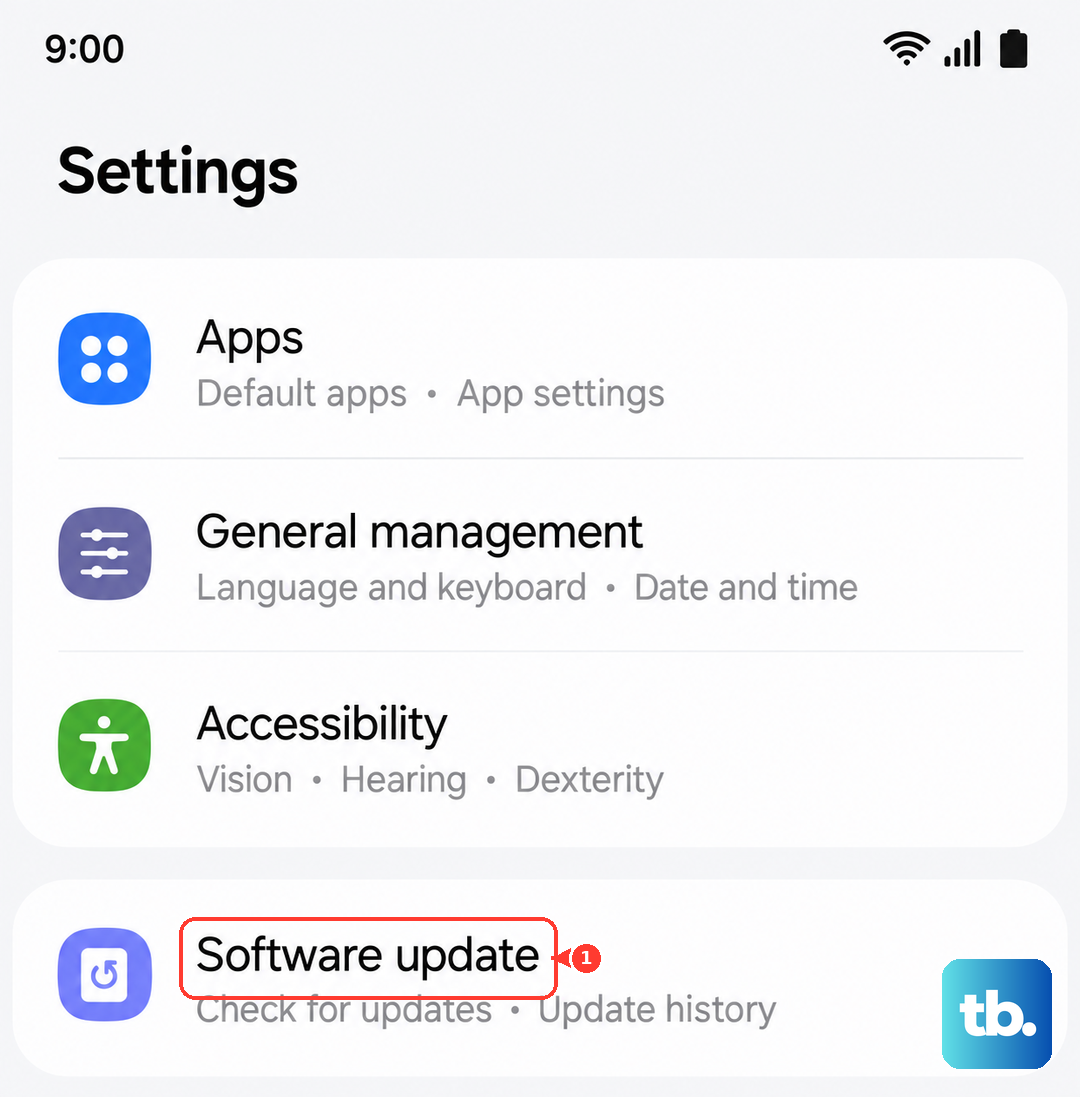
After the update installs, your phone will restart. I'd give this a try, as early software on new models like the S25+ often has patches for camera stability. Once it's back on, test the camera to see if the issue is resolved.
Inspect for Physical Damage or Obstructions
Take a close look at the camera lenses on the back of your phone. Check for any cracks, deep scratches, or if a phone case is misaligned and covering part of the lens. Even a small amount of dirt or a fingerprint can cause blurry photos or focus issues.
Gently wipe the lenses with a soft, dry microfiber cloth. Avoid using any liquids or abrasive materials. Also, check if the camera module itself feels loose or makes a rattling sound when you tap the phone, which could indicate internal damage.
Boot Into Safe Mode
Safe Mode temporarily disables all third-party apps. To enter it, press and hold the power button until the power menu appears. Then, tap and hold the Power off option until you see a prompt to reboot to Safe Mode. Tap OK.
If your camera works perfectly in Safe Mode, then an app you installed is causing the conflict. Restart your phone normally to exit Safe Mode, and start uninstalling recently downloaded apps one by one, testing the camera after each one.
Reset App Preferences
This resets permissions, background restrictions, and default apps without deleting any of your personal data. Go to Settings > Apps > tap the three-dot menu in the top right and select Reset app preferences.
You'll need to re-grant permissions the next time you use apps, but it can fix a scenario where the camera app lost its necessary permissions due to a bug. After resetting, open the camera and allow any permission prompts that appear.
Check for Overheating
The Galaxy S25+ will automatically shut down the camera app if the processor gets too hot to prevent damage. If you get a temperature warning or the camera closes after using it for a while, let the phone cool down. Take it out of direct sunlight and remove its case to help it dissipate heat.
Using the camera while the phone is fast charging, especially with a 45W charger, can also generate extra heat. Try using the camera when the phone is off the charger and has cooled to a normal temperature.
Perform a Factory Reset
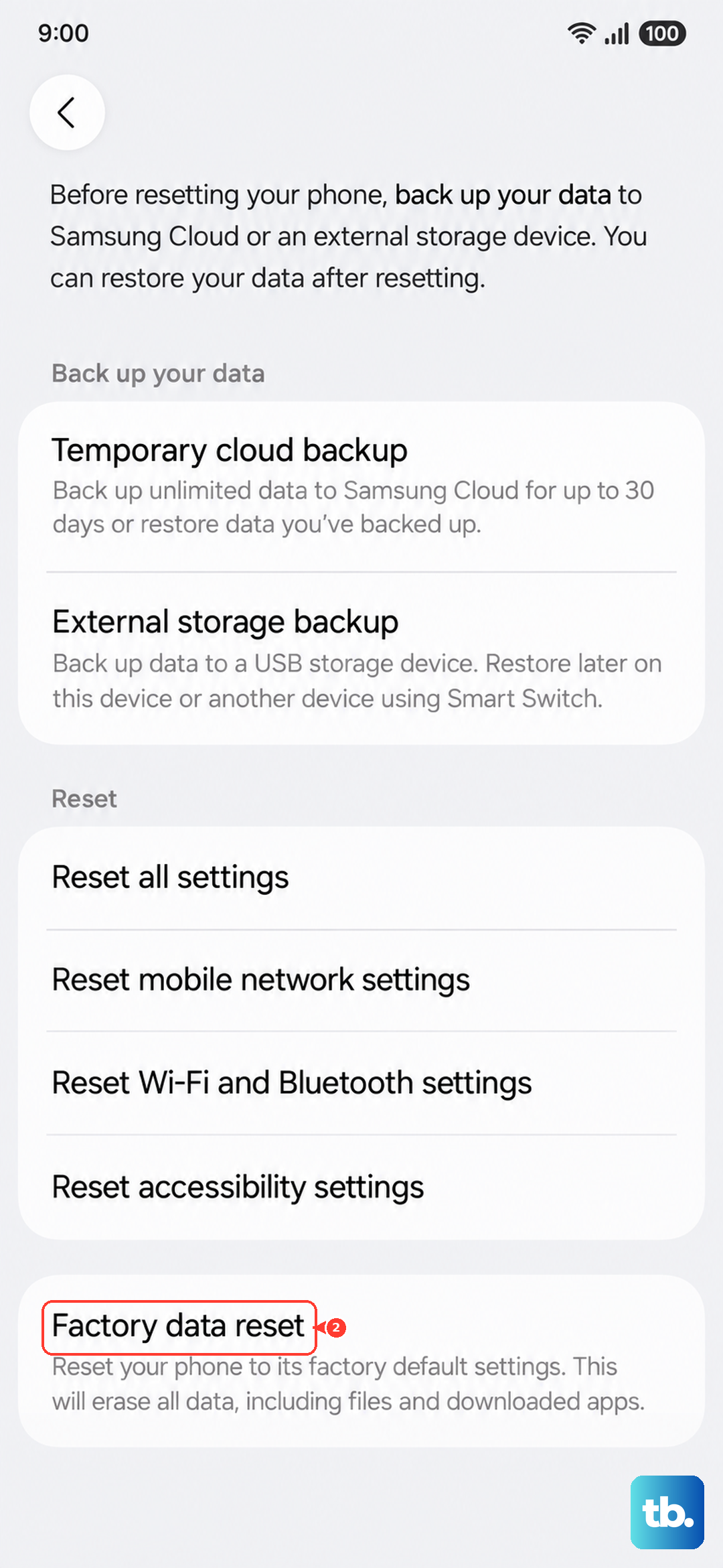
If nothing else has worked, a factory reset is the final step to rule out deep-seated software corruption. Before you do this, it's crucial to back up everything important. Use Samsung Cloud or Google One to back up your photos, messages, and app data.
To reset, go to Settings > General management > Reset > Factory data reset. Follow the prompts. After the reset is complete, set up your phone as new initially to test the camera before restoring your backup, in case the backup contains the corrupted data.