You finally got your hands on the Galaxy S25 FE, and now Settings is telling you everything is up to date when you know it shouldn't be, or the download stalls partway and never finishes. An update that refuses to install is frustrating, especially when you are waiting on a security patch or a feature you have been reading about. The good news is that almost every stuck-update problem on the S25 FE traces back to a handful of fixable causes, such as a poor connection, a low battery, full storage, a temporary software glitch, or a misbehaving app.
Your phone ships with One UI 8 on Android 16 and is built to receive software the easy way, straight from Settings or, if that fails, from a computer. Below are nine fixes arranged from the simplest and safest to the most involved, so you can stop at the first one that works. Start at the top and only keep going if the update still will not land.
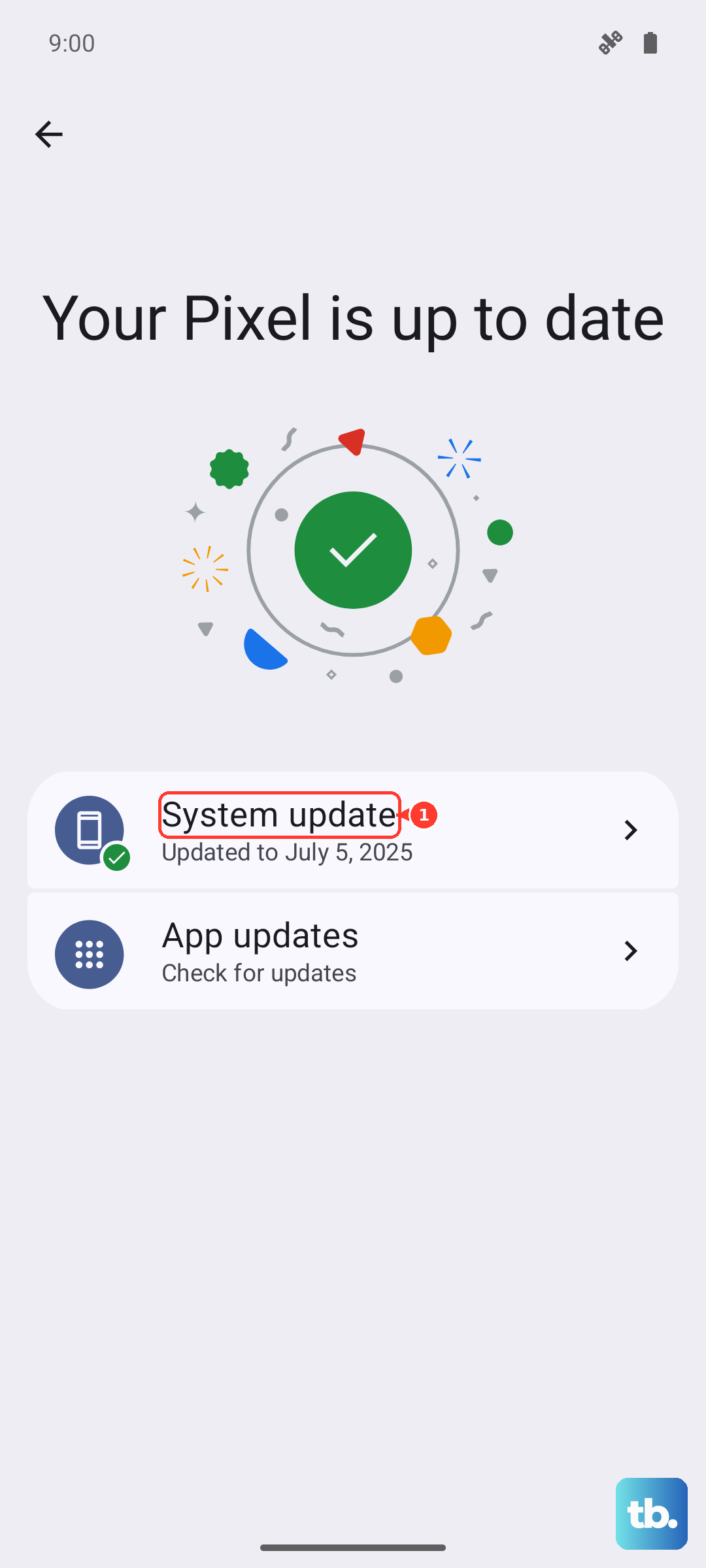
Open the Update Screen the Right Way and Recheck
Many "failed" updates are really just a check that did not complete or a download that needs a nudge. It is worth doing this step deliberately before assuming anything is broken.
Open Settings. Using two fingers, swipe down from the top right corner of the screen, then tap the Settings icon.
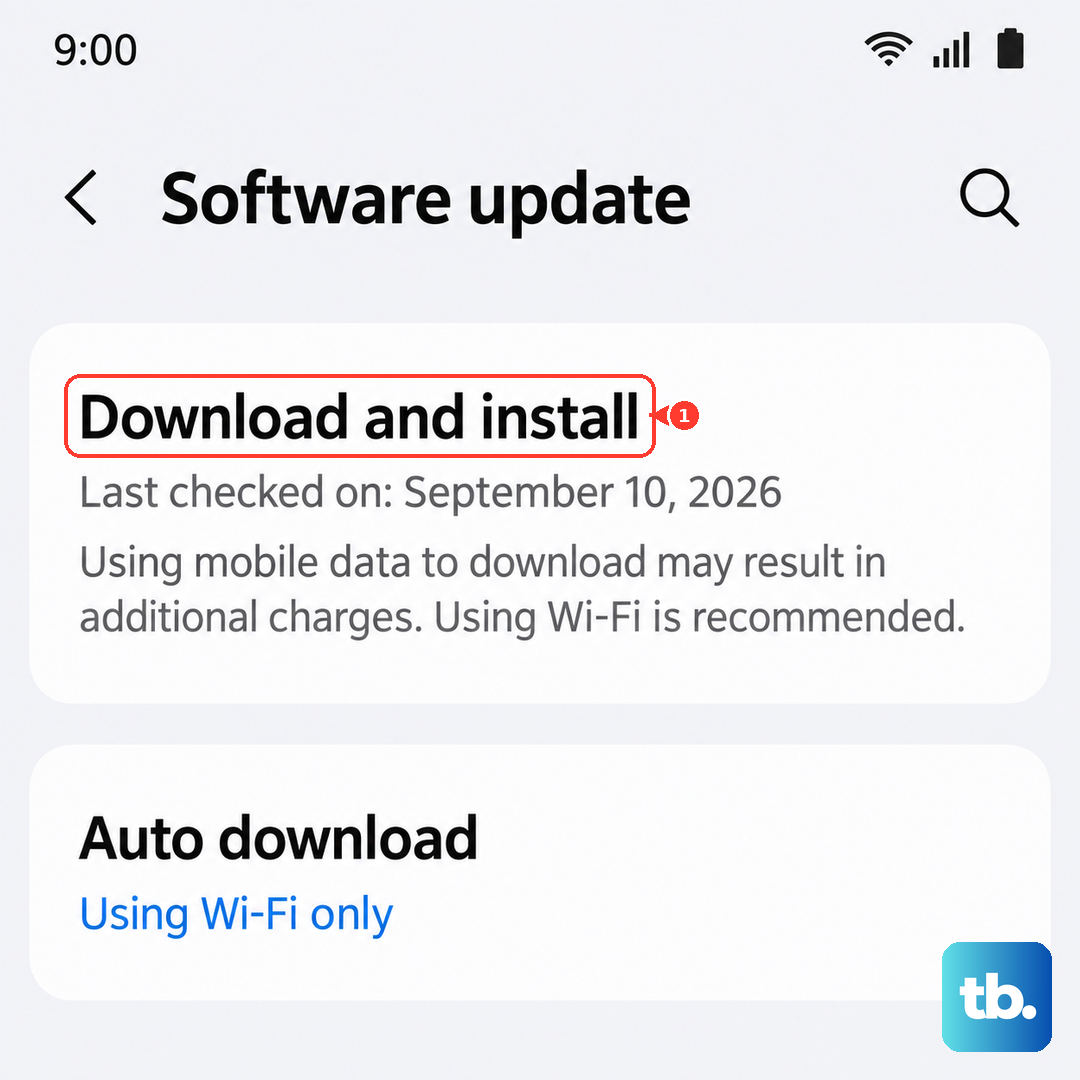
Swipe to and tap Software update.
Tap Download and install.
Let the phone check for the latest update, then follow the on-screen instructions.
Depending on your carrier, the option may read Check for system updates or Check for software updates instead of Download and install. You may also need to repeat the check several times depending on your current software version. The update should begin once it is found, though some devices ask you to tap Download now to kick it off.
Get on Stable Wi-Fi and Charge Past 50 Percent
Samsung requires both a stable connection and a sufficiently charged battery to download and install an update, and either one being weak is a common reason the process quietly stalls. A dropped Wi-Fi signal mid-download can leave the update in limbo.
Charge the phone above 50 percent before you start.
Because the S25 FE does not come with a charger in the box, use a Samsung-approved adapter and cable so charging behaves as expected.
Connect to a stable Wi-Fi network, and note that some carriers require Wi-Fi rather than mobile data to check for and install updates at all.
If Wi-Fi itself seems to be the trouble, remove and reconnect the Wi-Fi network, restart your router, and then try the update again. A clean connection often clears a download that simply could not finish.
Make Room in Internal Storage
Your S25 FE will not install an update if there is not enough free internal storage to unpack and apply it. If the phone keeps reporting an error after a download, a packed drive is a likely culprit.
Clear out unnecessary files, old screenshots, and downloads, then remove apps you no longer use.
To uninstall an app, touch and hold its icon and tap Uninstall, or open Settings, tap Apps, select the app, and tap Uninstall.
For a quick automated sweep, open Settings, tap Device care, then tap Optimize now, which helps free up space.
Once you have cleared some room, return to the update screen and try again.
Force Restart to Clear a Temporary Glitch
A frozen or glitchy phone can block an update from proceeding, and a force restart resolves more of these hangs than people expect. This is safe and does not erase any of your data.
Press and hold the Volume down button and the Side button, which is the Power button, at the same time until the device turns off and turns back on.
The screen will go black and then the Samsung logo will appear.
Once it has fully rebooted, reopen Settings, tap Software update, tap Download and install, and try the update once more.
Fix the Date, Time, and Turn Off Any VPN
An incorrect date or time, or an active VPN, can quietly interfere with your phone's connection to the update server. The download may appear to start and then fail for no obvious reason.
Make sure the date and time are correct, ideally by using the automatic or network-provided setting so they sync on their own.
Temporarily turn off any VPN you have running, since it can route or block the connection the update needs.
Finally, confirm you are signed in to your Samsung account, then retry the update.
Clear an App's Cache or Test in Safe Mode
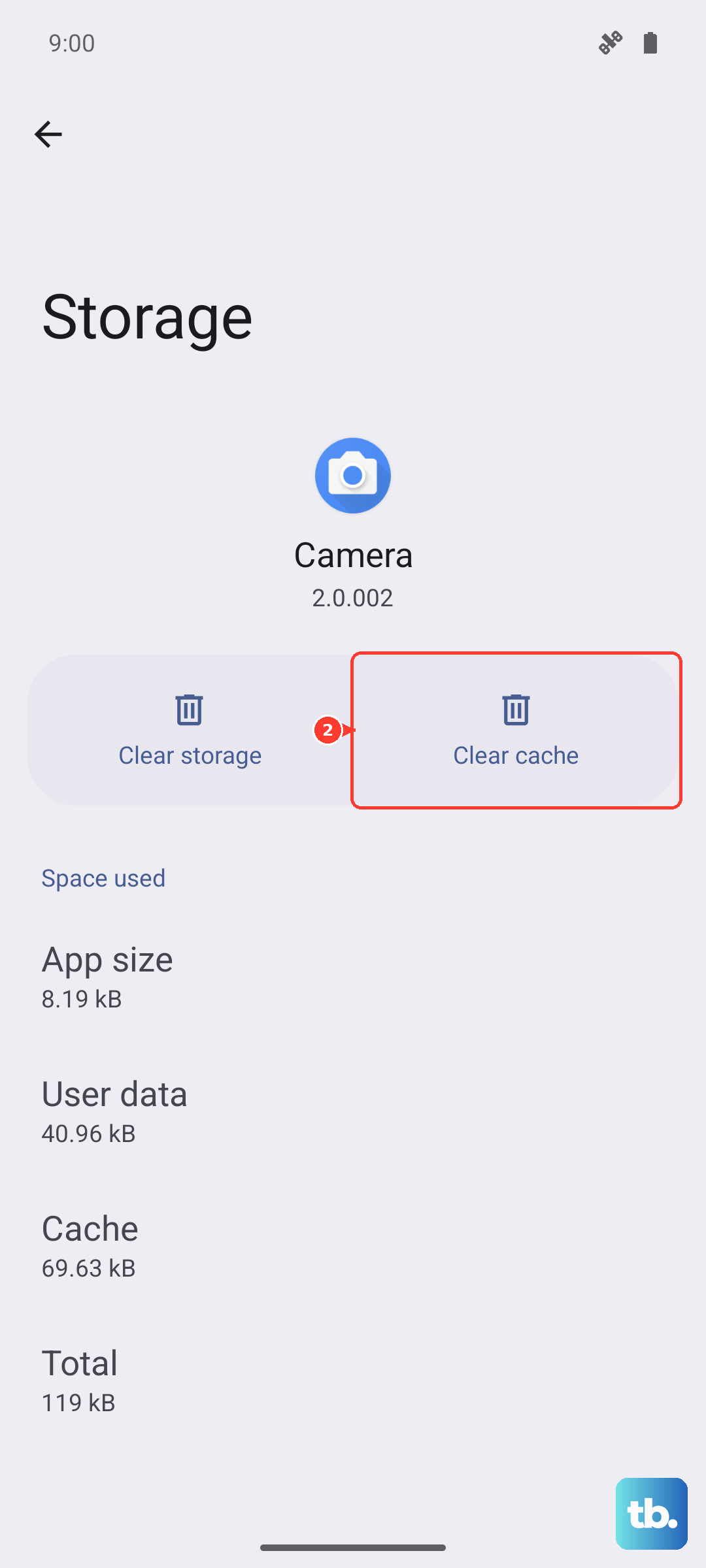
A third-party app can interrupt an update, and a corrupted cache is one way that happens. Start by clearing the cache of any app that has been acting up.
Open Settings and tap Apps.
Select the app you suspect.
Tap Storage.
Tap Clear cache.
To rule out third-party apps entirely, boot into Safe mode, which loads the phone with only its built-in software.
Power the phone off completely, then turn it on, and when the Samsung logo appears, press and hold the Volume down button until "Safe mode" shows in the bottom left corner.
Try the update again from here.
If it works in Safe mode, an installed app was the problem.
Restart the phone normally to exit Safe mode.
Run Diagnostics in the Samsung Members App
If you are not sure whether the issue is software or hardware, the Samsung Members app includes an official diagnostics tool that checks your phone's health and gives you a direct line to support.
Open the Samsung Members app and find the on-device Diagnostics feature, then run the phone diagnostics test it offers.
If the tool finds a problem, you can send an error report to Samsung through the app, optionally including system log data.
This is a useful step before escalating, because it documents what is actually wrong rather than leaving you to guess.
Update From a Computer Using Smart Switch
When the over-the-air update keeps failing no matter what you try, you can install the firmware from a computer instead. Samsung's Smart Switch desktop software is the official tool for this on the S25 FE.
Install Samsung Smart Switch on a Windows PC or Mac, downloading it from Samsung.
Connect the S25 FE to the computer with a USB cable.
Open Smart Switch and let it detect the device.
Click Update to install the firmware.
Do not disconnect the USB cable or use the phone during the update process. Interrupting a firmware update from a computer can leave the device in a bad state, so let it run to completion.
Back Up and Factory Reset as a Last Resort
If none of the steps above resolve the issue, a factory reset clears out deep software problems that block updates, but it should be your final option because it erases everything on the phone. Samsung's own warning is direct. "Please save any information you need prior to the factory reset because your personal information may not be recovered."
Back up your data first.
Also keep a network connection active, because the phone needs to log out of your Samsung account before the reset can complete.
When you are ready, follow these steps.
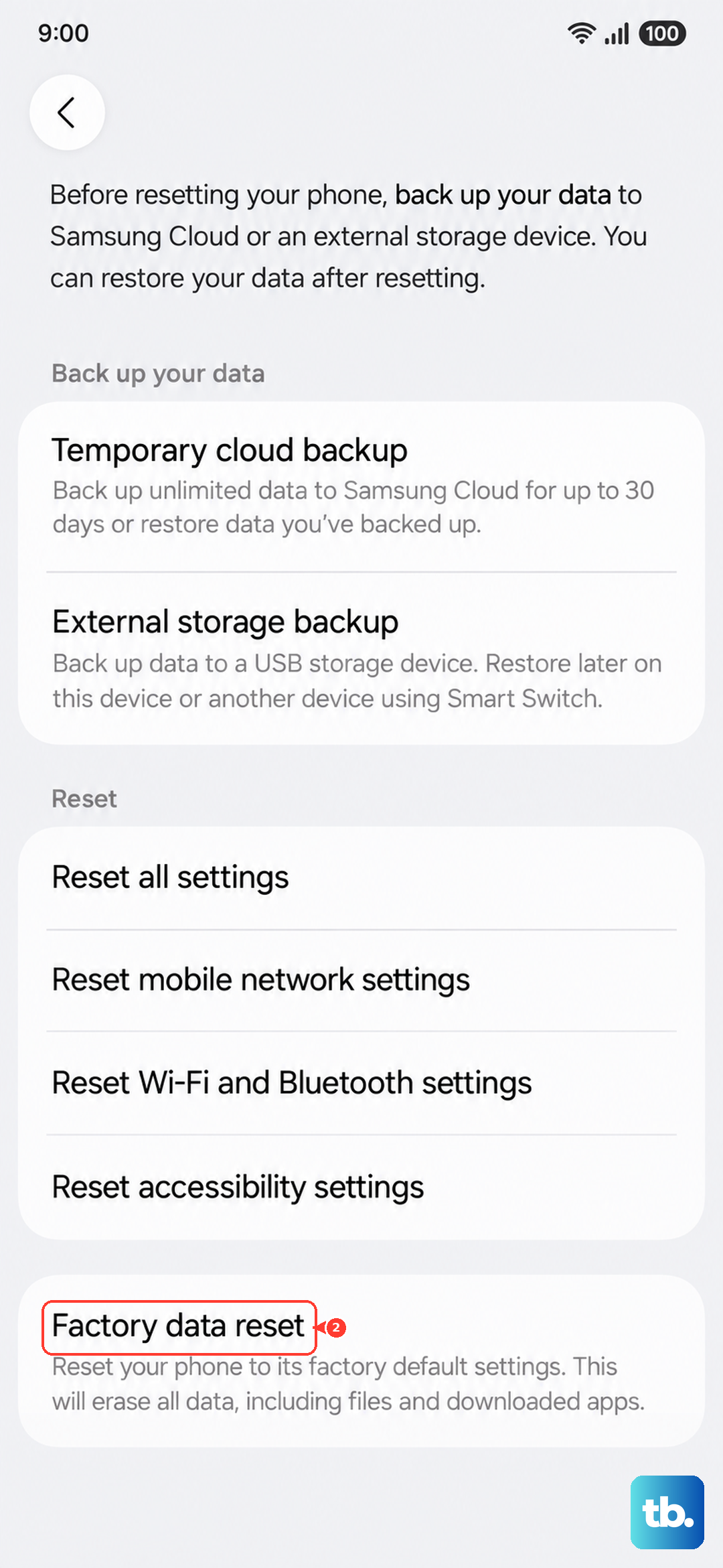
- 1.Open Settings, tap General management, tap Reset, then tap Factory data reset.
- 2.Review the information shown.
- 3.Tap Reset.
- 4.Tap Delete all.
- 5.Enter your credentials and Samsung account password if prompted.
After you finish setup, try the update again. If the problem still persists at that point, contact Samsung Support, as the issue may need a closer look than software steps can provide.
Frequently Asked Questions
Why does my Galaxy S25 FE say it is up to date when I know there is a newer update?
The update check sometimes needs to run more than once before it surfaces the latest version, depending on your current software. Open Settings, tap Software update, tap Download and install, and repeat the check a few times. Make sure you are on stable Wi-Fi and signed in to your Samsung account while you do this.
How much battery do I need to install an update on the S25 FE?
Samsung requires a sufficiently charged battery, and you should charge the phone above 50 percent before updating. Since the S25 FE does not include a charger in the box, use a Samsung-approved adapter and cable to top it up first.
Can I update the S25 FE without using Wi-Fi?
The phone can download an update over a stable Wi-Fi or mobile data connection, but some carriers require Wi-Fi to check for and install updates. If your update will not proceed on mobile data, switch to a stable Wi-Fi network and try again.
What can I do if the over-the-air update keeps failing?
Install Samsung Smart Switch on a Windows PC or Mac, connect the S25 FE with a USB cable, open Smart Switch, let it detect the device, and click Update to install the firmware from your computer. Do not disconnect the cable or use the phone during the update.
Will a factory reset fix an update that will not install?
It can clear deep software issues that block updates, but it erases everything, so it is a last resort. Back up your data first, keep a network connection so the phone can log out of your Samsung account, then open Settings, tap General management, tap Reset, tap Factory data reset, and follow the prompts.