
If your Samsung Galaxy S25 FE has gone silent and you're missing calls or messages because the vibration motor isn't working, it's a surprisingly common hiccup. The good news is that it's almost always a software or settings issue you can fix yourself in a few minutes.
Start With a Quick Restart
Before you dive into settings, give your phone a fresh start. Press and hold the Volume Down button and the Side button together for about ten seconds. Release them when you see the Samsung logo appear, and let the phone boot up normally. This clears out any temporary glitches that might be stopping the vibration motor from responding.
Check Your Sound and Vibration Mode
Your S25 FE has a few different sound profiles, and one of them might be the culprit. Swipe down from the top of your screen to open the Quick Settings panel. Look for the icon that says "Sound," "Vibrate," or "Mute." If it's set to "Mute," the phone won't vibrate at all. Tap it to cycle to "Vibrate" or "Sound." You can also check this by going into Settings > Sounds and vibration > Sound mode and making sure "Sound" or "Vibrate" is selected.
Verify the Core Vibration Settings
Sometimes the main vibration switch gets turned off accidentally. Open Settings > Sounds and vibration. First, make sure the "Vibrate while ringing" toggle is switched on. If it's already on, try turning it off and back on again. Right below that, tap on "Vibration intensity." Here you'll find separate sliders for call vibration, notification vibration, and touch feedback. Crank these up to the maximum and see if that makes a difference.
I've seen cases where the intensity was turned down so low by a previous update or app that the vibration became imperceptible. While you're in this menu, also tap on "Vibration pattern" and try selecting a different pattern, like "Heartbeat" or "Jinglebell," to test if the motor itself is functional.
Inspect App-Specific Notification Settings
If your phone vibrates for some alerts but not others, the problem is likely with a specific app's configuration. Go to Settings > Apps, select the app that's not vibrating (like Messages or your email client), and tap "Notifications." You need to ensure notifications are turned on for that app and that the "Vibrate" option is enabled for the specific notification category, like "New messages."
For Samsung's own Messages app, you might need to dig a little deeper. After selecting the app and going to Notifications, tap on "New messages" as a category. Inside, you'll find another "Vibrate" toggle that needs to be enabled separately from the main app setting.
Test for a Problematic Third-Party App
A recently installed app could be interfering with system functions, including the vibration motor. The easiest way to check this is by booting into Safe Mode, which temporarily disables all downloaded apps. To enter Safe Mode on your S25 FE, press and hold the Side button until the power menu appears. Then, tap and hold the "Power off" option on your screen until you see a prompt to reboot to Safe Mode. Tap "OK."
If the vibration works normally in Safe Mode, you know a third-party app is the cause. Restart your phone normally to exit Safe Mode, and try uninstalling apps you installed around the time the problem started.
Run a Hardware Diagnostic Test
Samsung includes a built-in diagnostic tool that can test the vibration motor directly. Open your Phone app and dial *#0*#. This will open a secret service menu. Tap the "Vibration" button on the screen. If your phone vibrates in a long, steady pattern, the hardware is working perfectly and your issue is definitely software-related.
If it doesn't vibrate at all during this test, there could be a physical problem with the motor. Before assuming the worst, make sure your phone isn't in a "Mute" state when you run the test, as that will override it.
Update Your Software
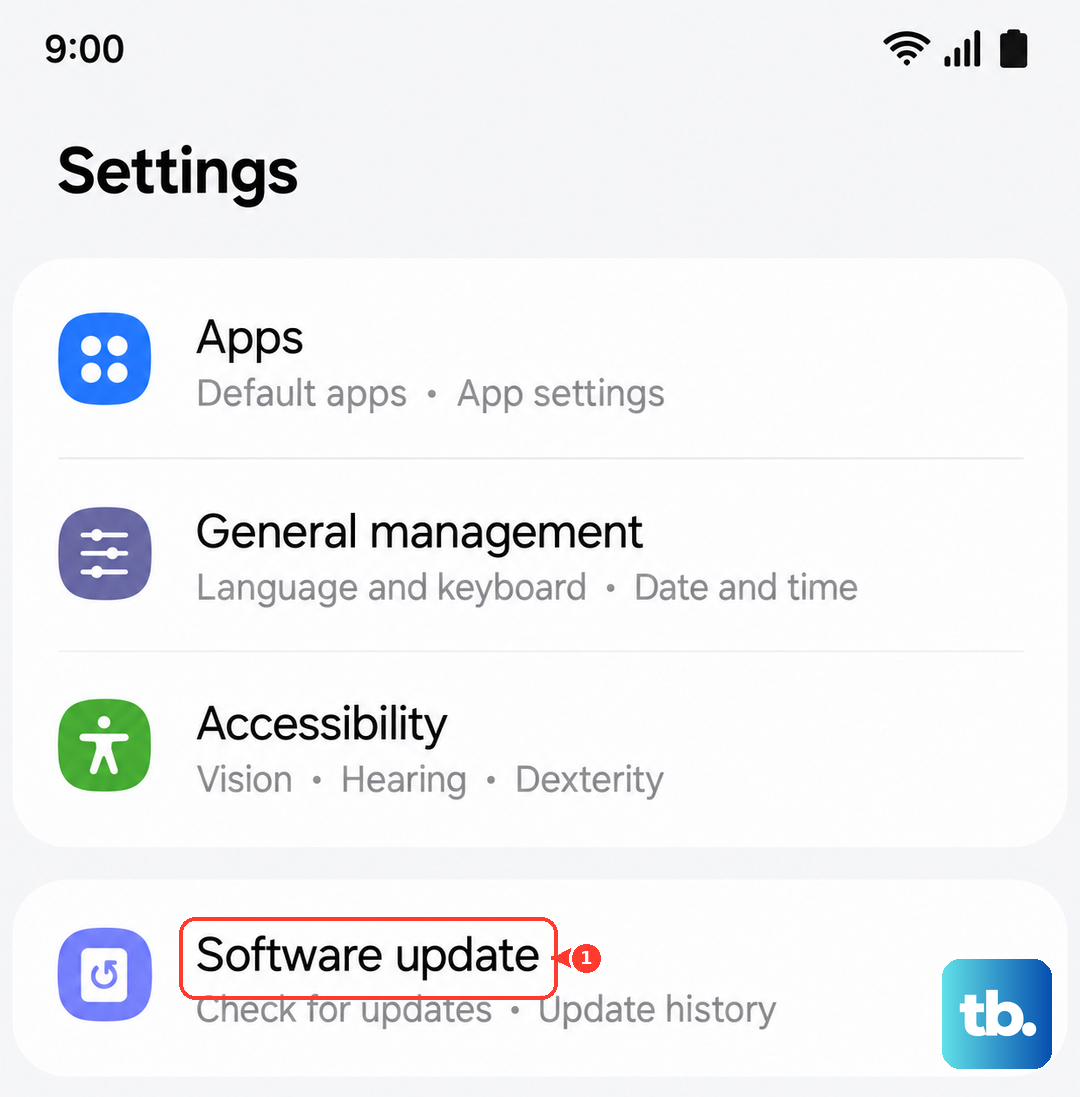
Outdated software can have bugs that affect hardware components. Since your S25 FE runs Android 15 with One UI 7, Samsung is regularly releasing updates. Go to Settings > Software update > Download and install. If an update is available, install it. These updates often include fixes for minor performance issues that could be causing your vibration problem.
Reset Your App Preferences or Settings
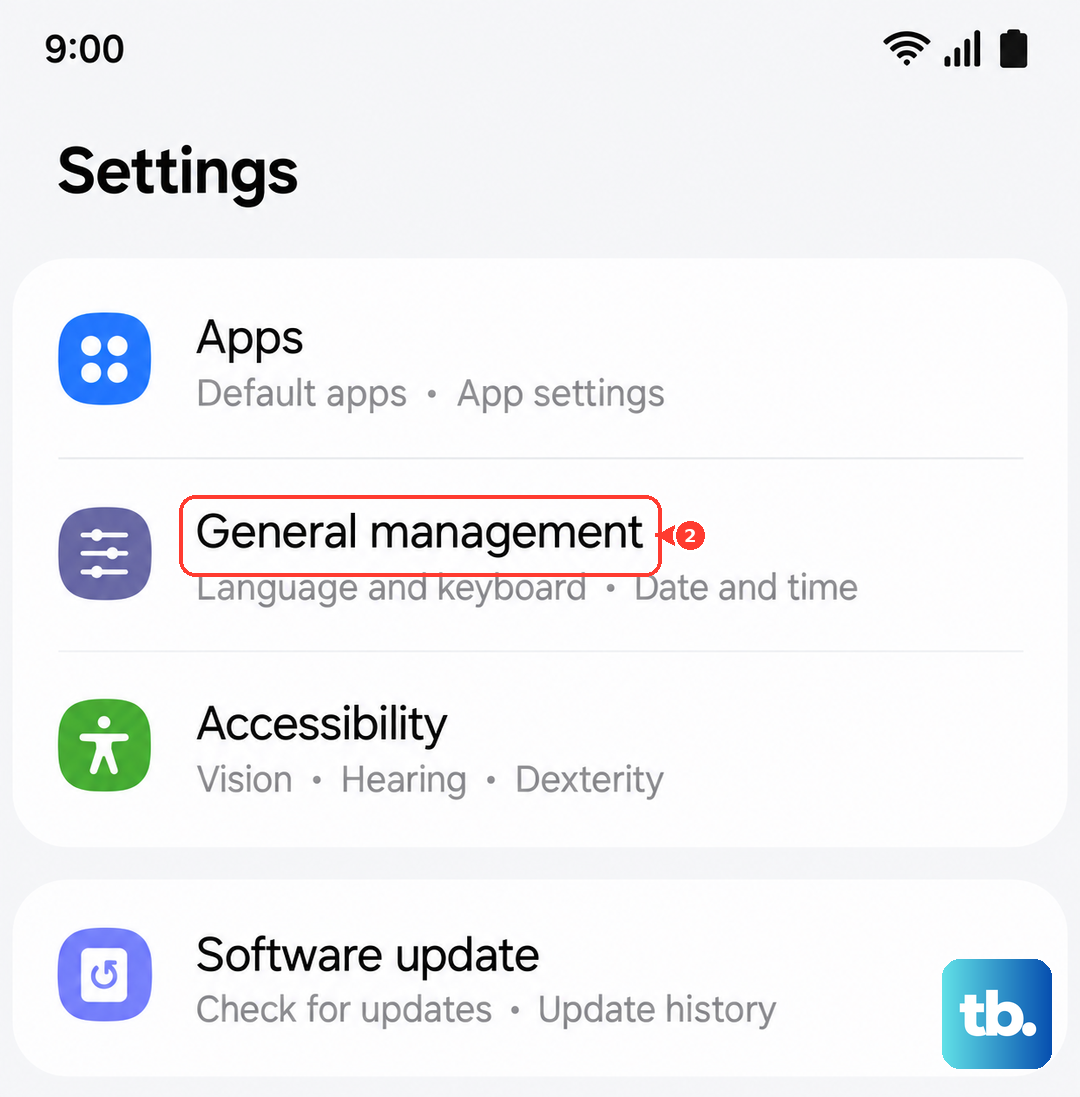
If you're still stuck, you can reset your phone's settings without losing any personal data like photos or messages. This will revert all your sound, display, and network settings back to factory defaults. Go to Settings > General management > Reset > Reset all settings > Reset settings. Confirm the action. After the phone reboots, you'll need to re-enable vibration by going back into Sounds and vibration and toggling everything on again.
As a more targeted step, you can also try resetting app preferences. This clears default apps, background restrictions, and permission settings for all apps. Go to Settings > Apps > Menu (three dots) > Reset app preferences. This can resolve conflicts without affecting your app data.