When your Samsung Galaxy S25 FE keeps closing apps, it's usually a software hiccup you can fix yourself. The most common culprit is a full cache or a background process that's gotten stuck. I'd start with a simple restart to clear out any temporary glitches.
For a full restart, press and hold the Volume Down button and the Side key (power button) together for about ten seconds. You'll see the Samsung logo appear as the phone reboots. This is often the quickest fix for random app crashes.
Update Your Apps and Software
Outdated apps are a frequent cause of instability, especially on newer systems like Android 15 with One UI 7. Head to the Google Play Store, tap your profile icon, and go to Manage apps & device. Look under "Updates available" and install everything.
Don't forget the system itself. Go to Settings > Software update and tap Download and install. Samsung regularly pushes updates that fix bugs affecting app performance, so keeping everything current is key.
Clear the App's Cache and Data
If a specific app like Instagram or Chrome keeps closing, its stored temporary files might be corrupted. This is a safe first step that won't delete your login info or personal data within the app.
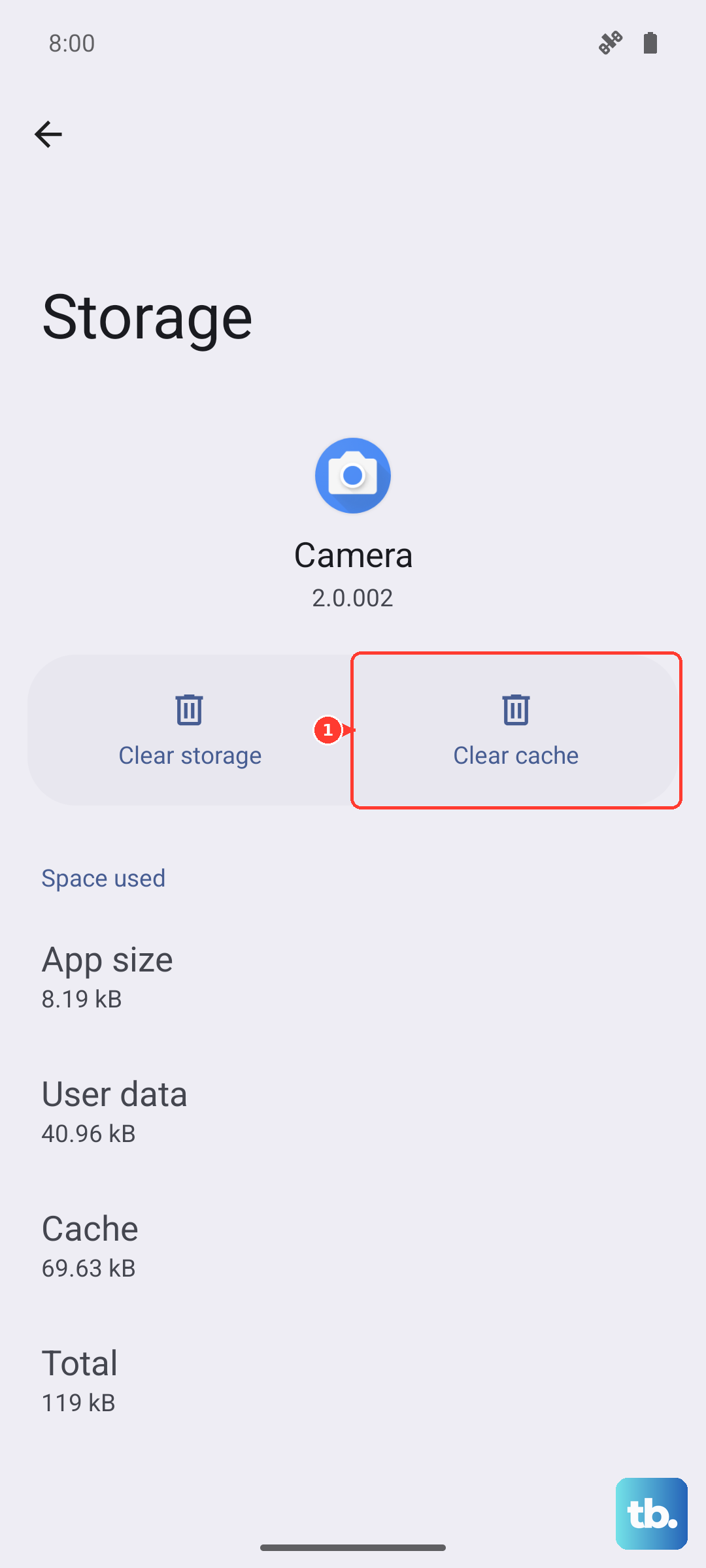
Go to Settings > Apps, select the problematic app, and tap Storage. Tap Clear cache. If the app still misbehaves, you can go back and tap Clear data, but be aware this will reset the app to its freshly installed state, so you'll need to log in again.
Check for Overheating and Performance Mode
The Exynos 2400 chip in the S25 FE is powerful but can run warm during long gaming or video sessions. If the phone gets too hot, it will throttle performance to cool down, which can cause apps to stutter or close.
Let the phone cool down if it feels warm. You can also check your performance settings. Go to Settings > Battery. Here, you can enable Adaptive battery to help manage power for better long-term stability. For maximum performance, go to Settings > Device care > Performance profile and make sure "Standard" is selected, since the "Light" profile trades processing speed for battery life.
Free Up Storage Space
When your phone's storage is nearly full, apps have no room to create temporary files or update, leading to crashes. The S25 FE doesn't come with a charger in the box, which sometimes means people use slower chargers that don't support its full 45W capability, leading to longer charge times and more background heat during charging, which can affect performance.
Check your storage in Settings > Device care > Storage. If you're below 10% free space, start clearing out old downloads, unused apps, and cached data from apps like Spotify or YouTube. Moving photos to cloud storage can free up a significant amount of space quickly.
Reset App Preferences
This is a useful step if multiple apps are acting up. It resets all your app permissions, default apps, and background restrictions without deleting any app data.
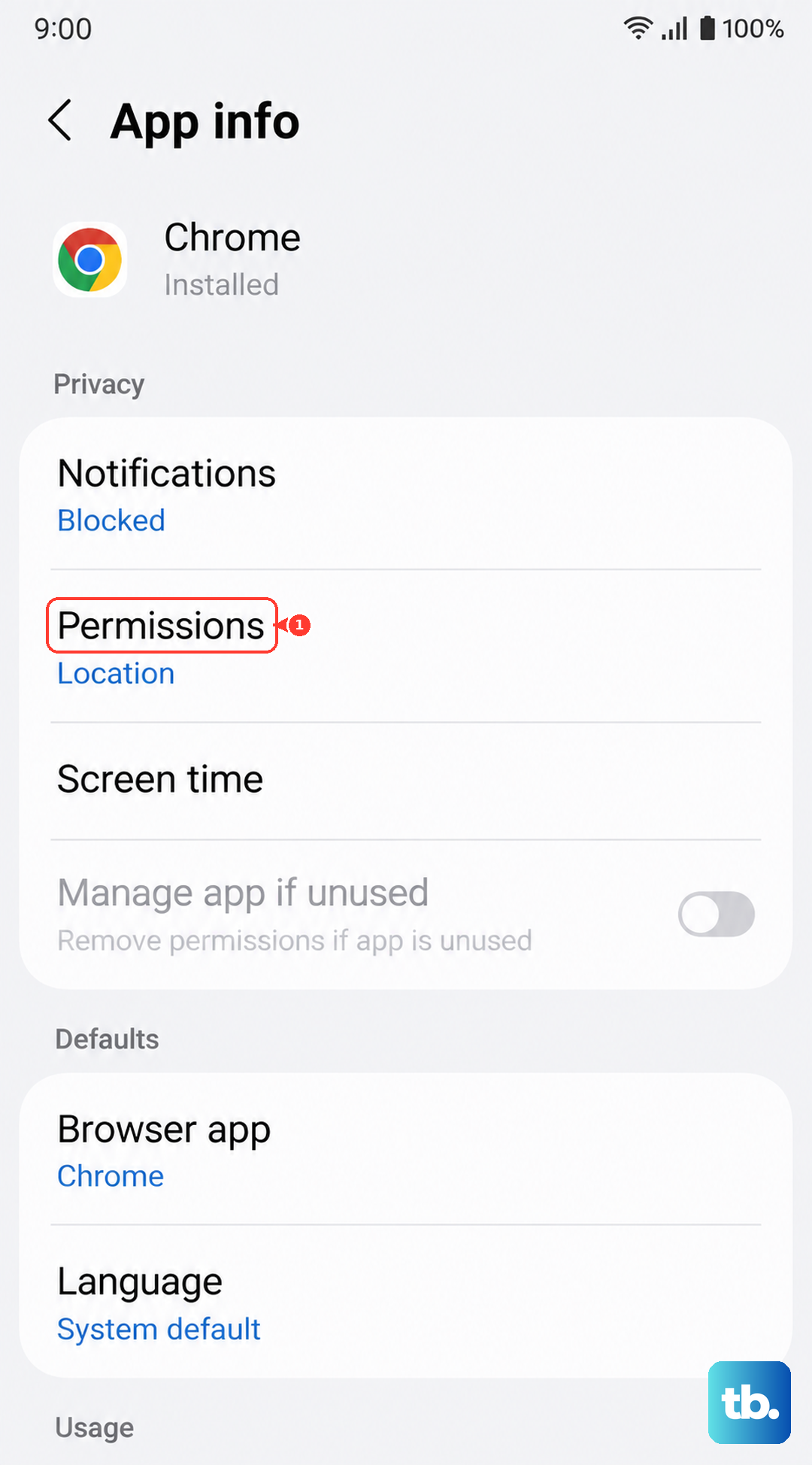
Go to Settings > Apps, tap the three-dot menu in the top right, and select Reset app preferences. Confirm the action. You'll need to re-grant permissions like location or microphone to apps when you use them next, but it can resolve conflicts causing apps to close.
Boot into Safe Mode
Safe Mode temporarily disables all third-party apps. If your apps stop crashing in Safe Mode, you know a downloaded app is causing the problem.
To enter Safe Mode, press and hold the power button until the power menu appears. Then, tap and hold the "Power off" option on the screen. You'll get a prompt to reboot into Safe Mode. Tap it. Test your usual apps here. To exit, just restart the phone normally.
Consider a Factory Reset
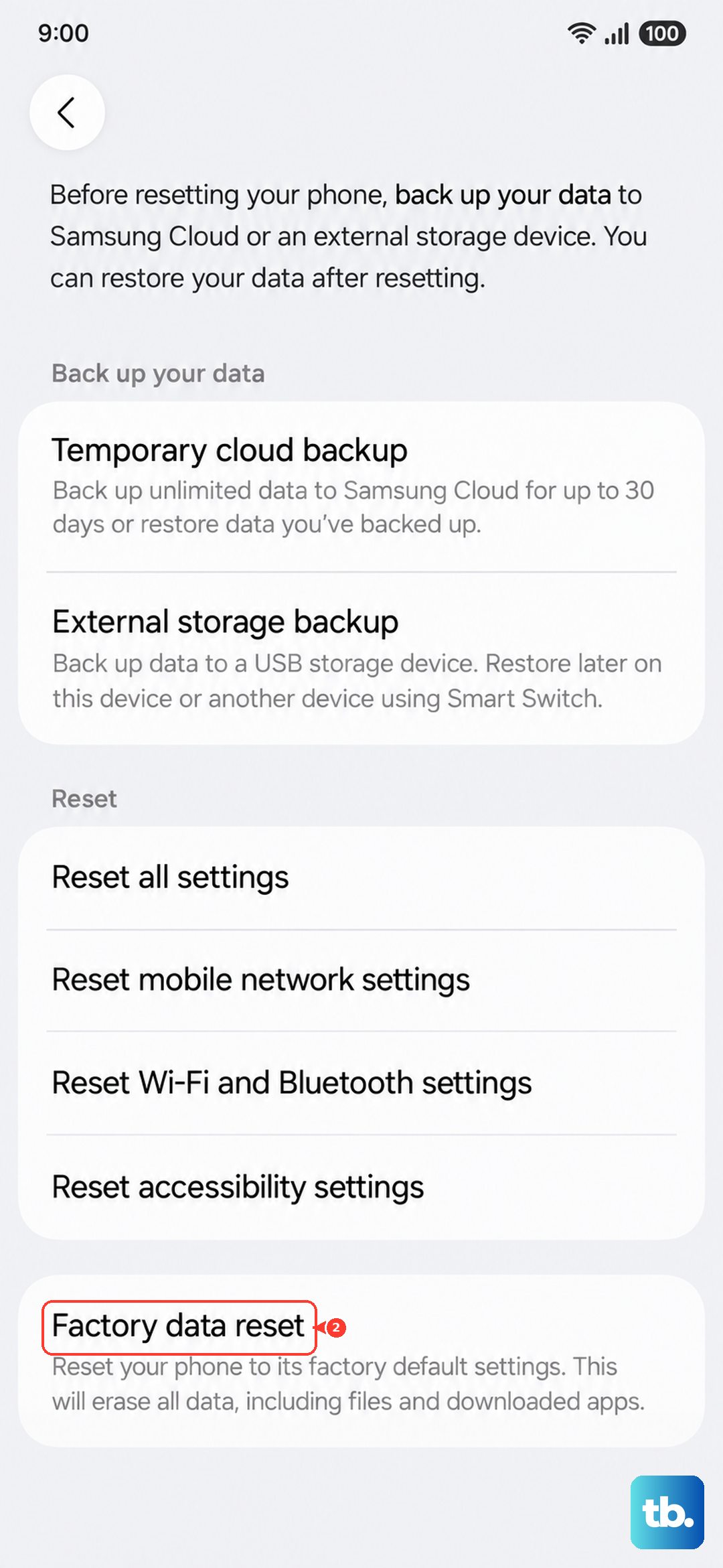
If you've tried everything and apps are still closing, a factory reset is the final step. This will erase everything on your phone, so you must back up your photos, contacts, and important files to Samsung Cloud or a computer first.
Once backed up, go to Settings > General management > Reset. Tap Factory data reset and follow the prompts. After the reset, set up the phone as new initially to see if the problem is gone before restoring your backup, as a corrupted backup file could reintroduce the issue.