
When your Samsung Galaxy S25 Edge refuses to update, it's usually down to one of a few common culprits. You might see "Software Update Downloaded but Installation Failed" or the download just stalls. Here's how to get the update installed.
Check Your Wi‑Fi Connection
Updates need a stable internet connection. Make sure you're on Wi‑Fi (mobile data won't work for system updates) and try opening a website in Chrome. If the page takes forever, restart your router or switch to a different network. Public hotspots often block big downloads like multi‑gigabyte system updates.
Free Up Storage Space
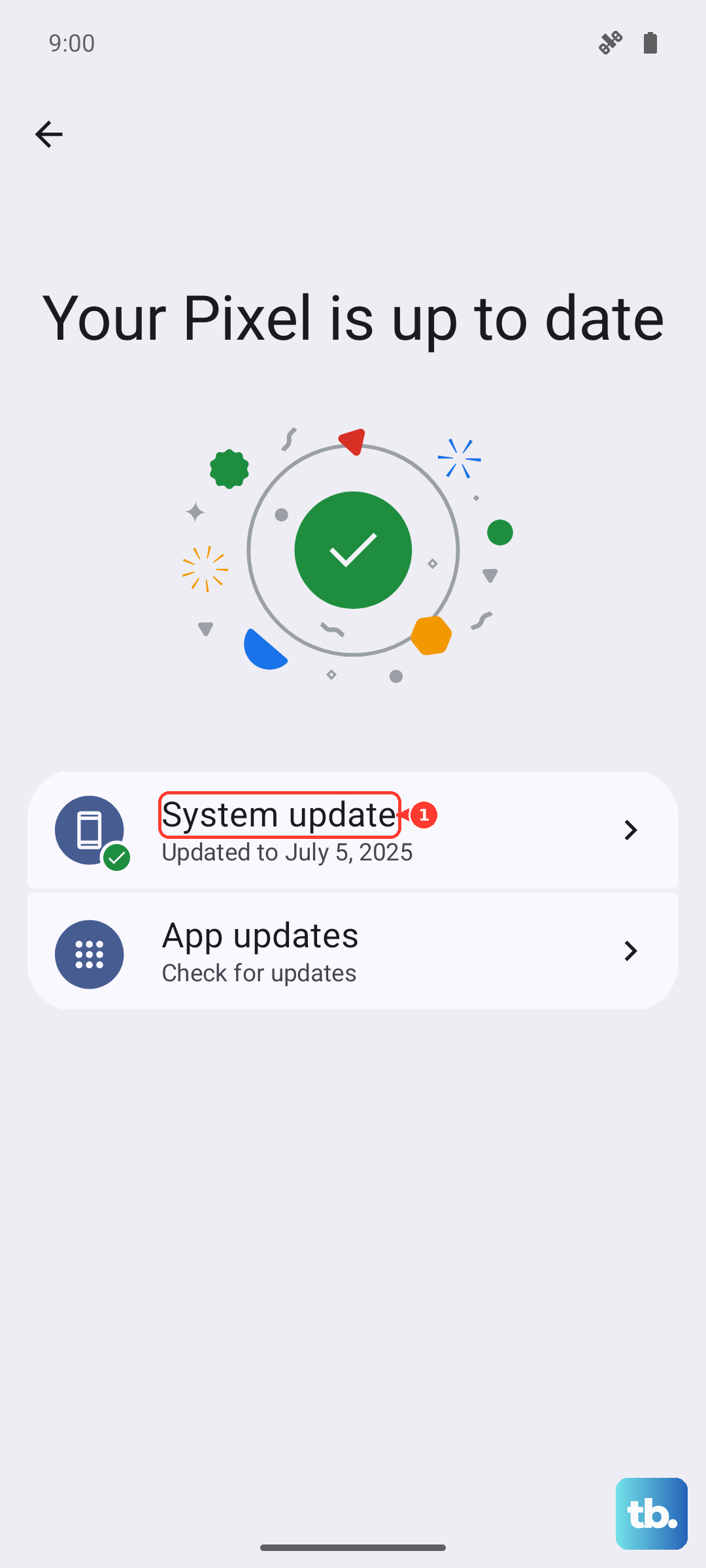
System updates need room to download and install. Go to Settings > Device care > Storage and check your available space. A major One UI update can require 5 8 GB of free space. Delete old photos, clear app caches, or use the "Temporary files" cleanup option to make room quickly.
Clear the System Update Cache
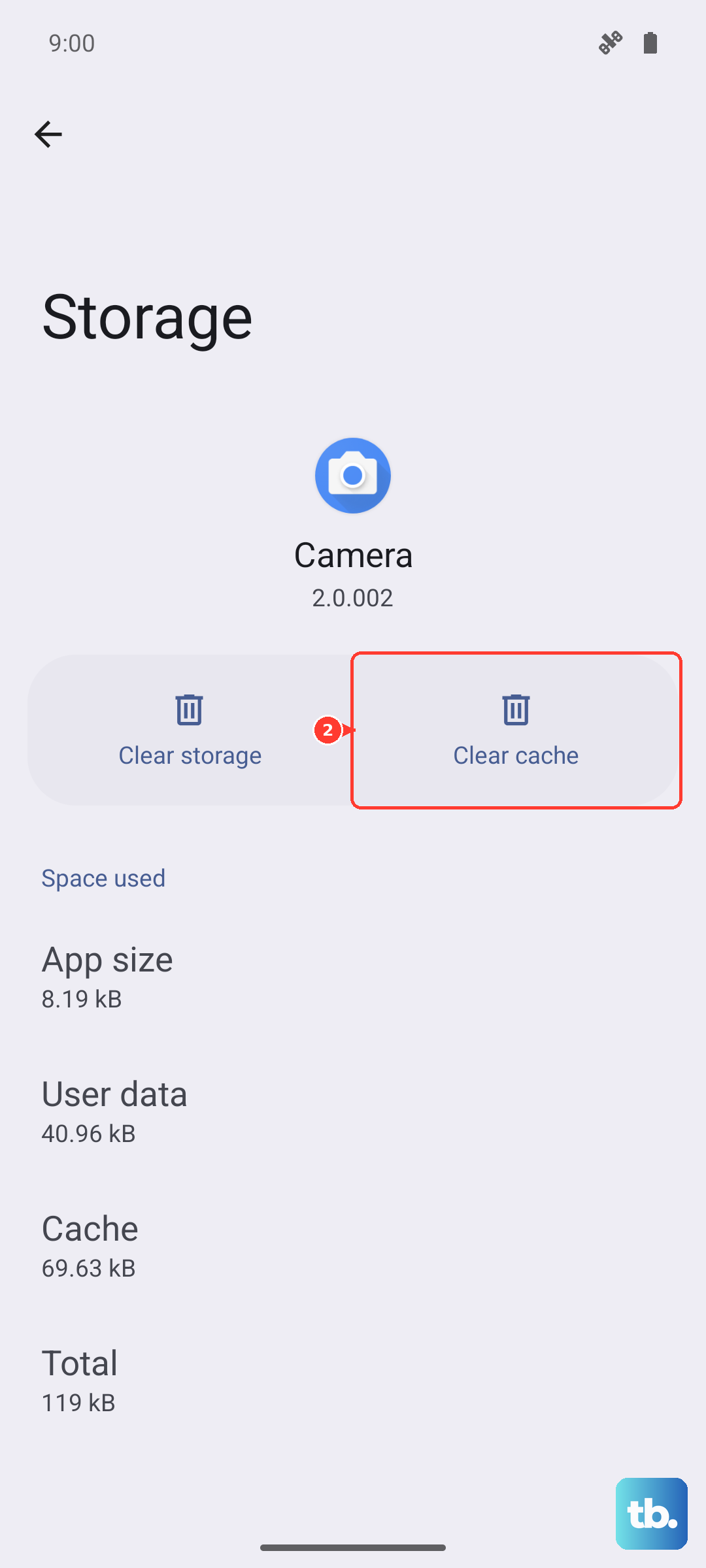
Corrupted update data can block future attempts. Go to Settings > Apps > Show system apps (tap the three‑dot menu), find Software Update, and tap Storage. Then tap Clear cache (not Clear data unless you want to reset update preferences). Go back to Settings > Software Update and try again.
Restart Your Galaxy S25 Edge
A simple restart clears temporary files that can interfere with updates. Press and hold Volume Down and the Side (power) button together for about 10 seconds until the Samsung logo appears. That's a force restart it won't erase any data. After the phone boots up, try the update again.
Reset Network Settings
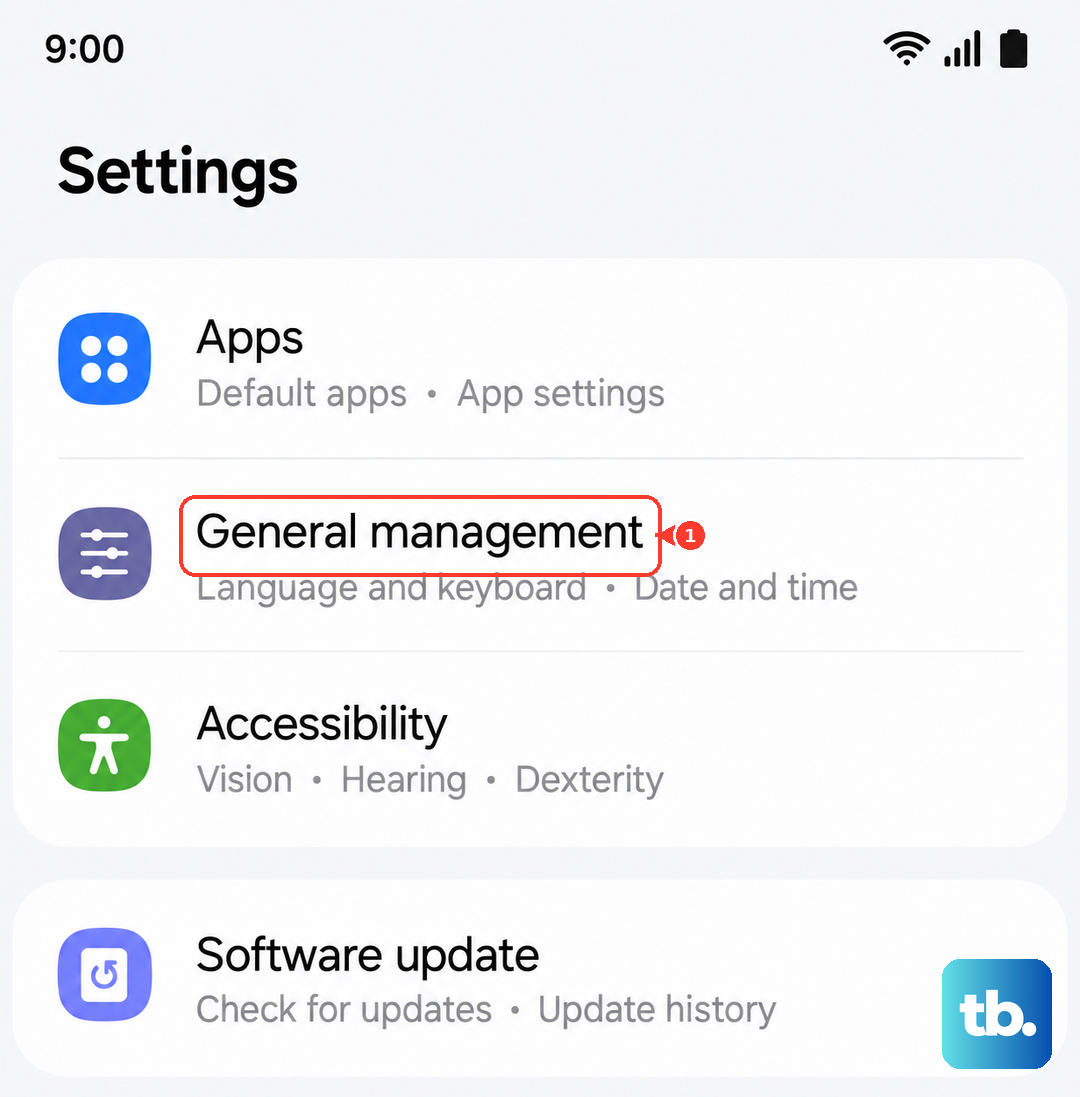
If your connection seems fine but the update still fails, network settings can get tangled. Go to Settings > General management > Reset > Reset network settings. This erases saved Wi‑Fi passwords and paired Bluetooth devices, so you'll need to reconnect to Wi‑Fi. It often resolves update download problems.
Update Using Smart Switch on a Computer
When the over‑the‑air update keeps failing, your best bet is a computer. Connect your S25 Edge to a Windows PC or Mac using a USB‑C cable. Open Smart Switch (download it from Samsung's site if you don't have it). Click Update and follow the prompts. Smart Switch downloads the full firmware to your computer and installs it directly, bypassing most phone‑side issues.
Check Samsung's Server Status
Sometimes the problem isn't on your end. Samsung's update servers can get overwhelmed especially right after a major One UI release. Check Samsung's official support website or social media channels for any outage reports. If servers are down, wait a few hours and try again.
Try Updating at a Less Busy Time
When a new One UI version rolls out, millions of Galaxy owners are downloading it at once. That server load can cause downloads to stall or fail. Try updating early in the morning or late at night when fewer people are hitting the servers. It's a simple workaround that often works.
Start the Update in Safe Mode
Third‑party apps especially VPNs, ad blockers, or battery optimizers can interfere with the update process. To rule them out, boot into Safe Mode. Press and hold the Side button, then tap and hold Power off until the Safe Mode prompt appears. Tap Safe mode. Once in Safe Mode, go to Settings > Software Update and try the update. After it installs, restart the phone normally to exit Safe Mode.
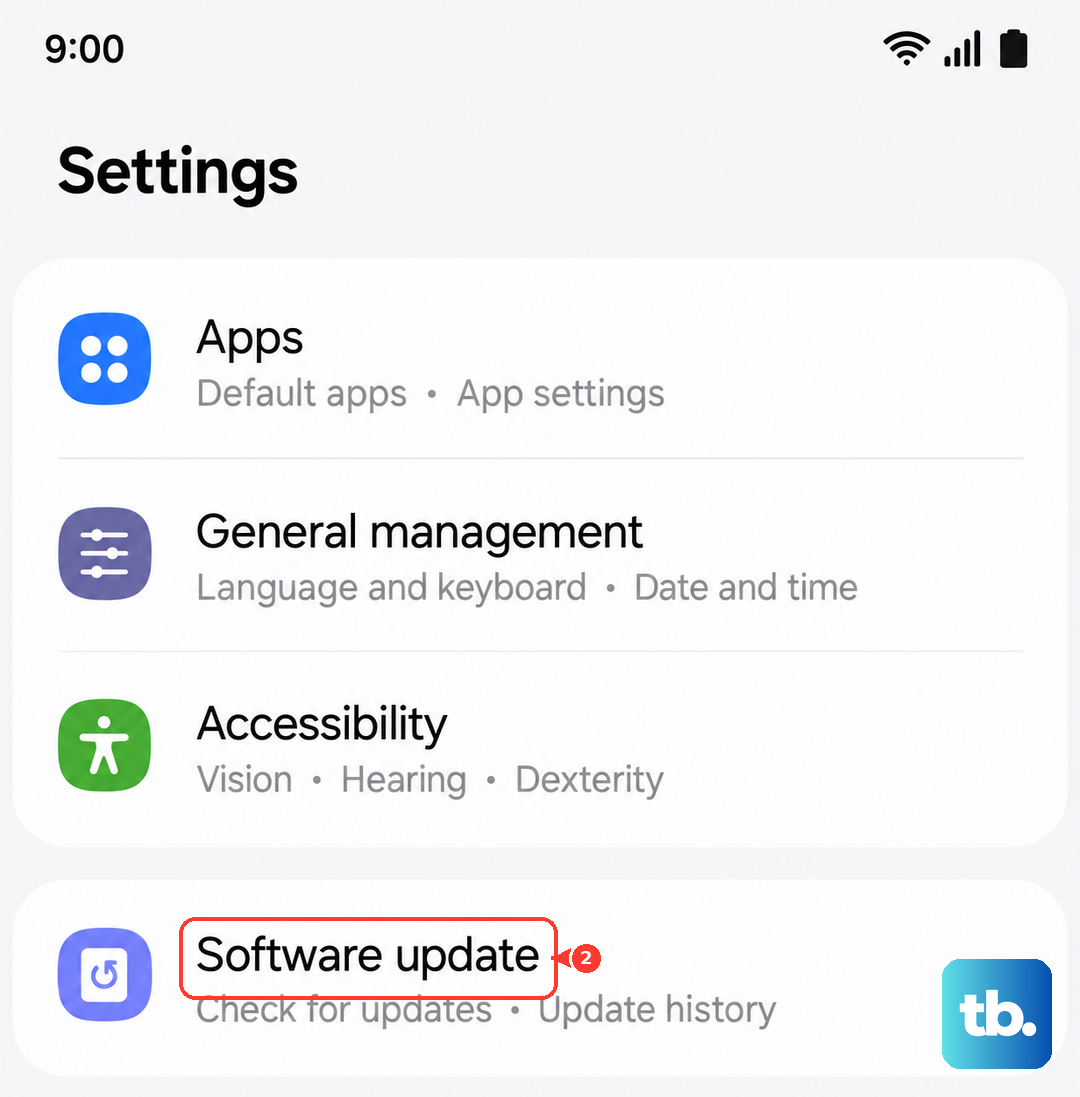
If none of these steps work, check that your Galaxy S25 Edge is actually compatible with the update you're trying to install some major One UI releases skip older hardware. But for a 2025 device, compatibility shouldn't be an issue. The most common fix by far is clearing the update cache and retrying with a stable Wi‑Fi connection.