
You press the power button on your Samsung Galaxy S25 Edge and nothing happens. Or maybe the screen stays black, or it gets stuck on the Samsung logo and won't go any further. This can happen for a few reasons, a drained battery, a software glitch, or even a blocked charging port. Let's walk through the fixes.
Force Restart the Phone
This is the first thing to try. A force restart clears out minor software hiccups without wiping any data. On the Galaxy S25 Edge, press and hold Volume Down and the Side (power) button together for about 10 seconds. Keep holding until the Samsung logo pops up. If it works, you'll see the lock screen within a minute. This is a safe step, you can't hurt the phone by trying it.
Check the Battery and Charging
Your phone might have completely drained its battery. Plug it into a charger and leave it for at least 15 20 minutes before trying to turn it on. The Galaxy S25 Edge supports 25W wired charging and 15W wireless Qi charging. But here's a known issue: the charging speed can drop to around 15W even with a 25W charger. It's annoying but not a sign of a broken phone.
Use Samsung's original 25W charger and cable for best results. If the phone doesn't seem to be charging, inspect the USB-C port. Lint and pocket debris can collect inside and block the connection. Gently clean it with compressed air or a soft brush, do not poke metal objects in there. Also check the cable for damage. Sometimes the phone will overheat and stop charging altogether. If that happens, move it to a cooler spot and let it sit for a while.
Intermittent charging when you wiggle the cable? That's another sign of a dirty or damaged port. Clean it thoroughly and try a different cable to rule out the cable itself.
Try Safe Mode
A third-party app could be preventing your Galaxy S25 Edge from starting up properly. Safe mode lets you boot the phone with only the system apps running. If it starts fine in safe mode, you've found the culprit.
To enter safe mode: Turn off the phone completely. Press and hold the Side button and the Volume Down button simultaneously. As soon as the Samsung logo appears, release the Side button but keep holding Volume Down. When the screen unlocks, you'll see "Safe mode" in the bottom-left corner. If it boots, then a recent app or update is the likely cause. Uninstall any suspicious apps you added right before the problem started.
Wipe the Cache Partition
Corrupted cache files can stop your phone from booting. This fix doesn't delete your personal data, it just clears temporary system files. Here's how to access the recovery menu on the Galaxy S25 Edge:
- Power off the phone completely.
- Press and hold Volume Up and the Side button together until the Samsung logo appears, then release both.
- You'll see the Android recovery screen. Use the volume buttons to highlight "Wipe cache partition" and press the Side button to select.
- Confirm on the next screen. Once done, select "Reboot system now".
The process takes about 30 seconds. After the reboot, check if the phone turns on normally.
Factory Reset (Last Resort)
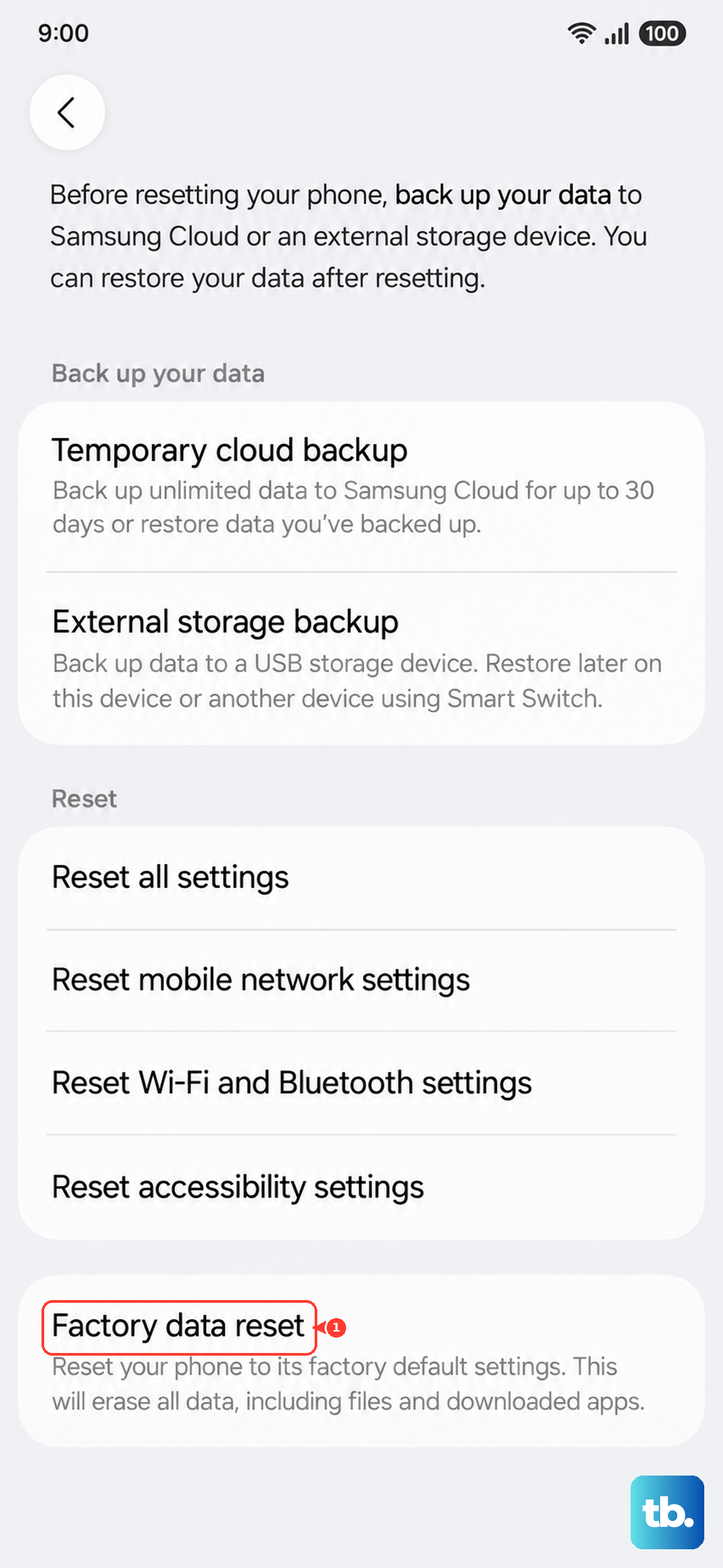
If none of the above gets your phone running, a factory reset can fix deeper software corruption. Warning: This erases everything, your photos, accounts, apps, and settings. There's no undo. Back up anything you can before proceeding.
To factory reset via recovery: Boot into recovery as described above. Use the volume keys to navigate to "Factory data reset" or "Wipe data/factory reset". Select it with the Side button, then confirm. After the reset, choose "Reboot system now". Your Galaxy S25 Edge will restart as if it's brand new.
If your phone still won't turn on after this, the issue is likely hardware-related. A faulty side button, a damaged charging port, or a motherboard problem would need a repair shop's attention. But try the steps above first, in most cases, one of them will get you back up and running.