
When your Samsung Galaxy S25 Edge voice assistant stops responding, it can be frustrating. Whether you rely on Bixby or Google Assistant, the usual commands suddenly don't work. Here’s how to get it back up and running on your S25 Edge.
Check if the Voice Assistant Is Actually On
Start with the basics. Open Settings > Advanced features and tap Bixby (or Google Assistant if that’s your default). Make sure the toggle for “Wake with voice command” is enabled. On the S25 Edge, you can also long-press the Side key to launch the assistant and check if it responds at all.
If you use Google Assistant, go to Settings > Google > Settings for Google apps > Search, Assistant & Voice and verify that Hey Google is turned on. A recent update may have reset this setting.
The Side Key and Force Restart Trick
The S25 Edge’s side button is configurable. If the assistant doesn’t launch when you press and hold it, head to Settings > Advanced features > Side button and select Wake Bixby (or Open app > Google Assistant). You can also try a force restart – this often clears temporary glitches that break voice recognition.
Press and hold Volume Down and Side (power) buttons simultaneously for about 10 seconds until the Samsung logo appears. That’s the S25 Edge’s official force restart. After the phone boots back up, test the voice assistant again.
Microphone Access and Physical Blockages
The S25 Edge has multiple microphones. If the assistant can’t hear you, check for dirt or case interference. A case that covers the bottom mic or the top noise-cancelling mic is a common culprit. Remove the case and try again.
Also check app permissions. Go to Settings > Apps > Bixby Voice (or Google) and tap Permissions. Make sure microphone access is allowed. On Android 15, system apps sometimes lose permissions after an update.
Clean the Microphone Openings
Lint or dust in the mic holes can mute the assistant. The S25 Edge has a microphone on the bottom (near the USB-C port) and another on the top. Use compressed air or a soft, dry brush to gently clean them. Avoid poking anything sharp inside.
This is a known issue on the Galaxy series – pocket lint tends to build up. Give it a quick clean and the assistant should hear you again.
Retrain Your Voice Model
If the assistant sometimes works but misses your commands, retraining it can help. For Bixby, open the Bixby app, tap the three-dot menu, go to Settings > Voice wake-up and select Delete voice data. Then re-record your wake phrase.
For Google Assistant, go to Assistant settings > Hey Google & Voice Match and tap Voice model > Retrain voice model. Follow the prompts and speak clearly. The S25 Edge’s microphone beamforming should pick you up better after a fresh model.
Update Software and Assistant Apps
Bug fixes for voice recognition often ship with system updates. Go to Settings > Software update and tap Download and install. The S25 Edge runs Android 15, and Samsung pushes regular patches that address Bixby quirks.
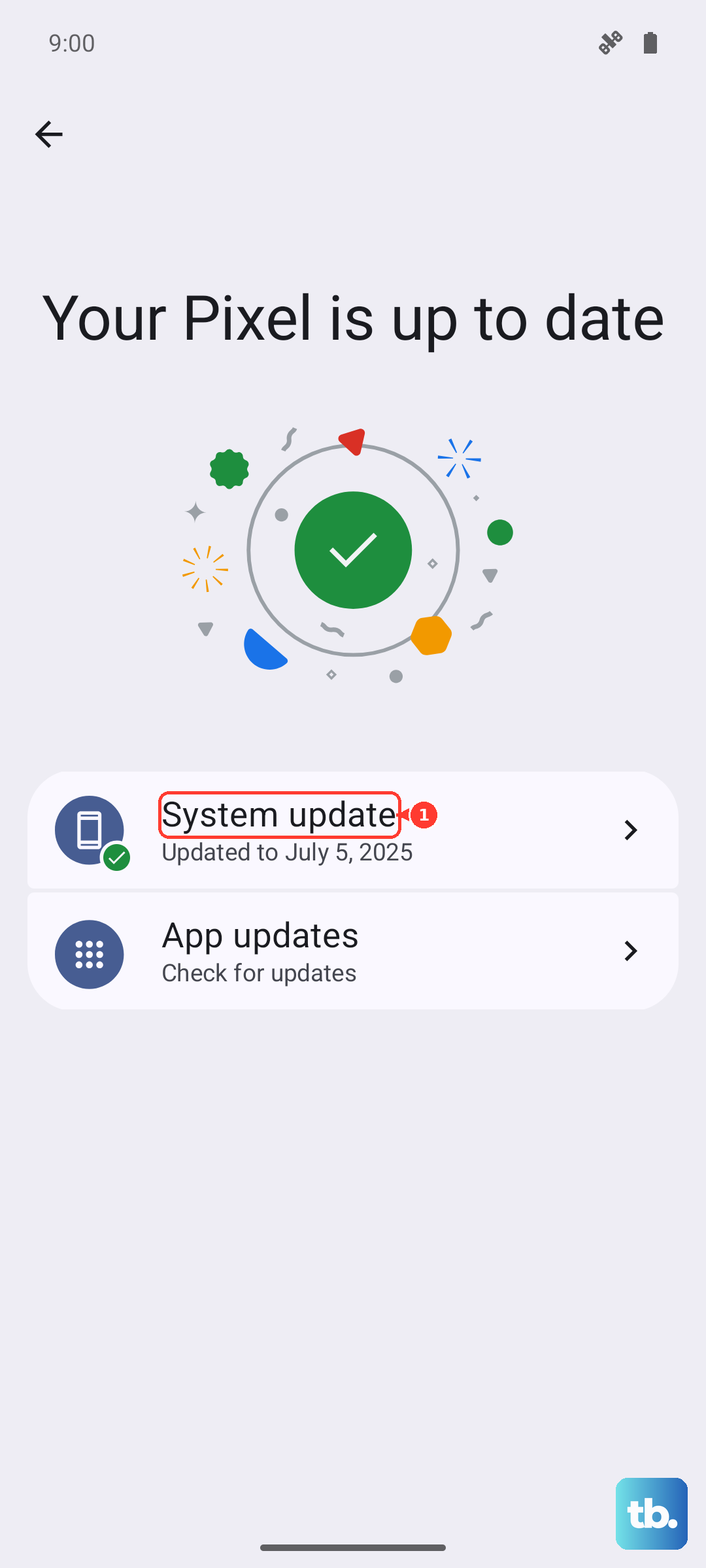
Also update Bixby and Google Assistant from the Galaxy Store and Play Store, respectively. An outdated app can clash with newer One UI features.
Turn Off Battery Optimization for the Assistant
Aggressive battery management can kill background processes, including voice wake-up. Go to Settings > Apps > Bixby Voice (or Google) > Battery and select Unrestricted. On the S25 Edge, this prevents the system from putting the assistant to sleep while the screen is off.
If you’re using Google Assistant, also check Settings > Apps > Google > Battery and set it to Unrestricted. You might also want to disable “Put unused apps to sleep” in Device care for these apps.
Check Do Not Disturb and Other Sound Modes
Do Not Disturb can suppress voice assistant responses. Pull down the quick panel and tap the DND tile to turn it off temporarily. Also check Settings > Modes and routines – some custom routines may disable voice wake-up.
The S25 Edge has a built-in “Restrict app actions” setting in Digital Wellbeing. If that’s active, it can block the assistant from launching. Review your routine triggers.
Also verify that the phone isn’t in “Kids” or “Work” profile mode, which can restrict assistant functionality.
Reset the Assistant App Data
Corrupted cache or settings can break voice recognition. For Bixby, go to Settings > Apps > Bixby Voice > Storage and tap Clear cache, then Clear data. You’ll need to set up Bixby again, but it often fixes persistent issues.
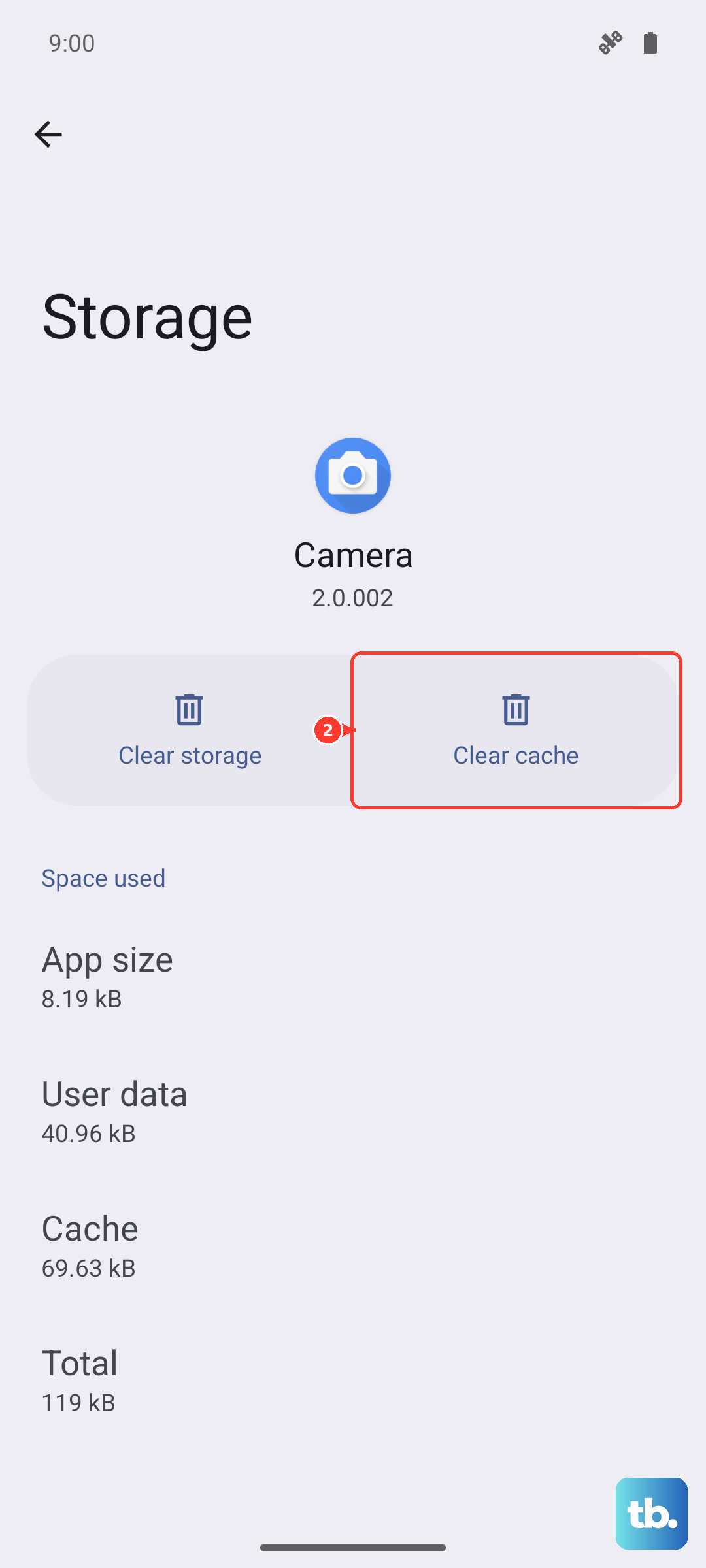
For Google Assistant, go to Settings > Apps > Google > Storage and do the same. Don’t worry – your account data is safe. You just lose custom settings.
Reset All Settings (Not a Factory Reset)
If nothing else works, resetting settings can resolve deeper configuration conflicts without wiping your data. Go to Settings > General management > Reset and tap Reset all settings. This won’t delete photos, apps, or accounts, but it will revert network and accessibility settings to default.
After the reset, re-enable your voice assistant and retrain the voice model. This has fixed many voice-related bugs on Galaxy devices.
One more thing: if you’re using Bixby and it’s completely unresponsive, try launching it manually from the app drawer. If it opens but doesn’t listen, the problem is likely microphone permissions or a hardware obstruction. Most assistant issues on the S25 Edge resolve with the steps above.