
A silent Samsung Galaxy S25 Edge is never a good thing, whether you're missing calls or your media is stuck on mute. Most audio issues on the S25 Edge stem from simple settings or minor software hiccups. Here's how to track down the problem and get your sound back.
It is worth confirming the basics with a quick left and right speaker test. If neither channel plays a tone, you are looking at a hardware or connection problem rather than a settings issue.
Check Your Volume and Sound Mode
Start with the basics. Press the volume up rocker on the side of your S25 Edge while playing something. Then, open Settings > Sounds and vibration and make sure 'Sound mode' is set to 'Sound', not 'Vibrate' or 'Mute'.
It's easy to accidentally flip the switch to silent without noticing. If the volume bar is grayed out or maxed with no audio, this is usually the first place to look.
Look at Do Not Disturb and Accessibility Settings
Do Not Disturb can silence pretty much everything on your S25 Edge. Go to Settings > Notifications > Do not disturb and make sure it's toggled off.
While you're in the settings menu, head to Settings > Accessibility > Hearing enhancements. Double-check that 'Mute all sounds' isn't turned on there, as it overrides everything else.
Clean the Bottom Speaker Grille
Dust and pocket lint love to clog the bottom speaker grille on the S25 Edge. Shine a flashlight down there to check for any visible blockages.
If you see debris, use a dry, soft-bristled toothbrush or a clean cotton swab to gently sweep it away. Avoid using sharp objects like a SIM ejector tool, as they can puncture the speaker mesh and cause permanent damage.
Disconnect Bluetooth and Accessories
Your S25 Edge might be routing audio to a connected device without you knowing. Swipe down the notification panel twice and tap the Bluetooth icon to disconnect everything at once.
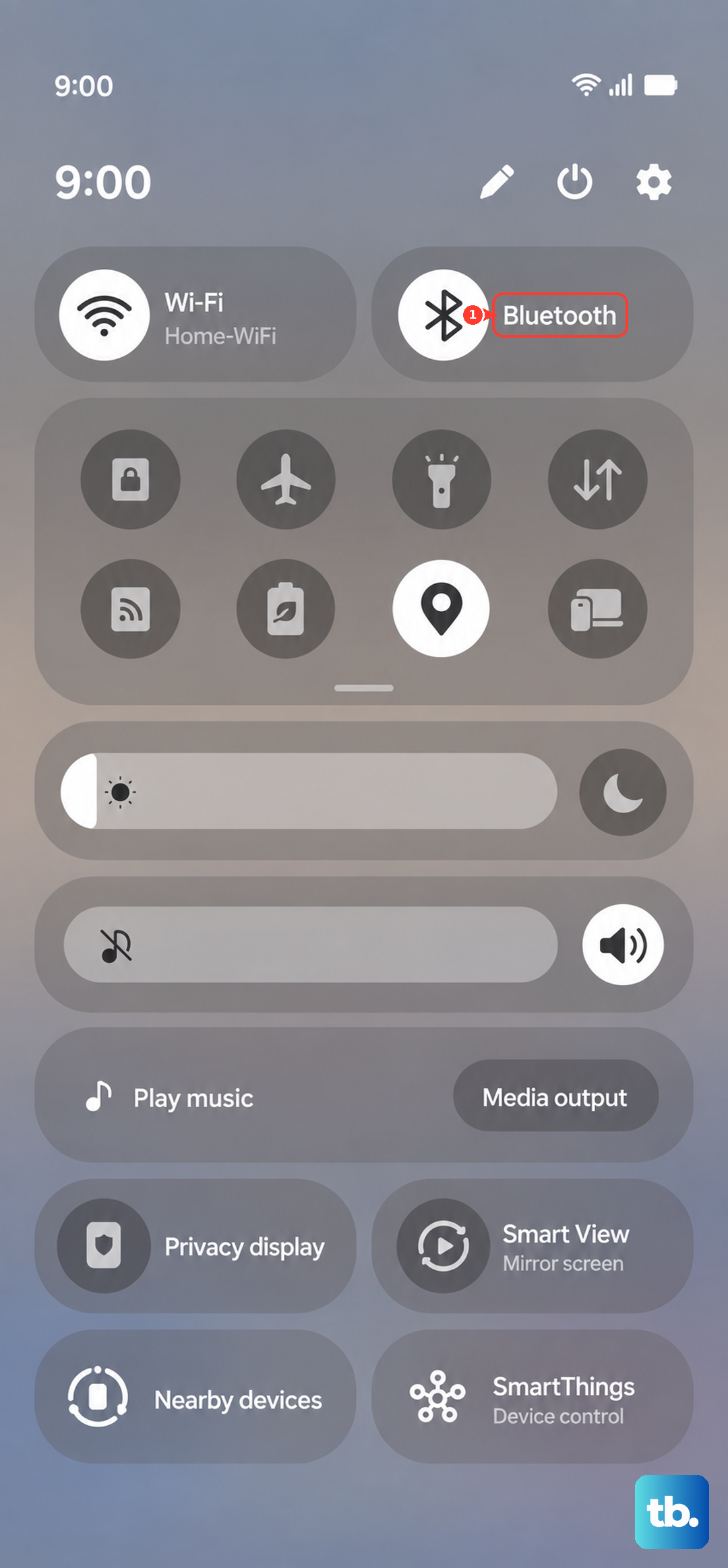
Try playing audio again through the phone speakers. If the sound comes back, your phone was simply paired with a headset or speaker. You should also remove any phone case that might be blocking the speaker grille.
Review Separate App Sound Settings
One UI 7 has a feature called 'Separate App Sound' that lets you send specific apps to a Bluetooth device. This is the most common reason why one app has sound while others don't.
Navigate to Settings > Sounds and vibration > Separate App Sound. Make sure the feature is turned off, or that your media apps aren't accidentally routed to a disconnected Bluetooth device.
Force Restart the Galaxy S25 Edge
If a temporary software glitch is freezing the audio system, a regular restart might not cut it. A force restart completely refreshes the system without erasing any data.
Press and hold the Volume Down and Side (power) buttons simultaneously for about 10 seconds. Release them as soon as the Samsung logo appears on the screen.
Boot into Safe Mode
Safe mode runs the phone with only the pre-installed apps active. It's the best way to tell if a downloaded app is causing your audio problems.
Press and hold the Side button, then tap and hold the 'Power off' icon on the screen until you see the 'Safe mode' prompt. Tap it to restart. If your sound works fine in safe mode, a third-party app is likely the culprit. Uninstall any recently downloaded apps to find the one causing the issue.
Install the Latest Software Update
Samsung frequently pushes updates for the S25 Edge that fix known bugs, including audio-related ones. It's always a good idea to make sure you're on the latest version of One UI 7.
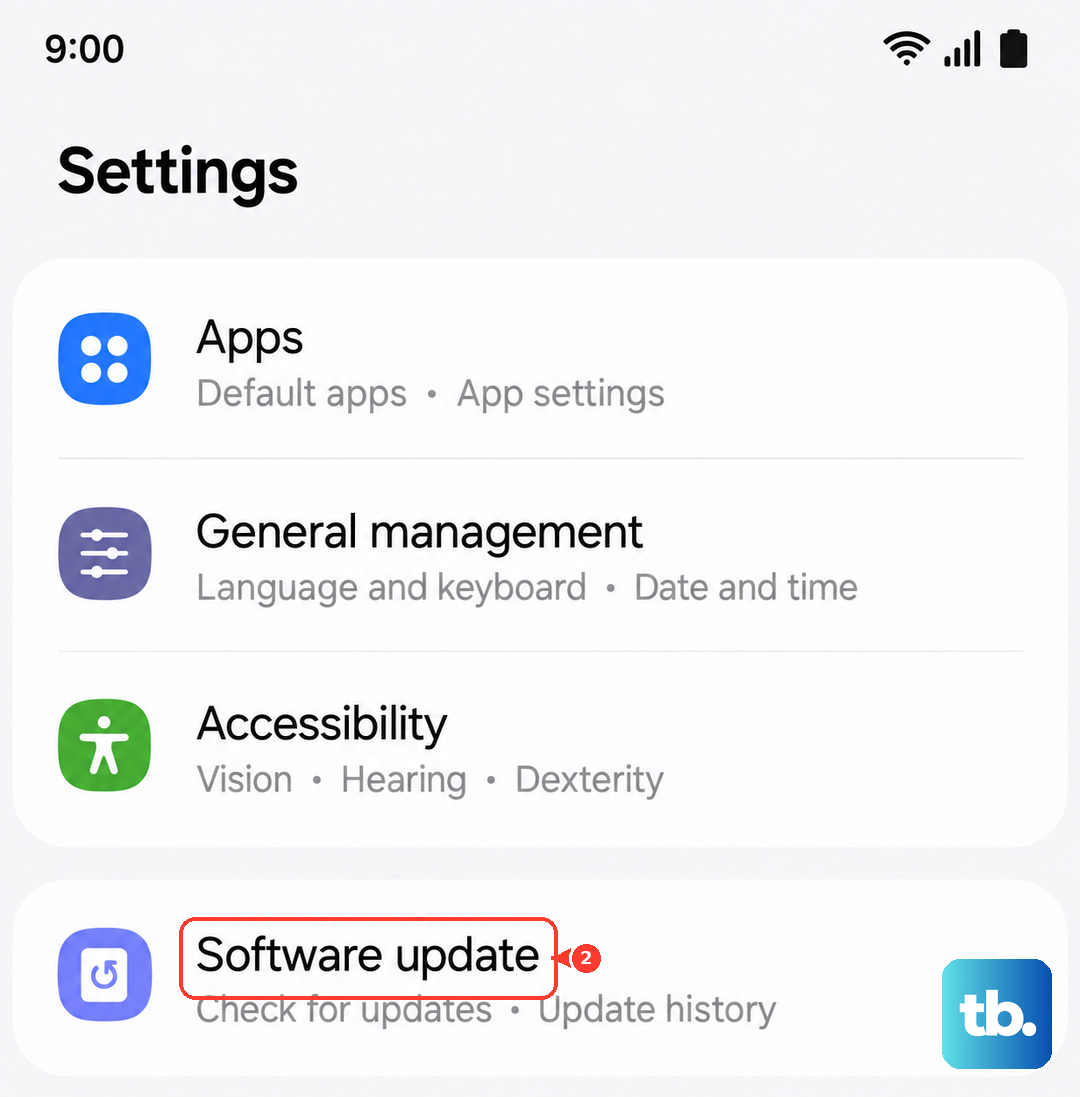
Go to Settings > Software update > Download and install. If an update is available, install it and see if the sound issue is resolved afterward.
Wipe the Cache Partition
Corrupted temporary files from a system update can sometimes interfere with audio drivers. Clearing the system cache is a safe way to get rid of them.
Turn off your S25 Edge. Connect it to a charger or PC. Press and hold the Volume Up and Side buttons together. Release them when the Android logo appears. Use the volume keys to scroll to 'Wipe cache partition' and press the Side button to confirm. Reboot the phone when the process is complete.
Reset All Settings
If nothing else has worked, a full settings reset can clear up persistent audio problems without deleting your personal files. This resets network, sound, and display settings back to their defaults.
Go to Settings > General management