Screen flashing on the Samsung Galaxy S25 Edge is the kind of problem that makes you want to throw the phone across the room. The display might flicker, blink, or show random lines. It’s usually a software glitch, but sometimes the display hardware itself is the issue. Let’s work through the fixes that actually help.
Force Restart the Phone First
Start with the simplest thing. A force restart clears out temporary system glitches without erasing anything. Press and hold the Volume Down and Side (power) buttons at the same time for about 10 seconds. Keep holding until the Samsung logo appears, then release. This is not the same as a normal reboot, and it’s your best first move for sudden screen flashing.
Turn Off Adaptive Brightness
The S25 Edge has an adaptive brightness sensor that adjusts the screen based on ambient light. If that sensor is acting up, it can cause rapid brightness changes that look like flashing. Go to Settings > Display and toggle off Adaptive brightness. Then set the brightness slider to a fixed level you’re comfortable with. If the flickering stops, you’ve found the culprit.
Check the Screen Refresh Rate Setting
The S25 Edge has a 120Hz display that can switch between 60Hz and 120Hz dynamically. Sometimes the transition between refresh rates triggers a flicker. Open Settings > Display > Motion smoothness and switch from Adaptive to Standard (60Hz) temporarily. If the flashing goes away, the adaptive refresh rate logic might be buggy. You can keep it on Standard or wait for a software update to fix the adaptive handling.
Update the Software
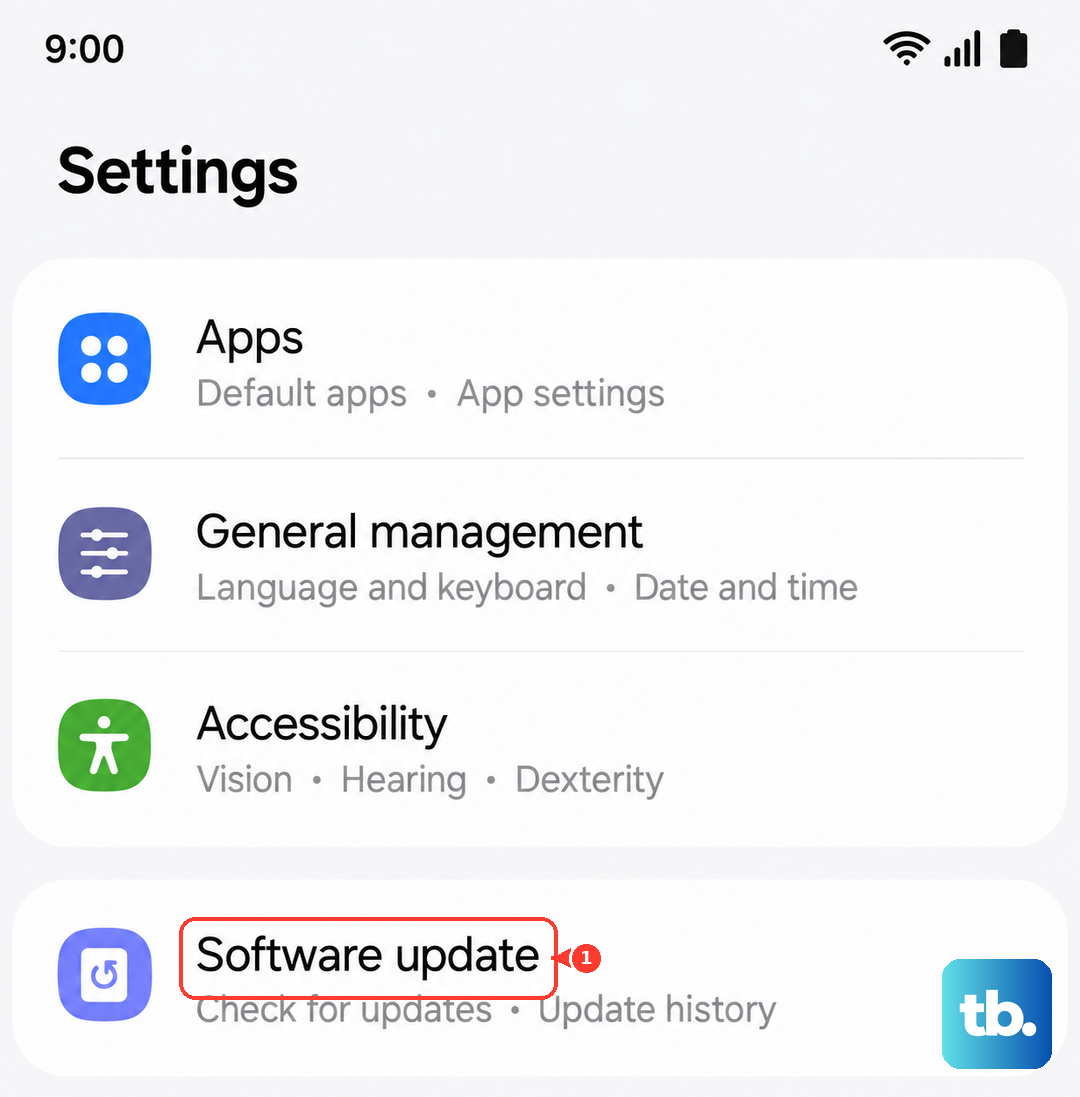
Screen flashing bugs are common enough that Samsung has patched similar issues in One UI updates. Go to Settings > Software update > Download and install. If there’s an update waiting, grab it. Samsung’s Android 15 builds have included fixes for display glitches, especially on the new Edge screen.
Boot Into Safe Mode
A third‑party app can hijack the display layer and cause flashing. Safe mode loads only the default apps and system software. Press and hold the Side button until the power menu appears, then tap and hold the Power off icon. You’ll see an option to enter Safe mode. Confirm it. If the screen stops flashing in safe mode, a downloaded app is the problem. Restart normally and uninstall recently added apps one at a time until the flashing stops.
Disable Developer Options (If You Touched Them)
Whipping through Developer options can accidentally turn on settings like Force GPU rendering or Disable HW overlays. Those can mess with how the display renders content. Go to Settings > Developer options (if you don’t see it, it’s hidden). Toggle off any experimental display settings, especially anything related to GPU or hardware overlays. If you’re unsure, tap the three‑dot menu and choose Reset to default.
Reset All Settings
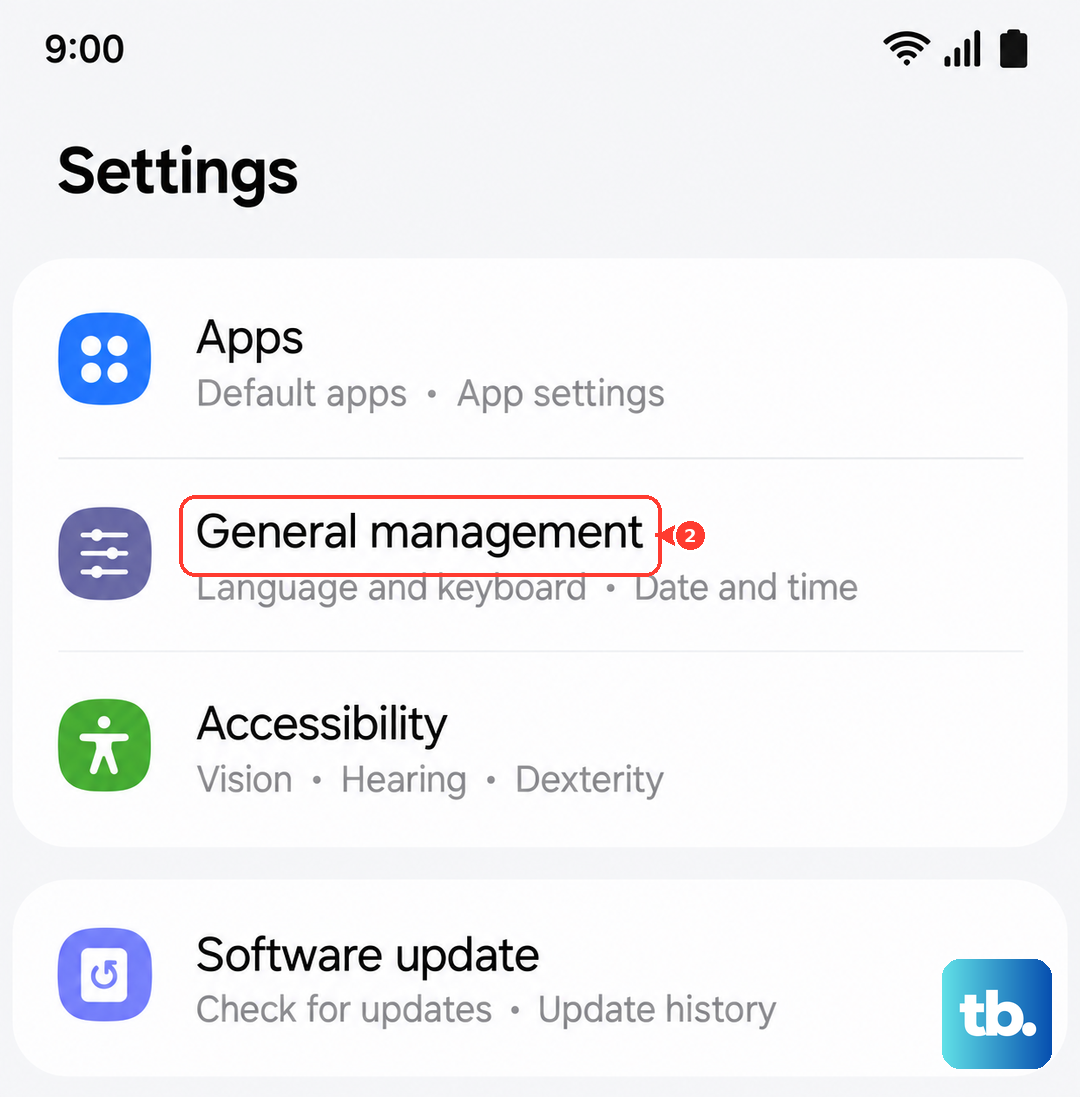
This keeps your photos, apps, and data but wipes Wi‑Fi passwords, wallpaper, and display settings. It’s a middle ground before a full factory reset. Go to Settings > General management > Reset > Reset all settings. You’ll have to re‑enter a few preferences, but it can clear out whatever config issue is causing the flicker.
Check for Physical Damage
If the flashing started after a drop or impact, the display cable might be loose or the screen itself could be damaged. Look closely at the edges of the screen for cracks, pressure spots, or color bleeding. If you see anything unusual, the fix is a hardware repair. Samsung’s official service centers can replace the display if needed.
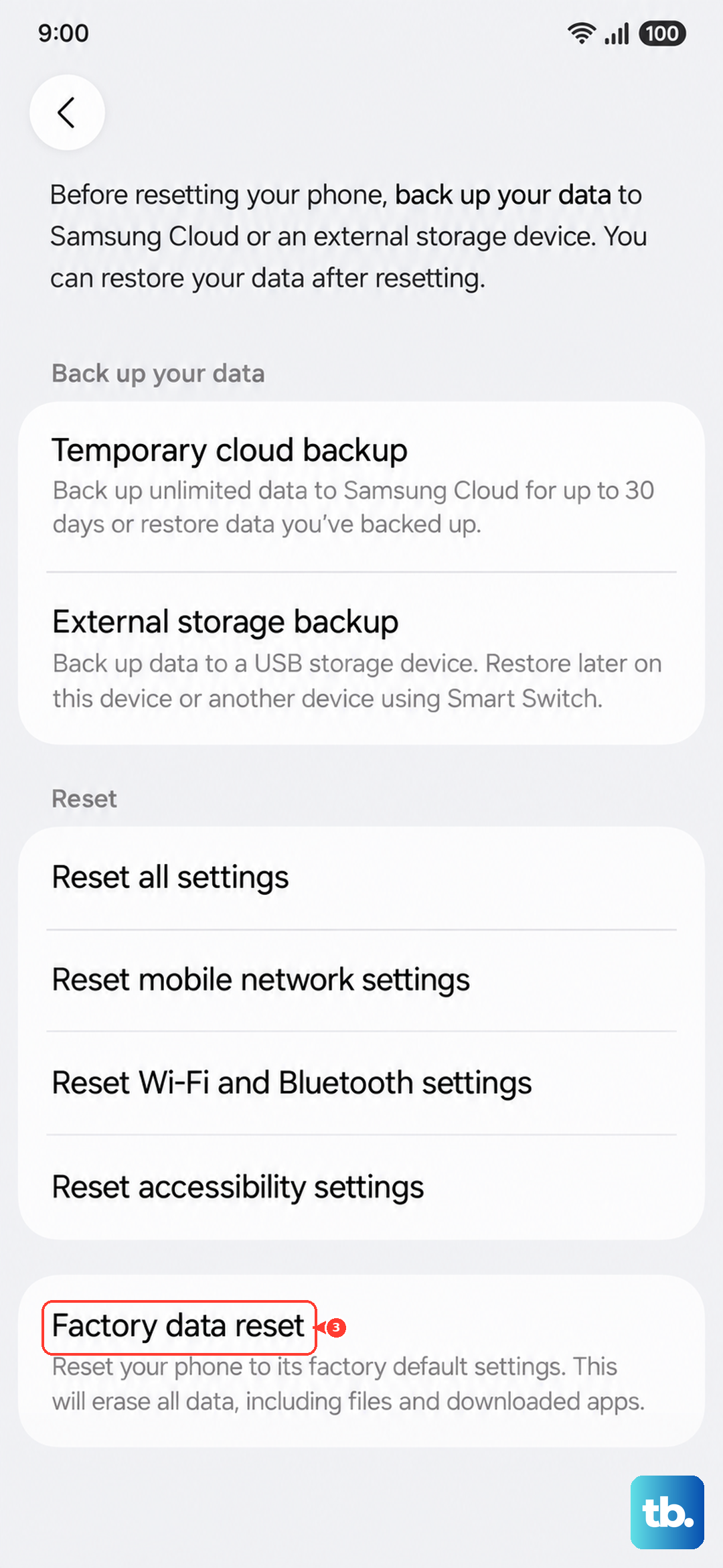
Factory reset is an option if nothing else works, but treat it as a last resort. Back up your data first, then go to Settings > General management > Reset > Factory data reset. If the flashing continues after a clean install, it’s a hardware issue that needs professional repair.