
Missing calls because your Samsung Galaxy S25 Edge stays silent is incredibly frustrating. You see the missed call notification, but the phone never made a sound. Most of the time the fix is simple, and you don't need to dive into complex settings.
Here are the most common reasons your S25 Edge won't ring and the step-by-step fixes that work.
First, Check If the Phone Is Actually in Silent Mode
Android 15 makes it easy to accidentally silence your phone without realizing it. The quickest way to check is to press the volume down button until you see the volume slider on screen. Tap the bell icon above the slider to make sure it's not set to Vibrate or Mute. If the icon shows a bell with no lines, your ringer is on.
You can also pull down the notification shade twice to expand the Quick Settings panel. Look for the Sound tile. If it says "Vibrate" or "Mute," tap it until it switches to "Sound." This is the first thing I check whenever someone tells me their phone stopped ringing.
Turn Off Do Not Disturb
Do Not Disturb (DND) is a common culprit. It silences incoming calls and notifications while still showing them in your notification shade. On the Galaxy S25 Edge, DND is managed through Modes and Routines or the Quick Settings panel.
Swipe down twice to open Quick Settings. If you see a moon icon highlighted in purple, DND is active. Tap it to turn it off. You can also go to Settings > Modes and Routines > Do Not Disturb and make sure it's disabled. Check the schedule settings too sometimes DND turns on automatically during certain hours or when you're sleeping.
Raise the Ringer Volume
Your ringer volume might be turned all the way down even if media volume is high. The S25 Edge separates these controls. Unlock your phone and press the volume up button. When the slider appears, tap the three dots on the right to expand the full volume panel. Make sure the "Ring" slider is at least halfway up.
For a more permanent check, go to Settings > Sounds and vibration > Volume. Drag the Ringtone slider to your preferred level. If you've ever accidentally pressed the volume down while the phone was in your pocket, this is likely the issue.
Change Your Ringtone
Sometimes the ringtone itself becomes corrupted or is set to a silent tone. Go to Settings > Sounds and vibration > Ringtone. Pick a different default ringtone from the list and tap it to preview. If you hear it, the problem was probably a bad ringtone file. Tap Save and test with a call.
If you use a custom ringtone from a third-party app, try switching back to a Samsung stock ringtone. Third-party ringtones can sometimes break after an Android update.
Disconnect Bluetooth Devices
The Galaxy S25 Edge might be routing your call audio to a connected Bluetooth device like headphones, a smartwatch, or your car's system. When that happens, the phone itself stays silent. Open Quick Settings and tap the Bluetooth icon to turn it off temporarily. Then ask someone to call you. If the phone rings now, Bluetooth was the issue.
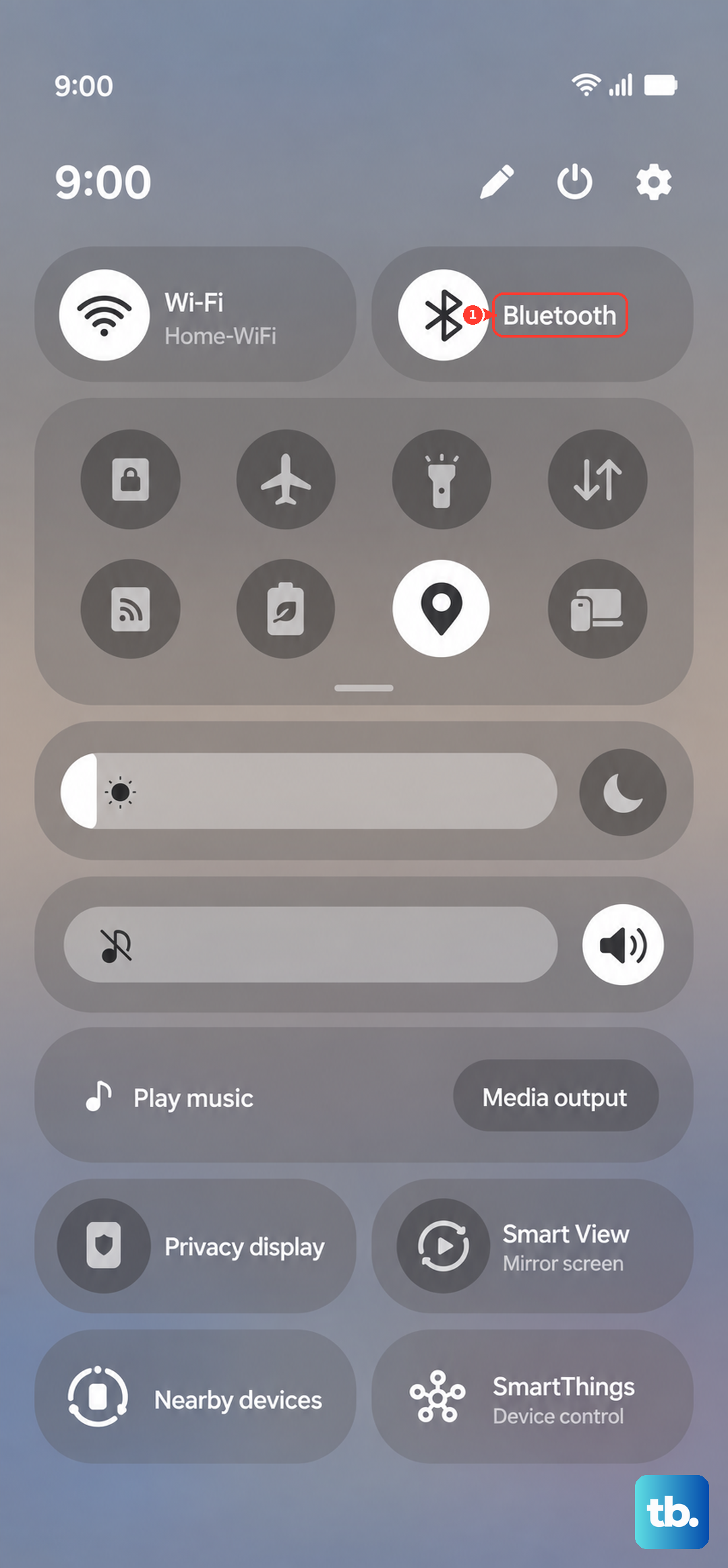
You can also go to Settings > Connections > Bluetooth and check the list of paired devices. Tap the gear icon next to any active device and see if "Phone calls" is enabled. Disable it if you don't want calls routed there.
Check If a Specific Contact Is Blocked
You might have accidentally blocked the person who's trying to call. Open the Phone app, tap the three dots in the top right, and select Settings > Block numbers. Review the blocked list. If the caller's number appears there, tap the X to unblock it.
Blocked contacts go straight to voicemail without ringing your phone at all. This is easy to overlook if you've been blocking spam callers.
Turn Off Call Forwarding
Call forwarding silently sends incoming calls to another number. Open the Phone app, tap the three dots, and go to Settings > Supplementary services > Call forwarding. Make sure all options (Always forward, When busy, When unanswered, When unreachable) are set to "Off" or the phone number field is blank.
If you see a number listed, tap it and choose Disable. After that, test with a call.
Disable Silence Unknown Callers
Samsung phones have a feature called "Block spam and scam calls" and a separate setting for muting unknown numbers. Open the Phone app, tap the three dots, go to Settings, and look for "Identify and block spam callers" or "Block unknown callers." If either is enabled, calls from numbers not in your contacts will be silenced or sent to voicemail.
This is a great feature for stopping robocalls, but it can be overzealous. Turn it off temporarily to see if that fixes the ringing issue.
Force Restart the Phone
A force restart clears out temporary software glitches without erasing any data. On the Galaxy S25 Edge, press and hold the Volume Down and Side buttons simultaneously for about 10 seconds until the Samsung logo appears. The phone will reboot and should start ringing normally again.
I'd start with this fix if you're in a hurry it takes less than 30 seconds and often resolves the issue right away.
Update Android and Samsung Software
Software updates frequently include bug fixes for call and sound issues. Go to Settings > Software update > Download and install. If an update is available, install it. Make sure your phone is connected to Wi-Fi and has at least 50% battery before starting.
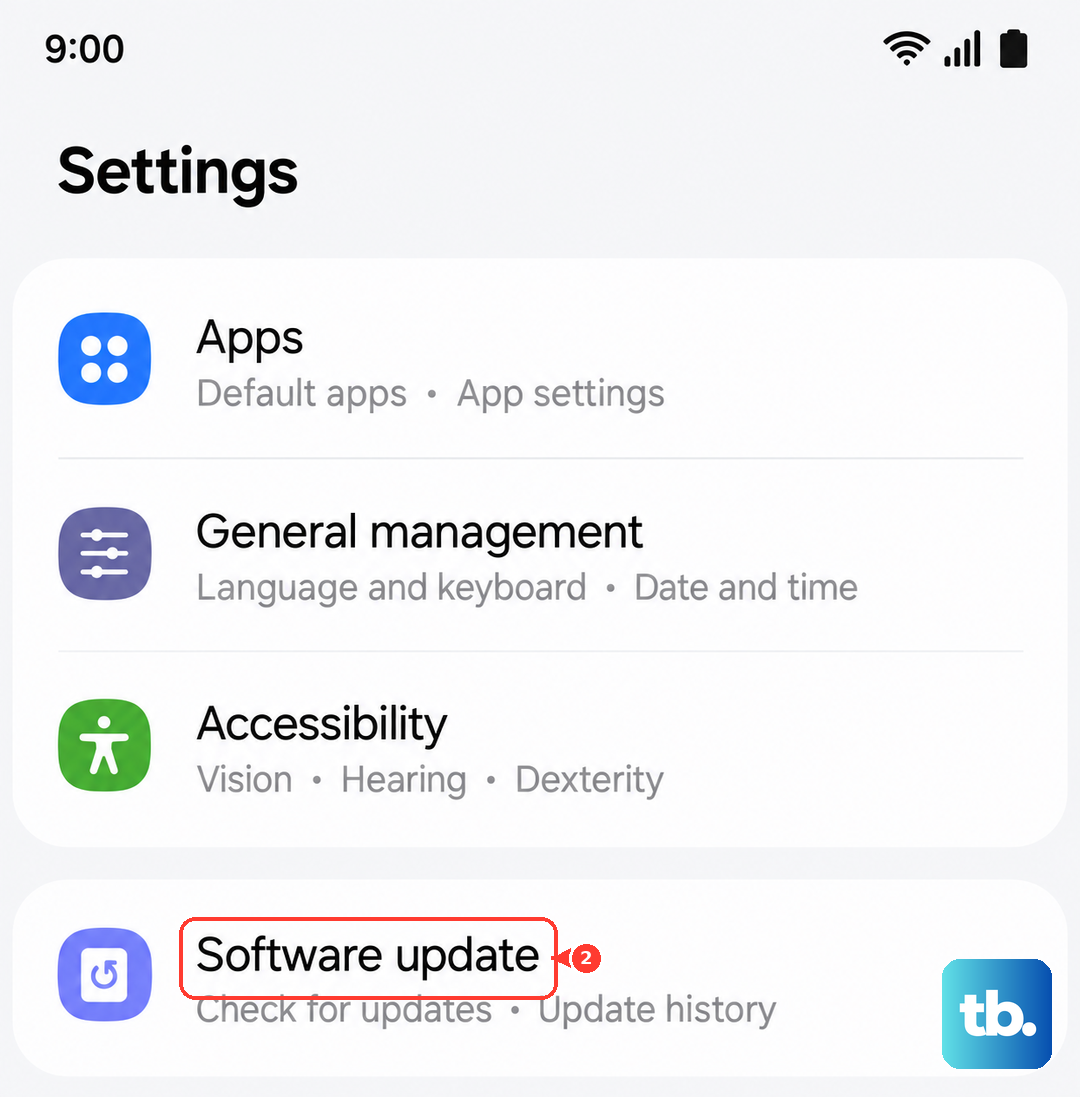
You can also check the Galaxy Store for Samsung-specific updates. Open the Galaxy Store app, tap the menu, and select Updates. Install any available system app updates.
Reset App Preferences for the Phone App
If the Phone app itself is misbehaving, resetting its preferences can help. Go to Settings > Apps > Phone > Storage. Tap "Clear cache" first, then if that doesn't work, tap "Clear data." This resets the app's settings but won't delete your contacts. You'll need to set up any custom ringtone assignments again.
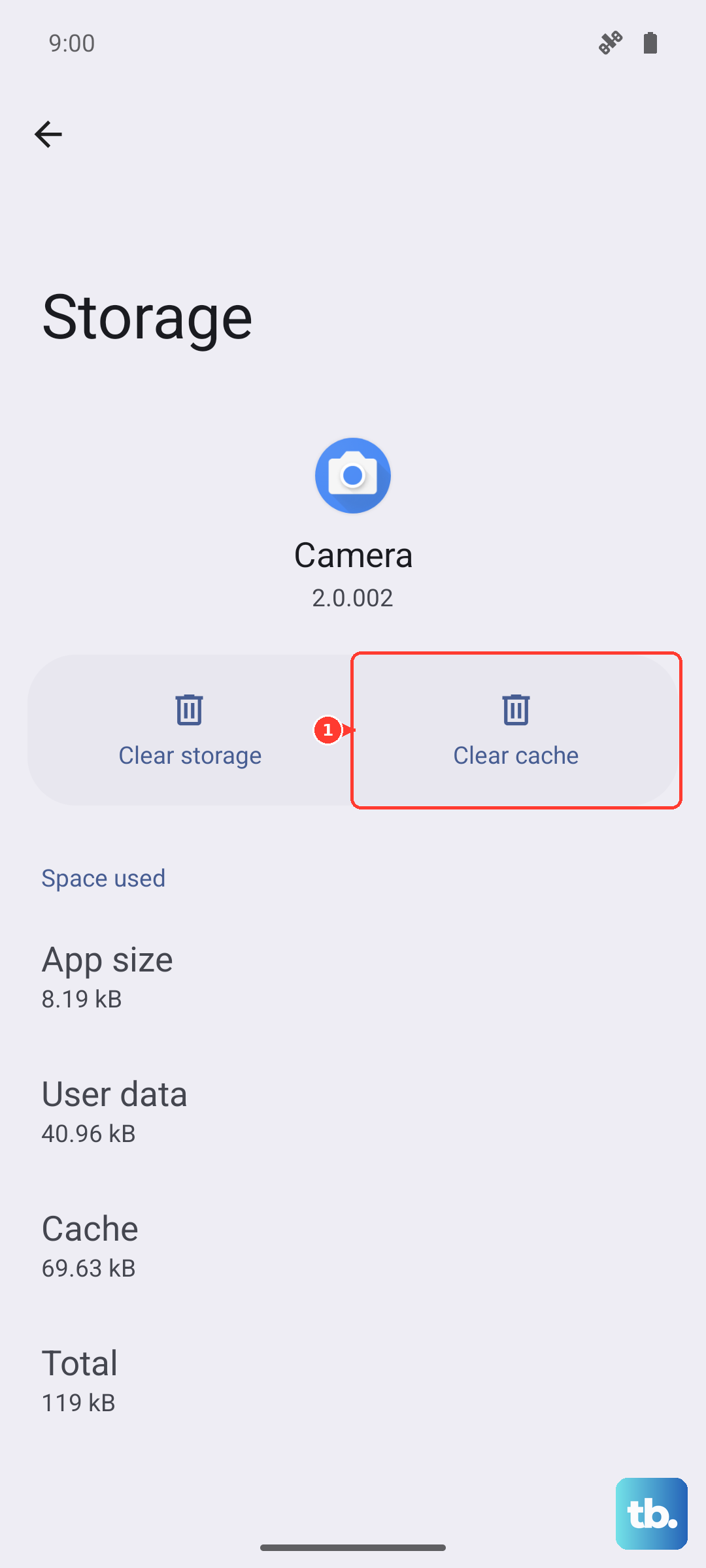
After clearing data, restart your phone and test ringing.
Reset All Settings
This option resets all system settings to their defaults without wiping your personal data. Go to Settings > General management > Reset > Reset all settings. Enter your PIN or password and confirm. The phone will restart. You'll need to reapply any customizations like Wi-Fi passwords and wallpapers, but your photos, apps, and messages remain intact.
This is a good middle ground before trying a full factory reset.
Factory Reset as a Last Resort
If nothing else works, a factory reset can fix deep software problems. Back up your data first go to Settings > Accounts and backup > Backup and restore. Then go to Settings > General management > Reset > Factory data reset. Follow the prompts.
This wipes everything and returns the phone to its out-of-the-box state. Only do this after trying all the other fixes.