
When your Samsung Galaxy S25 Edge microphone stops working, callers can't hear you and voice commands fall on deaf ears. It's a core feature that failing makes the phone feel broken. Let's run through the fixes that actually work on this device.
Start by confirming the basics with a free online mic test. It shows a live level meter and lets you hear a short playback, so you know in seconds whether any signal is coming through.
Test the microphone first
Open the Samsung Voice Recorder app and tap Record. Speak normally for a few seconds, then play it back. If your voice sounds clear, the hardware is fine and the issue is app-specific or a settings glitch. For a deeper check, open the Samsung Members app and go to Support > Phone Diagnostics > Microphone to run a full system test.
Force restart the Galaxy S25 Edge
This clears out temporary driver issues that can kill the mic. Press and hold the Volume Down and Side (power) buttons simultaneously for about 10 seconds until the Samsung logo appears. Ignore any menus that pop up along the way and keep holding. Once it boots back up, test the microphone in a call or recording.
Check for physical blockages
The Galaxy S25 Edge has three separate microphones: one at the bottom near the USB-C port, one at the top, and one built into the rear camera module. Pocket lint, dust, or a tight case can block these tiny holes completely. Shine a flashlight into each opening and use a soft dry toothbrush or compressed air to clear out any debris gently.
Disconnect Bluetooth accessories
If your phone is connected to Galaxy Buds, a car kit, or a Bluetooth speaker, audio routes through those instead of the built-in mic. Swipe down the quick settings panel twice and tap the Bluetooth icon to turn it off. Try recording again with Bluetooth disabled to see if that was the problem.
Check microphone permissions
Android 15 gives you granular control over which apps can use the mic. Go to Settings > Apps, pick the app that's having trouble, then tap Permissions and make sure Microphone is set to Allowed. For a system-wide view, head to Settings > Security and Privacy > Permission Manager > Microphone and review the full list.
Force close and reopen the app
If the mic only fails in a specific app like WhatsApp, Instagram, or Zoom, that app might be frozen or using a stale audio thread. Swipe up from the bottom of the screen and hold to open the app switcher, then swipe the problem app away. Reopen it and test the mic right away.
Update the software and apps
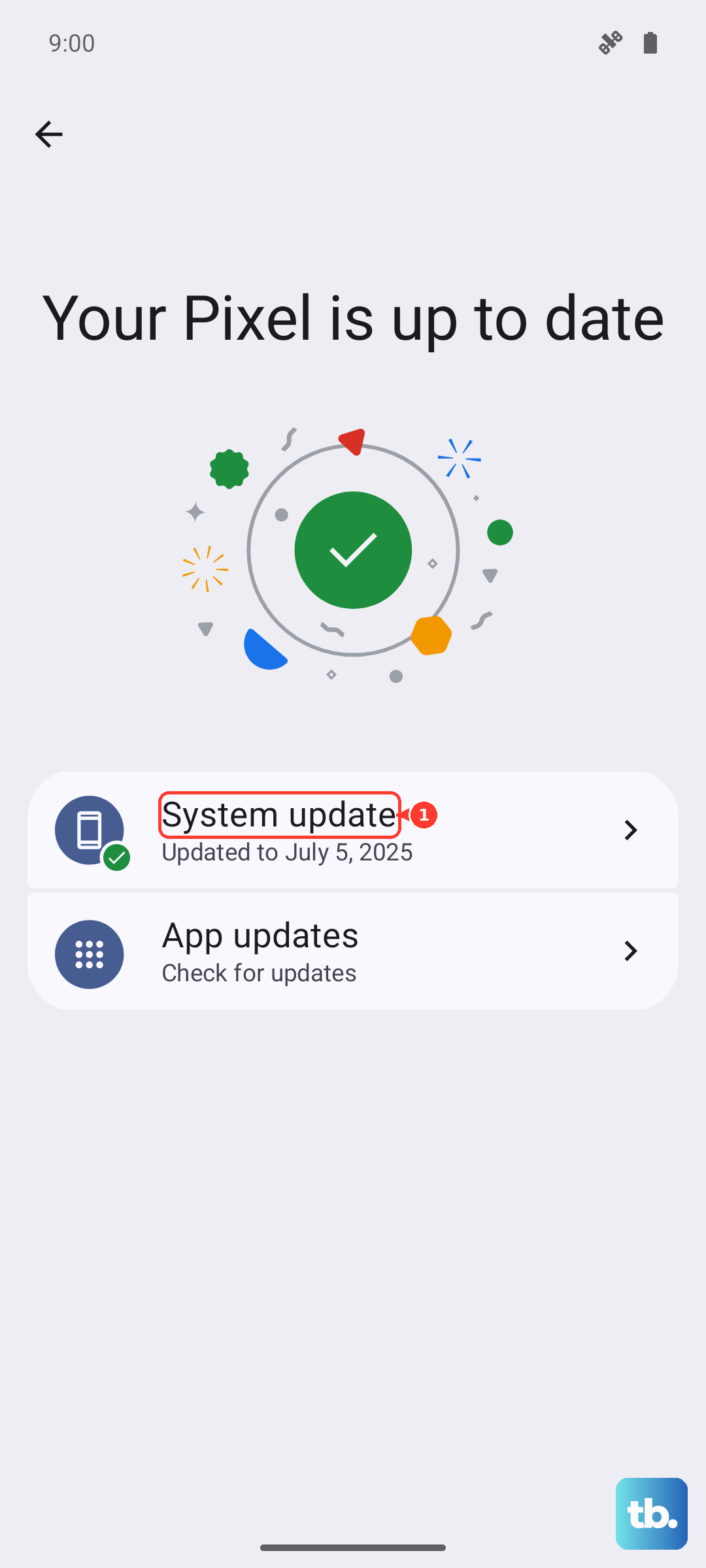
Samsung and Google push audio-related bug fixes regularly through system updates. Go to Settings > Software Update > Download and Install to grab the latest One UI 7 or Android 15 patch. Also update your apps through the Galaxy Store and Play Store, since an outdated app can lose microphone compatibility.
Wipe the system cache partition
Temporary system files can get corrupted and interfere with audio routing. This won't delete your photos or accounts. Turn off the phone completely, then press and hold the Volume Up and Side buttons together until the Samsung logo appears. Use the volume keys to highlight Wipe cache partition and press the Side button to confirm. Select Reboot system now when it finishes.
Reset all settings
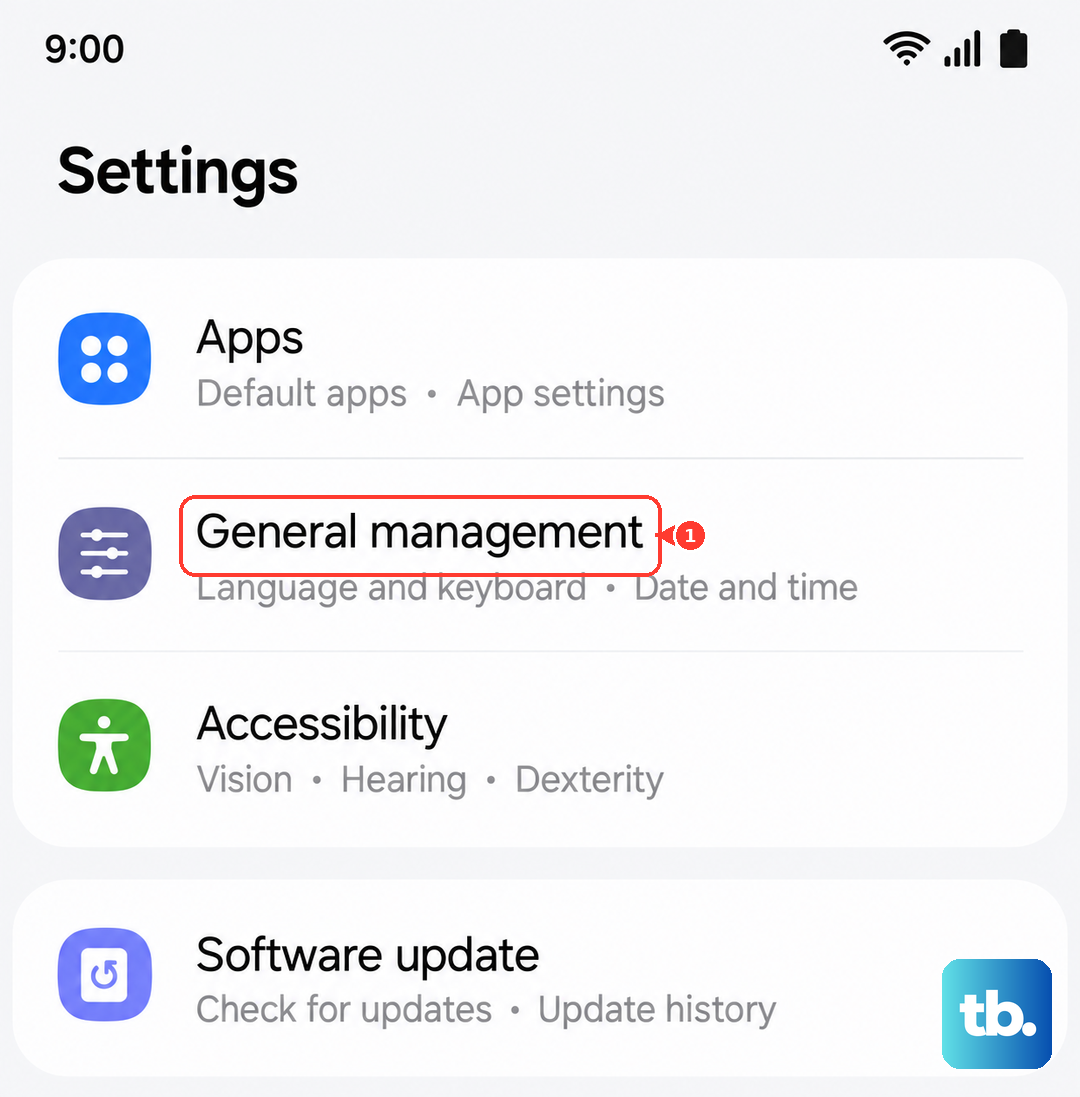
This reverts your network, display, and app preferences to their defaults without erasing your data. Go to Settings > General Management > Reset > Reset All Settings. You'll have to re-enable Wi-Fi and custom features afterward, but it often fixes mic issues caused by a misconfigured audio setting.
Factory reset the phone
This is the last resort and it wipes everything clean. Back up your photos, contacts, and files to Samsung Cloud or a computer first. Then go to Settings > General Management > Reset > Factory Data Reset. This reinstalls the operating system from scratch and eliminates any deep software conflict that was blocking the microphone. If the mic still doesn't work after a factory reset, the hardware itself likely needs repair.