
When your Samsung Galaxy S25 Edge stops sending or receiving emails, it throws a real wrench in your day. Whether you're waiting on an important work message or can't get a reply out, these problems usually have a fix that doesn't take long to try.
Let's get into the solutions, starting with the quickest ones and working toward more thorough fixes.
Restart the Email App
Sometimes the app itself just needs a fresh start. Swipe up from the bottom of the screen and hold to open the recent apps view, then swipe the email app away to close it completely. Wait a few seconds and open it again.
This clears out any temporary glitches that might have been keeping the app from syncing properly. I'd start here every time because it takes about ten seconds and fixes a surprising number of issues.
Force Restart the S25 Edge
If closing the app didn't do it, a full restart of the phone might. The S25 Edge has a specific way to force a restart when the standard method isn't cutting it. Press and hold the Volume Down button and the Side button at the same time for about ten seconds. Keep holding until you see the Samsung logo pop up on screen.
This isn't the same as just turning the phone off and on again. The force restart cuts power to everything and gives the system a clean boot, which can clear up deeper software hiccups that affect email syncing.
Check Your Internet Connection
Email can't work without a data connection, so make sure yours is solid. Swipe down from the top of the screen twice to open the full Quick Settings panel and check that Wi-Fi or mobile data is turned on and connected.
Try opening a webpage in Samsung Internet to confirm you can actually reach the internet. If the page loads, your connection is fine and the problem is elsewhere. If it doesn't, toggle Wi-Fi off and on, or switch to mobile data to see if that helps.
Toggle Airplane Mode
Airplane mode is a quick way to force your phone to refresh all its network connections without a full restart. Swipe down twice to open Quick Settings and tap the Airplane mode icon. Wait about 30 seconds, then tap it again to turn it off.
This forces the phone to reconnect to your cellular network and re-establish your data connection. It's a simple trick that often fixes temporary network hiccups that mess with email.
Switch Between Wi-Fi and Mobile Data
Sometimes one connection type works better than the other for email. If you're on Wi-Fi, try turning it off in Quick Settings and let the phone use mobile data instead. If you're on mobile data, connect to a Wi-Fi network and see if emails start flowing.
This helps you figure out if the issue is tied to a specific network. If emails come through on mobile data but not Wi-Fi, the problem is likely with your router or Wi-Fi settings, not the phone itself.
Disable Any Active VPN
VPNs are great for privacy but they can interfere with email servers, especially if the VPN is routing traffic through a different country. Go to Settings > Connections > More connection settings > VPN and toggle off any active VPN connections.
Try sending or receiving an email with the VPN off. If it works, you know the VPN was the problem and you might need to adjust its settings or switch to a different server.
Check Your Email Credentials
It sounds basic, but sometimes your password changes or your account gets locked and you don't realize it. Open a web browser on your computer or phone and try logging into your email account through the provider's website.
If you can't log in there either, reset your password and update it in the email app on your S25 Edge. Go to Settings > Accounts and backup > Manage accounts, tap the email account, and select Account sync to update the password if prompted.
Verify Date and Time Settings
Email servers use timestamps to verify connections, and if your S25 Edge has the wrong date or time, the server might reject the sync request. Go to Settings > General management > Date and time and make sure Automatic date and time is turned on.
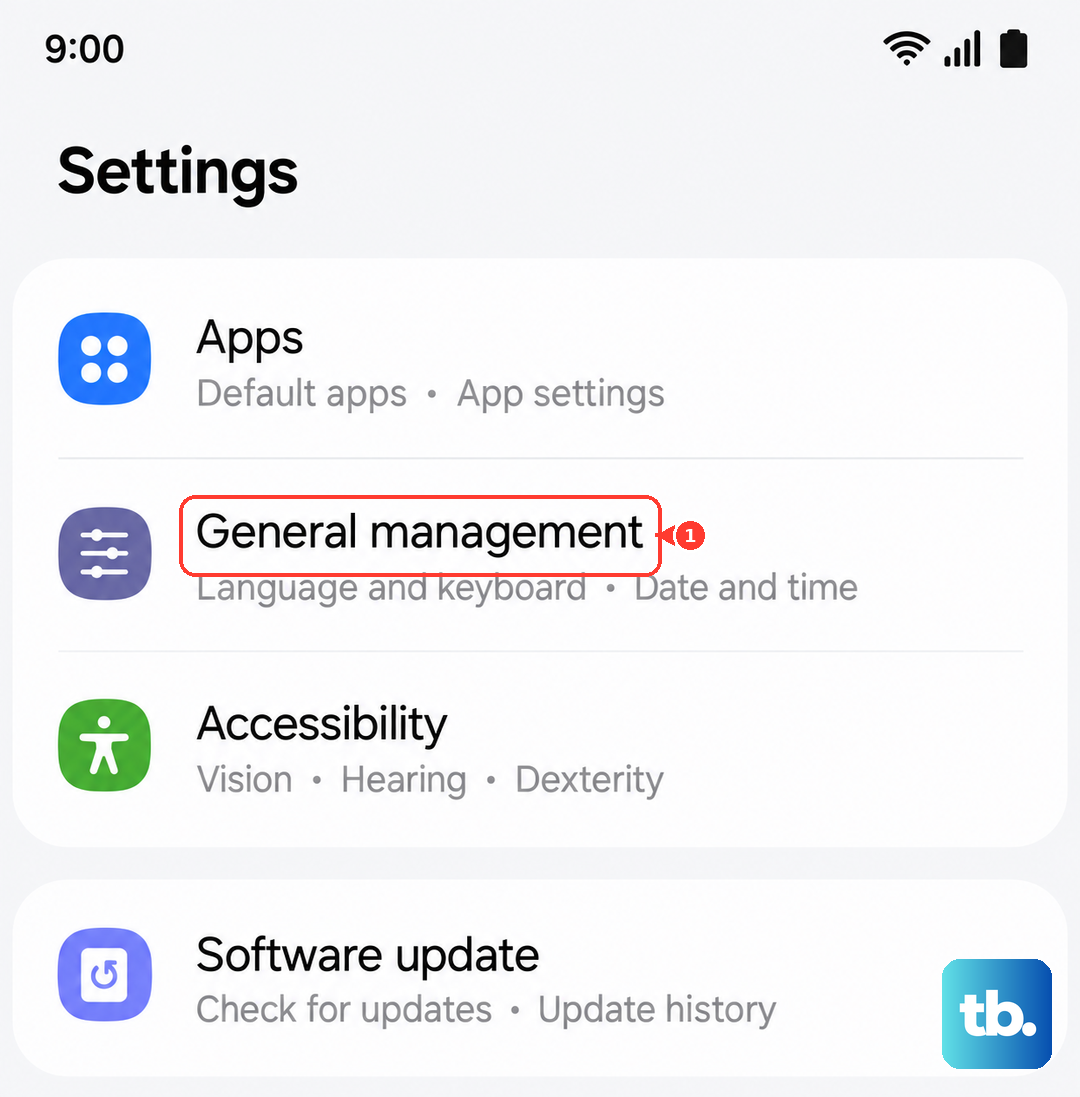
This lets the phone pull the correct time from your network provider. If it's already on, try toggling it off and back on to force a refresh.
Enable Background Data for Your Email App
If background data is restricted for your email app, it won't be able to check for new messages when you're not actively using it. Go to Settings > Connections > Data usage > Mobile data usage and find your email app in the list. Tap it and make sure Allow background data usage is turned on.
This setting is especially important if you rely on push email or want notifications for new messages. Without it, the app only syncs when you open it.
Check for Email Server Outages
Sometimes the problem isn't on your end at all. Major email providers like Gmail, Outlook, and Yahoo occasionally have outages that prevent sending or receiving. Check the provider's status page or do a quick web search to see if others are reporting issues.
If there's a known outage, there's nothing you can do but wait. The email app on your S25 Edge should start working again once the provider resolves the problem on their side.
Clear the Email App's Cache
Over time, cached data can get corrupted and cause syncing issues. Go to Settings > Apps, find your email app, and tap Storage. Tap Clear cache first, this won't delete any of your emails or account data, it just removes temporary files.
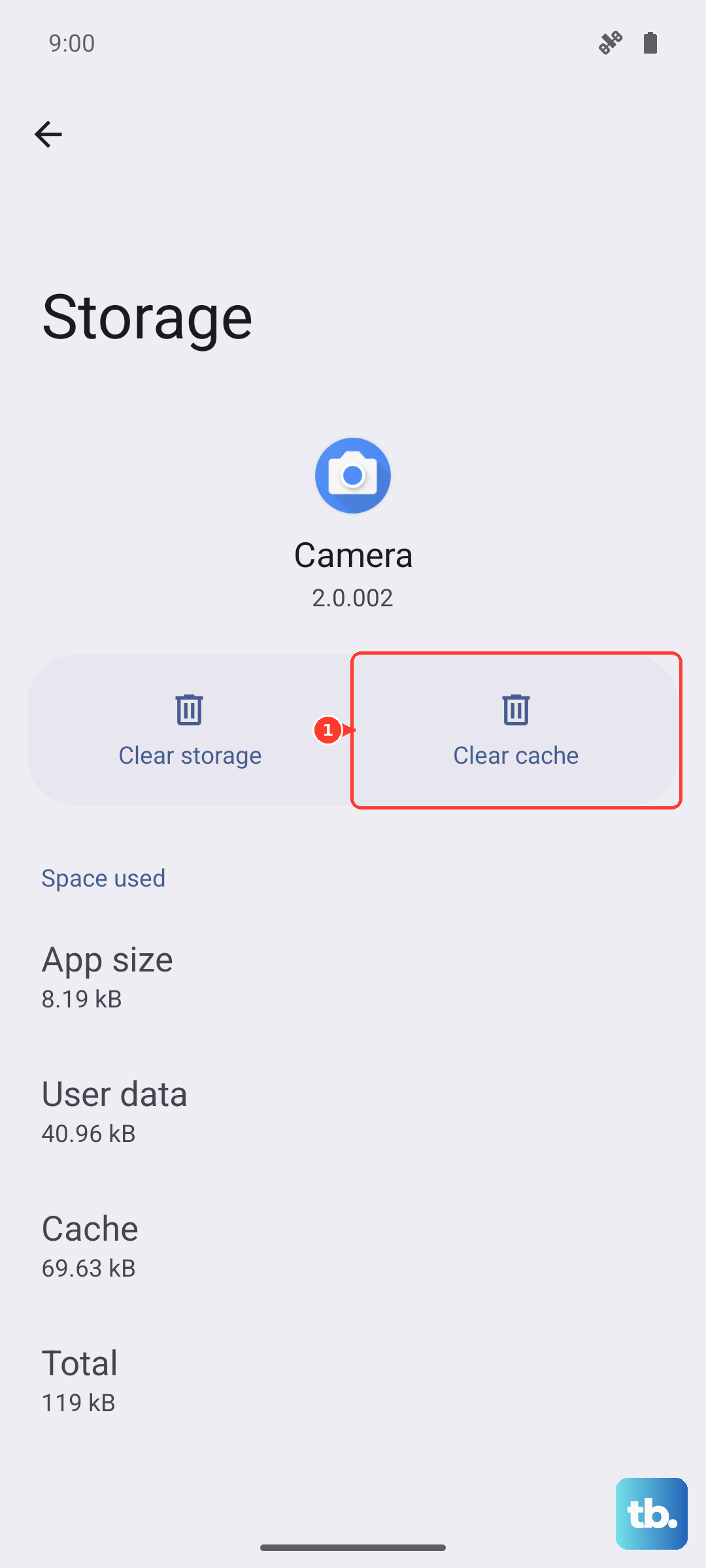
If clearing the cache doesn't help, you can try Clear data, but keep in mind that this will remove all app data including your account settings, and you'll need to set up your email account again from scratch.
Update the Email App
An outdated version of your email app might have bugs that have already been fixed in a newer version. If you're using the Samsung Email app, go to Settings > Apps > Samsung Email and check if there's an update available. Or open the Galaxy Store and look under Updates.
For Gmail or any other third-party email app, open the Google Play Store, tap your profile icon, and select Manage apps & device. Any available updates will show up there.
Remove and Re-Add Your Email Account
This is a more thorough fix that essentially gives your email setup a clean slate. Go to Settings > Accounts and backup > Manage accounts and tap on the email account you're having trouble with. Select Remove account and confirm.
Once it's gone, go back to Settings > Accounts and backup > Add account and set it up again. Make sure you enter the correct server settings if your email provider requires manual configuration, your provider's support page should have the exact details.
Reset Network Settings
If you've tried everything else and emails still aren't moving, resetting your network settings can clear out configuration issues that are hard to track down. Go to Settings > General management > Reset > Reset network settings. You'll need to enter your PIN or password to confirm.
This will erase saved Wi-Fi networks, Bluetooth connections, and mobile network settings, so you'll have to reconnect to things afterward. But it won't delete any of your apps, photos, or email accounts, so your data stays safe.
Most email problems on the Samsung Galaxy S25 Edge boil down to a network glitch or a setting that got out of sync. The fixes above cover the vast majority of cases, so work through them in order and you'll likely find the culprit long before you reach the end of the list.