
If your Samsung Galaxy S24 isn't buzzing for calls or notifications, it's a surprisingly common hiccup. The good news is it's almost always a software setting or a minor glitch you can fix yourself in a few minutes.
Force Restart Your Phone
Before you dive into settings, give your S24 a quick force restart. This clears out any temporary software bugs that might be telling the vibration motor to stay quiet. Press and hold the Volume Down button and the Side button together for about 10 seconds.
Keep holding until you see the Samsung logo appear on the screen, then let go. This is different from a normal restart and often kicks things back into gear.
Check Your Sound and Vibration Mode
Your S24 has a few different sound profiles, and one of them disables vibration entirely. Swipe down from the top of your screen twice to open the Quick Settings panel and look for the sound icon.
It will say "Sound," "Vibrate," or "Mute." Make sure it's set to "Sound." If it's on "Mute," you won't get any vibration at all, and "Vibrate" mode can sometimes behave inconsistently after updates.
Verify the Main Vibration Switch
There's a master control for vibration that might have gotten turned off. Open your Settings and go to Sounds and vibration. Scroll down a bit and look for the "Vibration" section.
Make sure the switch next to "Vibrate while ringing" is turned on. If it's already on, try turning it off and back on again. This simple toggle can reset the connection.
Adjust the Vibration Intensity
Sometimes the vibration isn't broken, it's just set too low to feel, especially if you have a thick case on. In Settings > Sounds and vibration, tap on "Vibration intensity."
You'll see sliders for "Incoming call," "Notifications," and "Touch feedback." Slide each one up to the maximum and test it. The S24's haptic motor is quite strong, so you should definitely feel it at the highest setting.
Test Vibration for Specific Apps
If your phone vibrates for some things but not others, the problem is likely app-specific. Go to Settings > Apps, select the app that's not vibrating (like Messages or your phone dialer), and tap "Notifications."
Here, you need to ensure notifications are enabled and the "Vibrate" option is turned on for the specific notification category, like "New messages." I've seen this fix it more often than not when only one app is acting up.
Check for a Software Update
Since the S24 runs on One UI, occasional bugs can pop up after an update or be fixed by one. Samsung is pretty good about pushing patches for these kinds of issues. Go to Settings > Software update and tap "Download and install."
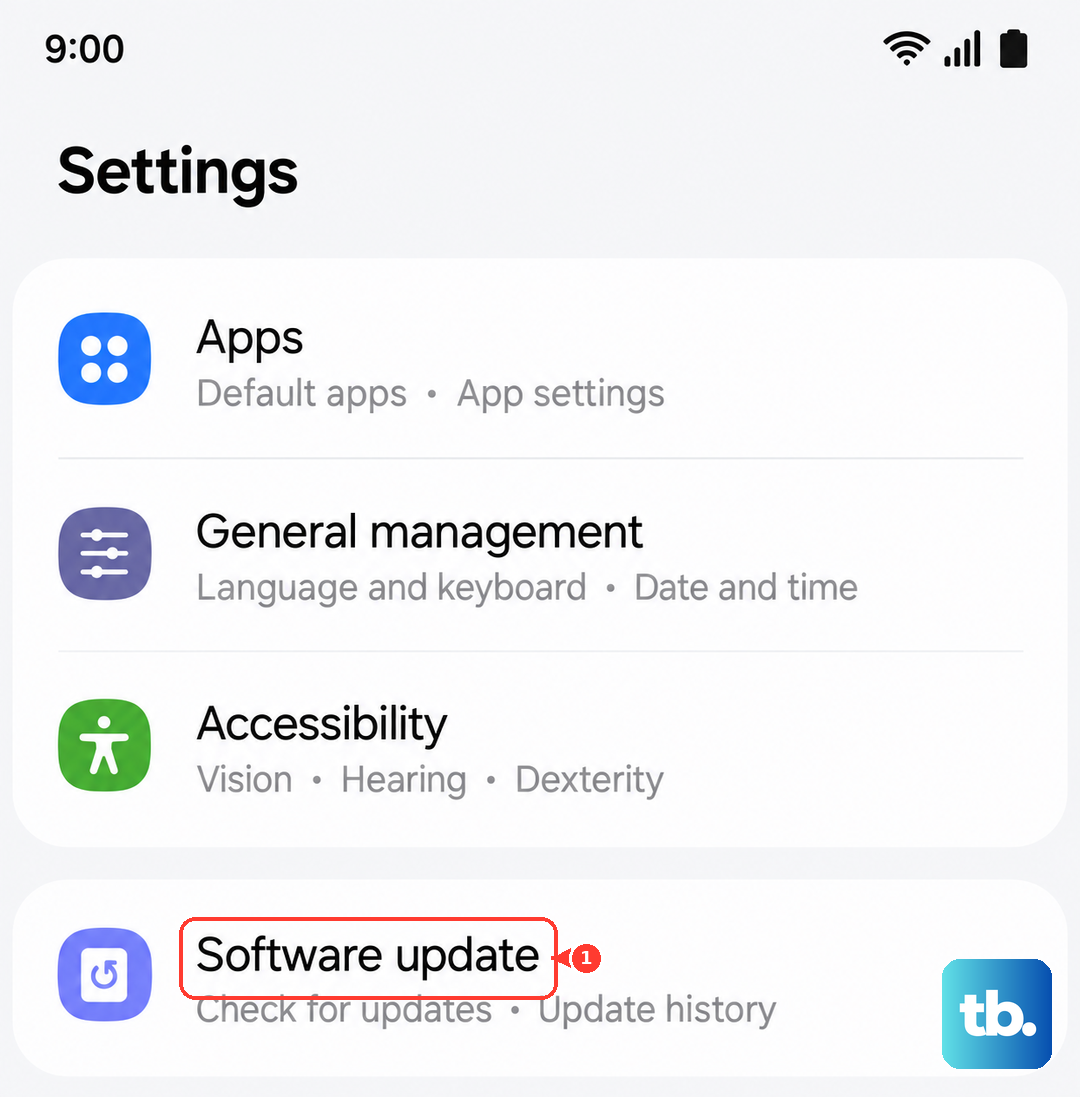
If there's an update available, install it and restart your phone. A recent One UI update has been known to tweak sound and vibration profiles, so this is a solid step.
Boot Into Safe Mode
This will tell you if a third-party app you installed is causing a conflict. To enter Safe Mode, press and hold the Side button and Volume down button until the power menu appears. Then, tap and hold the "Power off" option on your screen.
You'll get a prompt to reboot to Safe Mode. Tap it. If your vibration works perfectly in Safe Mode, you know a downloaded app is the culprit. Start by removing any recent apps, especially those that control sounds or accessibility.
Run the Hardware Diagnostic Test
Samsung builds a secret diagnostic menu into your phone. Open your Phone app and dial *#0*#. This will launch a service menu with a grid of colored buttons.
Tap the button labeled "Vibration." Your phone should immediately execute a strong, continuous vibration pattern. If it does, your vibration motor is physically fine and we're definitely dealing with a software issue.
Reset All Settings
If you're still not getting any buzz, a settings reset can help. This won't delete your photos, apps, or personal data. It just reverts all your system settings (like Wi-Fi passwords and display brightness) back to factory defaults.
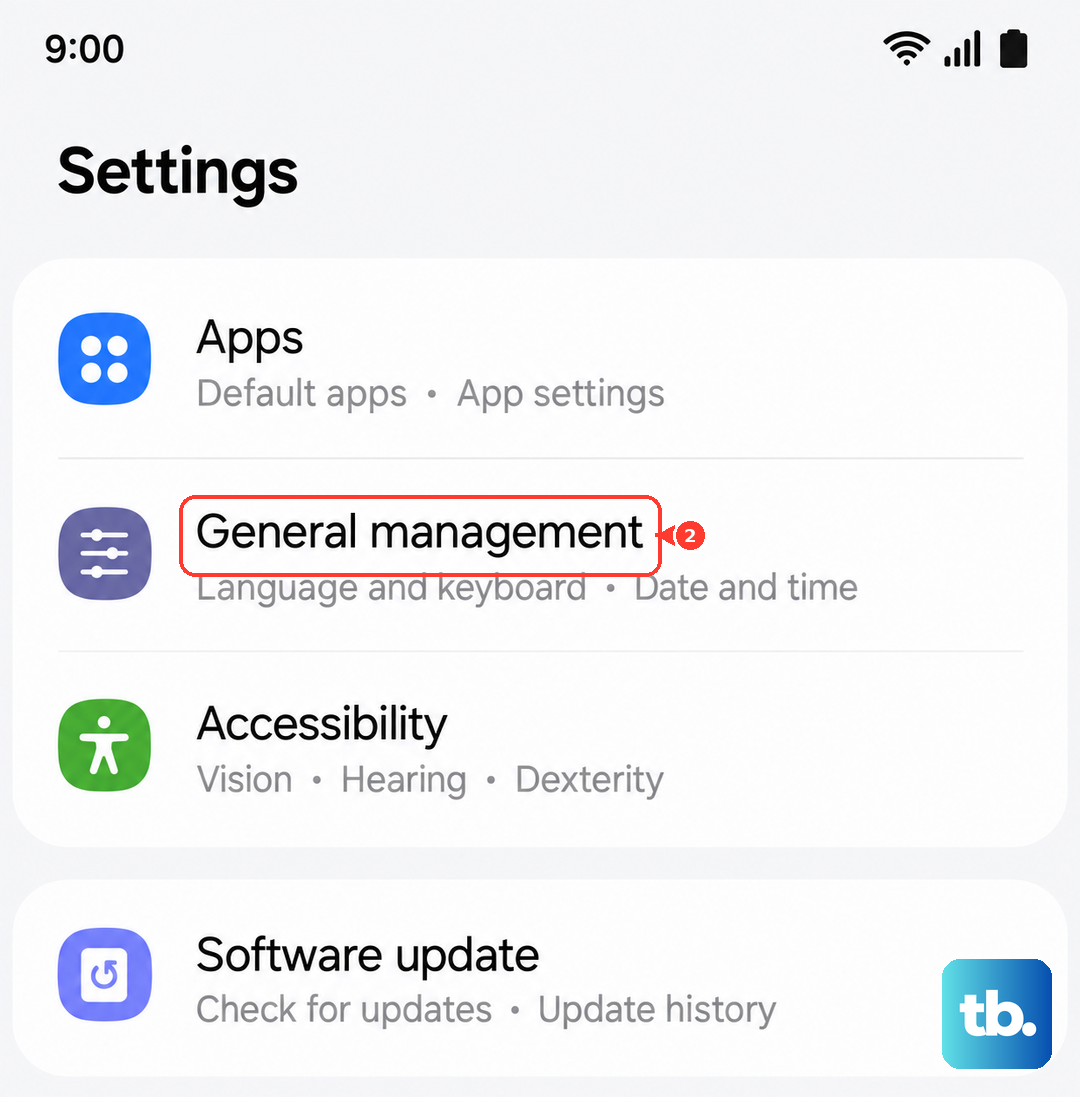
Go to Settings > General management > Reset. Tap "Reset settings" and confirm. After your phone rebarts, you'll need to reconfigure your preferences, but it often clears out any corrupted configuration causing the problem.
Look at Accessibility and Extra Features
Certain features in One UI can override normal behavior. Go to Settings > Accessibility > Hearing enhancements. Make sure "Flash notification" is turned off, as this can sometimes interfere.
Also, check if you have any Bixby Routines or Modes set up that automatically change your sound profile. A routine for "Work" or "Sleep" might be switching you to silent mode without you realizing it.