Seeing your Samsung Galaxy S24 screen flicker, flash, or show weird lines is incredibly distracting. It can make everything from texting to watching videos a real headache. This problem can pop up from a simple software hiccup, a setting that's not playing nice, or sometimes a deeper hardware issue. Let's get it sorted.
Force Restart Your Phone
This is the digital equivalent of taking a deep breath and starting over. It clears out temporary glitches that can mess with the display. Press and hold the Volume Down button and the Side button together for about 10 seconds. Let go when you see the Samsung logo appear. I'd start with this one, as it often fixes a flicker that just started out of the blue.
Check Your Screen Refresh Rate
The S24 has a smooth 120Hz display, but sometimes the software managing it can get confused. Head to Settings > Display > Motion smoothness. Try switching from the Adaptive option to Standard. This locks the refresh rate at 60Hz, which is less demanding and can immediately stop flickering caused by a bug in the adaptive refresh logic.
Disable Adaptive Brightness
Your phone's light sensor constantly adjusts the screen, and if it's faulty or the software is buggy, it can cause the brightness to jump and flicker. Go to Settings > Display and turn off the Adaptive brightness toggle. After that, manually set your brightness level using the slider in the Quick Settings panel. See if that stabilizes the picture.
Turn Off Eye Comfort Shield
This feature, which reduces blue light, can sometimes interact poorly with other display settings. Navigate to Settings > Display > Eye comfort shield and toggle it off. Give it a minute to see if the flickering subsides. You can always turn it back on later if this wasn't the cause.
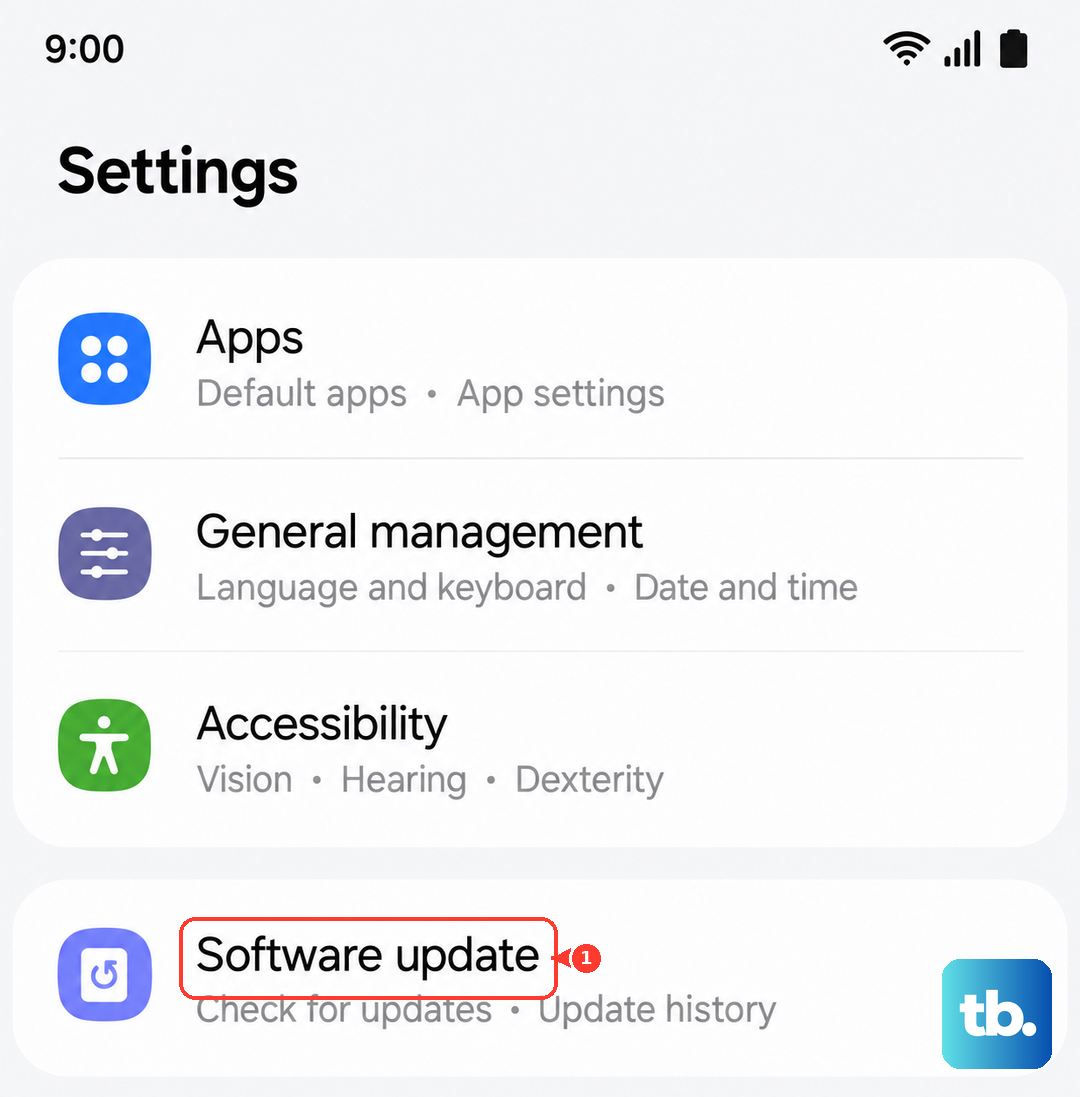
Update Your Software
Samsung regularly releases updates that fix bugs, including display issues. Go to Settings > Software update > Download and install. Make sure your phone is connected to Wi-Fi and has enough battery. Updates for One UI based on Android 15 have specifically targeted performance and display stability, so this is a crucial step.
Close Problematic Apps
A single misbehaving app can sometimes cause system-wide display problems. Swipe up from the bottom and hold to enter the recent apps view, then swipe each app window up to close it. Restart your phone after doing this. If the flickering stops, you can reopen your apps one by one to try and identify which one was causing the trouble.
Boot Into Safe Mode
Safe Mode temporarily disables all third-party apps. If the flickering stops in Safe Mode, you know a downloaded app is the culprit. To enter it, press and hold the power button until the power menu appears. Then, tap and hold the Power off icon until you see the Safe Mode prompt. Tap to restart. To exit, just restart your phone normally.
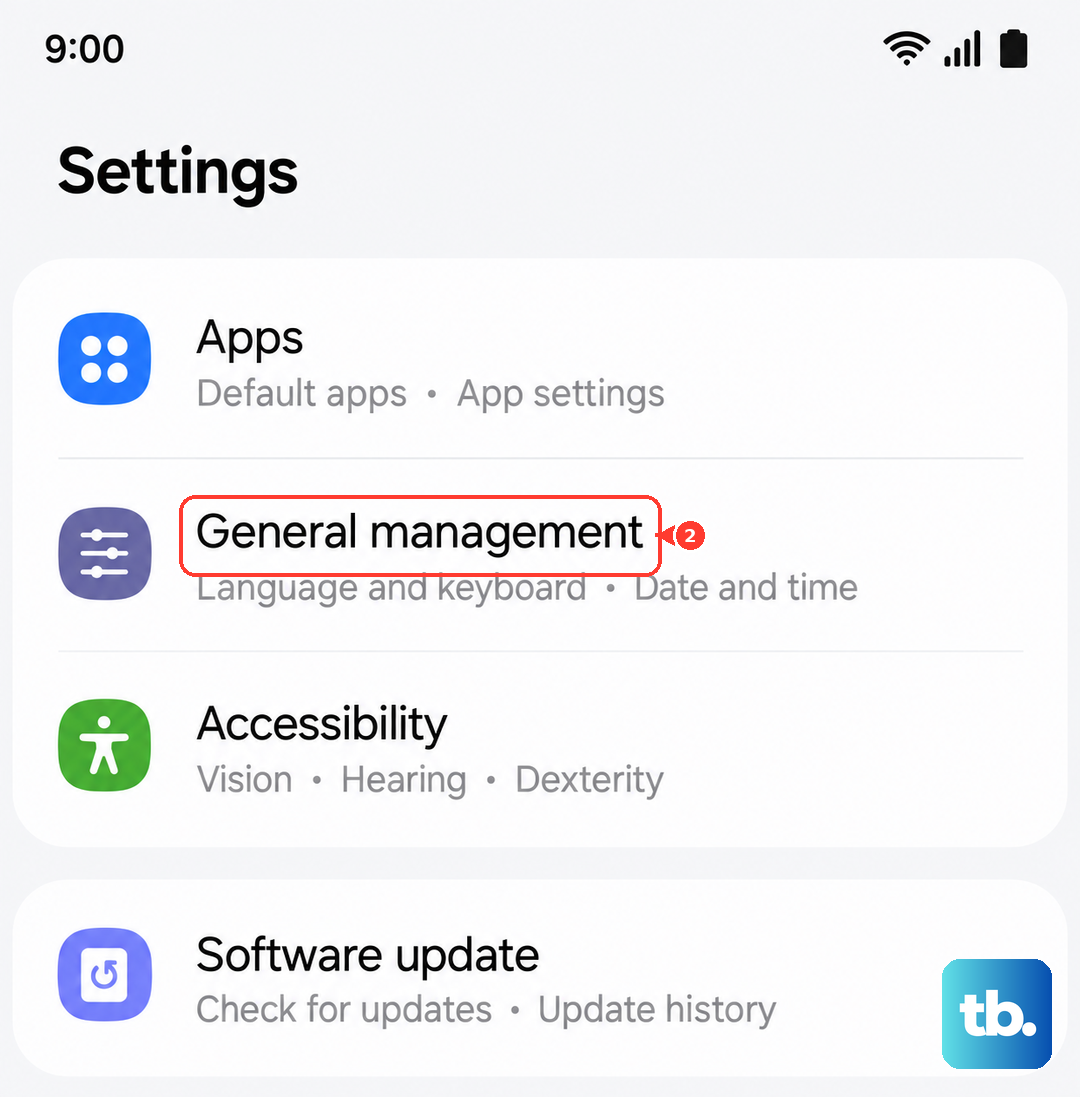
Reset All Settings
This will revert all your system settings, like Wi-Fi passwords, display preferences, and notifications, back to their factory defaults without touching your personal data. Go to Settings > General management > Reset > Reset all settings. It's a more thorough clean-up than a restart and can resolve deeper configuration conflicts affecting the screen.
Check for Physical Damage
If the flickering began after you dropped the phone or it got wet, there could be internal damage. Look closely at the screen for any new cracks, spots where touch doesn't work, or areas with discoloration. Even a small impact can loosen the delicate internal display cable on the S24, which would require professional repair.
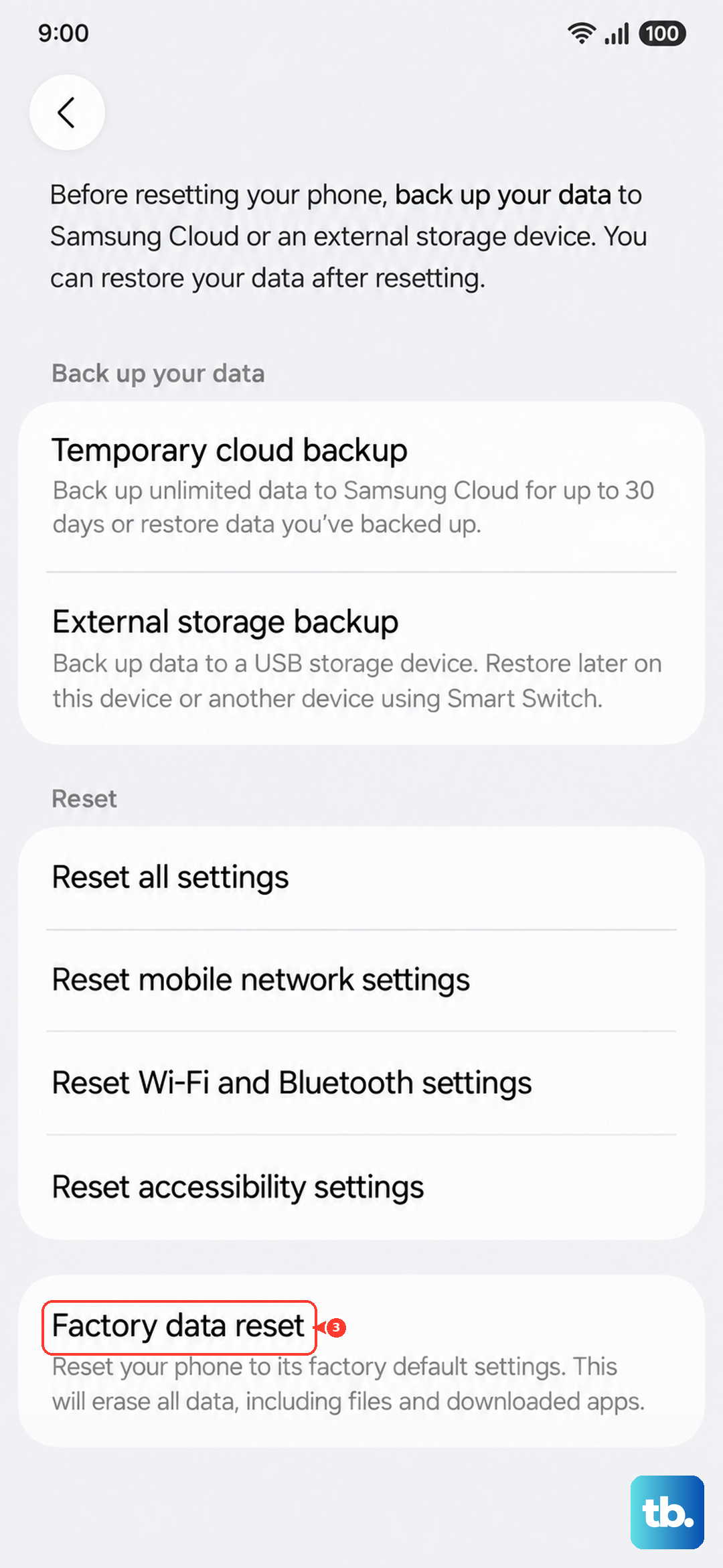
Perform a Factory Reset
This is your last software step before considering a hardware issue. First, make a complete backup of your data to Samsung Cloud or a computer. Then, go to Settings > General management > Reset > Factory data reset. If the screen is perfectly normal after setting up the phone as new, it confirms a software problem. If the flickering persists on a fresh install, the issue is likely with the phone's display hardware itself.