
When the flashlight on your Samsung Galaxy S24 won't turn on, it's a surprisingly frustrating hiccup. The quick toggle in your notification panel might do nothing, or the camera flash might fail too. Let's get it shining again.
Close the Camera App First
The flashlight and camera flash on your S24 use the same LED hardware. If the Camera app is running, even in the background, it locks control of that light. Swipe up from the bottom to see your recent apps and swipe the Camera app away to close it. I'd start with this, as it fixes the issue most of the time.
Perform a Quick Restart
A simple restart clears out any temporary software glitch that's preventing the flashlight from responding. Press and hold the Volume Down button and the Side key together for about 10 seconds until you see the Samsung logo appear. This force restarts the phone without needing to use the touchscreen.
Check Your Power Saving Modes
While standard Power Saving mode shouldn't affect the flashlight, the more aggressive Maximum power saving mode can disable it. Go to Settings > Battery and make sure you're not in Maximum power saving. Also, if you have a routine set up that turns on power saving, it could be interfering.
Look for Overheating Warnings
If your Galaxy S24 gets too hot, the system will disable certain features to cool down, and the flashlight is often one of the first to go. If your phone feels warm or you see a temperature warning, let it sit for 10-15 minutes away from direct sunlight. The flashlight function should return once the temperature drops.
Use the Toggle in Settings
Instead of using the quick panel button, try turning the flashlight on through the main settings. Open Settings and search for "Flashlight". Tap the result, which should show the toggle switch. If it works here but not from your quick panel, the issue is with your notification shade layout.
To fix that, pull down your notification shade twice and tap the three-dot menu. Go to Edit buttons and remove the Flashlight toggle. Then, add it back to your active buttons. This resets its connection.
Adjust the Flashlight Brightness
You might have accidentally set the flashlight to its dimmest setting, making it seem like it's off. When you tap the flashlight icon in your quick panel, don't let go. Keep holding your finger on it, and a small brightness slider will pop up. Slide it all the way to the right to the brightest setting.
Update Your Software
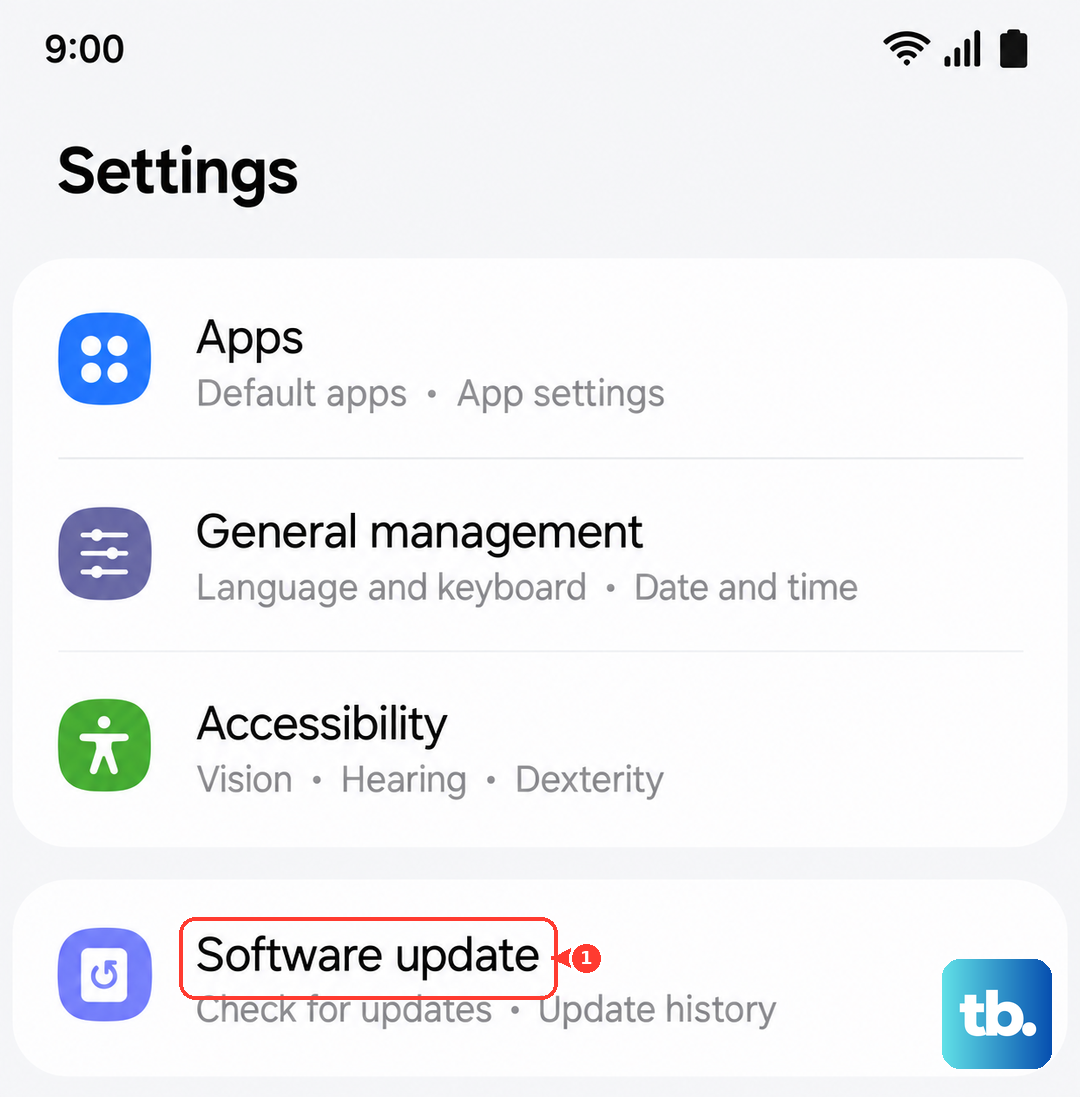
Bugs in One UI or Android can sometimes break hardware controls. Samsung regularly releases updates with fixes. Go to Settings > Software update and tap Download and install. Make sure your phone is connected to Wi-Fi and has enough battery before proceeding.
Reset App Preferences
This is a useful step that resets permissions and background restrictions for all your apps without deleting any personal data. It can clear up conflicts. Navigate to Settings > Apps, tap the three-dot menu in the top right, and select Reset app preferences. Confirm the action and then test your flashlight.
Test the Camera Flash
Open your Camera app and switch to a photo mode like Photo or Portrait. Tap the flash icon to set it to "On" and take a picture. If the flash doesn't fire during the photo, the LED hardware itself might have a problem. This is rare, but if the flash works for photos but the standalone flashlight doesn't, it points to a deeper software issue.
In that case, a more thorough reset can help. Back up your data first, then go to Settings > General management > Reset > Reset all settings. This will reset your network, keyboard, and layout settings back to default and can resolve stubborn system control problems.