
When your Samsung Galaxy S24 won't download apps, it can feel like a major roadblock. Apps are how you customize and use your phone, so a stuck download is incredibly frustrating. The good news is that this is almost always a software glitch you can fix yourself, and I'd start with the basics.
Let's walk through the most effective fixes to get your Galaxy S24 downloading from the Google Play Store again.
Check Your Internet Connection First
This sounds obvious, but it's the most common culprit. Whether you're on Wi-Fi or 5G, a shaky connection will stop downloads. Pull down your notification shade and make sure your connection icons are active.
If you're on Wi-Fi, try switching to mobile data for a moment. Some networks, like public or corporate Wi-Fi, can block the ports the Play Store uses. Toggle your Wi-Fi off and your mobile data on, then try the download again.
Restart Your Galaxy S24
A simple restart clears out temporary system glitches that can freeze the Play Store. If downloads were working before and suddenly stopped, this often fixes it right away.
Just press and hold the Side key and Volume Down button for about ten seconds until you see the Samsung logo. Your phone will reboot, and you can try your download immediately after.
Clear the Google Play Store Cache
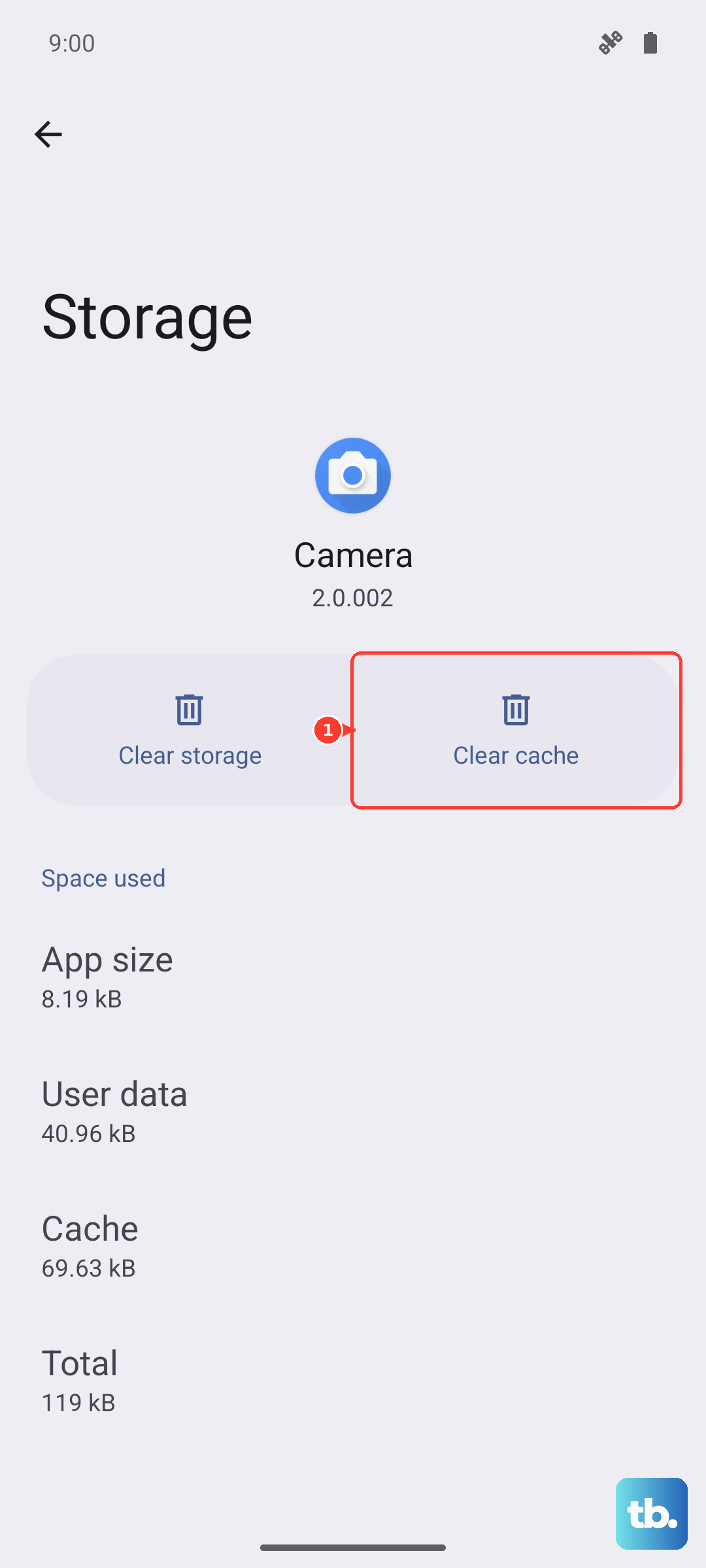
The Play Store stores temporary data to run faster, but this cache can become corrupted. Clearing it forces the app to fetch fresh data, which resolves a lot of download hangs.
Go to Settings > Apps, then find and select Google Play Store. Tap on Storage and then hit Clear Cache. Don't clear data yet, as that will reset your Play Store preferences. After clearing the cache, open the Play Store and try your download.
Verify the Date and Time Are Correct
Google's servers use your phone's time to authenticate downloads. If your date or time is wrong, it can cause a handshake failure. This is a common issue after traveling or if a software update glitched.
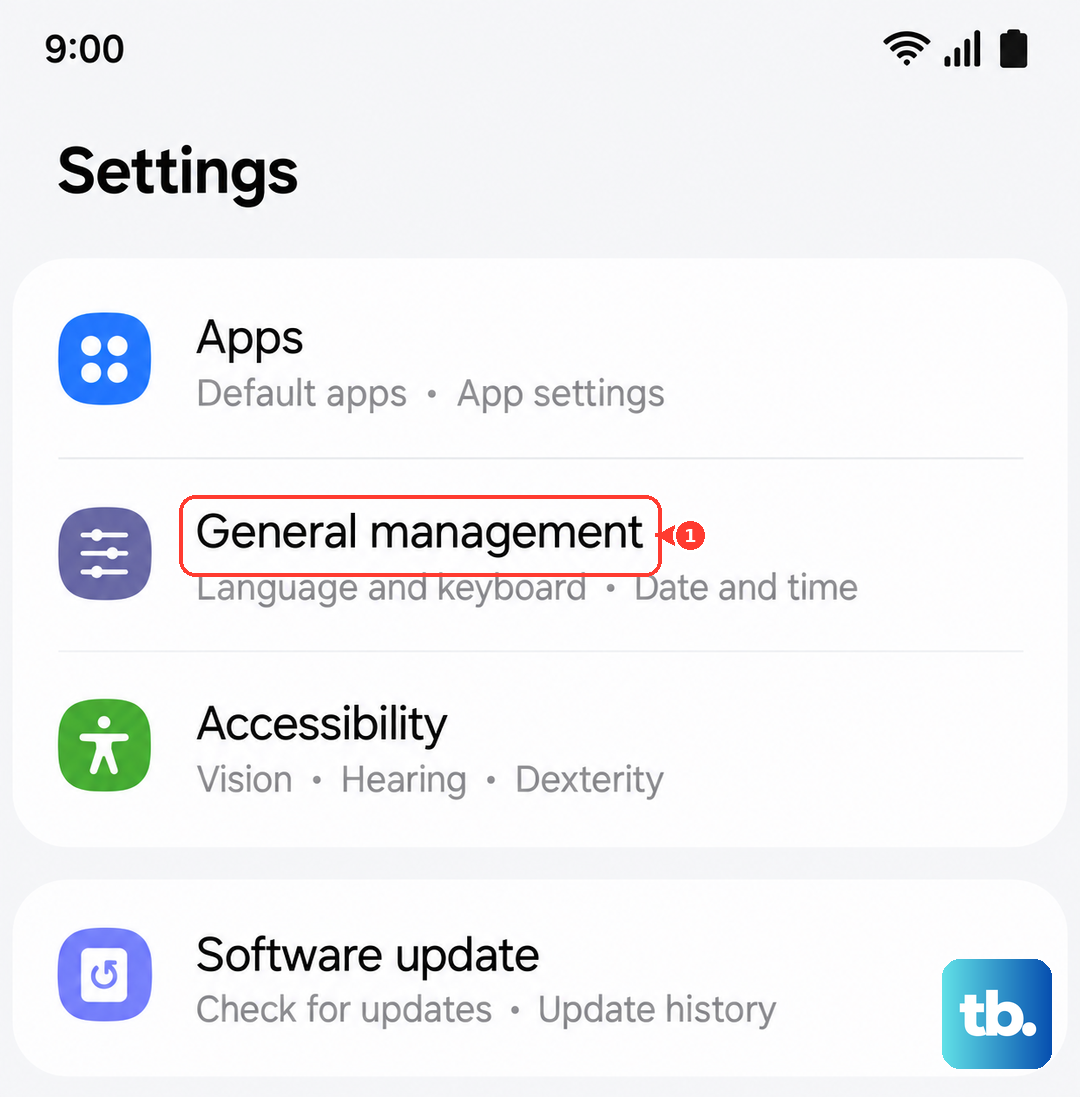
Open Settings > General Management > Date and time. Make sure Automatic date and time is switched on. If it's already on and you're still having issues, turn it off for a moment, set the time manually, then turn automatic back on.
Check for Software Updates
An outdated version of One UI or Android can have bugs that interfere with the Play Store. Samsung regularly releases updates that fix these kinds of system issues.
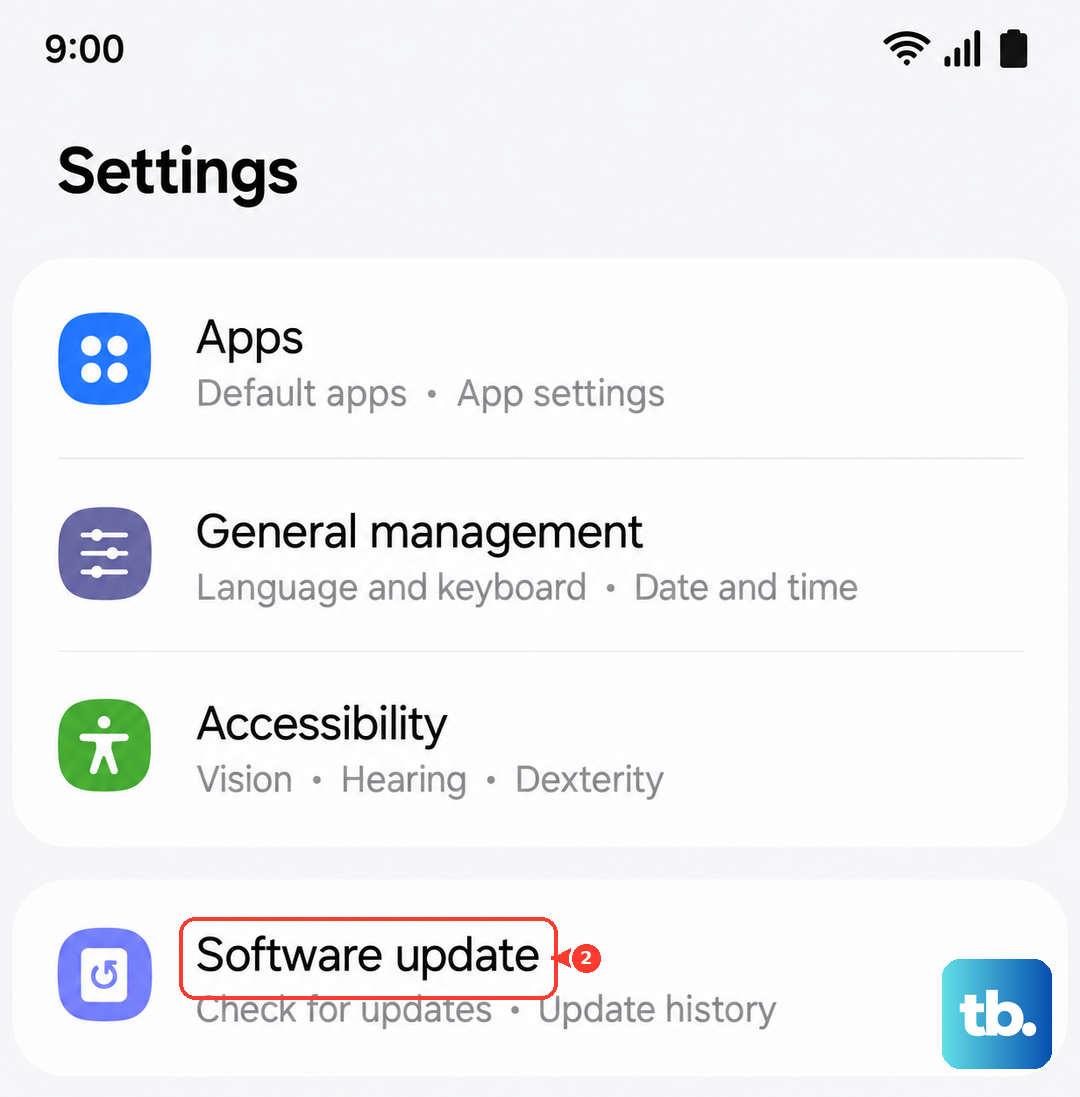
Head to Settings > Software update and tap Download and install. If an update is available, let it install. Your phone will restart, and you should check if the download problem is resolved afterward.
Clear Google Play Services Data
Google Play Services is the background engine that handles app downloads, updates, and security. If its data is corrupted, your downloads will fail. This is a very effective fix for persistent "Download pending" errors.
Go to Settings > Apps, find Google Play Services in the list (you may need to tap the three-dot menu and select Show system apps). Tap Storage, then Manage storage, and finally Clear all data. Confirm the action. This won't delete your personal data, but it will reset the service. Restart your phone afterward.
Ensure Download Manager Is Enabled
The Download Manager is a system app that handles all file downloads on your phone, including apps. It can sometimes get disabled, especially if you've been trying to troubleshoot other issues.
In Settings > Apps, tap the three-dot menu and select Show system apps. Scroll to find Download Manager. If the button says "Enable," tap it. If it's already enabled, tap Storage and then Clear cache just to be safe.
Check Your Google Account Sync
A sync error with your Google account can prevent the Play Store from verifying your identity to download apps, even free ones. Refreshing this connection often helps.
Navigate to Settings > Accounts and backup > Manage accounts. Select your primary Google account. Tap Sync account and then tap the three-dot menu to select Cancel sync. Wait about 30 seconds, then go back and manually trigger a sync for all items, especially "Play Store data."
Free Up Storage Space on Your Phone
If your Galaxy S24's storage is nearly full, there won't be room to download and unpack new apps, even if the app size seems small. You'll usually see an "Insufficient storage" error.
Check your storage in Settings > Device care > Storage. Review the storage categories and cleanup suggestions there, such as trash, large files, and unused apps. For more space, consider moving photos and videos to Samsung Cloud or Google Photos, or uninstalling apps you no longer use.
Remove and Re-add Your Google Account
This is a more thorough reset of your account's connection to the Play Store. It can fix deep-seated authentication problems that other steps miss. Your downloaded apps and data are safe, as they are linked to your account.
Go to Settings > Accounts and backup > Manage accounts. Tap your Google account, then select Remove account. Confirm, then restart your phone. After it boots, go back to the same menu, tap Add account, and sign back in with your Google credentials.