
When Bixby or Google Assistant stops responding on your Galaxy S23, it can feel like your phone has gone mute. The voice assistant that's supposed to help you hands-free suddenly ignores you. Let's walk through the steps to get it listening and talking again.
I'd start with the most common fix first. A simple restart can clear out temporary software glitches that might be affecting the microphone or voice recognition services. Press and hold the Volume Down button and the Side button (power button) together for about 10 seconds until you see the Samsung logo appear.
Verify Your Voice Assistant is Enabled
First, confirm which assistant you're trying to use and that it's actually turned on. On the S23, you can have Bixby, Google Assistant, or sometimes both configured.
For Bixby, open the Bixby app by pressing and holding the Side button or saying "Hi Bixby." Go into the app's settings and make sure "Voice wake-up" is enabled. For Google Assistant, open the Google Home app, tap Settings > Google Assistant > Voice Match, and turn on "Hey Google."
Check for Microphone Permissions
If the assistant app doesn't have permission to use your microphone, it won't be able to hear you. This is a quick check that often gets overlooked.
Go to Settings > Apps, select either "Bixby" or "Google." Tap on Permissions and ensure the Microphone permission is set to "Allow." While you're there, also check that the app isn't put to sleep or restricted in the battery settings, which can prevent it from running in the background.
Retrain the Voice Model
Background noise, a change in your voice, or a poor initial setup can confuse the voice recognition. Retraining it can significantly improve accuracy.
For Google Assistant, open the Google Home app and go to Settings > Google Assistant > Voice Match. Tap Voice model > Retrain voice model and follow the prompts. For Bixby, open Bixby Settings from Settings > Advanced features > Bixby, tap Voice registration, then delete and register your voice again. Speak the phrases clearly in a quiet room.
Update Your Software
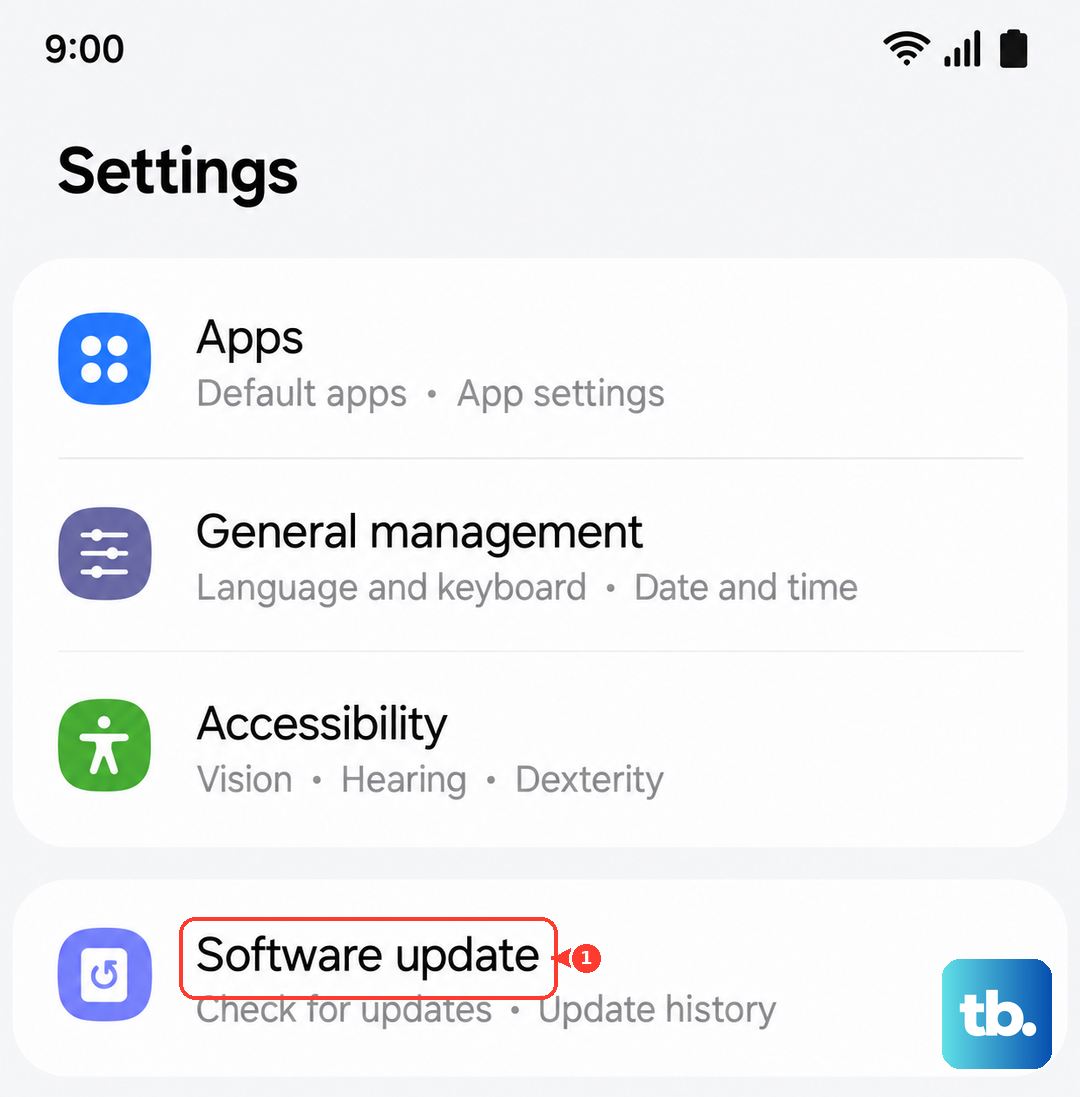
Keep the phone on the latest software available for your carrier and region. Samsung currently lists the Galaxy S23 among devices eligible for One UI 8.0, so use the update screen below to check for the newest build available to your phone.
Head to Settings > Software update and tap "Download and install." If an update is available, let it complete and then restart your phone. After a major update like the move to Android 14, it's also a good idea to check the Galaxy Store for updates to the Bixby app itself.
Test in Safe Mode
A third-party app you installed could be interfering with the microphone or causing a conflict. Booting into Safe Mode temporarily disables all downloaded apps.
Press and hold the Side button and Volume Down button together until the power menu appears, or open Quick settings and tap the Power icon. Then, touch and hold the "Power off" option on your screen. Tap "Safe mode" when it pops up. Once in Safe mode, try activating your voice assistant. If it works, a recently installed or updated third-party app may be the culprit. Restart normally, then uninstall recent apps one by one to find the offender.
Check for Physical Microphone Blockages
The S23 has multiple microphones. If they're covered, your voice assistant can't hear you. This is more common than you might think.
Look at the bottom of your phone near the USB-C port, the top near the earpiece, and possibly on the back near the camera module for the small microphone holes. Check if a case is misaligned and covering them. Gently clean any lint or dust with a soft, dry brush or a blast of compressed air. Never use sharp objects like pins.
Review Sound and Accessibility Settings
Certain system features can override or disable microphone access for voice commands. Two key places to look are in Sound and Accessibility settings.
First, ensure your phone isn't on Silent or Do Not Disturb mode, as some configurations can mute assistant responses. Second, go to Settings > Accessibility > Hearing enhancements and check for sound-detection features such as Sound notifications if they are available on your software version.
Clear the Assistant App's Cache
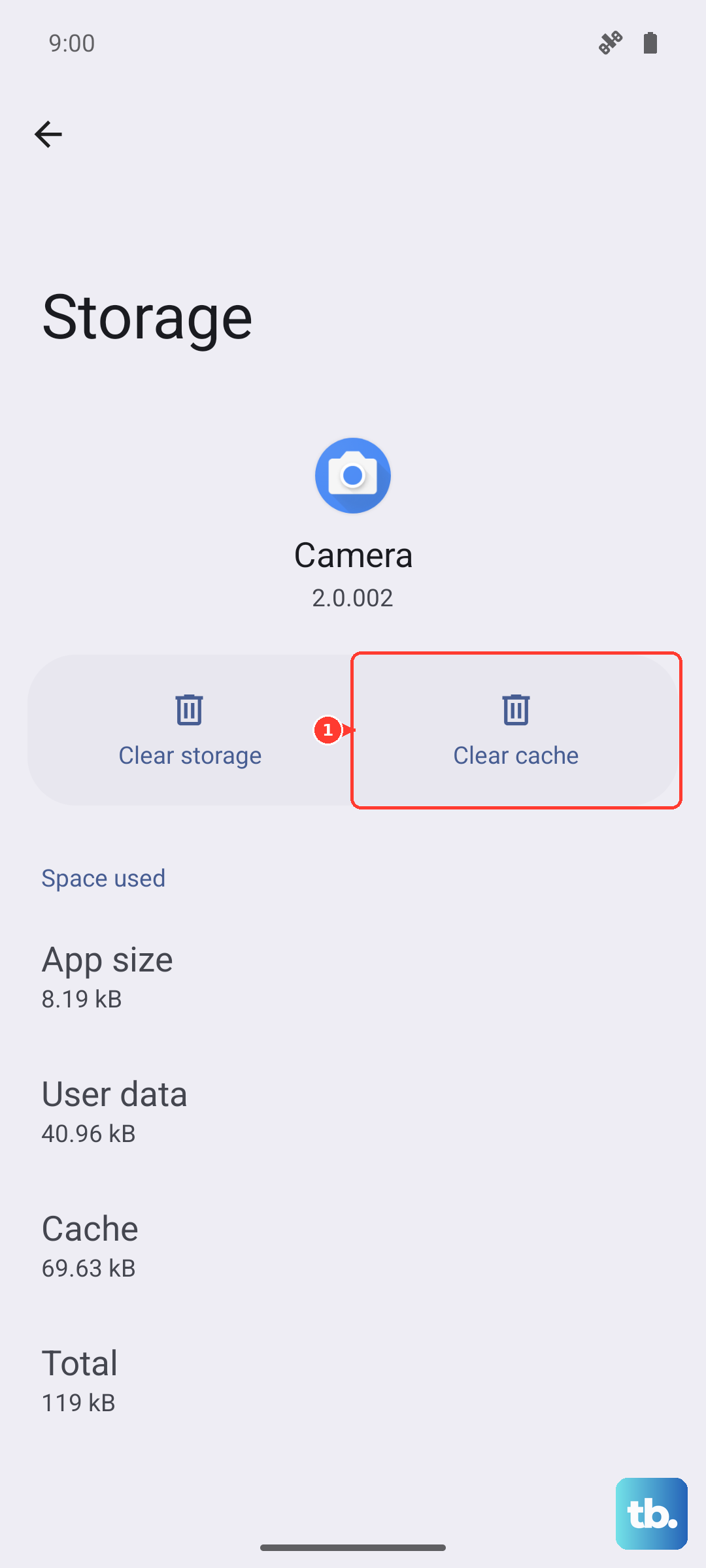
Corrupted temporary data (cache) in the Bixby or Google app can cause erratic behavior. Clearing it is safe and won't delete your personal data or settings.
Go to Settings > Apps, find and select "Bixby Voice" or "Google." Tap on Storage and then hit "Clear cache." For a more thorough reset, you can tap "Clear data," but be aware this will reset the app to its default state and you'll need to set it up again.
Reset All Settings
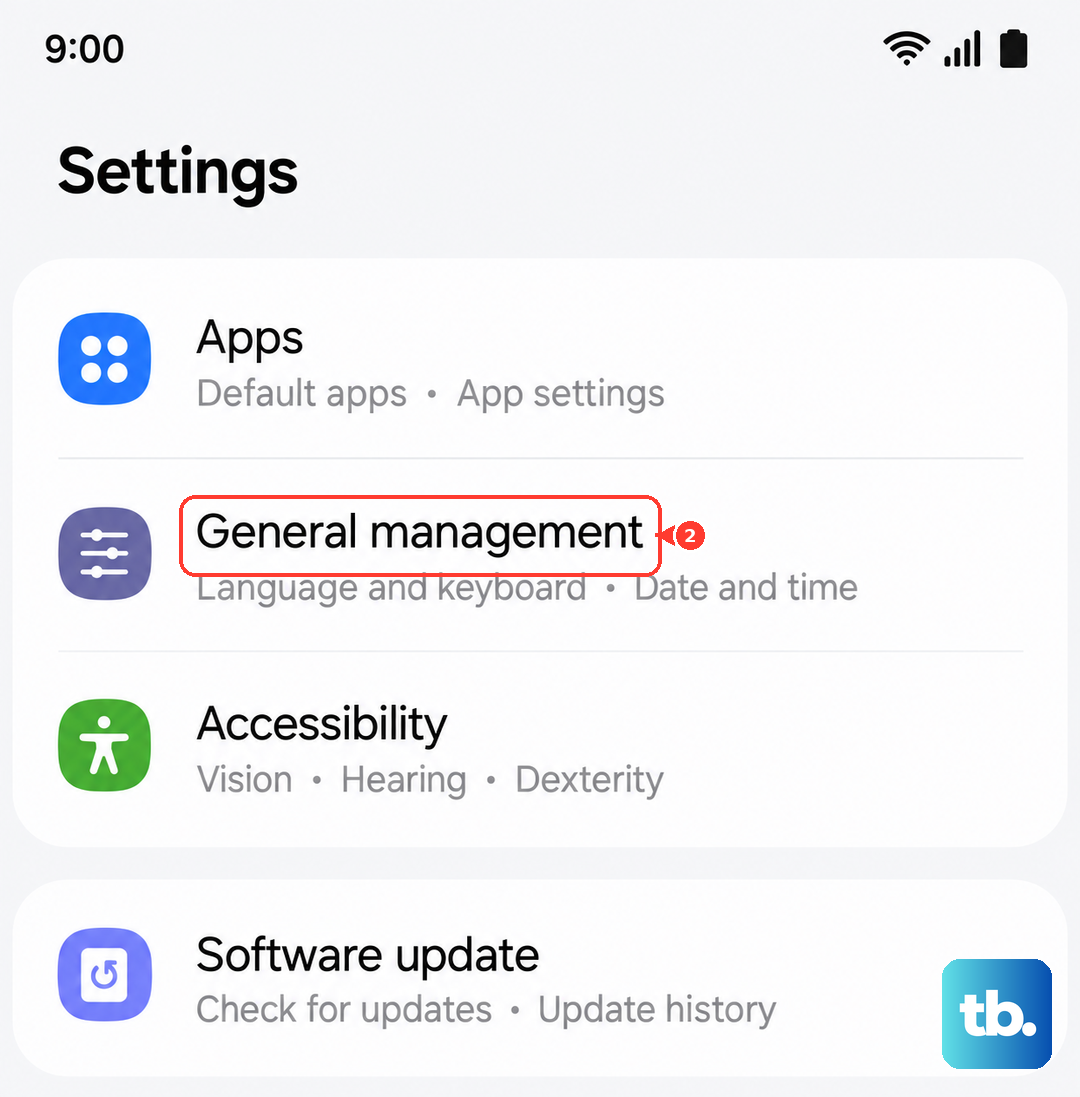
If you've tried everything else and the problem persists, a settings reset can help. This will revert all your system settings (like Wi-Fi passwords, Bluetooth pairings, and display preferences) back to default without touching your photos, messages, or apps.
Go to Settings > General management > Reset. Tap on "Reset all settings" and enter your PIN if prompted. After the phone reboots, you'll need to reconfigure your preferences, but it often resolves deep-seated configuration conflicts affecting core functions like the microphone.
Check Your Network Connection
While basic commands might process on the device, many voice assistant requests, especially for information like weather or web searches, require a stable internet connection. A poor or unstable connection can make it seem like the assistant isn't working.
Try switching between Wi-Fi and mobile data to see if the behavior changes. If you're on Wi-Fi, test the connection with another app. For mobile data, ensure you have a strong signal. You can also try toggling Airplane mode on for 30 seconds and then off again to refresh the network connections.