If your Samsung Galaxy S23 videos are stuttering, freezing, or dropping frames, it can really ruin the experience. This is a common headache, but the good news is it's usually something you can fix yourself without too much trouble.
I'd start by checking for a software update. Samsung has been pretty active with patches for the S23, especially after the Android 14 and One UI 6 updates, and they often include performance tweaks that can smooth out video playback.
Free Up Storage Space
When your phone's storage is nearly full, it struggles to read and write data smoothly. High-resolution videos, especially those shot in 8K on the S23, need a lot of fast access, and low storage can cause lag and dropped frames.
Head to Settings > Battery and device care > Storage to see how much space you have left. If you're below 5-10GB free, it's time for a cleanup. You can use the built-in cleaner to remove junk files or move some photos and videos to Samsung Cloud or Google Photos.
Check Your Network Connection
For streaming videos on YouTube, Netflix, or other apps, a weak or unstable connection is the most common culprit. The S23 supports Wi-Fi 6E, but if your router or signal is poor, you'll get constant buffering.
Try switching between Wi-Fi and your 5G mobile data to see if the problem goes away. If you're on Wi-Fi, a quick router restart can sometimes work wonders. For local videos stored on your phone or an SD card, this isn't the issue.
Close Background Apps and Processes
Too many apps running in the background can eat up the RAM and processing power your video player needs. The Galaxy S23 has plenty of power, but a rogue app can still cause problems.
Swipe up from the bottom and hold to see your recent apps, then tap 'Close all'. For a more thorough check, you can boot into Safe Mode. This temporarily disables all third-party apps.
To do that, press and hold the power button until the power menu appears, then tap and hold the 'Power off' option. Tap 'Safe mode' to restart. If video plays fine in Safe Mode, a downloaded app is likely the cause.
Clear the App's Cache and Data
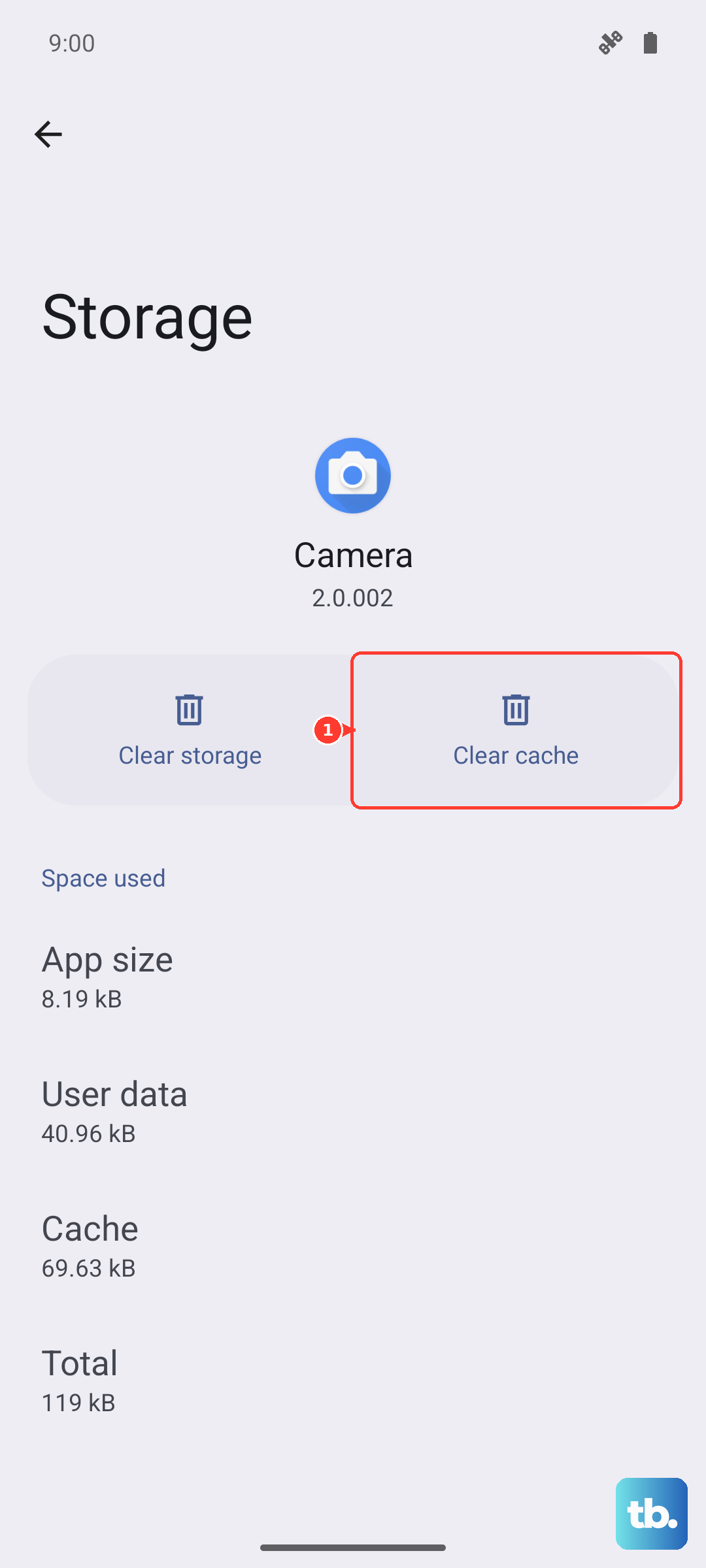
If the lag is happening in one specific app, like the Gallery, YouTube, or Netflix, its stored temporary data might be corrupted. Clearing this cache can fix playback issues without deleting your personal data.
Go to Settings > Apps, select the problematic app, then tap 'Storage'. Choose 'Clear cache' first. If that doesn't help, you can try 'Clear data', but be aware this will reset the app to its default state and you may need to log back in.
Adjust Video and Performance Settings
Your S23 has some powerful features that can sometimes interfere. First, check your performance profile. Go to Settings > Battery and device care > Battery > More battery settings.
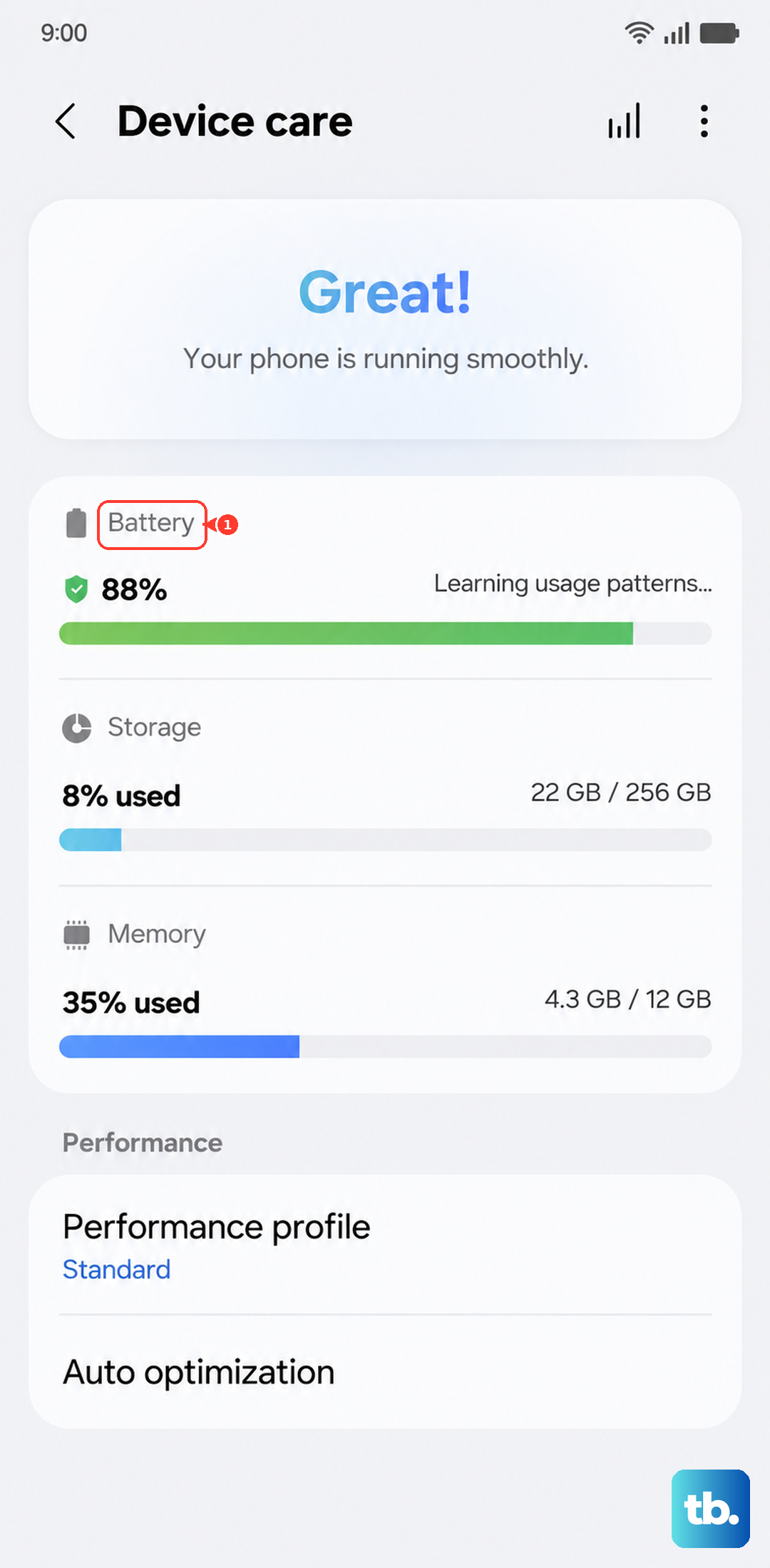
Make sure 'Performance profile' is not set to 'Light'. For the smoothest video, it should be on 'Standard' or 'High'. Also, try disabling 'Video brightness' in the same menu, as this feature can sometimes cause hiccups.
If you're watching in a browser like Chrome, try disabling any experimental flags or extensions. For local videos, ensure you're using a capable player like Samsung's native video player or VLC.
Perform a Soft Reset
A simple restart can clear out temporary software glitches that might be causing the lag. Just press and hold the Side key and Volume Down button together for about 10 seconds until the Samsung logo appears and the phone restarts.
This is different from just turning the screen off and on. It fully reboots the system and is a great first step for any odd behavior.
Check for Overheating
The Galaxy S23's processor is powerful but can throttle its performance if it gets too hot. If you've been gaming, recording long videos, or using the phone in direct sunlight, it might slow down to cool off, causing video lag.
Let the phone cool down for a few minutes. Remove any thick case that might be trapping heat. Avoid using it while it's charging, especially with a fast 25W charger, as this generates additional heat.
Reset All Settings
If the lag persists and seems system-wide, a settings reset can help. This won't delete your photos, apps, or personal files, but it will revert all your system settings (like Wi-Fi passwords, ringtones, and display preferences) back to default.
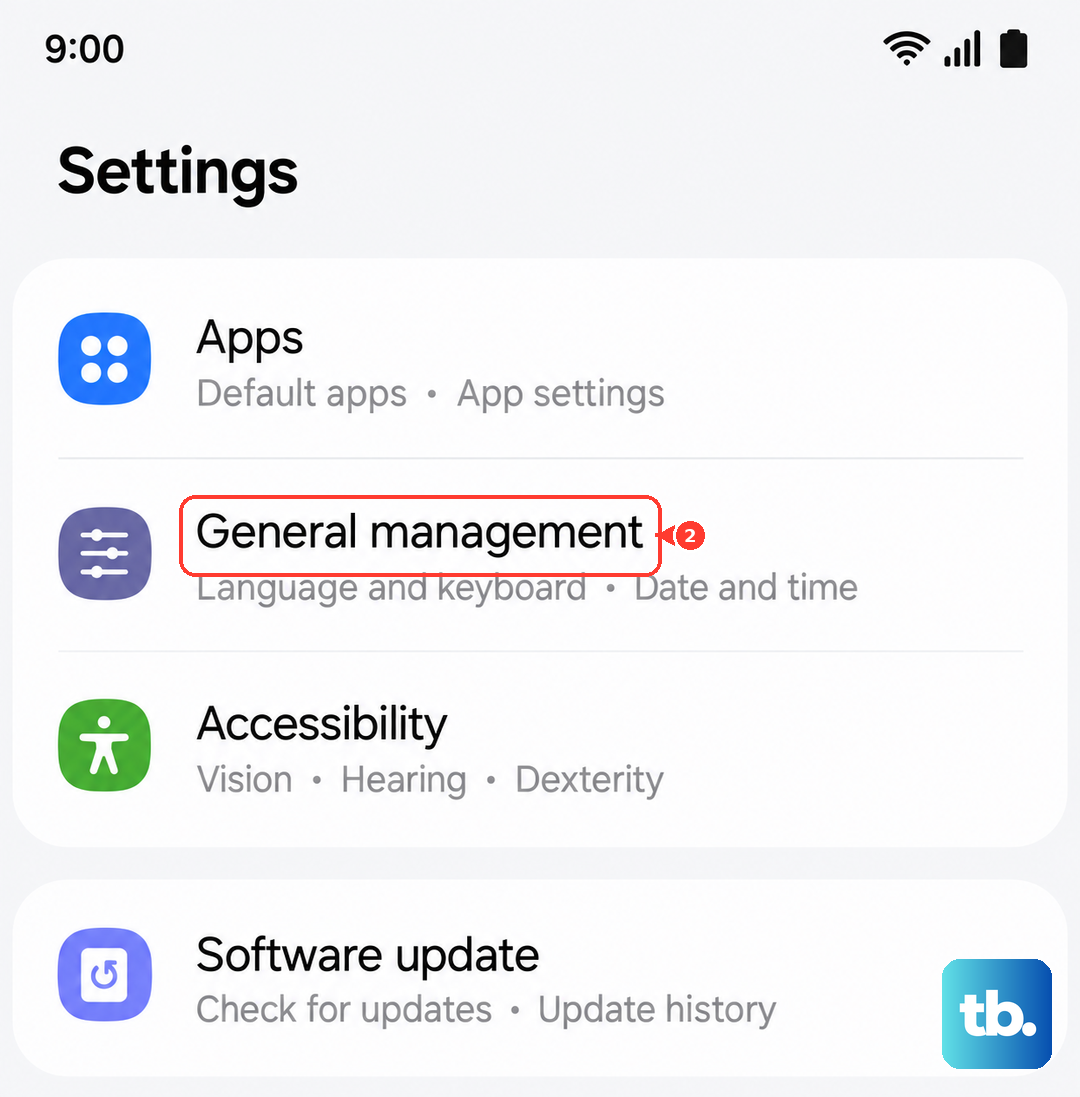
This can fix misconfigured options causing conflicts. Go to Settings > General management > Reset > Reset all settings. Enter your PIN if prompted and confirm. You'll need to set up your preferences again, but it often resolves stubborn software issues.