When your Samsung Galaxy S23's GPS stops locking on, it can leave you stranded in more ways than one. Whether you're trying to navigate a new city or just tag a photo, a flaky location signal is a real headache. The good news is that most GPS problems on the S23 are software-related and can be fixed without a trip to the repair shop.
Start With These Quick Actions
Before we get into the deeper fixes, give these three quick steps a shot. I've seen them resolve the issue more often than you'd think, especially after a recent software update.
First, pull down the Quick Settings panel from the top of your screen and tap the Location icon to turn it off. Wait about ten seconds, then tap it again to turn it back on. This simple refresh can kickstart a stalled GPS module.
Next, try a force restart. Press and hold the Volume Down button and the Side button together for about ten seconds until you see the Samsung logo appear. This clears out any temporary glitches in the system that might be affecting the antenna.
Finally, check if you're in a Power Saving mode. Go to Settings > Battery and device care > Battery. If any power saving mode is enabled, turn it off. These modes often limit background location pings to save battery, which can break navigation apps.
Verify Your Location Settings and Permissions
Sometimes the issue isn't with the GPS hardware, but with how the software is allowed to use it. Samsung's One UI has layered settings that are worth a double-check.
Head into Settings > Location. Make sure the main switch at the top is on. Then, tap on Location services. For the best possible GPS performance, especially for turn-by-turn navigation, select Google Location Accuracy and make sure it's enabled. This uses Wi-Fi and mobile networks to assist the GPS chip for a faster, more accurate lock.
You also need to check app-specific permissions. Go to Settings > Apps, select your navigation app (like Google Maps or Waze), then tap Permissions. Ensure Location is set to "Allow all the time" or at least "Allow only while using the app." If it's set to "Deny," that's your problem right there.
Update Everything
Outdated software is a common culprit for GPS bugs. Samsung has been pretty proactive with updates for the S23 series, often including fixes for connectivity issues.
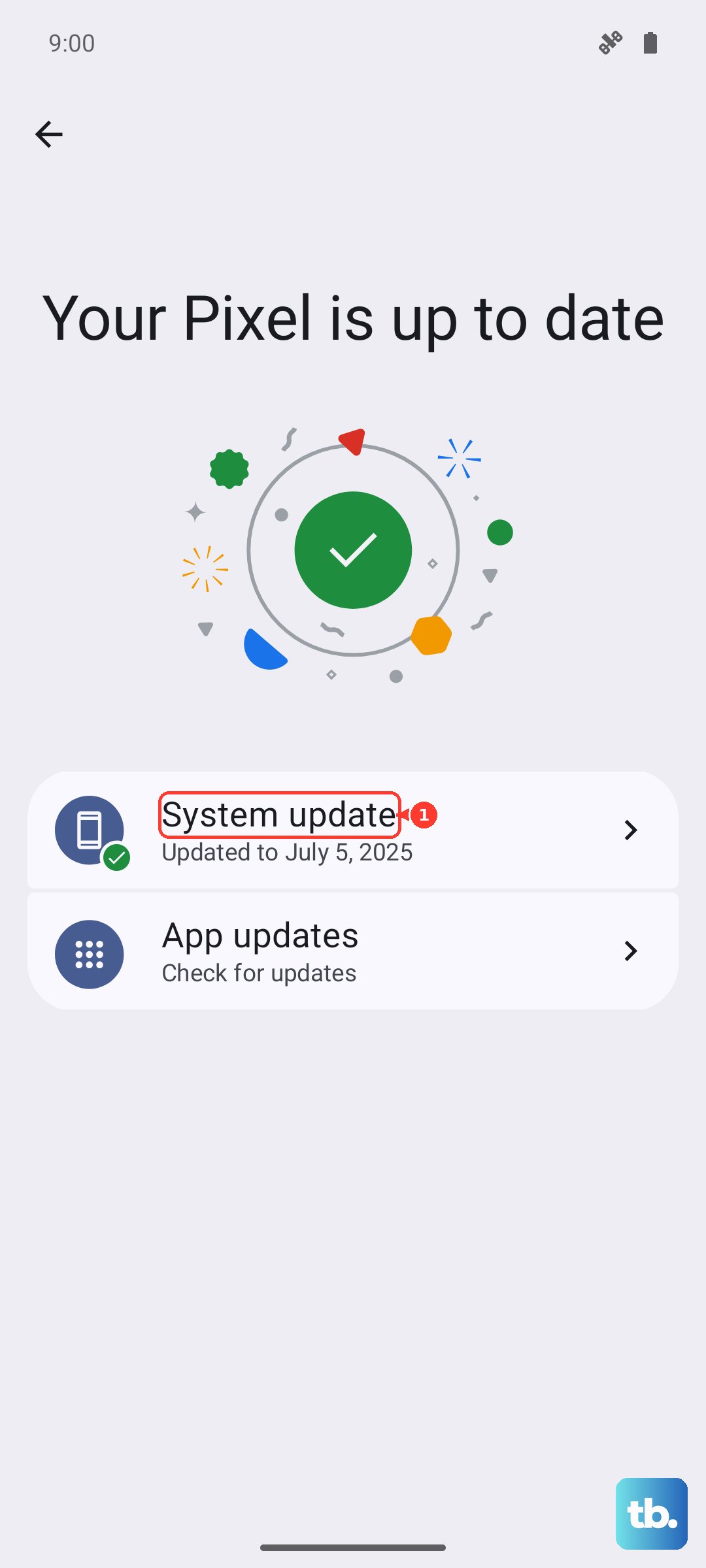
Check for a system update by going to Settings > Software update > Download and install. If an update is available, install it and restart your phone. Don't forget about your apps, too. Open the Google Play Store, tap your profile icon, and go to Manage apps and device > Updates available. Update Google Maps, Google Play Services, and any other apps you use for location.
Clear App Cache and Data
If a specific app like Google Maps is acting up, its stored data might be corrupted. Clearing the cache is a safe first step that won't delete your saved places.
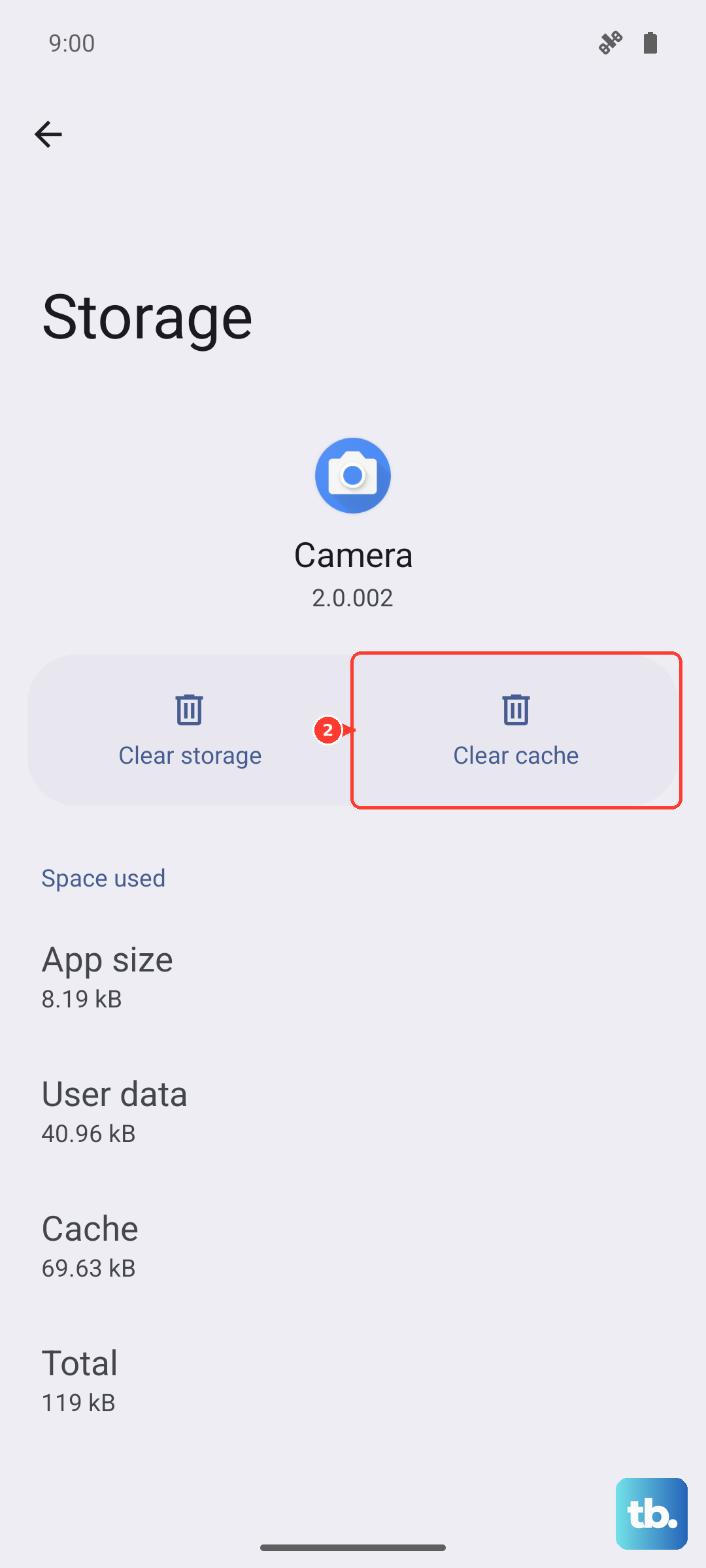
Go to Settings > Apps, find the app, and tap on it. Select Storage, then tap Clear cache. Try the app again. If the GPS is still broken, you can go back and tap Clear data. Just be warned, this will reset the app to its default state and you'll need to log back in.
Use Airplane Mode to Reset Connections
This old trick still works wonders. Toggling Airplane Mode off and on resets all the phone's radios, including the one for GPS. It can clear up any minor conflicts between the cellular and GPS antennas.
Swipe down twice to open your full Quick Settings panel and tap the Airplane mode icon. Wait 15 full seconds, then tap it again to turn it off. Give your phone another moment to reconnect to your mobile network before trying the GPS again.
Test in Safe Mode
If the GPS works fine in Safe Mode, you know a third-party app you installed is causing the interference. This is a great way to rule out a deeper system problem.
To boot into Safe Mode, press and hold the Side button and Volume down button until the power menu appears. Then, tap and hold the Power off option on the screen. You'll get a prompt to reboot into Safe Mode. Tap it. Once booted, you'll see "Safe Mode" in the bottom corner. Try using Maps or your GPS. If it works, restart normally and start thinking about which recently installed app might be the troublemaker.
Check for Physical and Environmental Issues
GPS signals are line-of-sight to satellites. Thick metal phone cases, especially those with magnetic clasps or plates for car mounts, can sometimes interfere with the S23's internal antenna.
Try removing your case and see if the GPS lock improves. Also, be aware of your surroundings. Being inside a concrete building, in a dense urban canyon, or under heavy tree cover can significantly weaken the signal. Stepping outside to an open area is the best test.
Clear the System Cache Partition
This is a step further than clearing an app's cache. It wipes temporary system files that can sometimes become corrupted after an update. It doesn't delete any personal data.
First, turn off your S23 completely. Connect it to your computer with a USB-C cable. Now, press and hold the Volume Up button and the Side button at the same time. When you see the Samsung logo, let go of both buttons. You'll boot into the Recovery Menu.
Use the Volume Down button to highlight Wipe cache partition, then press the Side button to select it. Confirm the action. Once it's done, select Reboot system now.
Use a GPS Diagnostic Tool
If you've tried everything and the GPS is still dead, it's time to figure out if it's a software setting or a hardware fault. An app like "GPS Test" or "GPS Status & Toolbox" can give you a clear picture.
Download one of these apps, open it, and go to the satellite view. Take your phone outside with a clear view of the sky. If the app shows your phone connecting to multiple satellites (you'll see them as bars with signal strength) but your navigation apps still don't work, it's almost certainly a software or configuration issue. If the app shows zero satellites, even after several minutes outdoors, there might be a problem with the antenna hardware.
Consider a Factory Reset
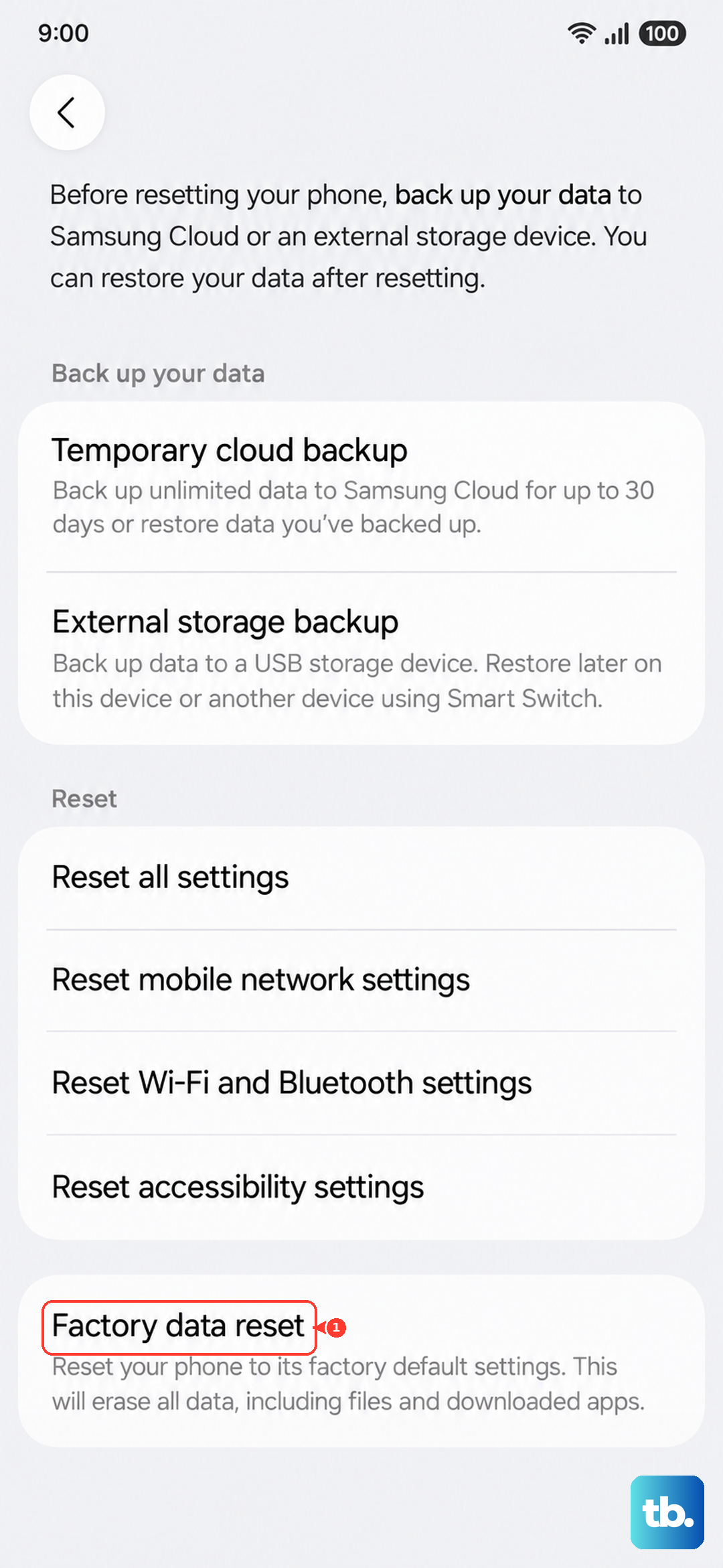
This is the nuclear option, but it will eliminate any deep-seated software corruption as the cause. You must back up everything important first, as this will erase all data and return the phone to its out-of-the-box state.
Go to Settings > General management > Reset > Factory data reset. Read through the information carefully, then scroll to the bottom and tap Reset. Follow the prompts to complete the process. After the phone reboots, set it up as new (don't restore a backup immediately) and test the GPS with just a core app like Google Maps installed.