You plug your Galaxy S23 into the wall, expect that familiar Super Fast Charging notice, and instead the battery crawls up a percent at a time like a phone half its age. Maybe the lock screen no longer mentions fast charging, the cable feels loose in the port, or the charge climbs partway and then quietly stalls. The reassuring part is that this is almost always fixable. The standard Galaxy S23 (model SM-S911) supports wired Super Fast Charging up to 25W, while the S23+ (SM-S916) and S23 Ultra (SM-S918) go up to 45W, so a phone that suddenly charges slowly usually has a cause you can chase down rather than a battery at the end of its life.
All three models also support Fast Wireless Charging, Wireless PowerShare, and charging over USB-C, and the same fixes below apply across the lineup. Work through them in order, starting with the quick, no-risk checks and saving the reset and repair options for last.
Start by confirming fast charging is switched on
Fast charging can be turned off accidentally or left off after a previous setting change, and that is the single easiest thing to rule out. One important detail from the official guidance is that you cannot enable or disable this feature while your device is charging, so unplug the phone before you go looking for the switch.
The exact path depends on which One UI version your S23 is running, since the phone shipped on an earlier version and has likely been upgraded since. Check both of these:
- 1.On newer One UI, go to Settings > Battery > Charging settings, then tap the switch next to Fast charging, Super fast charging, or Fast wireless charging.
- 2.On the One UI version the S23 originally shipped with, go to Settings > Battery and device care > Battery > More battery settings and check the same toggles there.
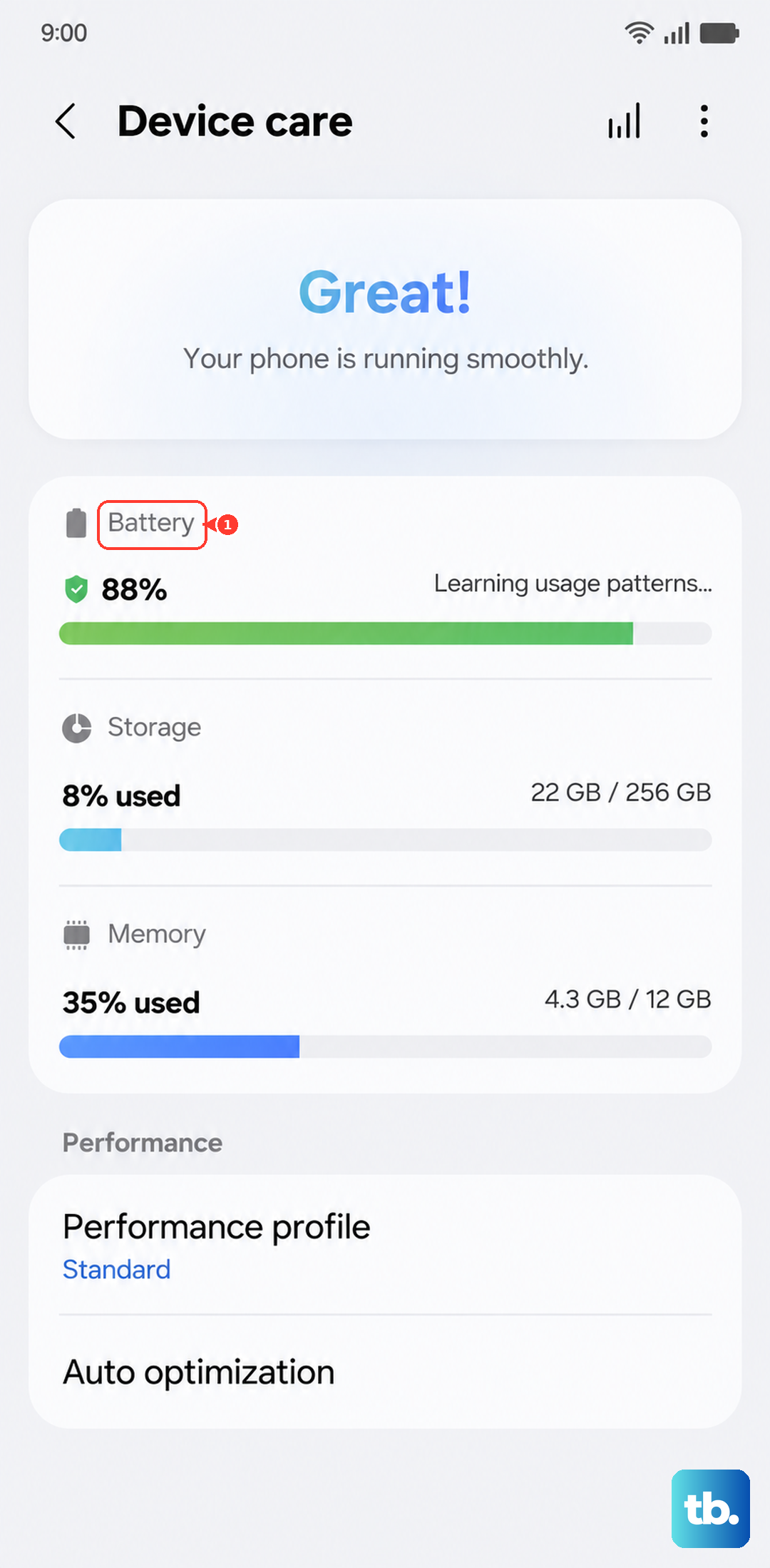
Only the charging speeds your device actually supports will appear, so do not worry if you do not see every option. Make sure the relevant switch is on, then plug back in and watch for the fast charging confirmation.
Match the charger, cable, and wattage to your model
This is the most common reason a Galaxy S23 charges slowly. Samsung is blunt about it: "You cannot fast charge your phone using a regular charger." Super Fast Charging only kicks in with a genuine Samsung adapter at the right wattage, so steer clear of uncertified or counterfeit chargers.
Use the right adapter for your specific model. The standard S23 needs a Samsung-approved 25W adapter for Super Fast Charging, while the S23+ and S23 Ultra need a 45W adapter paired with a 5A E-marked USB-C cable. A basic or data-only cable will not carry full fast-charging power, so use a USB-C cable rated for fast charging rather than whatever happened to come with another device.
Clean the port and rule out a damaged cable
A pocket-worn cable or a lint-packed USB-C port will quietly cap your charging speed long before the hardware truly fails. It is worth running through these checks point by point.
- 1.Verify that the device, charger, and USB cable have no physical damage.
- 2.Check the USB connections for corrosion and bent pins.
- 3.Inspect the device, charger, and USB cable for dust or other foreign materials.
Gently remove any lint or debris you find in the USB-C port, then test with a known-good Samsung cable and adapter. Swapping in a charger you know works on another Samsung phone is the fastest way to tell whether the problem is the accessory or the phone.
Look for the moisture warning before you keep plugging in
Your S23 is water-resistant, and it will deliberately block charging when it senses moisture in the port to protect itself. A popup message, often shown as a water-drop icon, appears when a charger is plugged in while moisture is present in the charging port, and it is a safety feature rather than a defect.
If you see it, unplug the phone and dry the port out:
- 1.Wipe the port and connector with a dry cloth.
- 2.Gently shake the phone a few times with the port facing down to clear trapped droplets.
- 3.Air-dry the phone in a well-ventilated area or in front of a fan.
- 4.Charge wirelessly in the meantime if you need power right away.
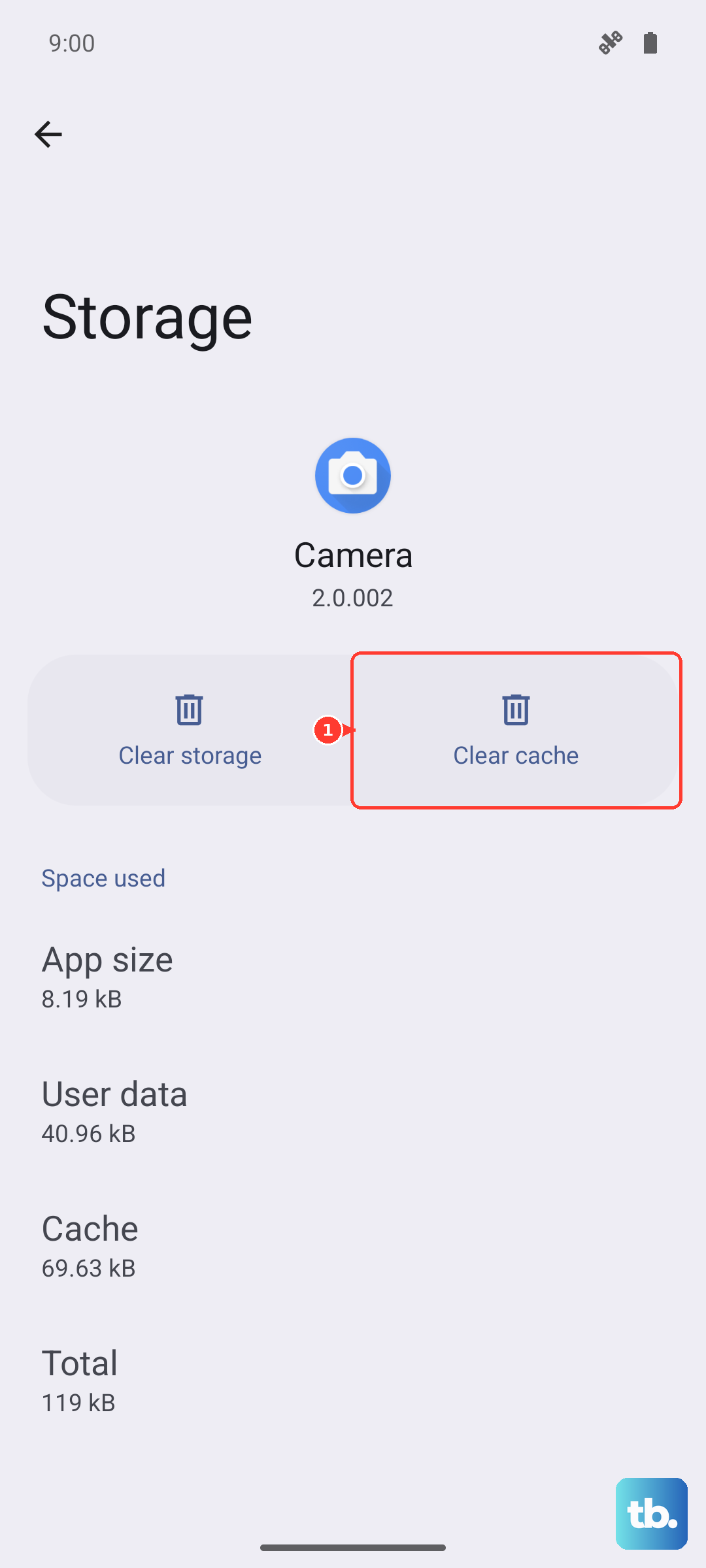
Be careful here, because excessive force or vigorous shaking can damage the phone, so keep it gentle, avoid a hair dryer, and do not push objects into the port. If the moisture icon stubbornly persists after the port is dry, you can clear the related cache by going to Settings > Apps > USB Settings > Storage > Clear cache.
Cool the phone down and take the case off
Temperature has a direct effect on charging speed. If the device or the surrounding environment is too high or too low in temperature, a built-in safeguard may slow the charging speed, and in a very hot spot, such as a car on a warm day, charging can stop entirely to protect the phone.
Move the phone somewhere at room temperature and give it a moment to cool before charging again. A bulky case can trap heat too, so if the phone is charging with its case on and getting warm, remove the case and resume charging. Turning the screen off while it charges also helps it charge more efficiently, so set it down rather than scrolling while you wait.
Check whether Battery protection is capping the charge
If your S23 seems to fast charge fine but stops or slows well before 100 percent, a battery-longevity setting may be doing exactly what you told it to. Go to Settings > Battery > Battery protection to see which mode is active.
With Maximum, the battery "will stop at the charging level you set," and with Adaptive it "will automatically stop charging at 80%." If you want a full charge instead, switch to Basic, which stops at 100 percent and resumes at 95 percent. This is the fix when the issue is really stopping early rather than charging slowly.
Force restart to clear a charging glitch
A temporary software hiccup can leave the phone misreading the charger or refusing to draw full power, and a force restart clears that without touching your data. Follow the official sequence exactly: "Press and hold the Volume down button and the Side button (or Power button) simultaneously until the device turns off and turns back on. The screen will turn black when the device turns off, and then the Samsung logo will appear."
You do not need to count seconds. Hold the buttons until that black screen and Samsung logo appear, then let go. Once it boots back up, plug in again and check whether the fast charging notice returns. A force restart does not delete any of your apps, photos, or settings.
Update One UI to the latest version
Keeping the software current can resolve charging behavior tied to a fixed bug, so install any pending update. Connect to Wi-Fi, go to Settings > Software update (it may be labeled System updates), and tap Download and install or Check for system updates, then follow the prompts.
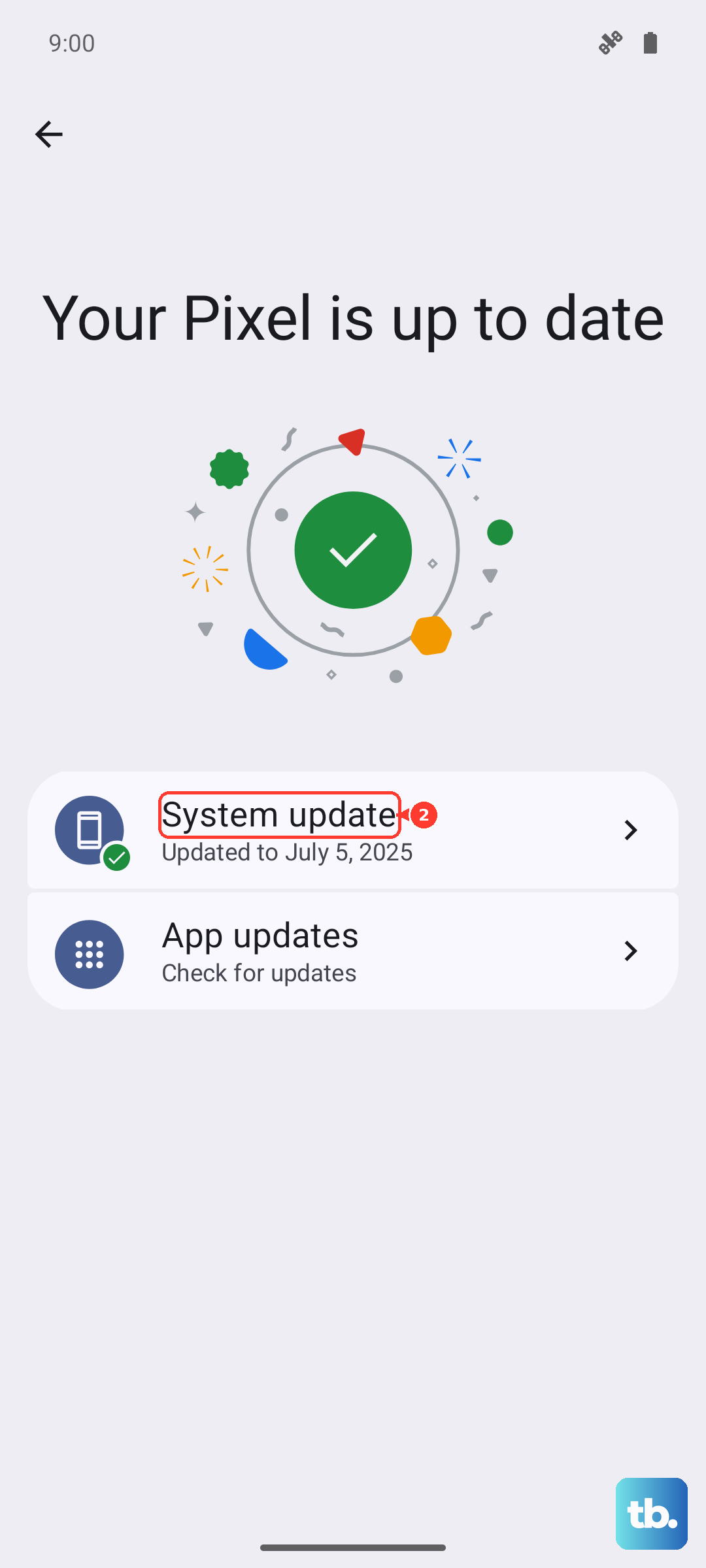
During the process, "Don't disconnect the USB cable or use your device until the update is complete." If the phone will not update on its own, you can also update the firmware over USB using Samsung Smart Switch, the free official Windows and Mac app.
Back up and factory reset as a last software step
If nothing above has helped and you have confirmed the charger itself is good, a factory reset is the final software measure before assuming a hardware fault. This erases everything on the phone, so back up your data first using Samsung Smart Switch or your usual backup method.
When you are ready, go to Settings > General management > Reset > Factory data reset > Reset > Delete all. Heed the warning: "Please save any information you need prior to the factory reset because your personal information may not be recovered." If a Samsung account is signed in on the device, you may need its password to complete the reset.
When to book a repair with Samsung
A fast-charging failure that survives all of the steps above usually points to a hardware problem, most often the charging port or the battery, and that needs a trained technician rather than another setting. Samsung's advice at this point is to stop troubleshooting and have the device looked at, either at a Samsung walk-in service center or through a repair service booked online.
Bring or mention the charger and cable you have been using so the technician can test the whole setup. Having a certified Samsung technician inspect the port and battery is the safe path, rather than opening the phone yourself and risking its water resistance.
Frequently Asked Questions
Why did my Galaxy S23 suddenly stop fast charging?
The usual culprits are a non-Samsung or counterfeit charger, a worn or data-only cable, dust or moisture in the USB-C port, a high-temperature safeguard slowing the charge, or fast charging simply being toggled off. Start by confirming the switch is on (Settings > Battery > Charging settings) and testing a known-good Samsung adapter and cable.
Can I fast charge the Galaxy S23 with any USB-C charger?
No. Samsung states "You cannot fast charge your phone using a regular charger." Super Fast Charging requires a Samsung-approved 25W adapter on the standard S23, or a 45W adapter with a 5A E-marked USB-C cable on the S23+ and S23 Ultra, along with a USB-C cable rated for fast charging.
Does the water-drop icon mean my phone is damaged?
Not necessarily. The S23 is water-resistant and intentionally blocks charging when it detects moisture in the port, which is a safety feature rather than a fault. Unplug, wipe and gently dry the port, charge wirelessly in the meantime, and clear the USB cache (Settings > Apps > USB Settings > Storage > Clear cache) if the icon will not clear.
Will a factory reset fix slow charging?
It can, if a software issue is to blame, but treat it as a last software step and back up first because it erases the device and your personal information may not be recovered. If the phone still will not fast charge after a reset and a verified charger, the problem is almost certainly hardware and should be checked at a Samsung service center.