You raise your Galaxy S23 to grab a quick shot, tap the shutter, and the photo comes back soft, hazy, or stubbornly out of focus. Whether you own the S23, the S23+, or the S23 Ultra, a camera that will not lock focus is frustrating when the hardware is built to shoot sharp 50MP images (or 200MP on the Ultra). The good news is that most blurry-photo complaints trace back to a dirty lens, a settings conflict, or a minor software hiccup, all of which you can sort out yourself. Work through the checks below from the top, and only move toward a reset or a service visit if the blur survives every earlier step.
Wipe the lens before you blame the camera
Dirt, smudges, and fingerprints on the rear glass are the most common reason an S23 photo turns out soft, because they scatter light before it ever reaches the sensor. Samsung's guidance here is simple.
Clean the lens with a soft, dry, lint-free cloth, then take a test shot. Avoid liquids or anything abrasive that could scratch the coating.
Take off any case or protector crowding the lens
A thick case, a stick-on lens guard, or an aftermarket protector can sit just over the edge of the camera and quietly wreck your focus. Samsung advises that you make sure your phone cover and phone accessories don't cover the edges of the camera lens.
Remove any case, lens guard, or protector that overlaps the camera array, then shoot again to see whether the picture sharpens up.
Tap to set focus and switch off Tracking auto-focus
Touch your subject on the screen so the camera focuses exactly where you want it, rather than letting it guess. If your shots keep going soft around a moving person or object, Tracking auto-focus may be locking onto that subject and leaving the rest of the scene out of focus.
You can turn the feature off inside the Camera app. Open the Camera app, then tap the Settings icon at the top left corner.
Tap the switch next to Tracking auto-focus to turn it off.
When close-up shots blur on purpose
If only your close-up photos look blurry behind the subject, that is usually normal behavior on the S23 and S23+, not a fault. The main wide camera has a bright aperture, so it deliberately throws the background out of focus when you get close, an effect Samsung documents as expected.
A few simple habits bring more of the frame into focus. Try photographing the object from further away.
For example, if the object you're taking a photo of is 30cm away, move back by a hand span.
Try taking the photo holding the phone vertically. If you are holding your phone horizontally or diagonally, the background may appear blurred.
Step back and use zoom, or tap 0.6x to switch to the ultra-wide camera.
On the S23 Ultra the camera automatically switches to the wide-angle lens and activates a Focus enhancer for close subjects, though that enhancer does not work in High Resolution mode.
Restart the phone and the Camera app
A quick reboot clears the minor software glitches that can freeze focus or leave every frame looking fuzzy. For an ordinary restart, press and hold the Volume down button and the Side button (or Power button) at the same time, tap Restart, then tap Restart again.
You can also swipe down from the top of the screen to open the Quick panel and tap the Power icon to reach the same menu. Reopen the Camera app afterward and test a few photos.
Clear the Camera app cache
The Camera app stores temporary files that can become corrupted and trigger odd behavior, including focus problems. Clearing them is safe and leaves your saved photos untouched.
Open Settings, then tap Apps.
Select Camera, then tap Storage.
Tap Clear cache.
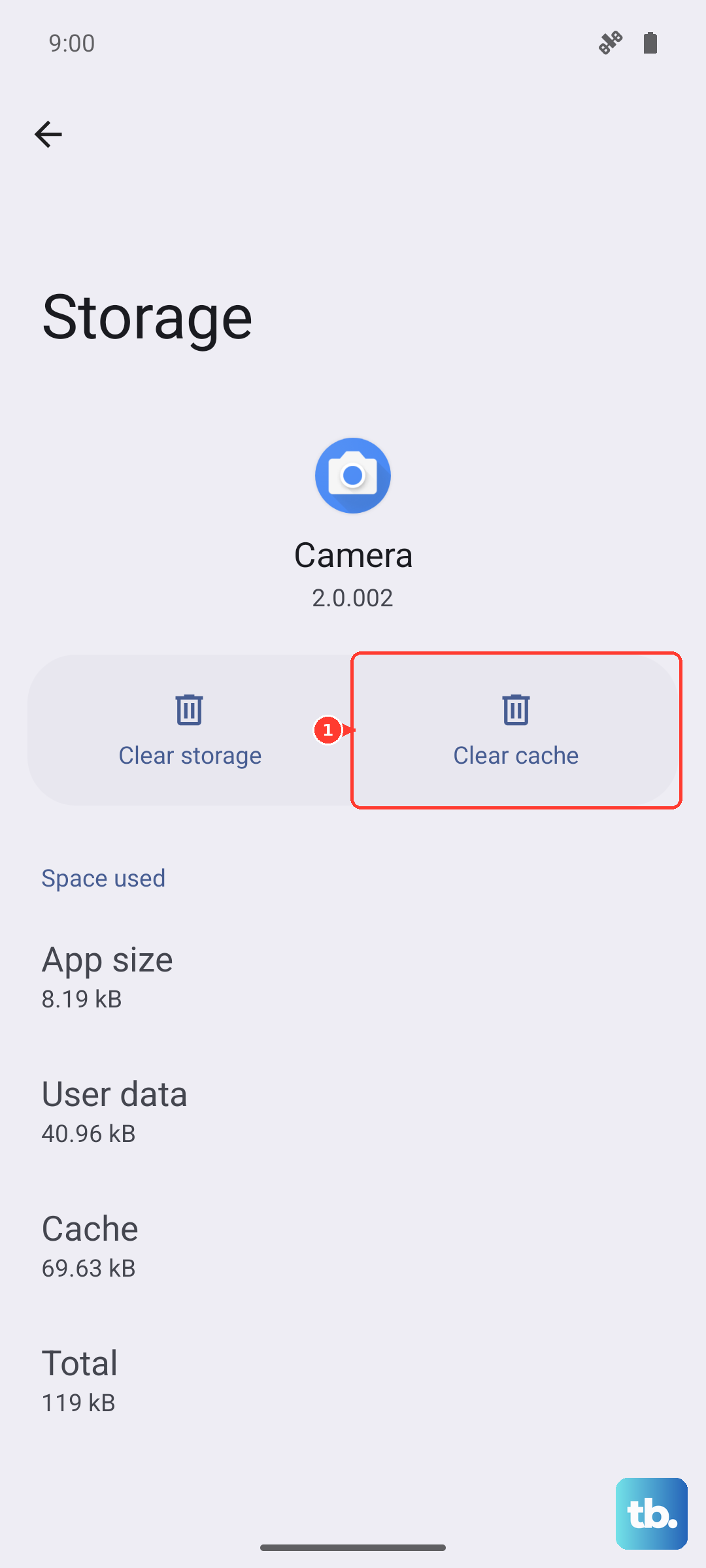
Clear cache only removes residual files. The neighboring Clear data option resets the app to its factory defaults, so reach for it only if clearing the cache does not help.
Reset the camera back to its default settings
If focus is still off, resetting the Camera app's own settings restores its defaults without deleting any of your saved photos. This undoes any modes or toggles you may have changed without realizing the effect.
Open the Camera app and tap the Settings icon. On newer software (One UI 7.0 and later), tap the Quick settings icon, then Settings.
Swipe to and tap Reset settings.
Tap Reset to confirm.
Install the latest software update
Samsung recommends checking for a software update before deeper troubleshooting, since updates can include camera firmware and bug fixes. Install the latest available version rather than chasing a specific build number.
Open Settings, then tap Software update.
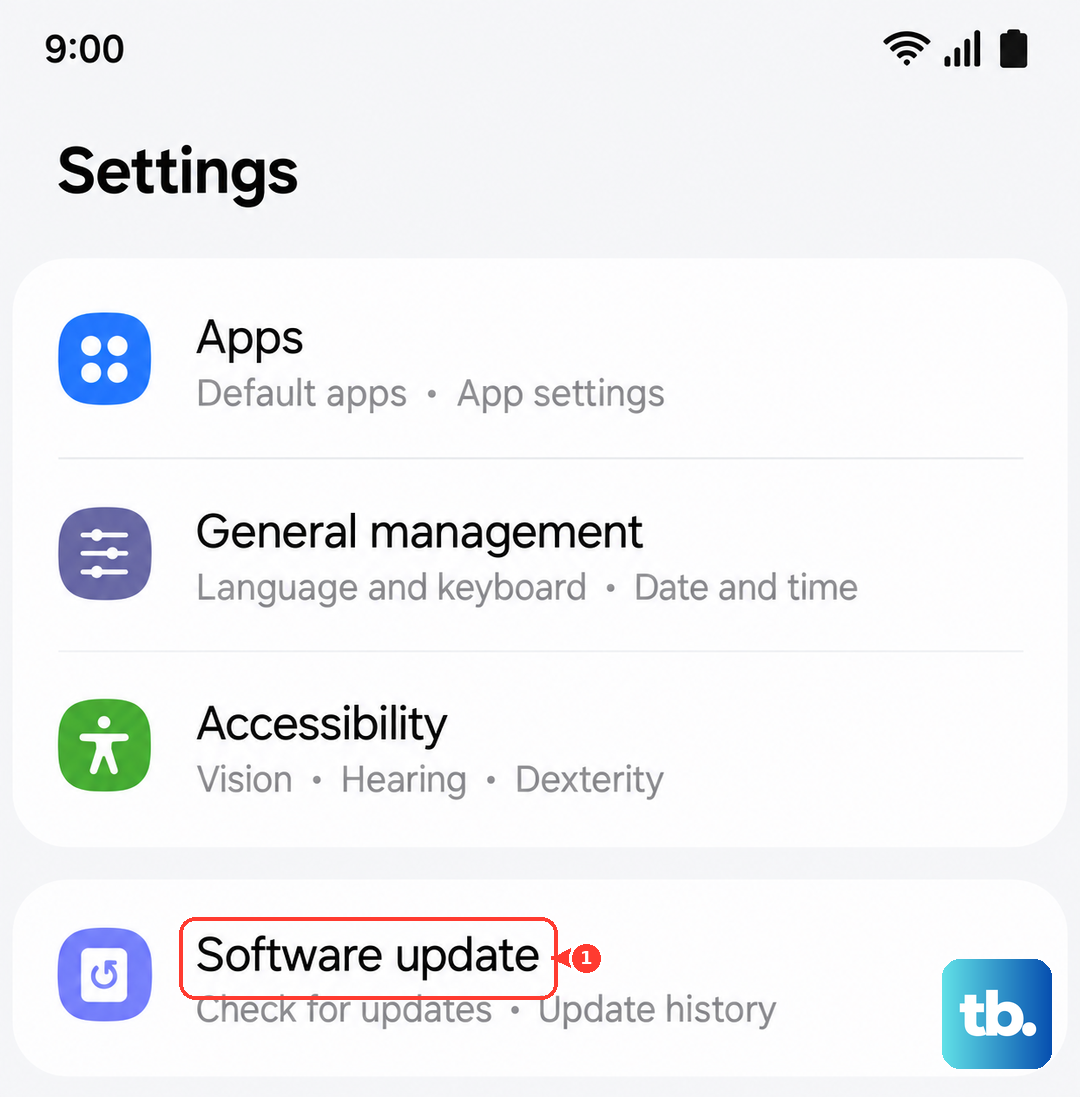
Tap Download and install.
Follow the on-screen instructions to finish.
Boot into Safe Mode to expose a rogue app
A downloaded app can interfere with the camera. Safe Mode loads only the built-in apps, so it tells you quickly whether something you installed is to blame.
Swipe down from the top of the screen to open the Quick panel.
Tap the power icon.
Touch and hold the Power off icon.
Tap Safe mode when it appears.
Open the Camera app and take a few shots. If they come out sharp in Safe Mode, a recently added app is the likely culprit, so restart normally to exit Safe Mode and uninstall your most recent downloads one at a time.
Force restart a frozen phone
If the phone or the Camera app is frozen and unresponsive, a forced restart can bring it back without erasing any data. Press and hold the Volume down button and the Side button (or Power button) simultaneously until the device turns off and turns back on.
The screen goes black, then the Samsung logo appears. Samsung's official instructions do not state a specific hold time, so keep holding until that logo shows.
Back up, then try a factory reset
A factory reset is the last software step and should only follow the fixes above, because it wipes the phone. Back up first using your Samsung account or Samsung Smart Switch on a Windows PC or Mac, since Samsung warns: "Please save any information you need prior to the factory reset because your personal information may not be recovered."
- 1.Open Settings, then tap General management.
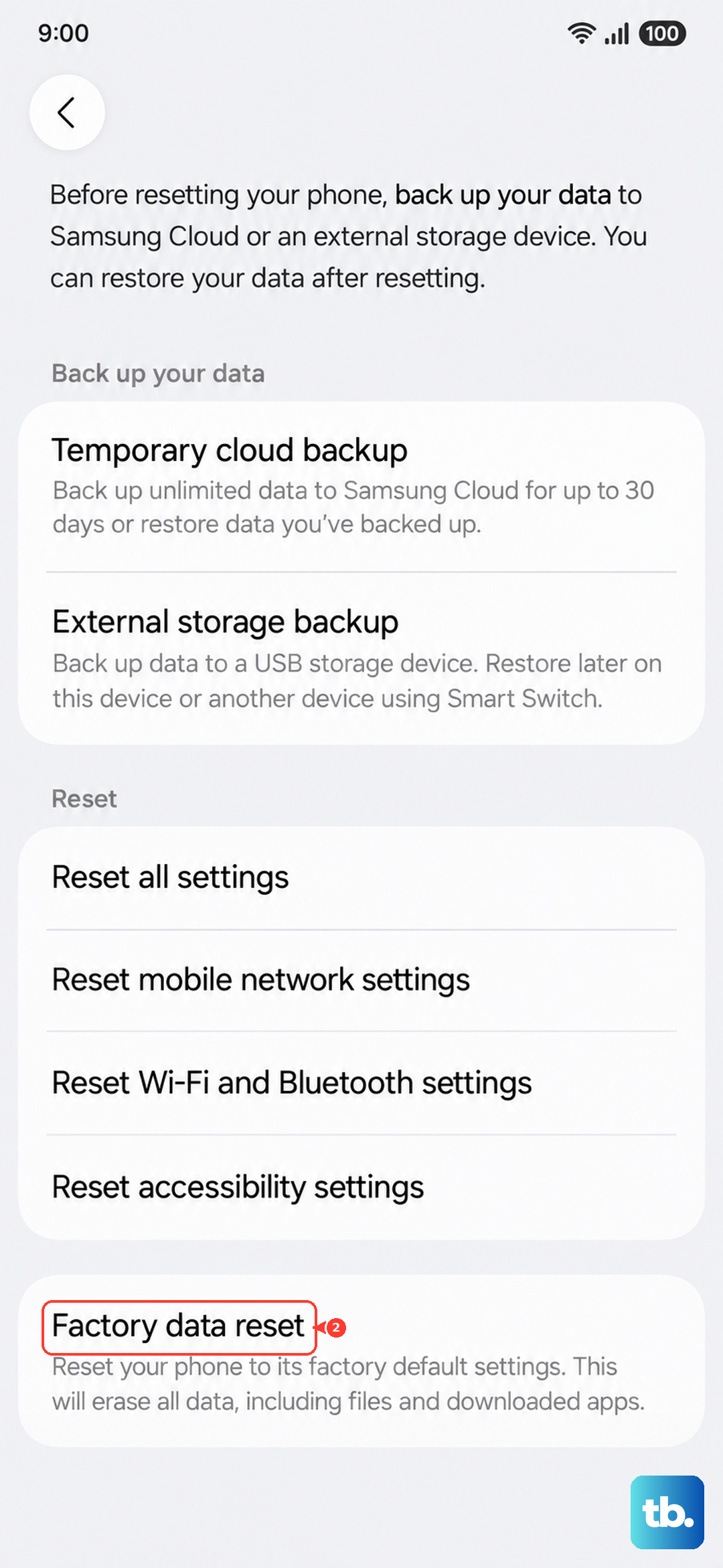
- 2.Tap Reset, then Factory data reset.
- 3.Review the information, then swipe to and tap Reset.
- 4.Tap Delete all, then enter your lock credentials and Samsung account password if prompted.
When to hand it to Samsung
If your photos are still blurry after a reset, the trouble may be with the camera hardware and need a certified technician. You can report the problem and book a repair through the Samsung Members app, take the phone to a walk-in service location, or arrange to ship it in for service.
Describe exactly when the blur happens, which lens it affects, and the steps you have already tried so the technician can diagnose it faster.
Frequently Asked Questions
Why does the background look blurry in my close-up Galaxy S23 photos?
On the S23 and S23+, the main wide camera has a bright aperture, so it deliberately blurs the background when you shoot a close subject. That selective-focus effect is normal, not a defect. Move back by about a hand span, hold the phone vertically, or tap 0.6x to switch to the ultra-wide camera for more in-focus depth.
Does resetting my camera settings delete my saved photos?
No. Resetting the camera settings restores the Camera app's defaults but leaves your saved photos in place. Only a factory data reset erases your personal data, which is why you should back up before using that option.
Does the Galaxy S23 have autofocus?
Yes. The S23, S23+, and S23 Ultra all use autofocus rear cameras, so they are built to lock focus and produce sharp images. Persistent blur usually points to a dirty lens, a settings conflict, or a software issue rather than a missing feature.
How do I force restart a frozen Galaxy S23?
Press and hold the Volume down button and the Side button (or Power button) at the same time until the device turns off and turns back on. The screen will go black and then show the Samsung logo. Samsung does not list a specific hold duration, so keep holding until the logo appears.