You tap the Side button on your Galaxy S23, expect that crisp 6.1-inch Dynamic AMOLED display to light up, and instead you get nothing: a flat black panel, no lock screen, maybe no buzz at all. Sometimes the phone was working fine moments ago and the screen suddenly went dark; other times it refuses to wake after a night on the charger. The good news is that most black-screen episodes on the S23 come down to a drained battery, a frozen system, a misbehaving app, or a cable problem, and you can rule those out yourself before assuming the worst. Work through the fixes below in order, starting with the safest checks and moving toward a full reset only if the simple steps fail.
One thing to know up front: the Galaxy S23 has a sealed 3,900mAh battery, so there is no battery to pop out as a reset trick. The equivalent move on this phone is a forced restart, which you will find a few steps down.
Check the phone, cable, and charging port for damage first
Before you blame the screen, rule out the obvious physical culprits. Look over the phone, the charger, and the USB cable for cracks, frayed wires, bent pins, or corrosion.
Remove any case or accessory that might be pressing on the buttons or blocking the charging port.
Liquid exposure is a common hidden cause of a phone that suddenly goes dark. If your S23 has been anywhere near water, spills, or heavy moisture, do not plug it in to charge straight away.
Charging a phone while the inside is still damp can cause further damage, so let it dry out completely first. If you have any reason to think liquid got inside the phone, treat that as a sign it may need professional inspection rather than more charging attempts.
Give the battery a full hour on the charger
A black screen is very often just a flat battery, and a deeply drained S23 will not respond instantly. Plug it in and let it sit before you panic.
Connect the Galaxy S23 to an appropriate charger using the charging cable that came with it.
Plug the charger directly into a wall outlet, not an extension cord or power strip.
Leave it charging for at least 1 hour.
Be patient with a fully drained device: it can take up to 10 minutes before any charging indicator even appears on the screen. If nothing shows after that, move on to a forced restart.
Force a restart to wake a frozen screen
If the display is black or frozen but the phone may still have power, a forced restart clears a hung system without touching your data. This is the S23 equivalent of pulling the battery, and it erases nothing.
Press and hold the Volume down button and the Side button (or Power button) at the same time.
Keep holding until the device turns off and turns back on.
Watch for the screen to turn black, then for the Samsung logo to appear.
Samsung's troubleshooting guidance lists slightly different hold times across articles, so do not let go too early. Plan on holding for roughly 10 to 20 seconds, and in some cases it can take up to 60 seconds for the device to restart.
Swap in a genuine Samsung charger and cable
If the phone still will not power on, the problem may be how it is being fed power rather than the phone itself. Samsung recommends using a genuine Samsung charger and cable, and warns that third-party accessories can damage the device.
Switch to an authentic Samsung charger and cable, plug it straight into a wall outlet, and try charging again for a while. A known-good charging setup also helps you tell a battery problem apart from a true display fault.
Boot into Safe mode to expose a problem app
If the phone does power on but the screen later goes black or starts misbehaving, a recently installed or updated third-party app could be the trigger. Safe mode loads the phone with only its built-in software so you can test that theory.
Power the phone off completely.
Turn the device on, and when the Samsung logo appears, press and hold the Volume down button.
Keep holding until the phone finishes starting up.
If you did it correctly, the words "Safe mode" will display in the bottom-left corner of the screen. If the black-screen behavior disappears while in Safe mode, a downloaded app is to blame.
Restart normally, then uninstall recently added or updated apps one at a time until the problem stops returning.
Bring the software up to date
Outdated software can cause display glitches and boot trouble, so installing the latest update is worth doing once you can reach the menus. Connect to Wi-Fi first, then check for an update.
Go to Settings > Software update > Download and install and follow the prompts. Depending on your carrier, the option may read Download and install, Check for system updates, or Check for software updates.
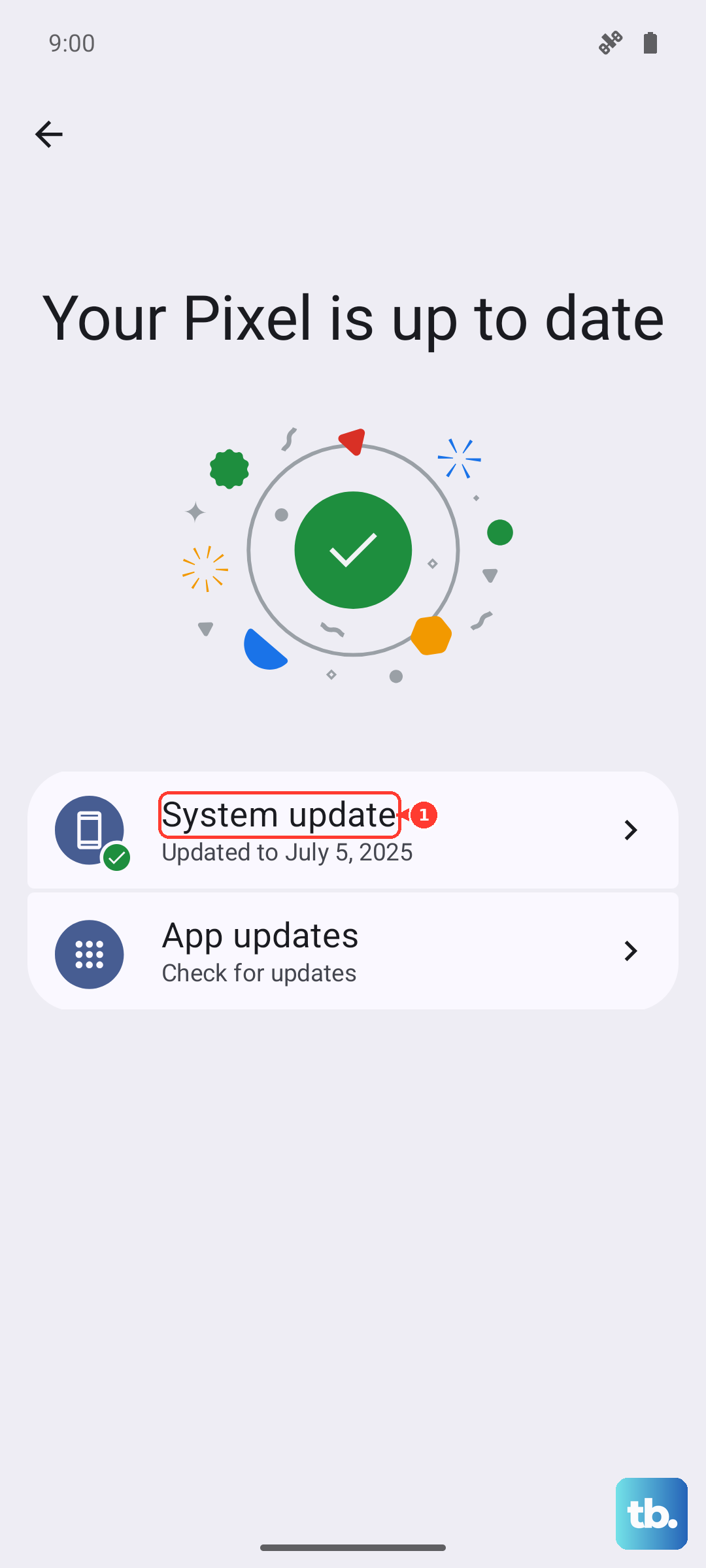
If the phone is stuck at the Samsung logo and you cannot reach Settings at all, you can still push an update from a computer. Download Samsung Smart Switch to a Mac or Windows PC, connect the phone with its USB cable, and choose the update option if one is offered.
Do not disconnect the cable or touch the device until the update finishes.
Rescue your data when the touchscreen is dead
If the display is dark or the touchscreen simply will not respond, you can often still get your files off the phone before taking any drastic step. There are two official workarounds for navigating a phone you cannot tap.
Connect a USB mouse to the phone through an adapter and use the pointer to navigate.
Or connect a USB-C to HDMI adapter and mirror the phone's display to a TV or monitor so you can see what you are doing.
Once you can see and control the phone, back up your data with Samsung Smart Switch. Do this before any erase, because the next step wipes everything.
Erase and start fresh with a factory reset
If the phone boots but the black-screen problem keeps coming back, a factory data reset clears out corrupted settings and software. This is the last software-level fix, and it deletes all of your data, so treat it carefully.
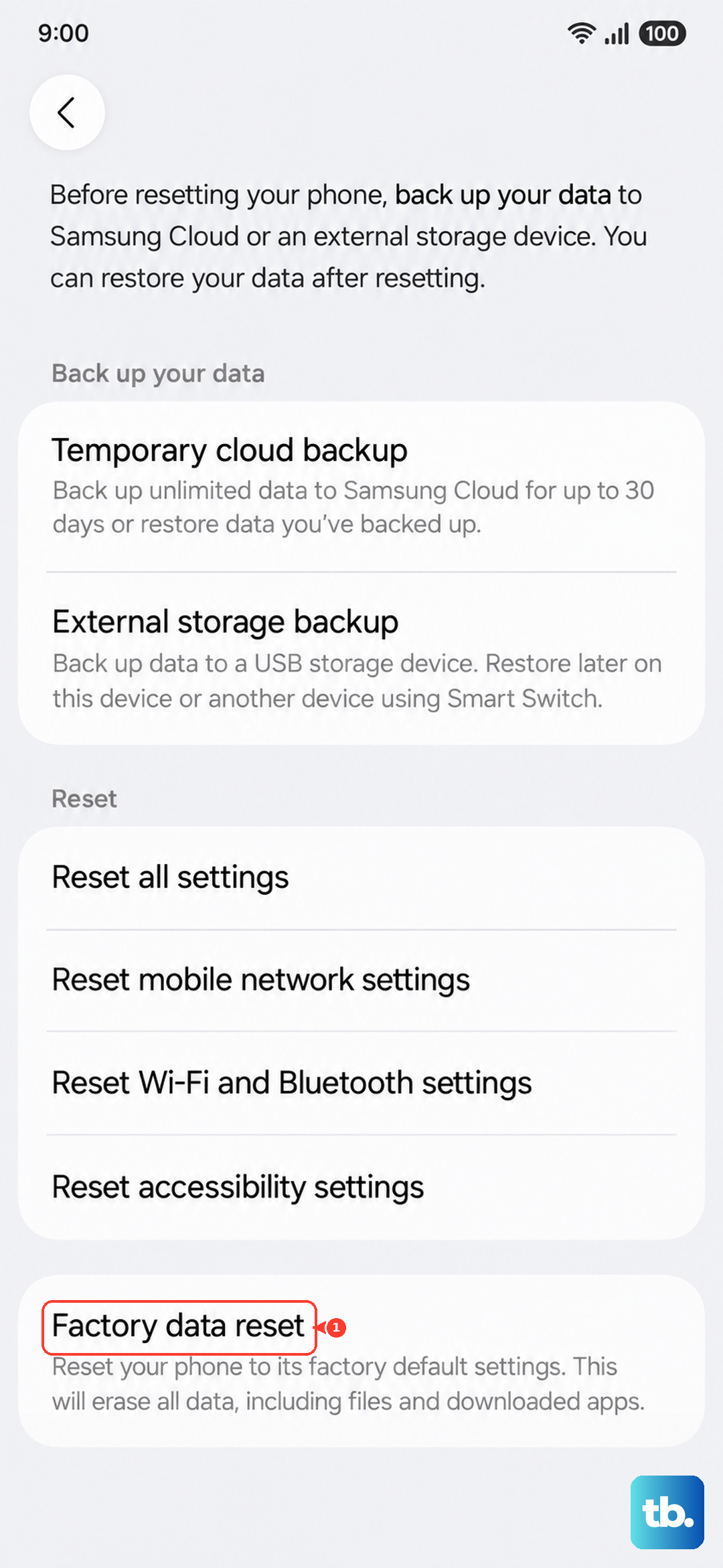
In Samsung's own words: "Please save any information you need prior to the factory reset because your personal information may not be recovered." Back up first using the steps above, and make sure you know your Samsung account and Google account credentials, because you will need them to sign back in when you set the phone up again.
- 1.Open Settings.
- 2.Tap General management.
- 3.Tap Reset.
- 4.Tap Factory data reset.
- 5.Tap Reset.
- 6.Tap Delete all to confirm.
Hand it to Samsung when the screen stays dark
If the screen still will not turn on after everything above, the issue is almost certainly hardware and the phone needs professional service. This is the right path for a suspected failed battery, a faulty charging port, a damaged display, or any liquid exposure you noticed earlier.
Reach out to the Samsung Support Center or request service rather than continuing to retry the same steps. A technician can test the display and battery directly and tell you whether a repair makes sense.
Frequently Asked Questions
Will a force restart erase my data on the Galaxy S23?
No. Holding the Volume down button and the Side button to force a restart simply reboots the phone and does not delete any of your data. The only step here that erases everything is the factory data reset.
Can I take the battery out of my Galaxy S23 to fix a black screen?
No. The Galaxy S23 has a sealed, non-removable 3,900mAh battery, so the old battery-pull trick does not apply. Use the forced restart (Volume down plus Side button) instead, which serves the same purpose.
How long should I charge a dead Galaxy S23 before it responds?
Charge it for at least 1 hour using the cable that came with it, plugged directly into a wall outlet. If the battery was fully drained, it can take up to 10 minutes before any charging indicator appears, so do not assume it is broken right away.
How do I know if my black screen is caused by an app?
Boot into Safe mode by holding the Volume down button as the Samsung logo appears; "Safe mode" will show in the bottom-left corner. If the screen behaves normally in Safe mode, a downloaded app is the cause, so uninstall recently added or updated apps one by one.
What if the screen is still black after a factory reset?
If the problem survives a factory reset, it points to a hardware fault such as the battery, charging port, or display. At that stage, contact the Samsung Support Center for service rather than repeating the software steps.