
When your Samsung Galaxy A56 won't send texts, it can be incredibly frustrating. You might see messages stuck on "Sending," get a "Message not sent" error, or just watch them fail silently. The good news is, this is almost always a quick fix.
Start With a Force Restart
This is the single most effective step for most temporary glitches on the A56. Press and hold the Volume Down button and the Side button together for about 10 seconds. Release them when you see the Samsung logo appear on the screen. This simple reboot clears out any software hiccups that might be blocking your messages.
Check Your Mobile Data and Signal
Text messages (SMS) need a cellular signal, while picture messages (MMS) require mobile data to be on. Look at the top of your screen. If you have no signal bars, try moving to a different location. You can also swipe down twice for the Quick Panel and tap the Airplane Mode icon to turn it on, wait 10 seconds, then tap it again to turn it off. This resets your connection to the cell tower.
For MMS, make sure mobile data is enabled. Go to Settings > Connections > Data usage and ensure the Mobile data switch is on. If you're on Wi-Fi, sometimes MMS won't send unless mobile data is also active, due to carrier settings.
Verify Your Message Settings
Your phone's messaging app has a few critical switches that need to be flipped on. Open the Samsung Messages app, tap the three dots in the top right, and go to Settings. Here, make sure Send as SMS is enabled. This lets a text send as a regular SMS if the richer chat message fails.
Also, tap Multimedia messages within the Settings and ensure Group conversation and Auto-retrieve are turned on. I've seen the Auto-retrieve setting being off cause persistent sending failures for group chats and pictures.
Clear the Messages App Cache
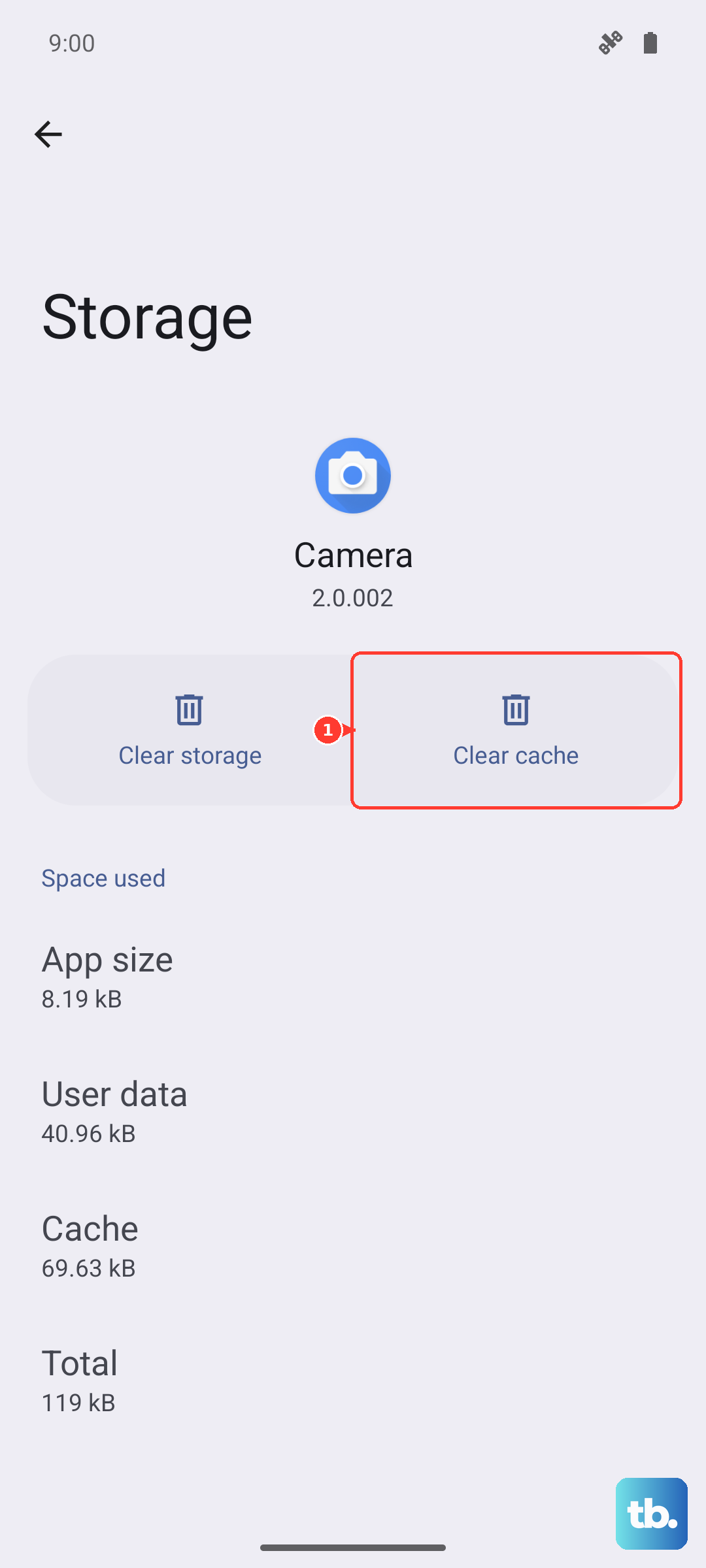
Over time, the temporary data stored by the Messages app can get corrupted. Go to Settings > Apps, find and tap Messages. Select Storage and then tap Clear cache. This won't delete any of your actual conversations, but it will clean out the junk files that might be causing the problem.
Check for Software Updates
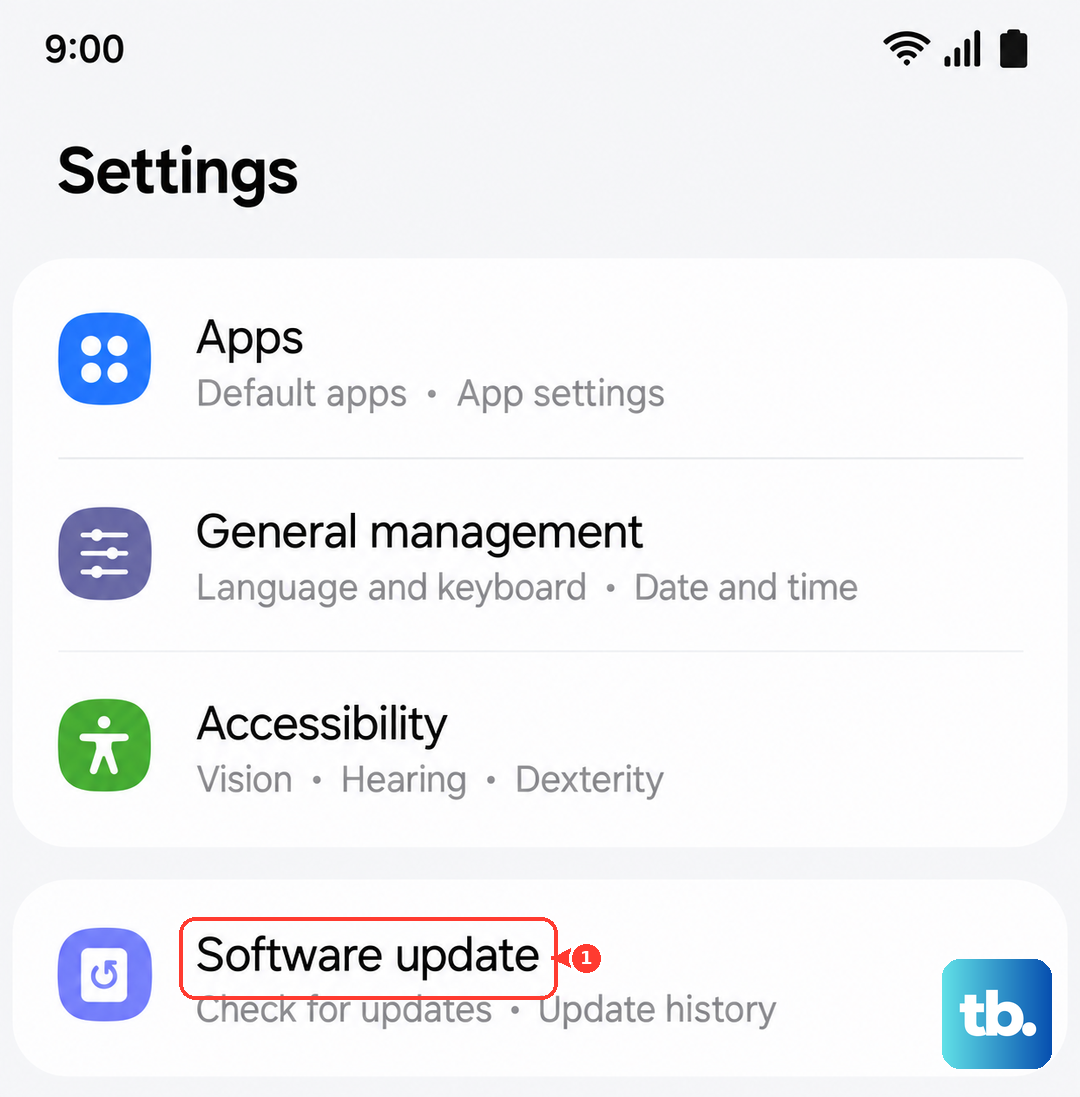
Outdated software can have bugs that affect messaging. Samsung and your carrier release updates to fix these issues. Go to Settings > Software update and tap Download and install. If an update is available, install it. It's a good idea to be connected to Wi-Fi before you start.
Reset Your Network Settings
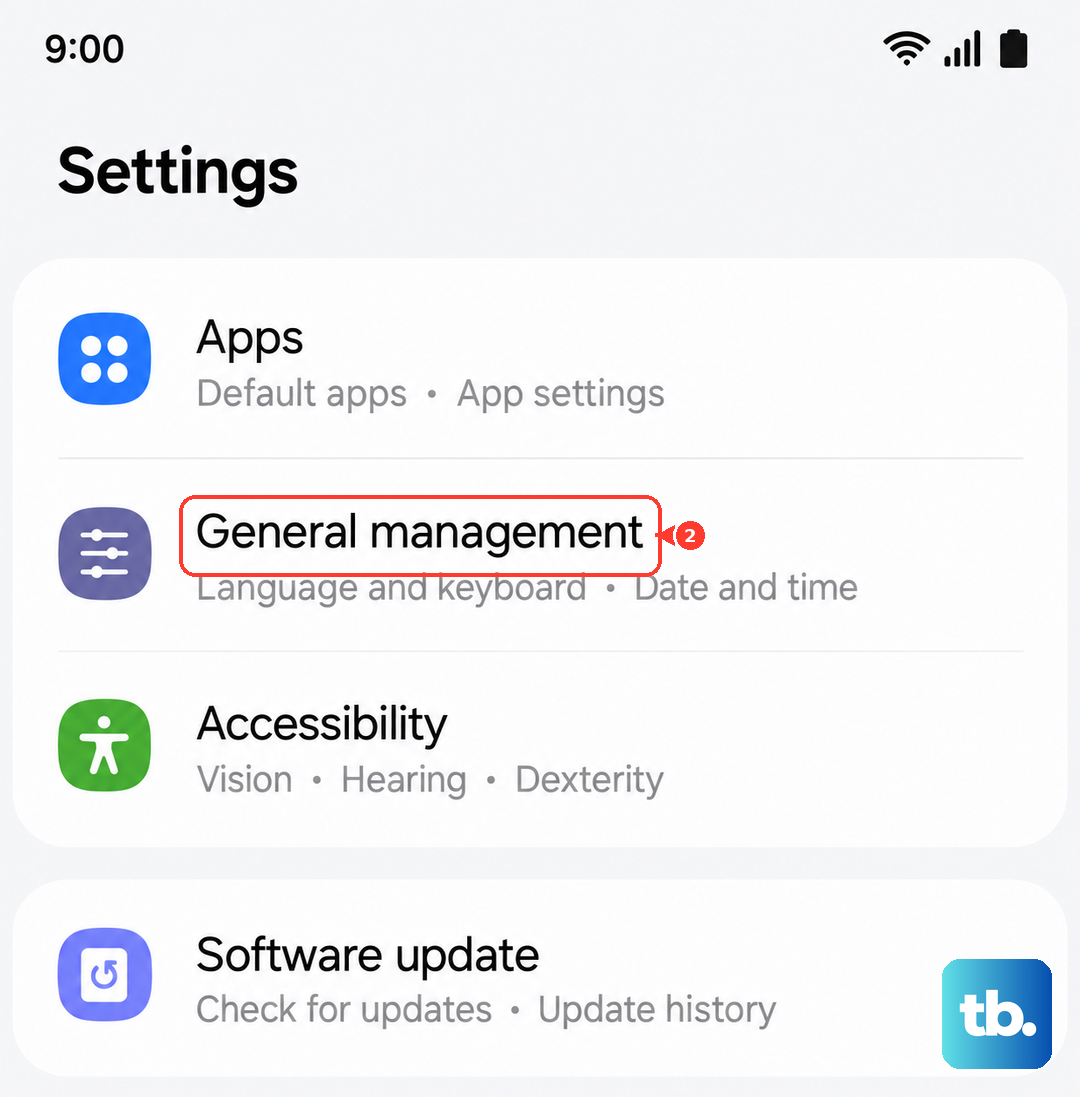
This step fixes a wide range of connectivity problems, including messaging. It will erase all your saved Wi-Fi networks, Bluetooth pairings, and mobile data settings, so you'll have to reconnect to Wi-Fi networks afterward. To do it, go to Settings > General management > Reset > Reset network settings. Tap reset and confirm. Your phone will reboot, and you can then test if texts send.
Inspect Your SIM Card
A loose or dirty SIM card can interrupt your connection to your carrier's network. Power off your Galaxy A56 completely. Use the SIM eject tool that came in the box (or a small paperclip) to open the SIM tray on the top edge of the phone. Carefully remove the SIM card, gently wipe the gold contacts with a soft, dry cloth, and reinsert it. Power your phone back on.
If you have a physical SIM, it's also worth checking in Settings > Connections > SIM card manager to make sure your line is set for Calls & messages and that mobile data is assigned to it.
Try a Different Messaging App
This is a great way to figure out if the problem is with the Samsung Messages app itself or with your phone's system. Download Google Messages from the Play Store and set it as your default. See if you can send texts from there. If you can, the issue is likely with the Samsung app, and you can either keep using Google Messages or clear the Samsung app's data as a more thorough fix.
Contact Your Mobile Carrier
If you've tried everything else, the issue might be on your carrier's end. There could be a temporary network outage in your area, a problem with your account provisioning, or a block on SMS/MMS services. Give them a call or use their online chat support. Ask them to check if there are any outages and to verify that messaging services are fully active on your line.