If your Samsung Galaxy A56 is starting to feel sluggish, you're not stuck with it. A mid-range phone can slow down for a bunch of reasons, but I've found most are pretty easy to fix yourself. Let's get it running smoothly again.
The quickest thing you can do is a force restart. This clears out any temporary glitches in the memory that might be causing the lag. Just press and hold the Volume Down button and the Side button (power button) together for about 10 seconds.
Keep holding until you see the Samsung logo appear on the screen, then let go. Your phone will reboot, and that alone can make a noticeable difference.
Close Apps Running in the Background
Having too many apps open, even in the background, eats up your phone's RAM. Unlike iPhones, Android and One UI give you a dedicated button to see and close them. Tap the square navigation button at the bottom of your screen, or swipe up from the bottom and hold if you use gesture navigation.
You'll see all your recent apps. Swipe each one up or tap the close all button to shut them down. I'd make a habit of doing this once a day, especially if you notice things getting slow.
Check Your Available Storage Space
When your internal storage gets too full, your phone has less room to operate efficiently. This is a super common cause of slowdowns. Head into Settings > Device care > Storage.
One UI will show you exactly what's taking up space. Look for large files you don't need, old downloads, or cached data from apps. Try to keep at least 10-15% of your storage free for the system to breathe.
Clear App Caches
Apps store temporary data called caches to load faster. Over time, this cache can get corrupted or too large, slowing the app and your phone down. You can clear the cache for individual apps that feel slow.
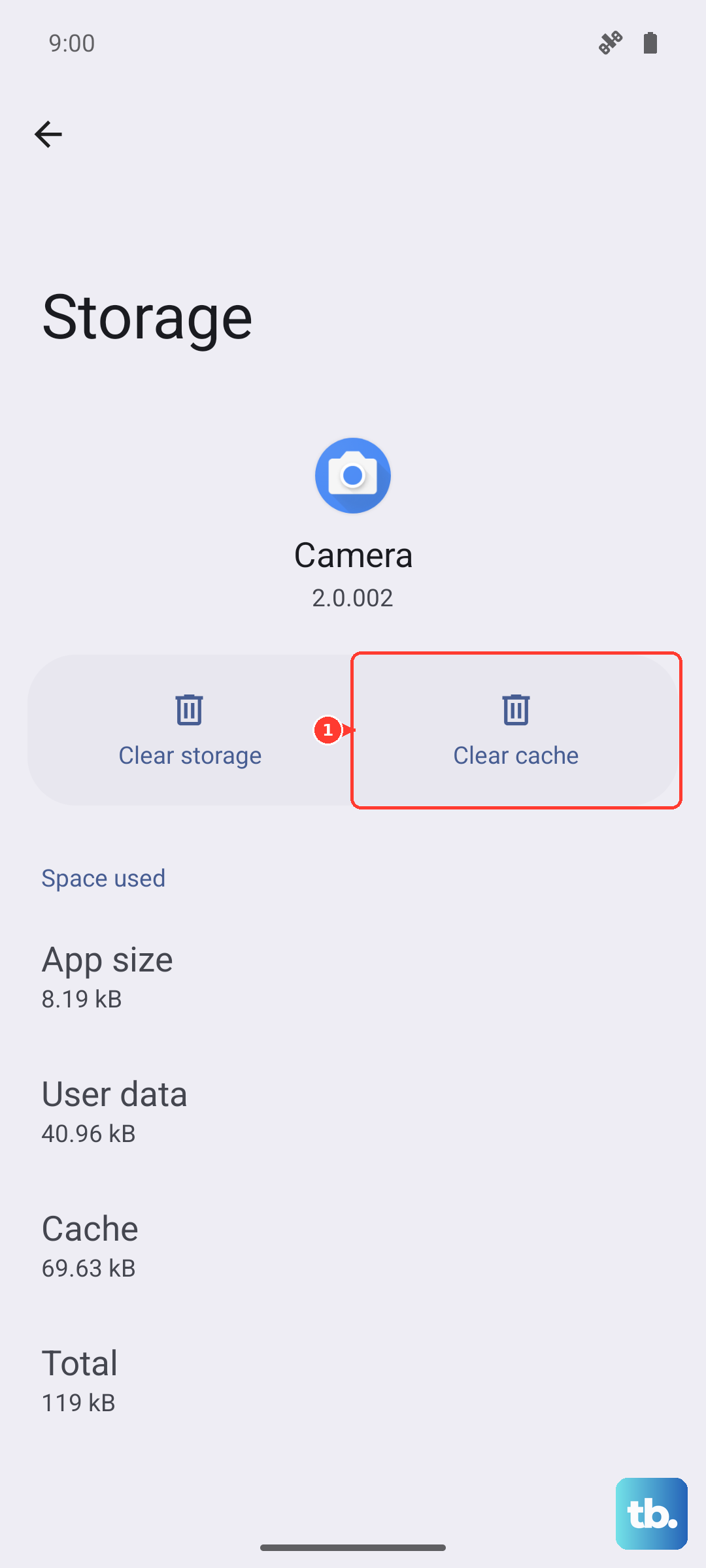
Go to Settings > Apps, select the problematic app, then tap Storage. You'll see an option to "Clear cache." This won't delete your login info or personal data within the app.
Update Your Software and Apps
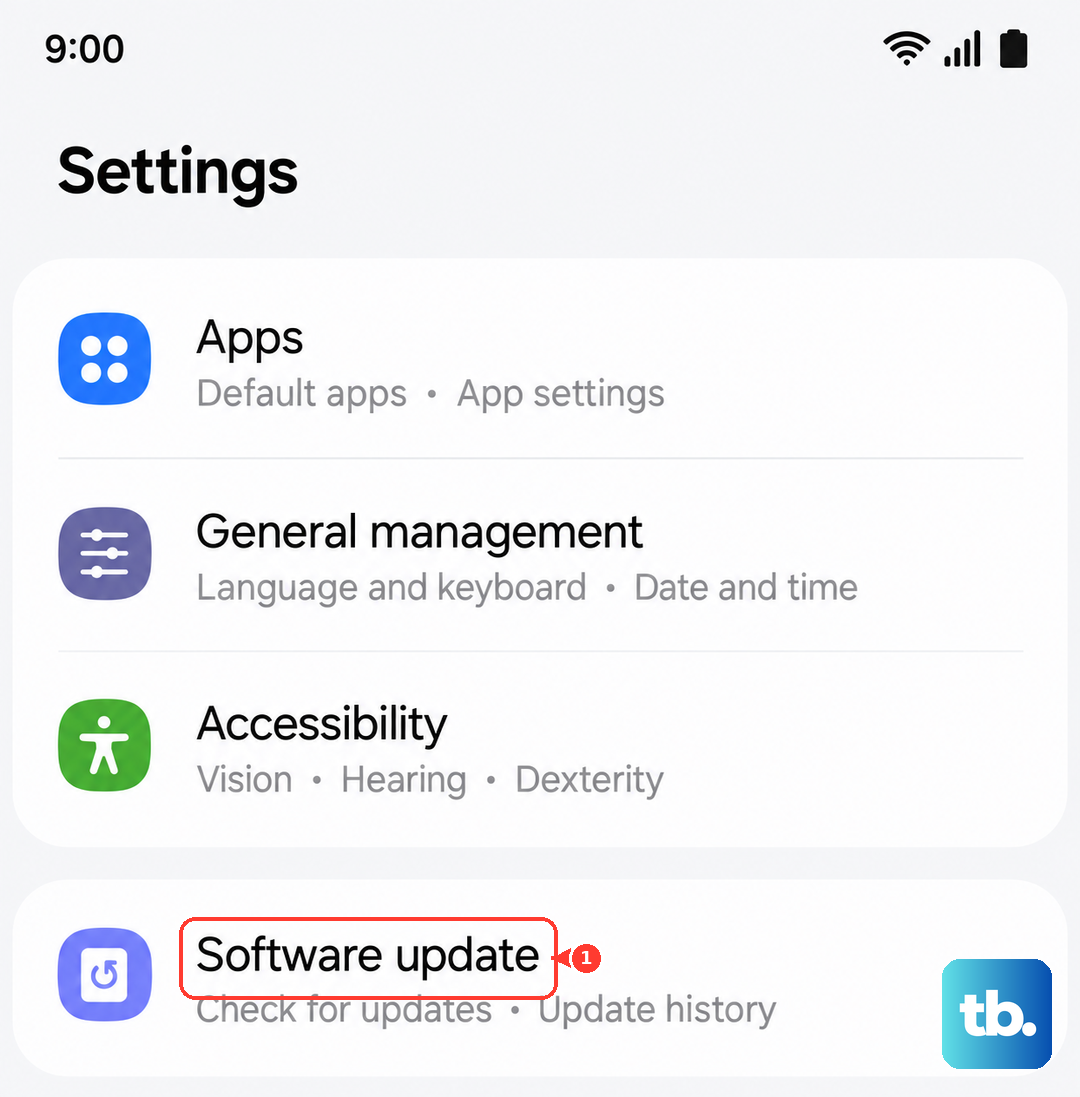
Running outdated software is a surefire way to run into performance bugs. Samsung regularly releases updates that include optimizations and fixes. Check for them by going to Settings > Software update > Download and install.
For your apps, open the Galaxy Store and Google Play Store, tap your profile icon, and look for updates. Keeping everything current ensures you have the latest performance improvements.
Put Unused Apps to Sleep or Deep Sleep
One UI has a great feature to automatically manage apps that drain battery in the background, which also helps with speed. Go to Settings > Battery > Background usage limits.
Here you'll find "Sleeping apps" and "Deep sleeping apps." You can add apps here that you don't need running in the background at all. The system will prevent them from using resources until you open them.
Reduce Animations and Visual Effects
The smooth animations on your phone look great, but they require processing power. Turning them down can make your A56 feel snappier. You'll need to enable Developer Options first by going to Settings > About phone > Software information and tapping "Build number" seven times.
Then, go back to Settings and find Developer options. Scroll down to the "Drawing" section and look for Window animation scale, Transition animation scale, and Animator duration scale. Change each of these from 1x to 0.5x or off completely.
Check for a Moisture Detection Alert
This is a specific issue for Samsung phones, including the A56. If your USB-C port gets damp, a safety feature kicks in that can severely limit charging and sometimes even performance to prevent damage.
You'll usually see a pop-up notification if this is active. If you do, power the phone off completely, dry the port gently with a soft cloth or compressed air, and let it sit for a few hours before trying to turn it on again.
Use a Performance Profile
Your Galaxy A56 has different performance modes you can switch between. The default is usually optimized for a balance. To check, go to Settings > Battery > Performance profile.
You can switch it to "High performance" for a boost, though it will use more battery. For a lighter touch, "Light" mode reduces the phone's maximum performance to save power and can sometimes feel smoother for basic tasks by preventing thermal throttling.
Reset All Settings
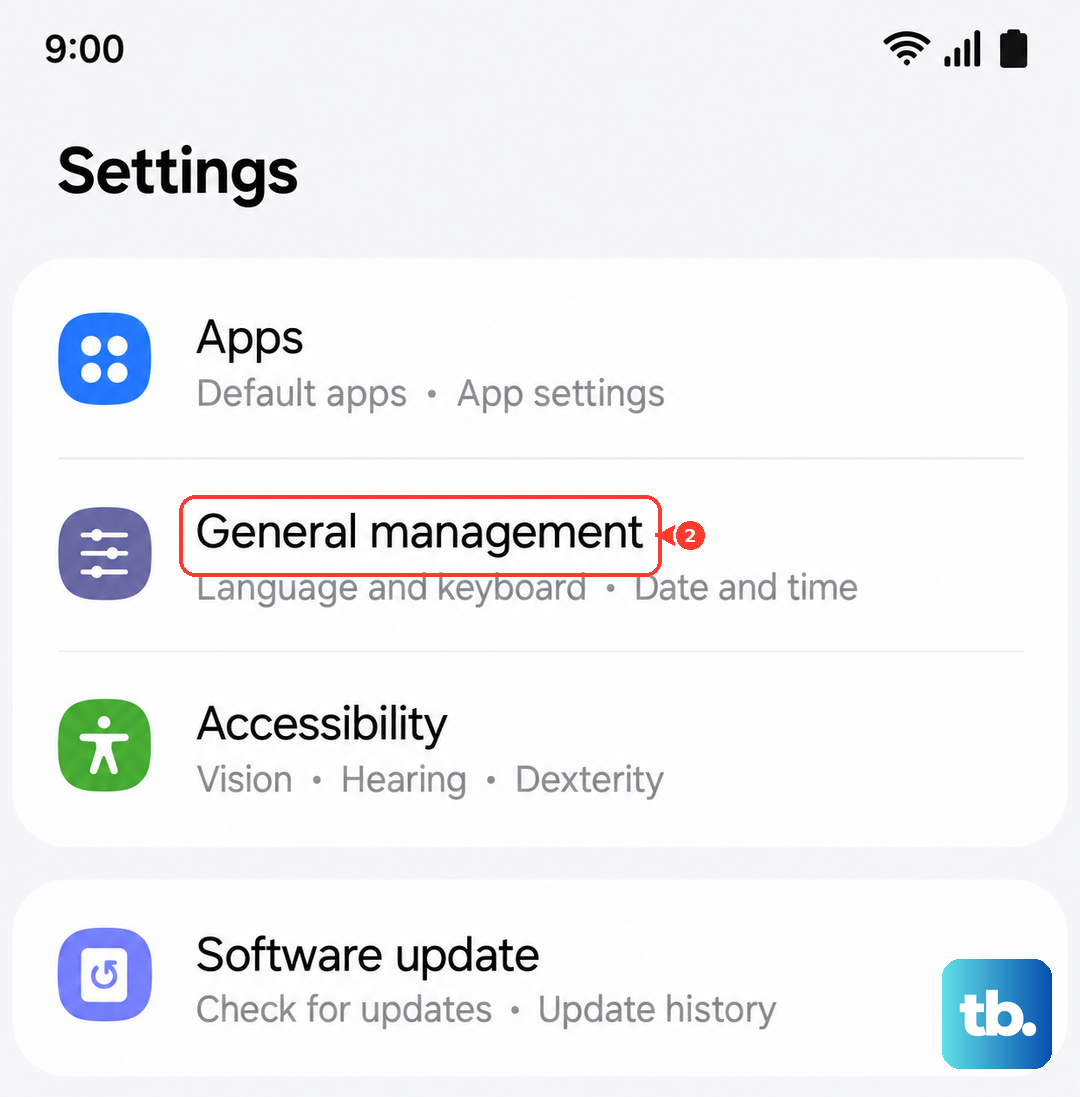
If you've tried everything and the phone is still slow, this is a good next step. It will reset all your system settings (like Wi-Fi passwords, ringtones, and display settings) back to default without touching your personal photos, messages, or apps.
Go to Settings > General management > Reset > Reset all settings. Enter your PIN if prompted and confirm. You'll have to set up your preferences again, but it can clear out any misconfigured setting that's causing a problem.