
When your Samsung Galaxy A56 hotspot keeps dropping the connection, it leaves your laptop or tablet stranded without internet. The disconnects can be frustrating, whether they happen every few minutes or just won't stay connected at all.
Toggle Mobile Hotspot Off and On
Open your Settings and go to Connections > Mobile Hotspot and Tethering. Tap the switch to turn Mobile Hotspot off. Wait about 15 seconds, then turn it back on. This quick reset can clear a temporary software glitch that's causing the service to hiccup and drop connections.
Restart Your Galaxy A56
Press and hold the Volume Down button and the Side key for about 10 seconds until you see the Samsung logo. This force restart is the same method used on the S series and is often the fastest way to refresh your phone's network stack, which directly controls the hotspot.
Check Your Mobile Data Signal
Your hotspot relies entirely on your cellular connection. Pull down the notification shade and look at your signal bars. If you're in an area with weak or fluctuating signal, the hotspot will be unstable. Also, double-check that your specific carrier plan includes mobile hotspot or tethering data, as some budget plans restrict it.
Reset Your Network Settings
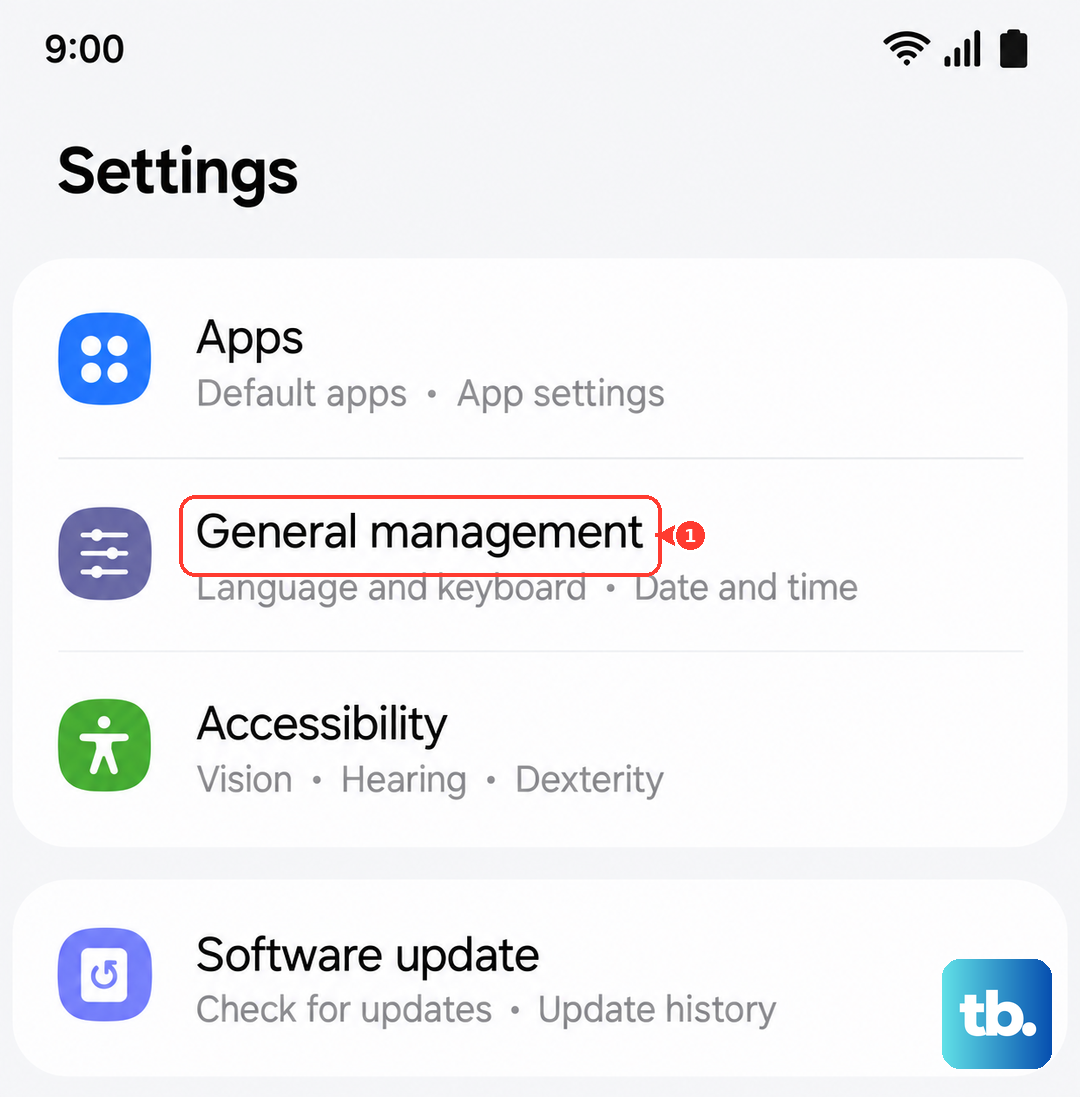
Go to Settings > General Management > Reset > Reset mobile network settings, and if the hotspot still won't work, also tap Reset Wi-Fi and Bluetooth settings in the same menu. This will erase all your saved Wi-Fi networks, Bluetooth pairings, and cellular network preferences. You'll need to reconnect to Wi-Fi and re-pair Bluetooth devices, but it's a very effective fix for persistent connection problems on One UI.
Update Your Phone's Software
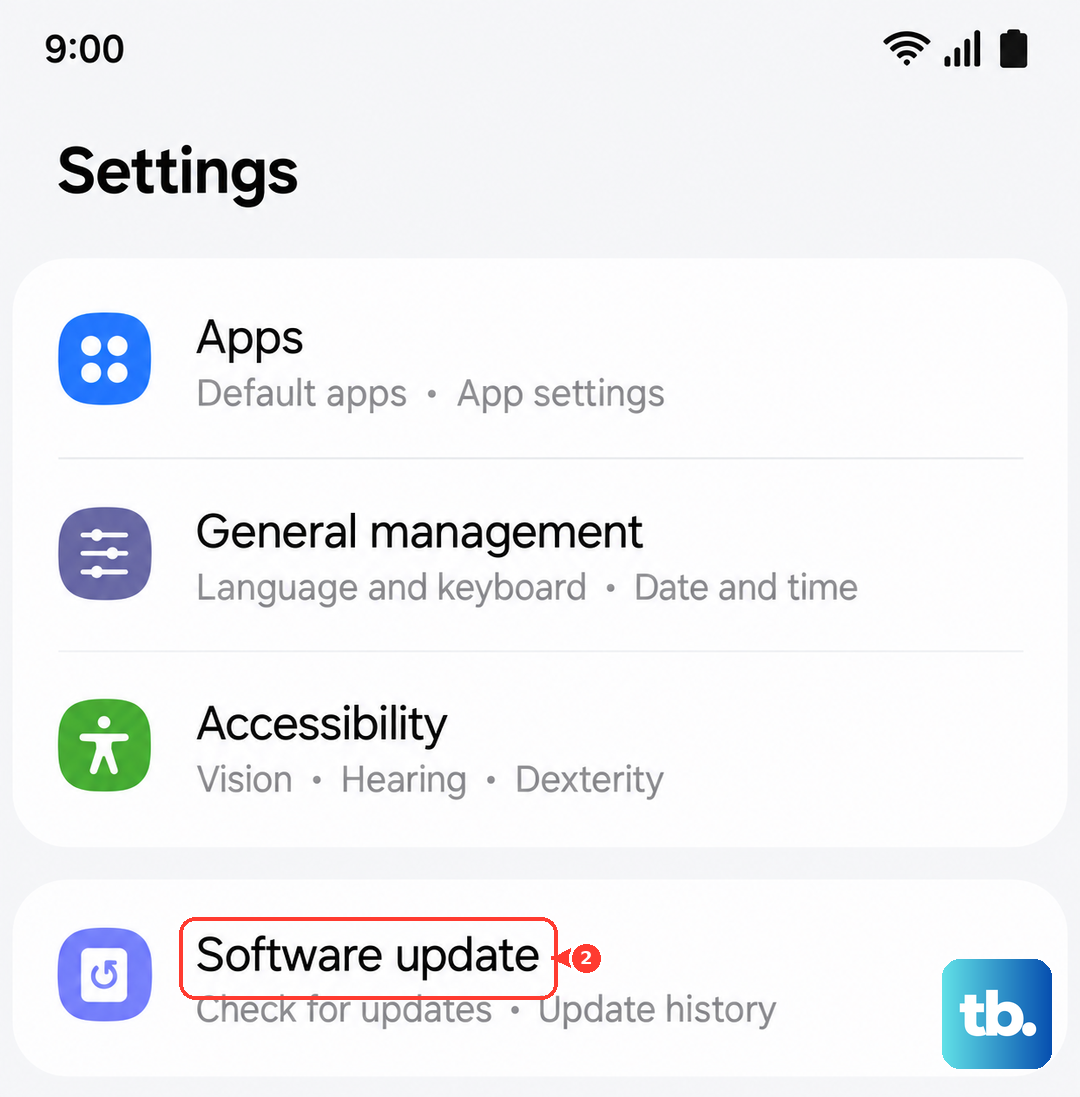
Navigate to Settings > Software update > Download and install. Samsung frequently releases updates for One UI that patch bugs, including those related to network stability and hotspot functionality. Installing the latest update can resolve a known software issue causing your disconnects.
Forget the Network on Your Connected Device
On the laptop or tablet that keeps disconnecting, go into its Wi-Fi settings and find your Galaxy A56's hotspot name. Choose to forget or remove the network. Then, search for available networks again, select your phone's hotspot, and enter the password fresh. A corrupted connection profile on the client device is a common culprit.
Change Your Hotspot Name and Password
In your phone's Mobile Hotspot settings, tap on Mobile Hotspot again to configure it. Change both the Network name (SSID) and the Password to something new. Save the changes. This forces all connecting devices to establish a brand new, clean connection, which can stop the random drops.
Check for USB-C Port Moisture
The Galaxy A56 has a moisture detection feature for its USB-C port. If the phone thinks the port is wet, it can disable certain data functions. A false positive can sometimes interfere. Make sure the port is completely clean and dry. You can try gently blowing into it or using a can of compressed air to clear any debris.
Adjust the Hotspot Timeout Setting
Your hotspot has a power-saving feature that turns it off when no devices are connected. Go to Mobile Hotspot settings > Configure > Turn off hotspot automatically. Try setting this to a longer duration, like 10 minutes, or disable it entirely to see if it stops the premature disconnects during your use.
Try USB Tethering Instead
If the Wi-Fi hotspot remains unreliable, connect your Galaxy A56 to your computer using a USB-C cable. On your phone, enable USB tethering in the same Mobile Hotspot and Tethering menu. This creates a direct, wired internet connection that is often more stable and isn't subject to Wi-Fi interference or range issues.