
When your Samsung Galaxy A55 won't send pictures, it usually comes down to a few common things. The photo might get stuck with a "Sending..." message forever, or it could fail immediately with an error. Let's start with the quickest fix that works for most people.
Check Your Mobile Data or Wi-Fi Connection
This is the most common culprit. If you're trying to send a picture over mobile data, pull down the notification shade and make sure the mobile data icon is active. Sometimes, even with a signal, the data connection can be weak.
If you're on Wi-Fi, try switching to mobile data, or vice versa. A quick test is to open a web page in your browser. If it loads, your connection is good. If not, you've found the problem.
For Wi-Fi issues, try turning your router off for 30 seconds and then back on. For mobile data, toggling Airplane mode on and off can refresh the connection. Just swipe down twice and tap the Airplane icon, wait 10 seconds, and tap it again.
Enable MMS and Data for Your Messaging App
Android requires mobile data to be turned on to send picture messages (MMS), even if you're connected to Wi-Fi. You need to make sure your messaging app has the right permissions.
Go to Settings > Apps, then select your messaging app (like Samsung Messages or Google Messages). Tap Mobile data and ensure "Allow background data usage" is enabled. Also, inside your messaging app's own settings, look for an "MMS messages" or "Group messaging" option and make sure it's turned on.
Clear the Cache for Your Messaging App
Over time, the temporary files stored by your messaging app can get corrupted and cause sending failures. Clearing the cache is a safe first step that won't delete your conversations.
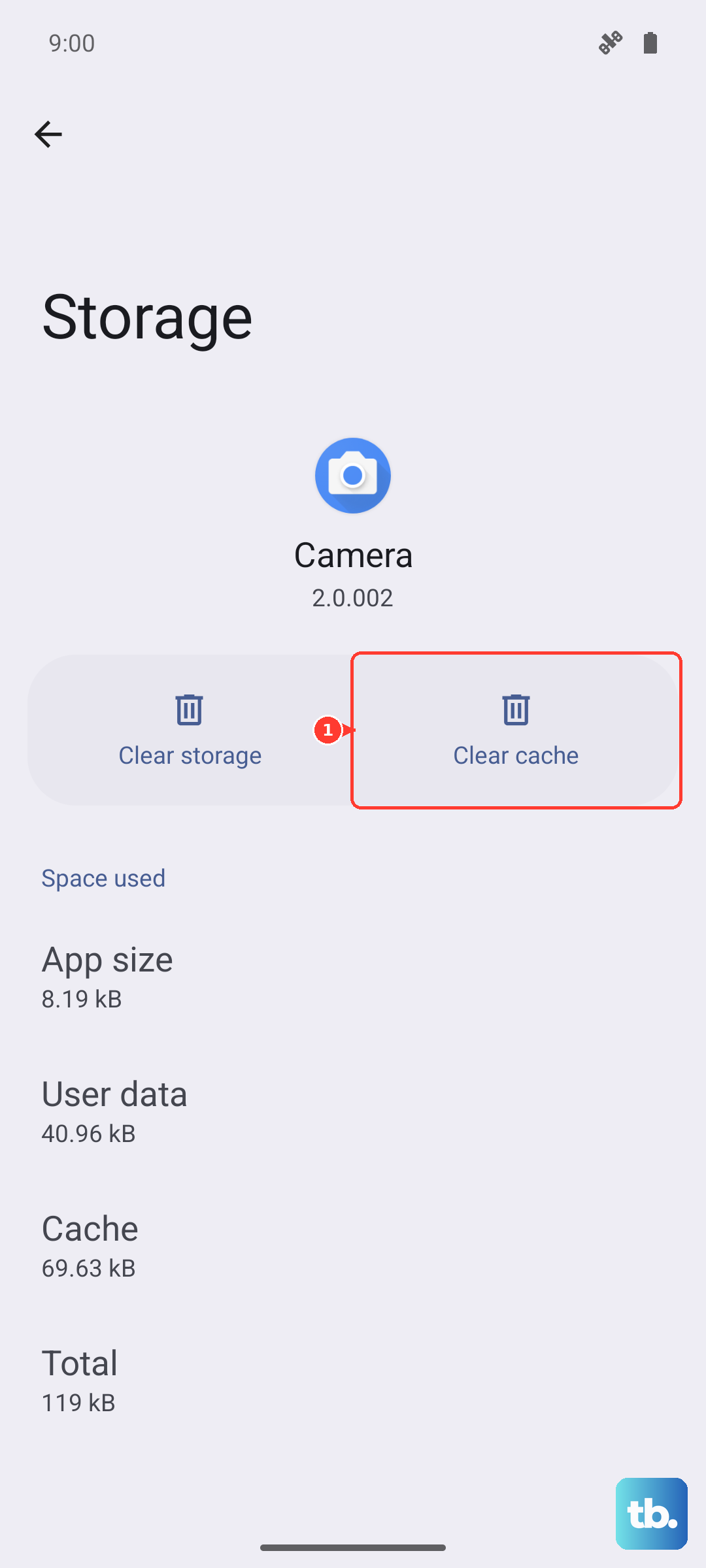
Head to Settings > Apps. Find and tap your messaging app. Select Storage and then tap Clear Cache. After doing this, force close the app by swiping it away from your recent apps screen, then open it again and try sending the picture.
Verify the File Size Isn't Too Large
Mobile carriers often have a size limit for MMS messages, typically around 1MB. If your photo is a high-resolution image straight from the A55's camera, it might exceed this limit.
Before sending, check the file size in your Gallery app. If it's too big, most messaging apps will offer to compress it before sending. You can also manually edit the photo and reduce its size or resolution before attaching it.
Restart Your Samsung Galaxy A55
A simple restart clears out minor software glitches that can interfere with messaging. Press and hold the Side button and Volume Down button for about 10 seconds until you see the Samsung logo appear and the phone reboots.
This force restart method is handy if your phone is feeling sluggish or unresponsive. Once it's back on, open your messages and try sending the picture again.
Check for Software Updates
Outdated software can sometimes cause conflicts with network services. Samsung regularly releases updates that fix bugs, including ones related to messaging.
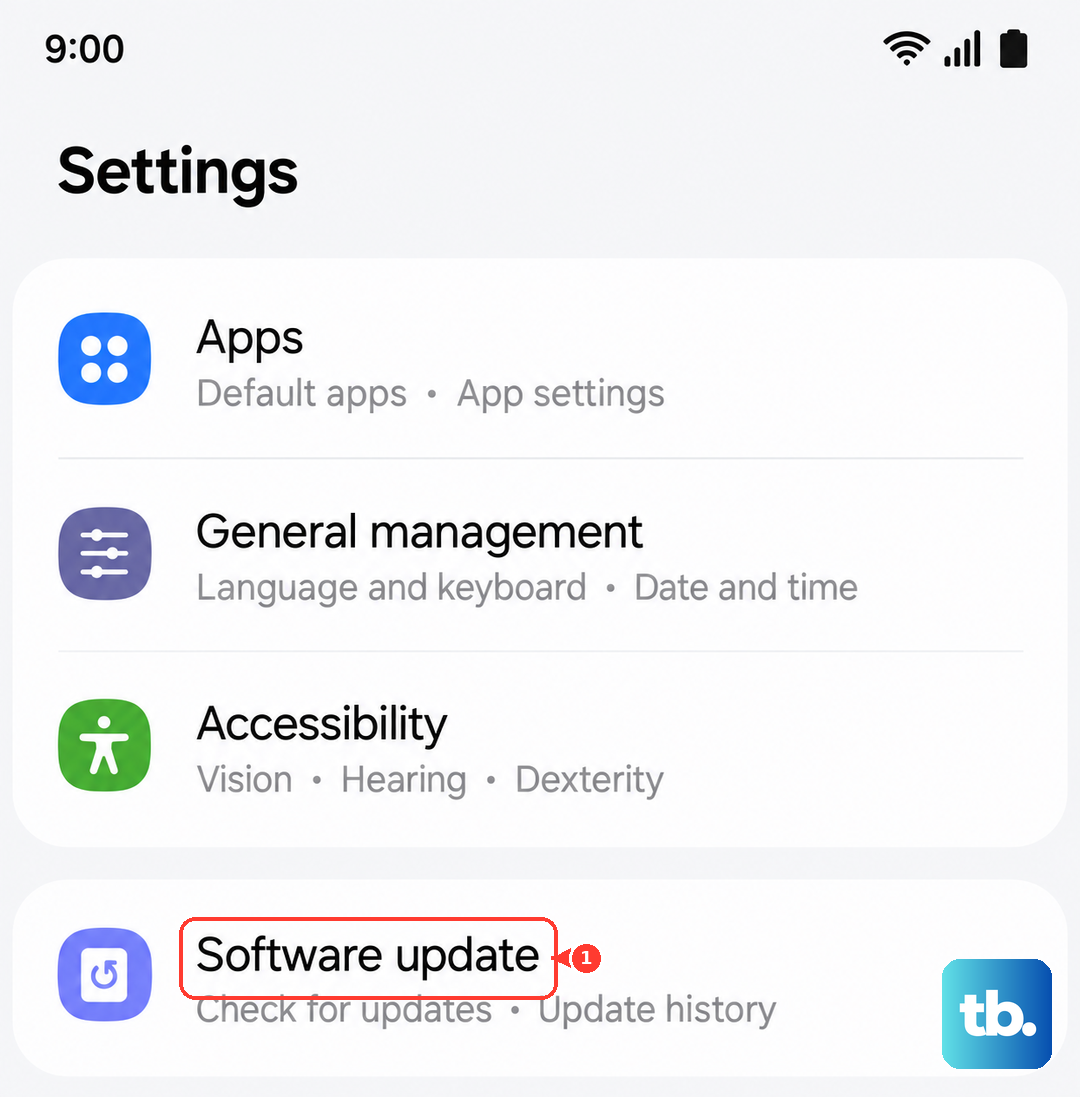
Go to Settings > Software update and tap Download and install. Make sure you're connected to Wi-Fi and have at least 50% battery. Installing the latest One UI update can resolve a lot of unexplained issues.
Reset Your Network Settings
If you're still having trouble, resetting your network settings can fix deeper connection problems. This will erase all saved Wi-Fi networks, Bluetooth pairings, and mobile network preferences, so you'll have to reconnect to them.
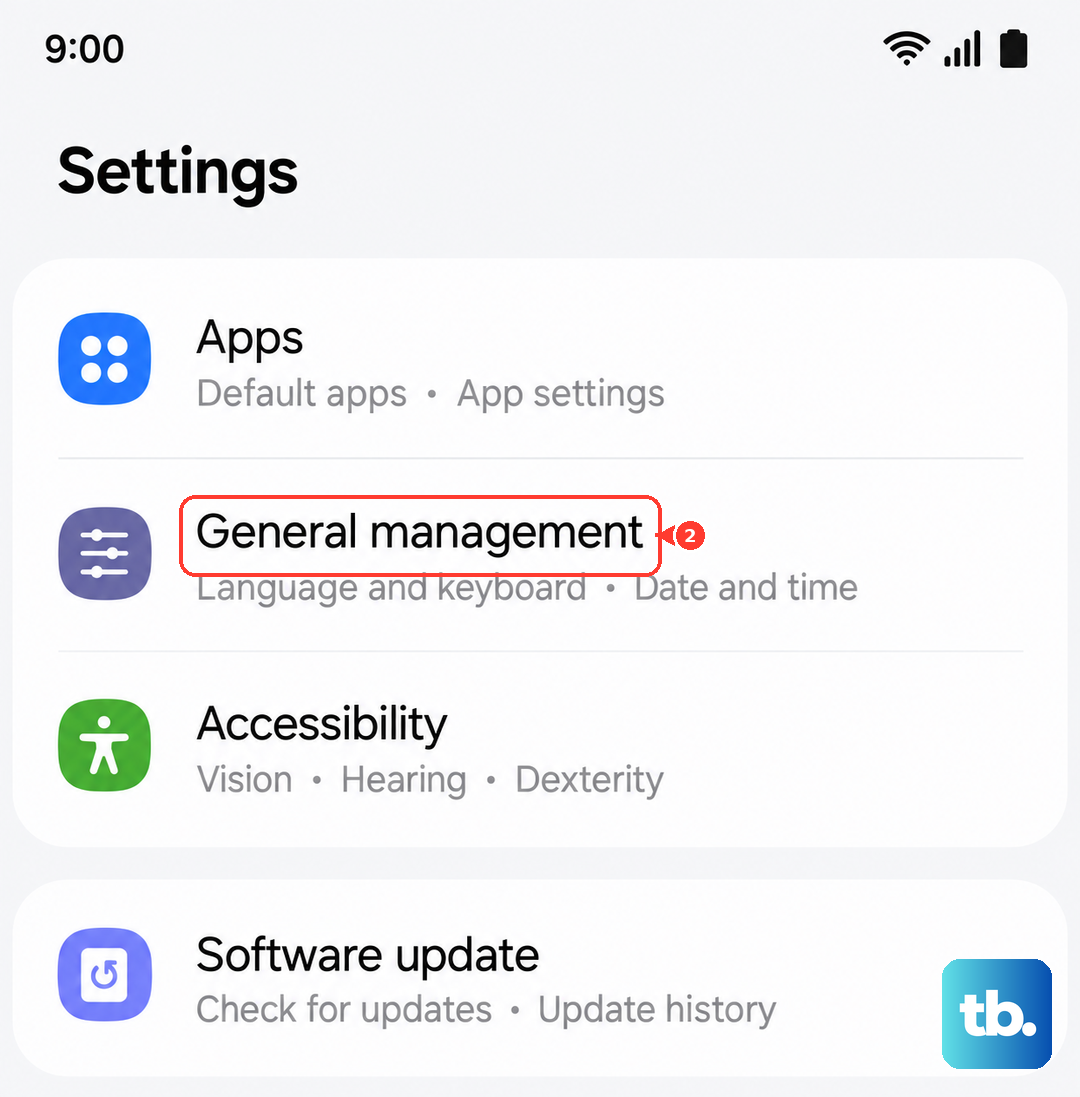
To do this, go to Settings > General management > Reset. Tap Reset network settings and confirm. Your phone will reboot. Afterward, reconnect to your Wi-Fi and try sending the picture.
Try a Different Messaging App
Sometimes the issue is specific to the app you're using. If you're on Samsung Messages, try downloading Google Messages from the Play Store. If you're already using Google Messages, you could try the Samsung app temporarily.
This helps you figure out if the problem is with the app itself or with your phone's system. I've seen cases where simply switching apps gets pictures sending immediately.
Ensure Your APN Settings Are Correct
The Access Point Name (APN) is how your phone connects to your carrier's mobile network. If these settings are wrong, data and MMS won't work properly. You usually don't need to touch this, as it's auto-configured, but it's worth checking.
Go to Settings > Connections > Mobile networks > Access Point Names. Your carrier's APN should be selected (with a filled-in dot). If it looks empty or wrong, contact your carrier for the correct APN details to enter manually.
Check Your SIM Card
A loose or faulty SIM card can cause intermittent data issues. Power off your Galaxy A55 completely. Use the SIM ejector tool that came in the box to pop out the SIM tray.
Gently remove the SIM card, inspect it for any visible damage or dirt, and then re-insert it firmly. Push the tray back in, power on your phone, and wait for it to fully register on the network before testing again.