Your Galaxy A55 5G keeps interrupting you with a "Storage full" warning, and now the camera will not save a photo, an app refuses to update, or a download freezes before it finishes. It is a phone that can fill up faster than you expect: the 128GB version leaves you with roughly 109.5GB of usable space once the system files are accounted for, and high-resolution photos and videos eat into that quickly.
The good news is that nothing is broken. The A55 (model SM-A556) includes the built-in Samsung Device care tools, a Gallery and My Files Trash, per-app cache controls, cloud offload options, and a microSD card slot that accepts cards up to 1TB. The fixes below run from the quickest and safest to the most drastic, so start at the top and stop as soon as your phone has room to breathe.
Find out what is actually eating your space
Before you delete anything, see where the gigabytes are going so you can target the biggest offenders first. This view groups your files by type, so a few large videos usually stand out right away.
Open Settings, tap Device care, then tap Storage.
Review the breakdown by category (Images, Videos, Audio files, Documents).
Touch and hold files to select them, or tap All.
Tap Delete or Delete all, then confirm with Move to Trash.
Anything you remove here moves to the Trash rather than vanishing instantly, which gives you a safety net but also means the space is not reclaimed until the Trash is emptied (covered next).
Clear out photos, videos, and downloads, then empty the Trash
Photos and videos almost always take the most room on a phone like the A55, so they are the highest-value cleanup. Old files left in your Downloads folder are another quiet space drain.
Open the Gallery app, open Albums, then touch and hold the items you want to remove.
Tap Delete, then Move to Trash.
For downloads, open the My Files app, go to Downloads under Categories, select the files, then tap Delete or Delete all and confirm Move to Trash.
Here is the part people miss. Deleted items sit in the Trash until it is emptied, so they keep occupying storage in the meantime. Empty the Trash in Gallery and My Files to actually reclaim that space.
Wipe app caches without losing your data
Apps build up residual and temporary files over time, and clearing that cache frees space without touching your accounts, messages, or settings. Focus on your heaviest apps first, such as your browser, social, streaming, and maps apps.
Open Settings, tap Apps, then select or search for the app.
Tap Storage, then tap Clear cache.
Repeat for your other big space-using apps.
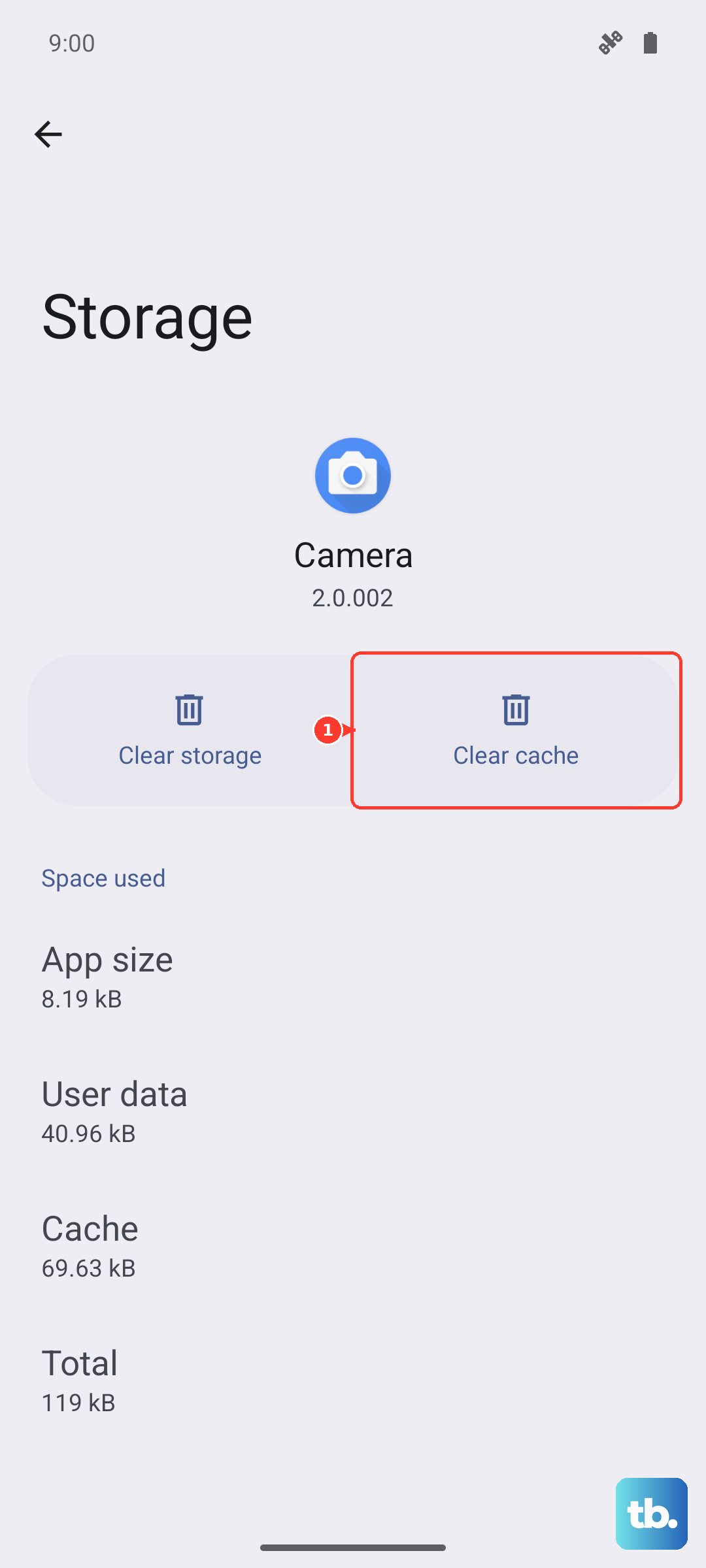
The same screen has a Clear data option, but treat it with caution. Tapping Storage, then Clear data, then Delete resets the app to its factory default, and Samsung warns, "Any personal settings or data saved on the app will be removed." Use it only when clearing the cache alone has not helped.
Let Device care tidy up and free your memory
Samsung's built-in optimizer runs a quick cleanup of the device in a single tap, and it is one of the steps the official support guidance suggests for low storage. Freeing up memory (RAM) separately can also stop background apps that bog the phone down.
Open Settings, tap Device care, then tap Optimize now.
For memory, tap Device care, tap Memory, then tap Clean now.
Clean now frees up RAM and stops background apps, which is useful when the phone feels sluggish alongside the low-storage message.
Remove the apps you never open
Unused apps carry their own data and updates, so removing the ones you do not use is a reliable way to claw back space. Be honest about which apps you have not opened in months.
Touch and hold an app's icon on the Home screen or Apps screen.
Select Uninstall.
Confirm to remove the app and its data.
Shift big files onto a microSD card
The Galaxy A55 5G supports a microSD card up to 1TB (sold separately), which is the simplest way to add lasting space without deleting anything. With a card inserted, you can move photos, videos, and documents off the internal drive.
Open the My Files app.
Touch and hold the files you want to move.
Tap Move, then choose the SD card folder.
Tap Move here.
Moving your largest media collections to the card can free a substantial chunk of internal storage in a single pass.
Send your photos to the cloud and reclaim local space
Backing photos up to the cloud lets your phone keep lightweight thumbnail previews instead of full-size files, which frees device storage while your library stays accessible.
Open the Gallery app, then tap Settings.
Turn on Sync with OneDrive.
Optionally choose which Albums to sync.
One caveat to keep in mind. Samsung has announced that this Gallery and OneDrive sync is being phased out, so treat it as a time-limited option. For ongoing backups, consider Samsung Cloud or another cloud service such as Google Photos.
Restart the phone to clear temporary clutter
A simple restart clears temporary memory and can resolve a storage warning that lingers after a cleanup. If the A55 is responsive, just power it off and back on normally.
If the phone is frozen or unresponsive, use a force restart instead. Press and hold the Power (Side) button and the Volume down button together for more than 7 seconds, until the device turns off and powers back on (it will vibrate and the Samsung logo will appear). A force restart does not erase your data.
Install the latest software update
Software updates can improve how the phone handles storage and overall stability, so it is worth confirming you are current.
Swipe down from the top-right with two fingers, then tap the Settings icon.
Tap Software update.
Tap Download and install (or Check for software updates) and follow the on-screen instructions.
If you would rather update from a computer, Samsung's free Smart Switch app for PC and Mac can handle both backups and software updates.
When nothing else works, back up and factory reset
If the storage problems persist after every step above, a factory reset returns the phone to a clean slate. This erases everything, so back up first with Samsung Smart Switch, Samsung Cloud, or another service before you begin.
- 1.Open Settings, tap General management.
- 2.Tap Reset, then tap Factory data reset.
- 3.Review the information, then tap Reset.
- 4.Tap Delete all.
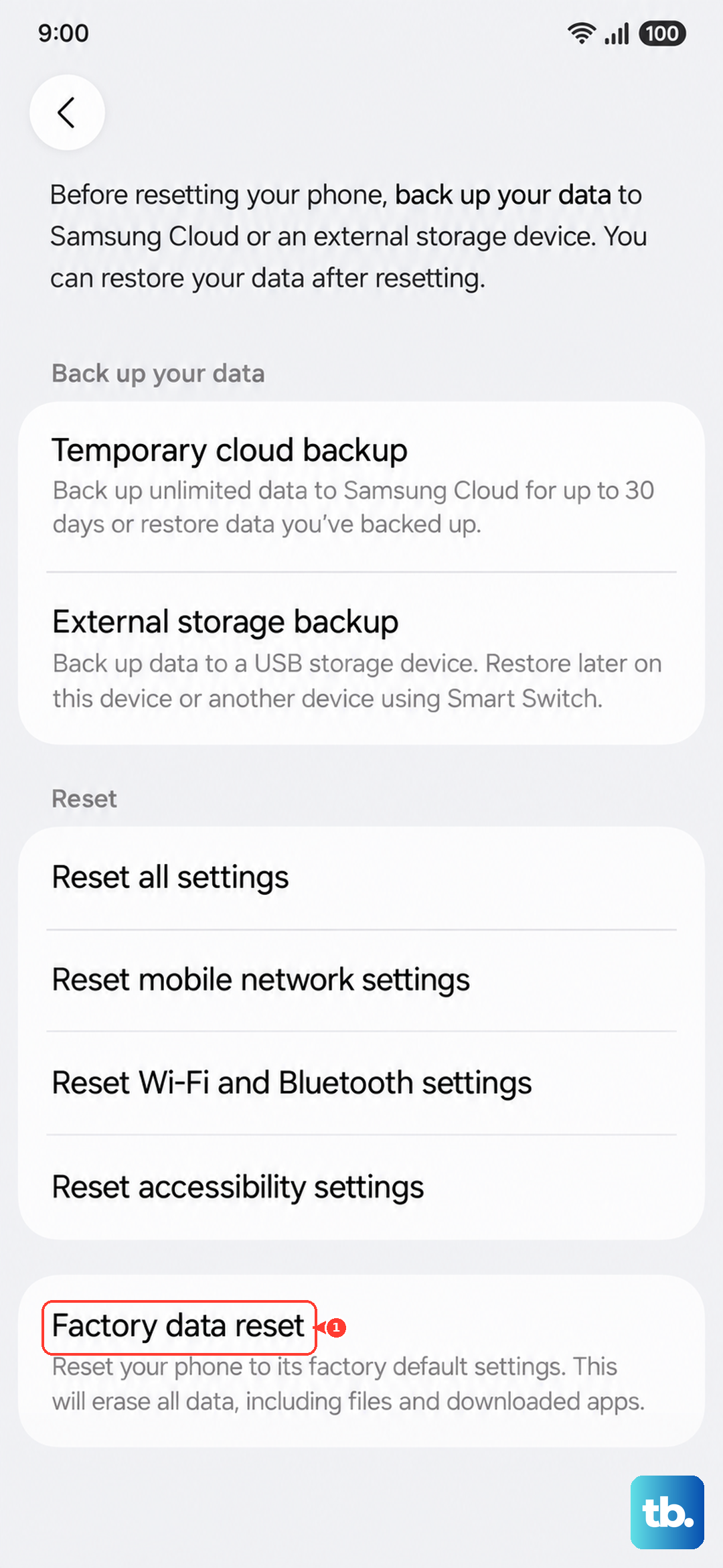
Samsung warns, "Please save any information you need prior to the factory reset because your personal information may not be recovered." The phone restarts to the initial setup screen as a fresh start. If the storage issues continue even after a reset, contact Samsung Support; the Samsung Members app on the phone is a convenient way to reach them.
Frequently Asked Questions
Why does my Galaxy A55 fill up so fast when it has 128GB?
The advertised 128GB is not all available to you. After the operating system and preinstalled software, the 128GB A55 leaves roughly 109.5GB of usable space, and high-resolution photos and videos consume it quickly. Moving media to a microSD card or the cloud is the most lasting way to keep room free.
Does clearing an app's cache delete my photos or messages?
No. Clearing the cache only removes temporary and residual files, leaving your accounts, settings, and personal data intact. The separate Clear data option is the one to be careful with, since Samsung notes it removes any personal settings or data saved in the app.
Will moving files to a microSD card free up internal storage?
Yes. The A55 5G accepts a microSD card up to 1TB (sold separately), and using My Files to move photos, videos, and documents to the card shifts them off the internal drive, freeing that space for the system and your apps.
Is it safe to force restart the A55 when it is frozen?
Yes. Holding the Power (Side) and Volume down buttons together for more than 7 seconds restarts the phone without erasing any data. It simply clears temporary memory and brings the device back when it is unresponsive.
Should I factory reset just to fix a storage warning?
Treat a factory reset as a last resort, only after the other fixes have failed. Because it erases everything and your personal information may not be recoverable, back up with Smart Switch or a cloud service first; if problems remain afterward, contact Samsung Support.