
When your Samsung Galaxy A55 won't send text messages, it's incredibly frustrating. You might see a "Message not sent" error, a stuck "Sending" status, or just a red exclamation point. The good news is that a quick fix usually gets things moving again.
Restart Your Phone
This is the simplest and most effective first step. A quick restart clears out temporary software glitches that can hang up the messaging app or your network connection. Just press and hold the Volume Down button and the Side button together for about 10 seconds until you see the Samsung logo appear.
Your phone will force restart. Once it's back on, try sending a message again. I've found this resolves the issue about half the time, especially if the problem just started.
Check Your Mobile Data and Signal
Text messages (SMS) need a cellular signal, and picture messages (MMS) require mobile data to be turned on. First, look at the signal bars in the top right corner of your screen. If you have one bar or less, try moving to a different location.
You can also refresh your connection instantly. Swipe down twice from the top of your screen to open the Quick Settings panel. Tap the Airplane Mode icon to turn it on, wait about 10 seconds, then tap it again to turn it off. This reconnects you to the nearest cell tower.
Verify Your Mobile Data is On for MMS
If you're trying to send a picture or a group text and it's failing, your mobile data might be off. MMS messages don't send over Wi-Fi, they require your cellular data connection. Pull down your notification shade and make sure the Mobile Data icon is active.
You can also check in your settings. Go to Settings > Connections > Data usage and ensure the "Mobile data" switch at the top is turned on. Without this, any message that isn't a plain SMS will fail.
Clear the Messages App Cache
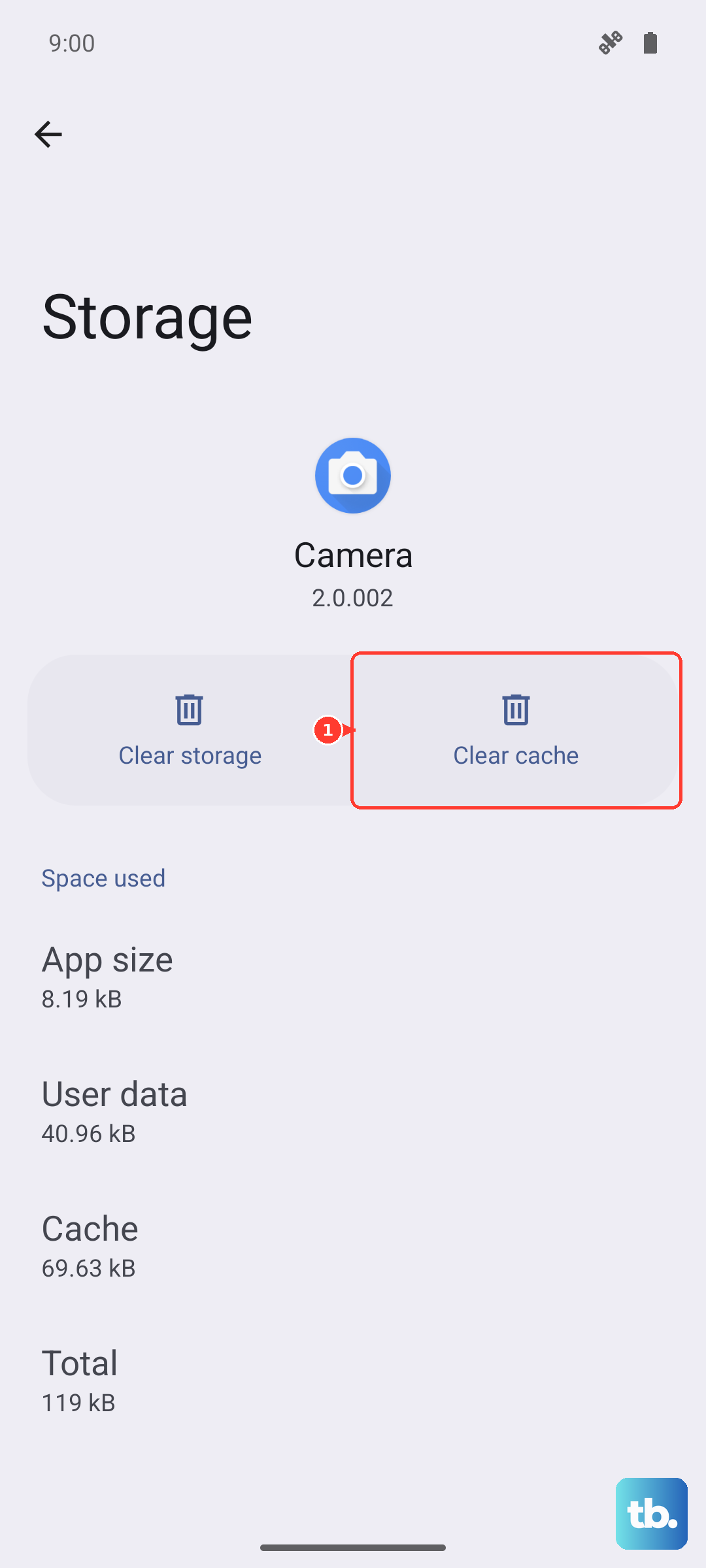
The Samsung Messages app stores temporary data that can sometimes become corrupted. Clearing this cache won't delete your conversations, but it can fix sending errors. Go to Settings > Apps, then find and tap on Messages.
Tap on Storage, and then tap Clear cache. Don't select "Clear data" unless you're prepared to potentially lose your message history. After clearing the cache, open the Messages app and try sending again.
Check the Recipient's Number and Block List
If messages are failing to just one person, double-check you have the correct phone number entered. Also, you might have accidentally blocked them. Open the Messages app, tap the three-dot menu in the top right, and go to Settings > Block numbers and spam.
Review the list under "Blocked numbers." If the person is there, tap the minus (-) icon next to their number to unblock them. After removing them, try sending your message again.
Reset Your Network Settings
This step clears all your saved Wi-Fi networks, Bluetooth pairings, and cellular network preferences, then restores them to default. It's a powerful fix for persistent messaging problems. Go to Settings > General management > Reset.
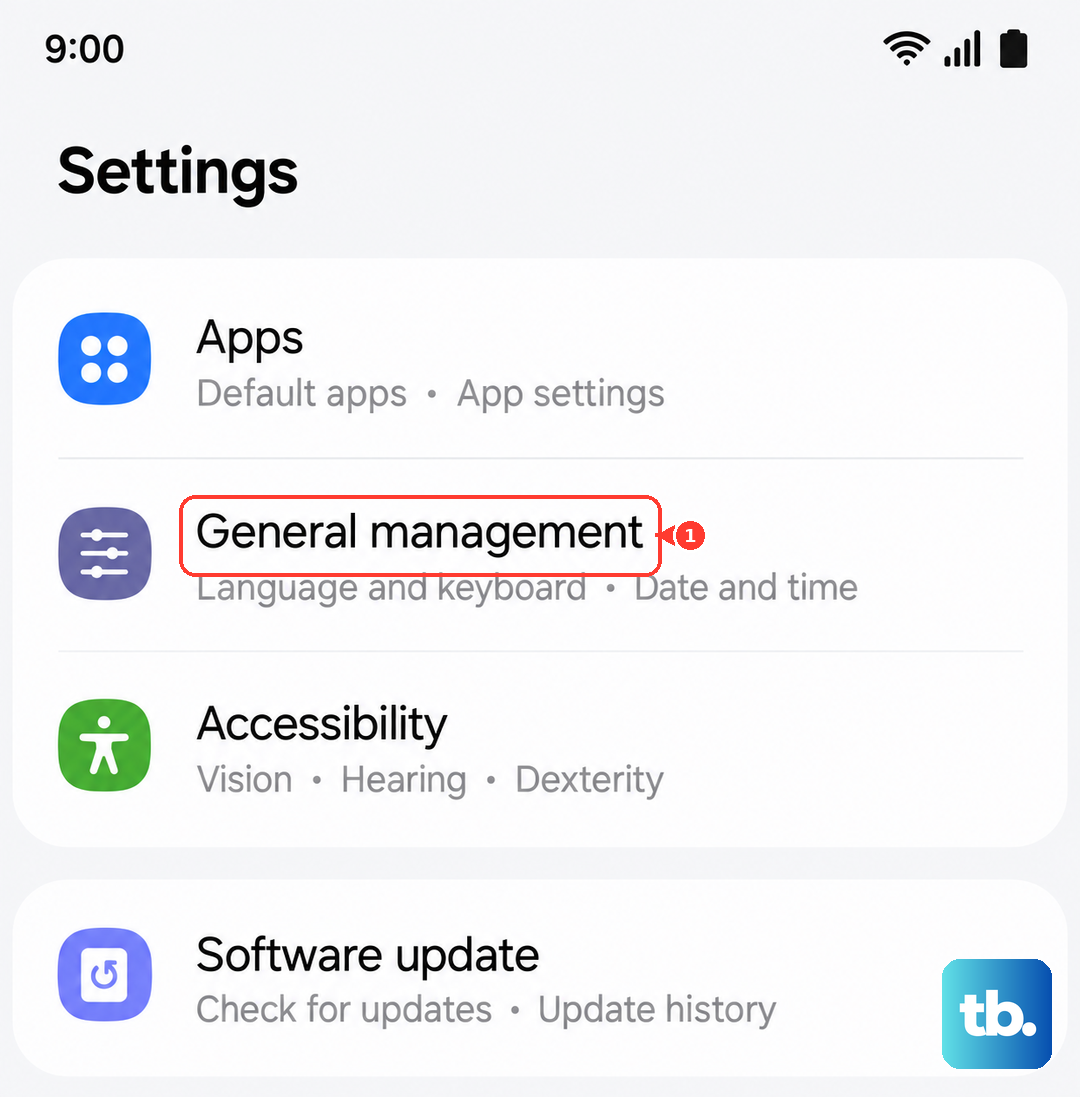
Tap on Reset network settings. You'll need to confirm your PIN or password. After the reset, your phone will reboot. You'll have to reconnect to Wi-Fi networks and re-pair Bluetooth devices, but this often resolves deep-seated connection issues.
Update Your Software and Carrier Settings
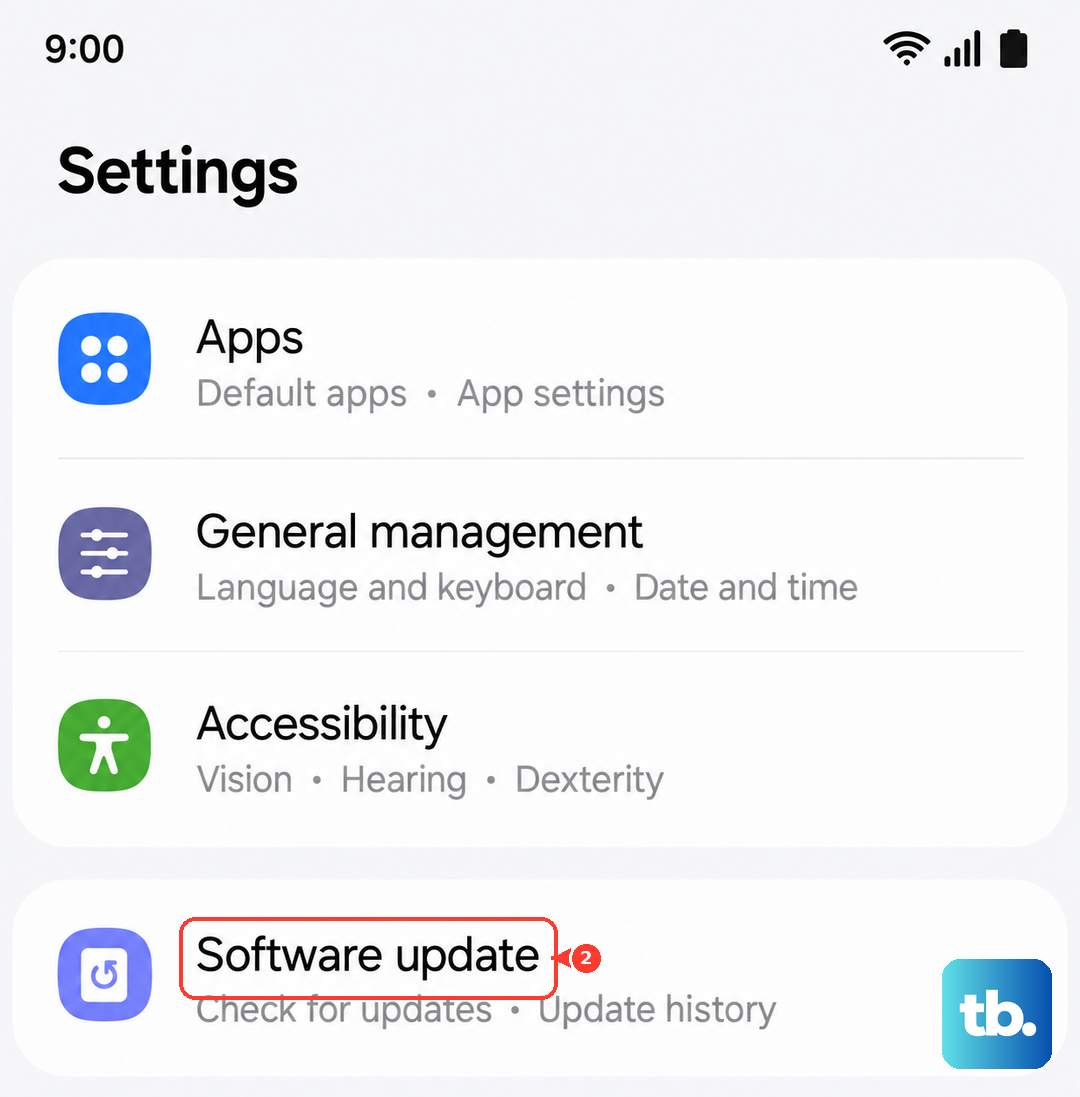
An outdated version of Android or One UI can have bugs that affect messaging. Go to Settings > Software update and tap Download and install. Install any available updates.
Carrier settings updates are smaller files from your mobile provider that fine-tune network connectivity. These sometimes install automatically, but you can check. Go to Settings > General management > Reset and see if "Reset carrier settings" is an option. If it is, your phone has received an update.
Try a Different Messaging App
To rule out a problem with the Samsung Messages app itself, try installing a different app like Google Messages from the Play Store. Set it as your default, give it the necessary permissions, and see if you can send texts from there.
If the third-party app works, the issue is likely with your stock Messages app. You can continue using the new app, or you can go back to the Samsung app after clearing its data (remember, this may delete your message history).
Reinsert Your SIM Card
A loose or dirty SIM card can cause intermittent network and messaging problems. Turn off your Galaxy A55 completely. Locate the SIM tray on the bottom edge of the phone and use the ejector tool that came in the box to open it.
Remove the SIM card, gently wipe the gold contacts with a soft, dry cloth, and then reinsert it firmly. Close the tray and power your phone back on. This re-establishes a fresh connection with your carrier's network.
Contact Your Mobile Carrier
If you've tried everything else, the problem might be on your carrier's end. There could be a network outage in your area, or there might be an issue with your specific account, like a suspended messaging feature.
Give your carrier a call or use their online support chat. Ask them to check if there are any known issues and to verify that SMS and MMS services are fully active on your line. They can often refresh your connection on their side, which can solve the problem immediately.