If your Samsung Galaxy A55 shows a "Not registered on network" error, you're stuck without calls, texts, or mobile data. This means your phone can't properly identify itself to your carrier's cell towers. Before you worry about a hardware problem, there are several straightforward things you can try to get back online.
Start with the simplest fix. Swipe down twice from the top of your screen to open the Quick Settings panel and tap the Airplane Mode icon. Wait about 10 seconds, then tap it again to turn it off. This forces your phone's cellular radio to disconnect and reconnect, which often clears up a temporary registration glitch.
Restart Your Galaxy A55
A full restart is different from just turning the screen off and on. It clears the phone's working memory and reloads all the system software, including the modem that handles network connections. Just press and hold the Side button and Volume Down button together for about 10 seconds until you see the Samsung logo. Let the phone boot up completely before checking for service.
Check Your SIM Card
Power your phone off completely. Use the SIM ejector tool (or a small paperclip) to pop out the SIM tray on the top edge. Take out the SIM card and inspect the gold contacts for any dirt or damage. Give both the card and the slot a gentle blow to remove dust, then carefully reseat the SIM. Make sure it's sitting flush in the tray before you slide it back in. A loose or dirty connection is a common culprit.
Verify Your Carrier Account
Sometimes the issue isn't your phone at all. If your prepaid plan has run out of credit or your postpaid bill is overdue, your carrier will suspend service, which shows as a network registration error. I'd check this before diving into complex phone settings. Use another phone to call your carrier's support or log into your account online to confirm everything is active and paid up.
Update Your Phone's Software
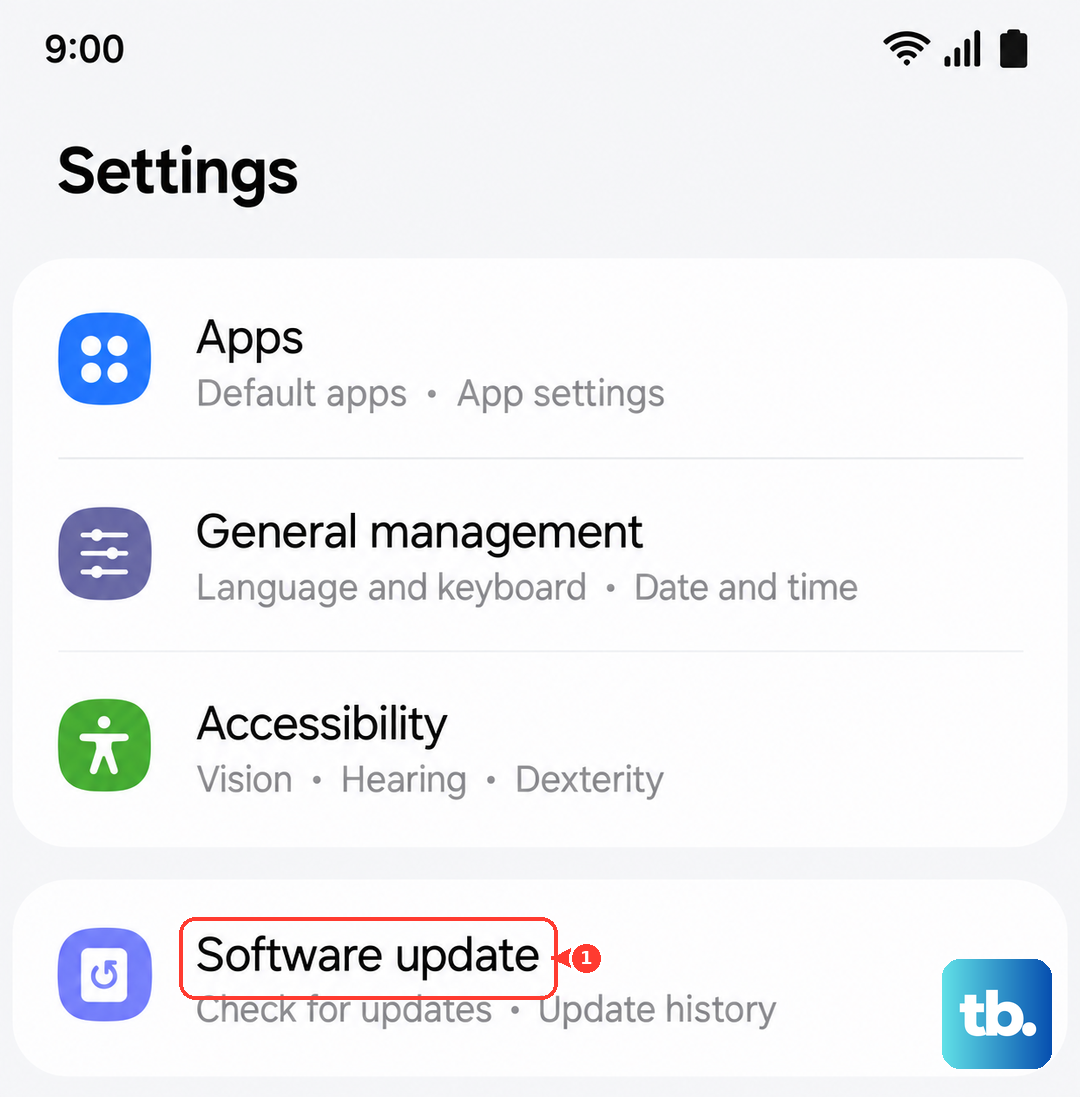
Samsung regularly releases updates for the Galaxy A55 that fix bugs, including ones related to network connectivity. Running outdated software can cause these exact problems. Go to Settings > Software update and tap Download and install. If an update is available, let it install completely. Your phone will restart, and it's worth checking your signal immediately after.
Reset the Network Settings
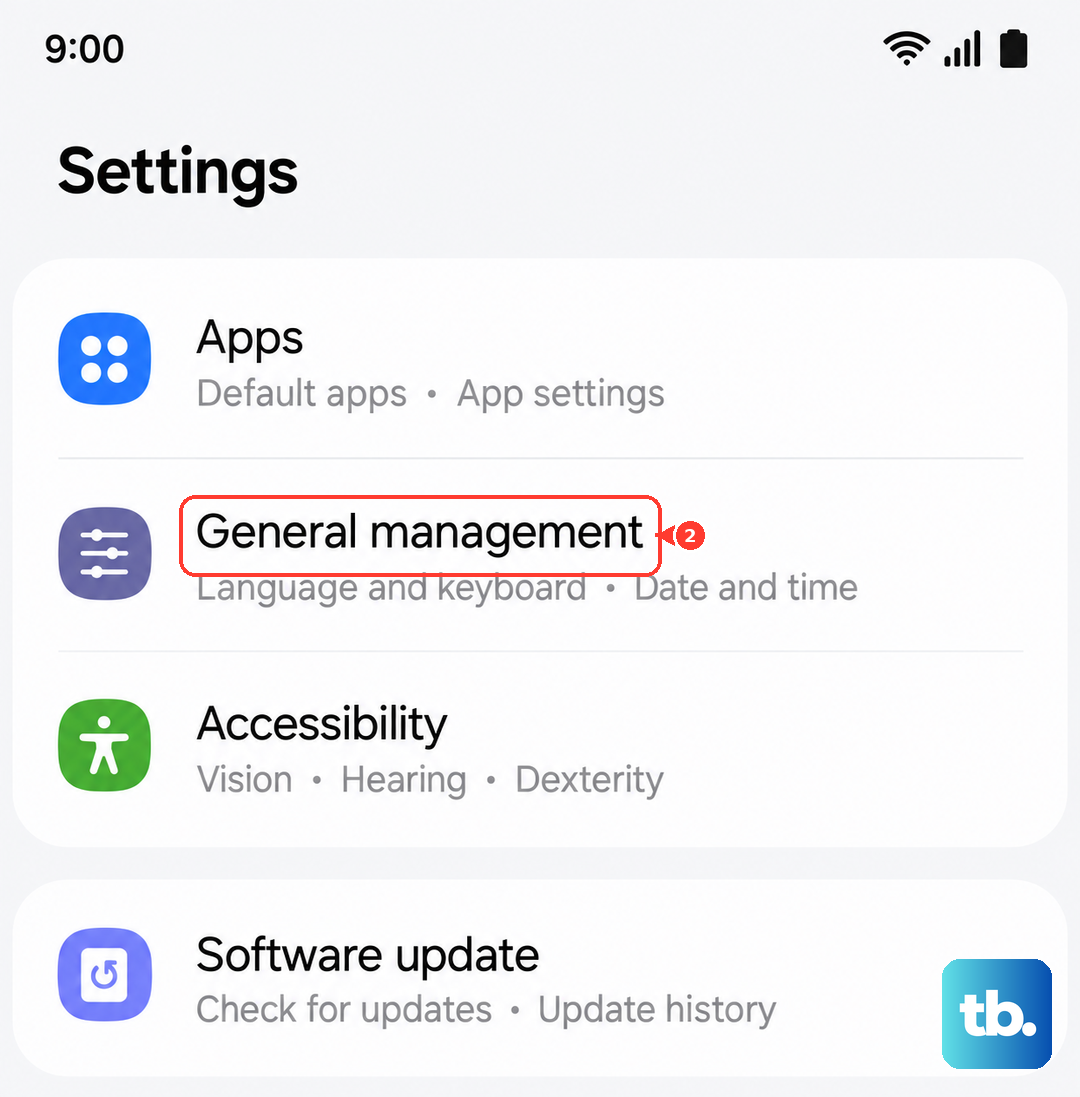
This step clears all your saved network configurations without touching your personal data. It wipes your Wi-Fi passwords, Bluetooth pairings, and cellular network preferences, forcing your phone to rebuild them from scratch. On your A55, go to Settings > General management > Reset > Reset network settings. Tap to confirm, and your phone will restart. You'll need to rejoin your Wi-Fi networks afterward.
Manually Select Your Network Operator
Your phone might be trying to automatically connect to a network that's having temporary issues. You can force it to search for and pick your carrier manually. Open Settings > Connections > Mobile networks > Network operators. Tap Search now, wait for the list to populate, and then select your specific carrier's name from the list. This can establish a more stable connection.
Change the Network Mode
If you're in an area with spotty 5G coverage, your A55 might struggle to register on that band. Switching to LTE can often provide a more reliable connection. Navigate to Settings > Connections > Mobile networks > Network mode. Try selecting LTE/3G/2G (auto connect) instead of the 5G option. If your service comes back, you know the issue is related to the 5G signal in your location.
Clear the Phone Services Cache
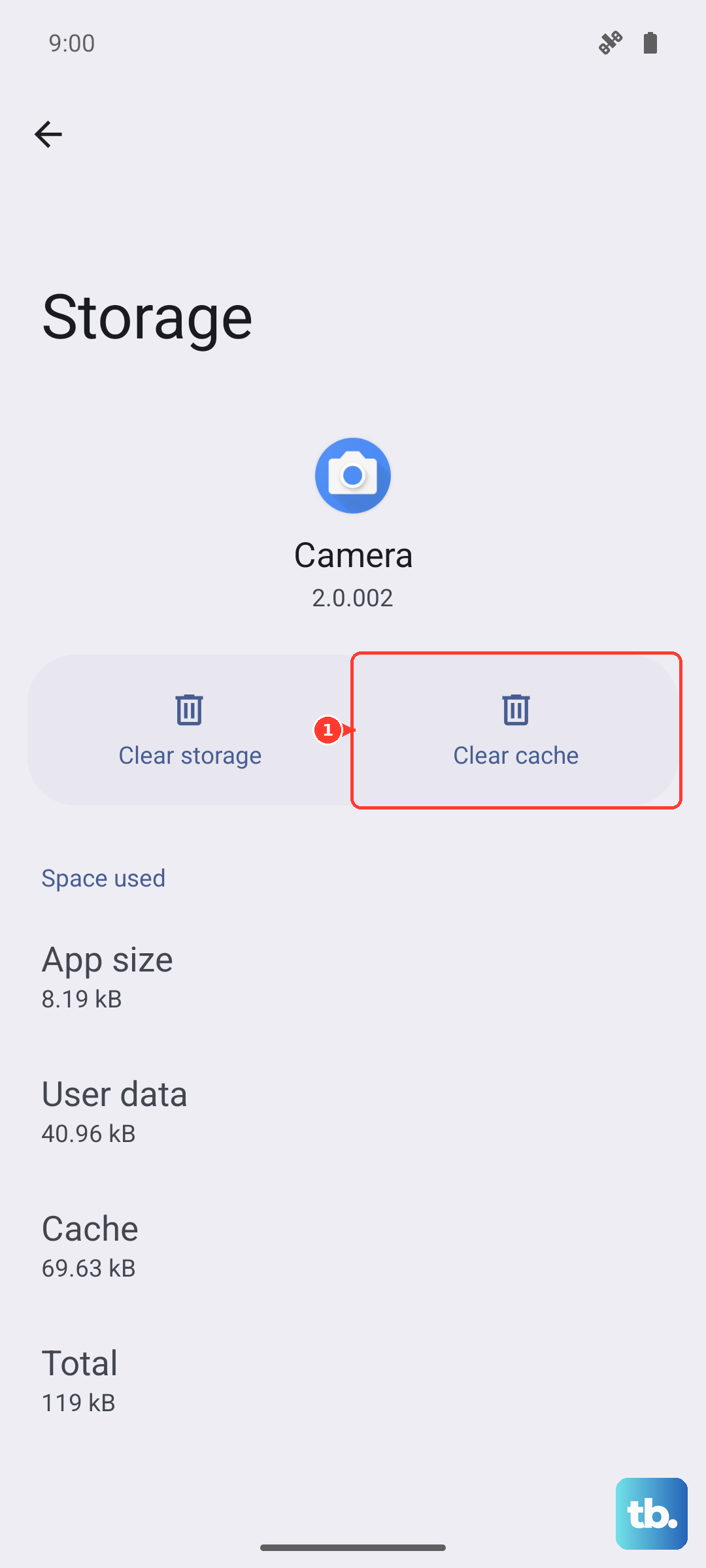
The app that manages your calls has its own cache of temporary data, which can sometimes become corrupted. Go to Settings > Apps, tap the three-dot menu in the top right, and select Show system apps. Scroll down and find Phone Services. Tap on it, then go to Storage and hit Clear Cache. This doesn't delete any of your contacts or call logs.
Test With a Different SIM Card
This is a great way to figure out if the problem is with your SIM or the phone itself. If you can borrow a friend's or family member's SIM card (from the same carrier, if possible), pop it into your Galaxy A55. If their SIM card connects to the network without any trouble, then your original SIM card is likely faulty and you need to get a replacement from your carrier. If the borrowed SIM also fails, the issue is with your phone.
Perform a Factory Reset
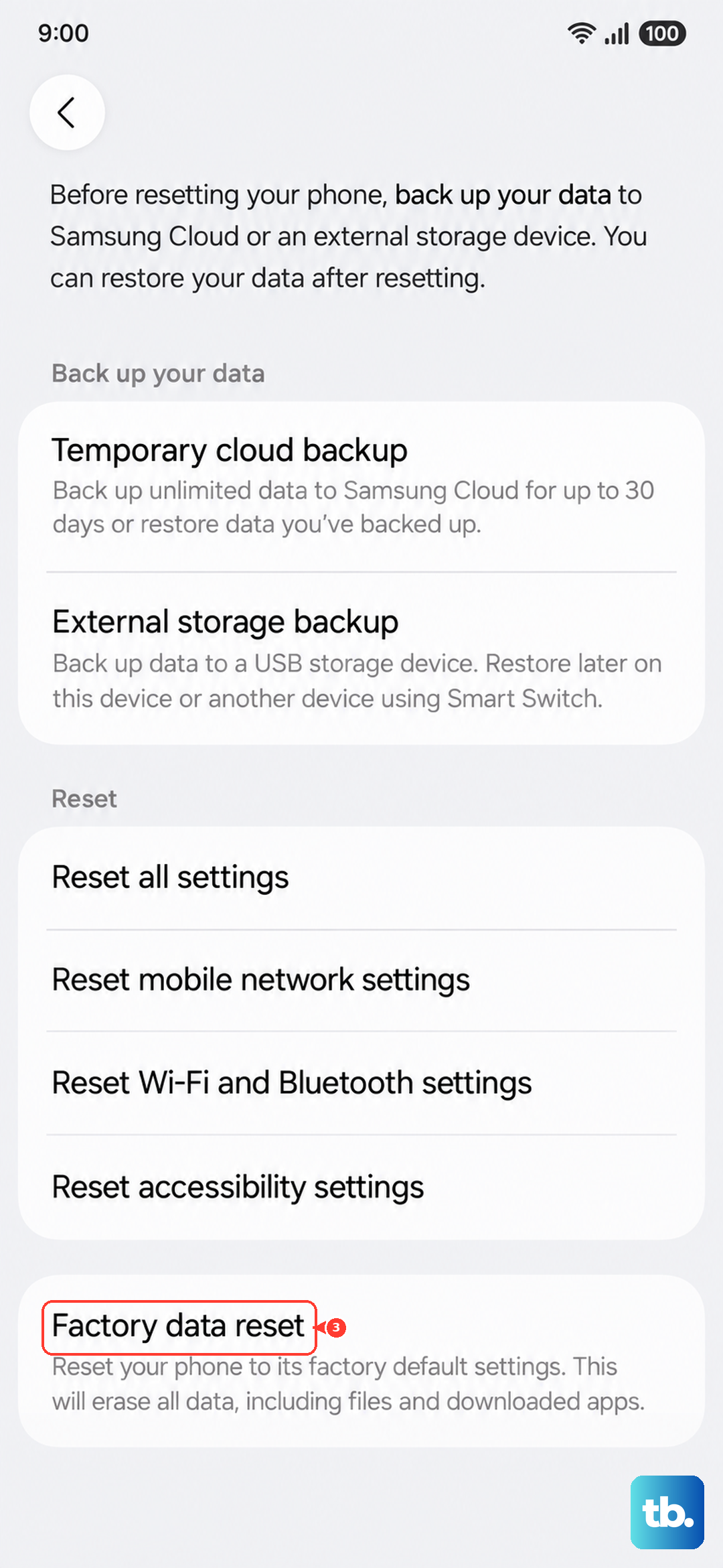
Consider this your last resort before seeking repair. A factory reset will erase all your personal data, apps, and settings, returning the phone to its out-of-the-box state. It can eliminate any deep-seated software corruption. First, make sure everything important is backed up to your Samsung account or Google Drive. Then, go to Settings > General management > Reset > Factory data reset. Follow the prompts to erase everything. After the phone restarts, go through the setup and see if the network error is gone before you restore your data.