
If you're staring at a "Message not sent" or "MMS sending failed" error on your Samsung Galaxy A55, it's a common but fixable headache. The issue usually comes down to your data connection, a setting in the Messages app, or how your phone is talking to your carrier's network. Let's get those pictures and group chats working again.
Start With Mobile Data and a Quick Restart
MMS messages, which include photos, videos, and group texts, can't send over Wi-Fi alone. They need an active mobile data connection. First, pull down the notification shade and make sure the mobile data icon is on. If you have a strong signal but it's still failing, a simple restart can clear out a temporary software hiccup. Just hold the Volume Down and Side button together for about 10 seconds until the Samsung logo appears.
Verify Your MMS Settings in Samsung Messages
The Samsung Messages app has specific settings for multimedia. Open the app, tap the three dots in the top right, and go to Settings. From there, select Multimedia messages. Make sure "Auto download" is turned on. If you're traveling, you might also want to enable "Roaming auto download," but be mindful of potential charges.
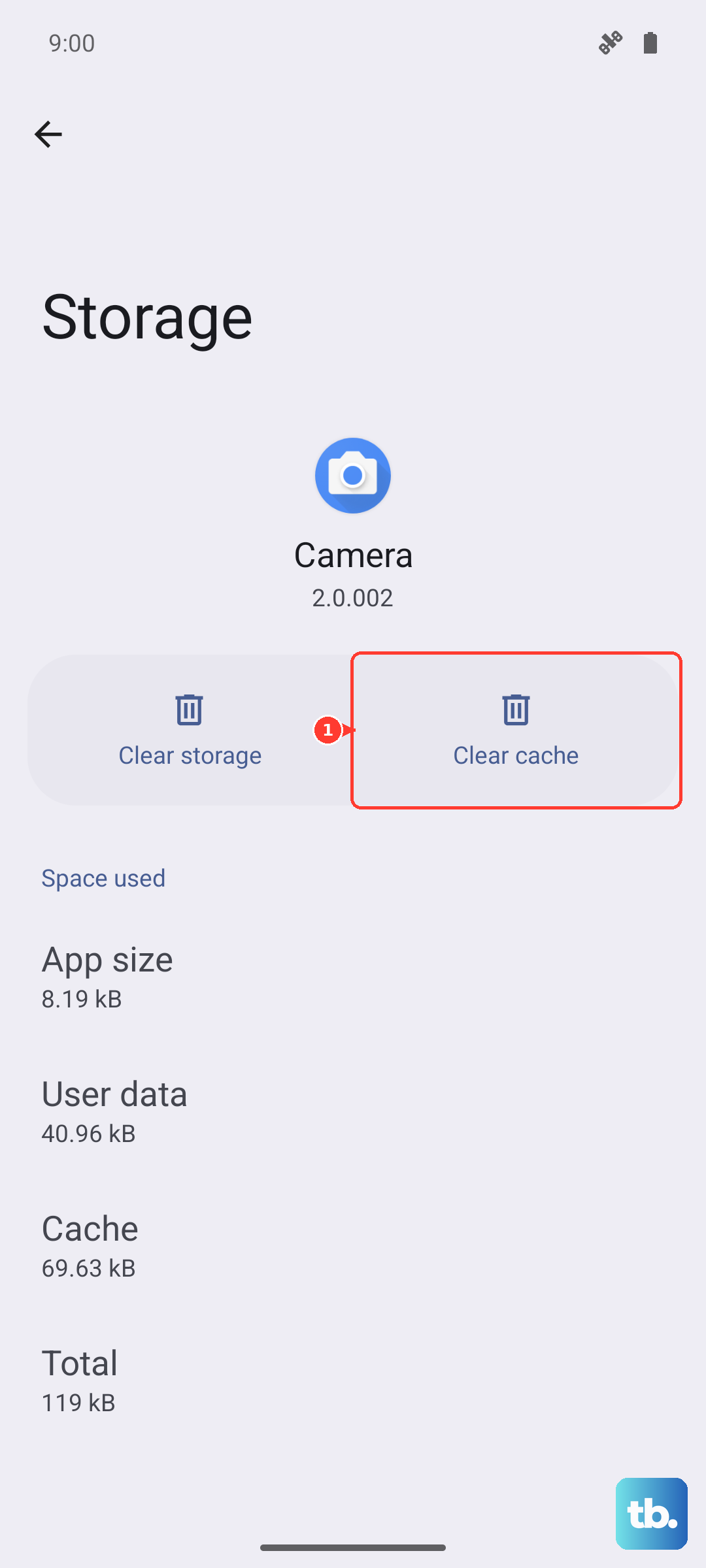
Sometimes, the app itself gets confused by old cached data. You can fix this without losing your messages. Go to your phone's main Settings > Apps, then find and select Messages. Tap Storage and hit Clear cache. This just dumps temporary files. If the problem persists, you can try Clear data, but know this will erase your message history within the app.
Check Your APN Configuration
This is a very common culprit. The Access Point Name (APN) tells your phone exactly how to connect to your carrier's network for data and MMS. An incorrect setting here will block multimedia messages every time.
To check, go to Settings > Connections > Mobile networks > Access Point Names. You should see a list of APNs, with one selected (usually your carrier's name). If this list is empty or looks wrong, you'll need the correct settings from your carrier. A quick web search for "[Your Carrier] APN settings 2024" or a call to their support will get you the details to enter manually.
Reset Your Network Settings
If you've checked the APN and mobile data and things still aren't working, a network reset can often solve deeper connection glitches. This will wipe all your saved Wi-Fi networks, Bluetooth pairings, and mobile data settings back to factory defaults.
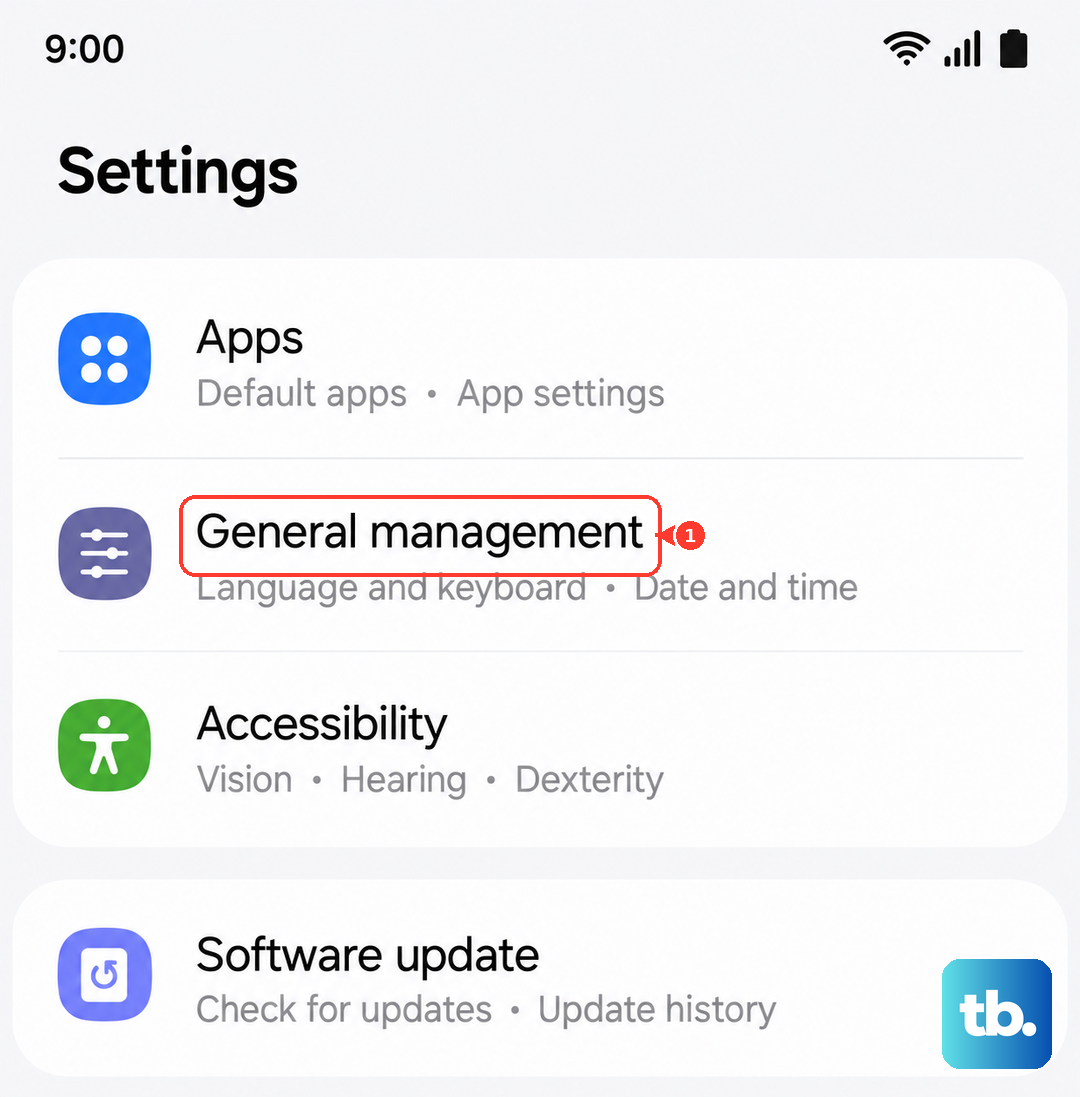
You can find this option at Settings > General management > Reset > Reset network settings. Tap to confirm, and your A55 will restart. After it boots up, you'll just need to reconnect to your Wi-Fi and re-pair any Bluetooth devices.
Update Your Phone's Software
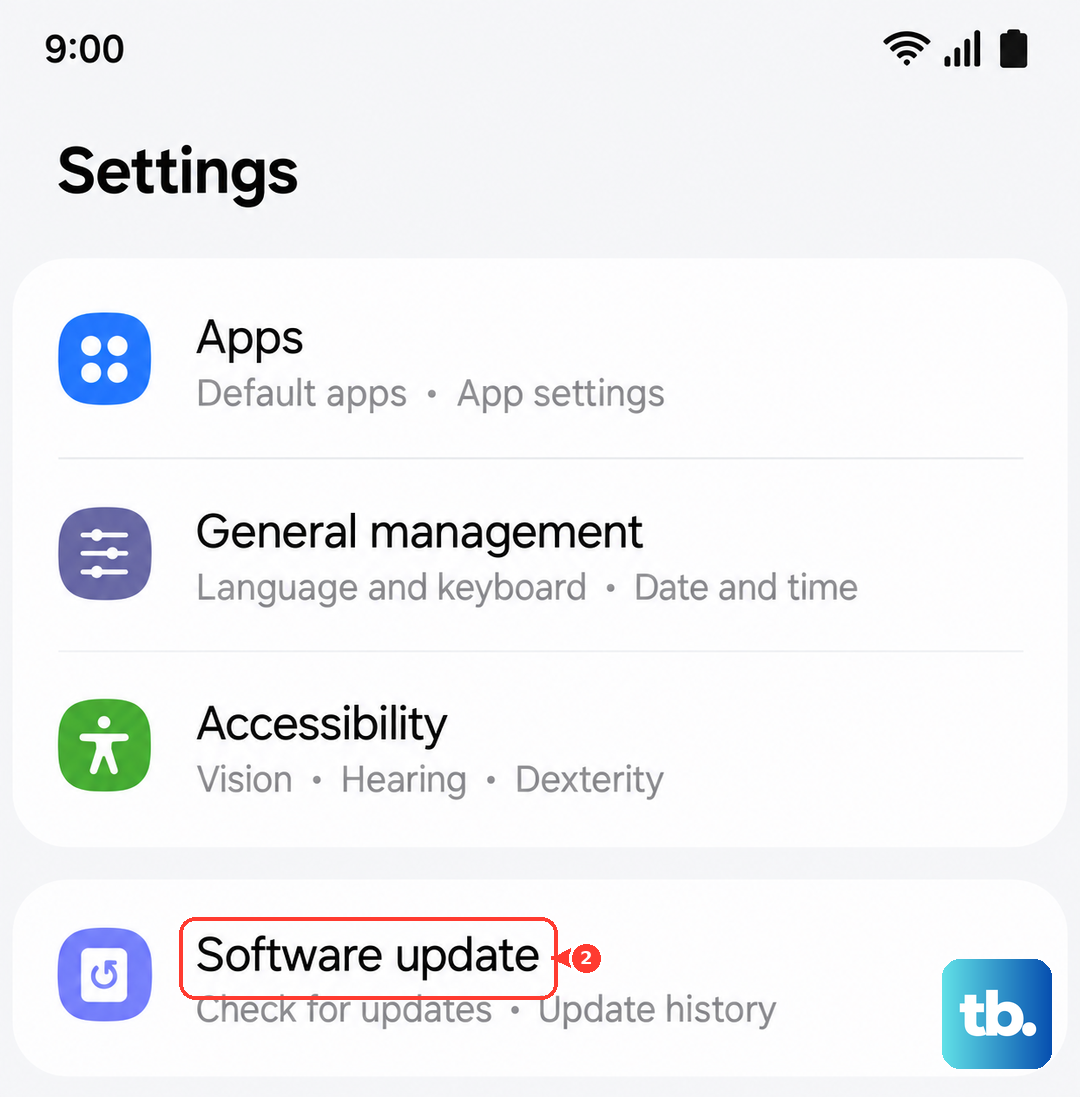
Running an old version of One UI or Android can sometimes cause conflicts with messaging services. Samsung regularly releases updates that include bug fixes. To check, head to Settings > Software update > Download and install. If an update is available, install it and give your phone a restart afterward to make sure everything is running smoothly.
Look at System-Level Services
Beyond the main Messages app, your Galaxy A55 uses background services to handle multimedia messaging. If these get stuck, clearing their cache can help. Go back to Settings > Apps, then tap the three-dot menu and select Show system apps.
Scroll down and look for services named IMS Service or MMS Service. Tap on one, go to its Storage menu, and tap Clear cache. Repeat for any other related services you find. I'd start with this before trying any "Clear data" options on these system services.
Ensure You Have Enough Storage Space
Your phone needs a little free space to process and store incoming MMS messages. If your internal storage is completely full, it can fail. Open the My Files app or go to Settings > Battery and device care > Storage to see how much space you have left. Try to free up at least a few hundred megabytes by deleting old downloads or unused apps.
Try a Different Messaging App
If Samsung Messages is persistently failing, it's worth testing if the problem is with the app itself. Google Messages is a great alternative and is often recommended by carriers. Download it from the Play Store, open it, and set it as your default messaging app when prompted. Try sending an MMS photo to a friend. If it works, you know the issue is specific to the Samsung app's configuration on your device.
Contact Your Mobile Carrier
Sometimes the issue is on their end. Give your carrier's support a quick call. They can check if there's an outage affecting MMS in your area, verify your account is properly provisioned for multimedia messaging, and give you the absolute latest APN settings for your Galaxy A55. They can also confirm if there are any known issues with Samsung's messaging service on their network.