Your Samsung Galaxy A55 5G has locked up, the screen is stuck on one image, and tapping or swiping does nothing at all. A frozen phone feels alarming, but on a standard One UI handset like the A55 it is almost always a temporary software snag you can clear yourself, not a sign the device is broken.
The trick is to work through the fixes in order, starting with the gentlest, safest options and only reaching for anything that touches your data at the very end.
Most of the steps below change nothing permanent. The force restart simply powers the phone off and on, and the diagnostic steps only help you find the culprit.
The single destructive option, a factory data reset, is saved for last and comes with Samsung's own data-loss warning so you know exactly what to back up first.
Rule Out a Case, Protector, or Dirty Screen First
Before you assume the phone itself has failed, look at what is sitting on top of the display. A thick screen protector, a poorly fitting case, or a smear of grease can interfere with the touchscreen and make a perfectly healthy A55 appear frozen or slow to respond.
Take off any screen protector, case, or accessory, then make sure the screen is completely dry and clean. Wipe away fingerprints and moisture, then try interacting with the phone again before moving on. If the touchscreen suddenly responds normally, the accessory was the problem.
Force a Restart When the Screen Will Not Respond
If the display is frozen and nothing you tap registers, a force restart is the fastest way back to a working phone. This is the official recovery move for an unresponsive Galaxy phone, and it does not erase any of your data.
- 1.Press and hold the Volume down button and Side button for 7-10 seconds.
- 2.Keep holding until the screen goes black and the Samsung logo appears.
- 3.Let go and allow the phone to finish starting up on its own.
Samsung describes the same action another way as pressing and holding the Volume down button and the Side button (or Power button) simultaneously until the device turns off and turns back on. Either phrasing produces the identical result, so use whichever is easier to remember.
Reclaim Memory So One UI Can Breathe
A phone that is low on free memory or storage can stutter, hang, and freeze. Once the A55 is responsive again, give it room to work by closing background apps and clearing unused memory in one step.
Open Settings, tap Battery and device care (also shown as Device care on some setups), then tap Optimize now. Optimize now closes running apps and clears unused memory in a single tap. Deleting apps and files you no longer use frees up storage as well, which further reduces the chance of the phone bogging down and locking up again.
Turn Up Touch Sensitivity If You Use a Screen Protector
Sometimes the A55 is not truly frozen; the screen is just slow to register your taps through a protector. If you have already cleaned and reseated the protector and the response still lags, raise the sensitivity so the display reads your touch through the extra layer.
Open Settings, tap Display, then turn on the Touch sensitivity toggle. This setting is designed for exactly this scenario, where a protector dulls the touchscreen's responsiveness. Leave it on as long as the protector is in place.
Install the Latest One UI and App Updates
Software updates regularly fix the very bugs that cause a phone to freeze, so keeping One UI and your apps current is one of the most effective long-term fixes. Make sure the A55 is charged and connected to Wi-Fi before you start.
Open Settings, tap Software update, then tap Download and install. Tap Install now and follow the prompts.
If the touchscreen is too unreliable to navigate these menus, you can update or restore the phone's software from a computer instead. Samsung Smart Switch, the official desktop tool for Windows PC or Mac, is built for this and can refresh the A55's software when the phone alone will not cooperate.
Boot Into Safe Mode to Expose a Problem App
If the freezing keeps coming back, a downloaded app may be to blame. Safe mode temporarily disables all the apps you installed yourself, leaving only the software that shipped with the phone, so you can see whether the device behaves when those extras are switched off.
Press and hold the Side button and the Volume down button at the same time. Touch and hold the Power off icon, then tap the Safe mode icon.
There is also a power-on route: turn the phone off, then when the Samsung logo appears press and hold the Volume down button, and the words Safe mode appear in the bottom-left corner. If the A55 no longer freezes while in Safe mode, you have confirmed that a downloaded app, not the phone itself, is causing the trouble.
Remove the Apps You Added Most Recently
When Safe mode proves an app is at fault, the next job is to find and remove it. Restart the phone normally to exit Safe mode, then start uninstalling the apps you most recently downloaded or updated.
Begin with anything you installed or updated around the time the freezing first started, since that is the most likely offender. Uninstall one app at a time and use the phone for a while between removals, so you can tell exactly which app stops the freezing once it is gone.
Erase and Restore With a Factory Data Reset
If the phone still freezes after everything above, a factory data reset returns the A55 to its original settings and clears out whatever software problem is hiding deep in the system. This step erases all of your data, apps, and personal files, so treat it as a genuine last resort and back up first.
Samsung's own warning is explicit: "Please save any information you need prior to the factory reset because your personal information may not be recovered." Copy your photos, contacts, and anything else important to a computer or cloud backup before you continue.
Open Settings, tap General management, then tap Reset. Tap Factory data reset, tap Reset, then tap Delete all.
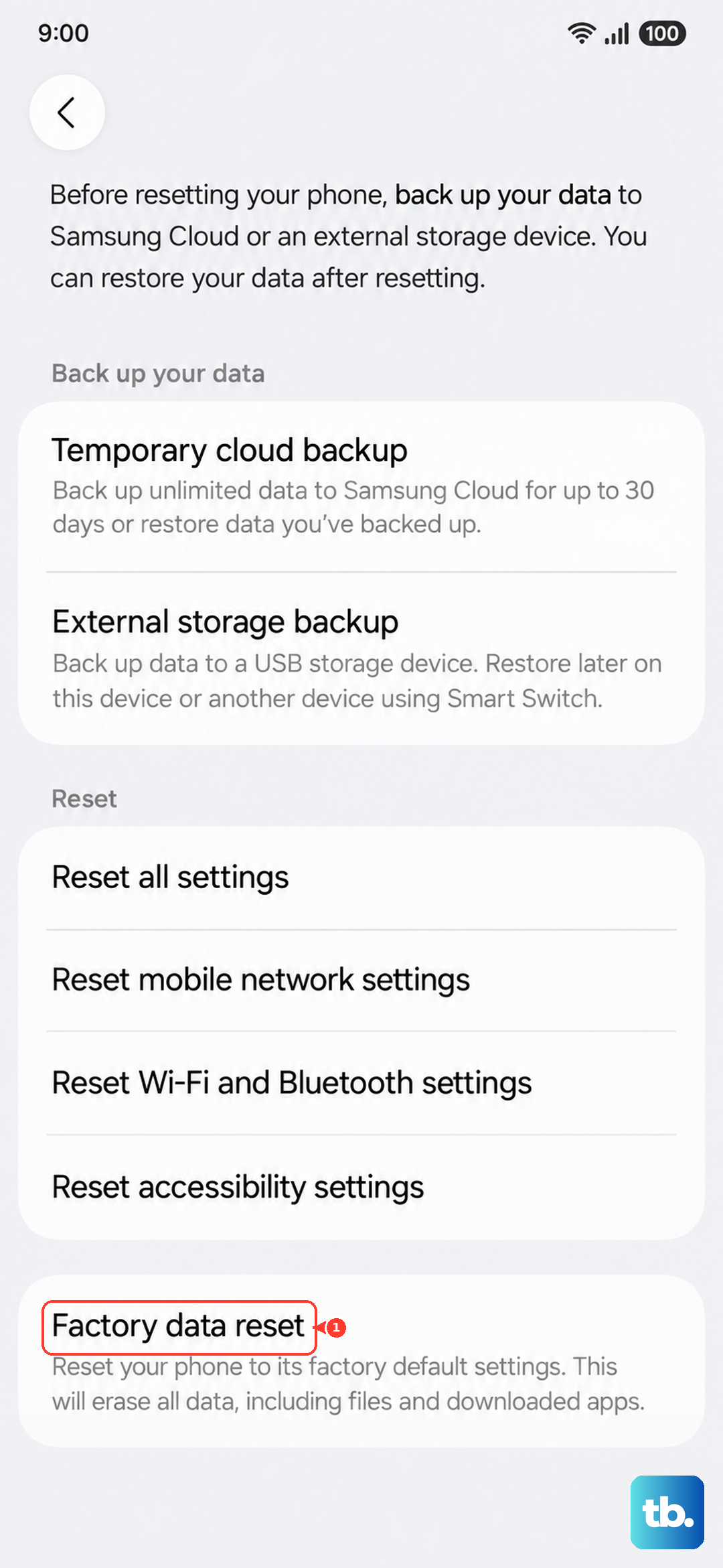
The phone will wipe itself and restart as if it were new. Once it boots, you can sign back in and restore your backed-up data, which should leave you with a clean, freeze-free system.
When to Hand It to Samsung's Technicians
If the A55 continues to freeze even after a factory data reset, the issue may be hardware rather than software. At that point, the safe move is to stop experimenting and let a professional inspect the phone.
Samsung advises contacting Samsung Support or visiting a service center for a proper diagnosis. The Samsung Members app gives you official support and diagnostics access from the phone itself, which is a convenient starting point for arranging that inspection or a repair.
Frequently Asked Questions
Will a force restart erase my photos or apps on the Galaxy A55?
No. Holding the Volume down button and Side button for 7-10 seconds simply powers the phone off and back on. It does not delete any of your data, apps, or personal files, which is why it is one of the first fixes to try.
How do I get out of Safe mode once I have finished testing?
Restart the phone normally to exit Safe mode. Once it boots back up, your downloaded apps are active again, and you can begin uninstalling whichever recently added or updated app was causing the freezing.
Can I update the A55 if the touchscreen is too glitchy to use?
Yes. Samsung Smart Switch, the official desktop tool for Windows PC or Mac, can update or restore the phone's software from a computer. That gives you a way to refresh One UI even when the phone's own menus are hard to navigate.
How long will the Galaxy A55 keep getting the updates that fix freezing?
The A55 launched on Android 14-based One UI 6.1 and follows Samsung's policy of up to 4 OS generations and up to 5 years of security updates. Keeping those updates installed is one of the best ways to prevent software bugs that cause freezing.