
If your Samsung Galaxy A55's fingerprint scanner suddenly stops recognizing you, it can lock you out of your phone and apps. This is a common hiccup, but it's usually something you can fix yourself without a trip to the repair shop.
Start With a Quick Restart
Before you try anything more involved, give your phone a fresh start. Press and hold the Volume Down button and the Side button (power button) together for about 10 seconds. You'll see the Samsung logo appear as the phone reboots.
This simple step clears out temporary software glitches that can confuse the fingerprint sensor. Once it's back on, try unlocking with your finger again.
Clean the Sensor and Your Finger
The Galaxy A55 has an optical fingerprint sensor built into the screen. It needs a clear view of your fingerprint to work. Any smudges, dirt, or moisture on the screen or your finger can block it.
Gently wipe the lower part of your screen with a soft, dry microfiber cloth. Make sure your own finger is clean and completely dry, too. Avoid using any liquid cleaners directly on the screen.
Check Your Screen Protector
This is one of the most common culprits. A thick, low-quality, or poorly aligned screen protector can disrupt the sensor's light. If you recently installed a new protector and the scanner stopped working, that's likely the cause.
Try removing the screen protector temporarily to see if the fingerprint reader starts working again. If it does, you'll need to look for a protector that's specifically marketed as compatible with ultrasonic or in-display fingerprint sensors.
Re-register Your Fingerprint
Sometimes the stored fingerprint data gets corrupted. Deleting and re-adding your fingerprint often solves the problem. Go to Settings > Biometrics and security > Fingerprints.
Enter your PIN, password, or pattern. Tap on the fingerprint you're having trouble with and select Remove. Then, tap Add fingerprint and follow the prompts carefully.
When registering, make sure to roll your finger to capture the edges, not just the center. I'd recommend registering the same finger twice for better accuracy.
Update Your Phone's Software
Samsung regularly releases updates that fix bugs, including ones that affect the fingerprint sensor. An outdated system can cause all sorts of weird behavior.
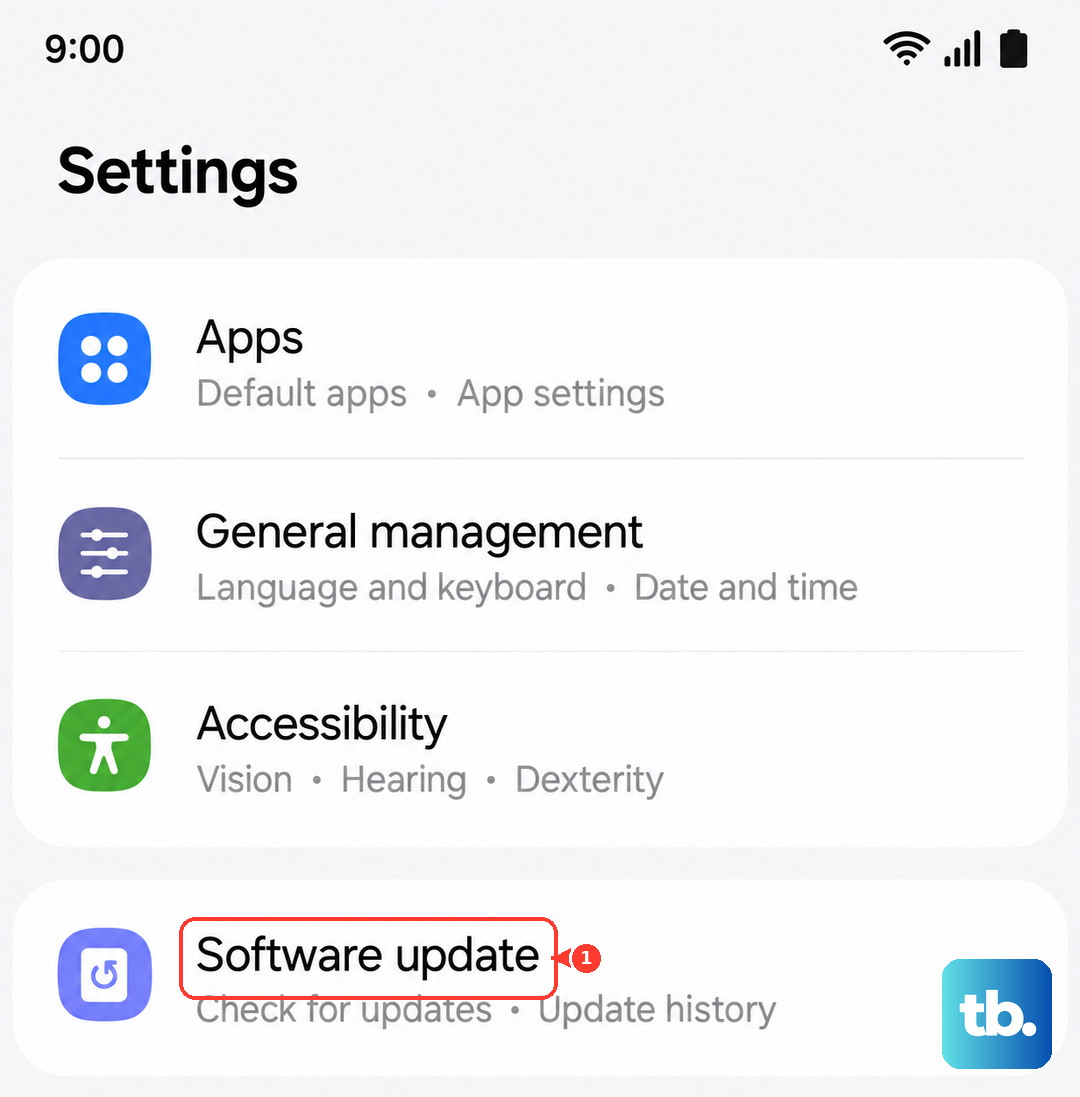
Head to Settings > Software update > Download and install. If an update is available, install it. It's a good idea to plug your A55 into a charger during this process, as the 25W wired charging will speed it up.
Boot Into Recovery Mode to Clear Cache
This is a slightly more advanced step that clears temporary system files without touching your personal data. It can resolve deeper software conflicts. First, turn off your Galaxy A55 completely.
Press and hold the Volume Up button and the Side button together. When you see the Samsung logo, let go of both buttons. You'll now be in the Android Recovery menu.
Use the Volume Down button to highlight Wipe cache partition. Press the Side button to select it. Confirm the action, then select Reboot system now when it's done.
Check for App Conflicts in Safe Mode
A recently installed third-party app might be interfering with the biometric security system. Booting into Safe Mode temporarily disables all downloaded apps.
Press and hold the Side button until the power menu appears. Tap and hold the Power off icon until you see the Safe Mode prompt, then tap it. If the fingerprint scanner works perfectly in Safe Mode, you know a downloaded app is the problem.
You'll need to restart your phone to exit Safe Mode. Then, start uninstalling apps you installed around the time the problem began.
Review Your Fingerprint Settings
There are a couple of settings worth double-checking. Go back to Settings > Biometrics and security > Fingerprints.
Make sure Fingerprint unlock is toggled on. Also, look for an option called "Show animation when unlocking" or similar. Some users have found that disabling any unlock animation can improve recognition speed and reliability.
Ensure Your Screen is On and Bright Enough
The optical sensor needs light to see your fingerprint. If you're trying to use the fingerprint icon on the always-on display or a very dim lock screen, it might fail.
Tap your screen to wake it up fully before placing your finger on the sensor. You can also check your display brightness settings to make sure it's not set too low for the sensor to function properly.
Register an Alternative Finger
If one finger consistently fails, it might be due to minor cuts, dry skin, or wear from work. Your fingerprints can change slightly over time.
Go into the fingerprint settings and add another finger, perhaps from your other hand. It's a good practice to have at least two fingerprints registered as a backup. This way, you're not locked out if one finger is temporarily unreadable.
Remember to keep your primary unlock method, like your PIN or password, set up and memorized. That's your ultimate backup if the sensor has a bad day. For most people, one of these steps will get the fingerprint scanner on your Galaxy A55 working smoothly again.